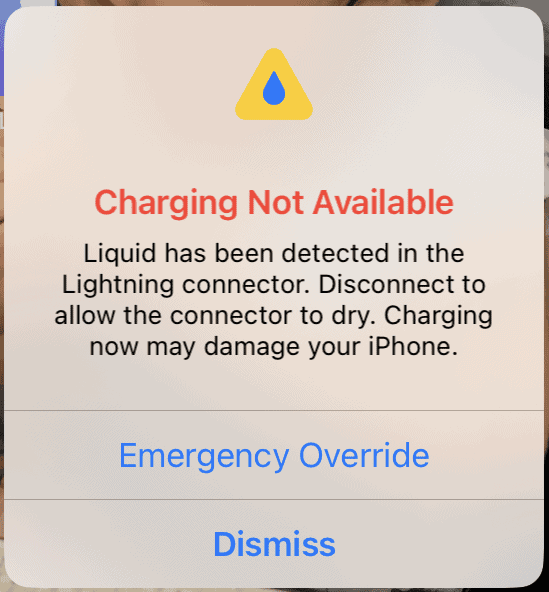
Have you ever seen the “Liquid Detected in Lightning Connector” alert on your iPhone? It can be alarming, but don’t worry. This warning appears when your iPhone senses moisture in its Lightning port, preventing you from charging to avoid potential damage.
Your iPhone has built-in sensors to detect liquid in the charging port. This feature protects your device from short circuits or corrosion that can occur when you plug in a charger while the port is wet. When triggered, the alert stops you from using wired accessories until the connector dries out.
If you see this message, unplug any connected cables immediately. Let your iPhone dry naturally for several hours before attempting to charge again. Avoid using rice or heat to speed up drying, as these methods can cause more harm than good. While waiting, you can still use wireless charging if needed.
| Alert Cause | Recommended Action | Alternative Charging |
|---|---|---|
| Moisture in Lightning port | Unplug and let dry naturally | Use wireless charging |
| Humid environment | Move to drier location | Wait for alert to clear |
| Water exposure | Dry iPhone thoroughly | Contact Apple Support if persistent |
Liquid Detected in Lightning Connector: Quick Fixes for iPhone Users
Seeing the “Liquid Detected in Lightning Connector” alert on your iPhone can be alarming—but it’s actually a protective feature designed to prevent damage. This guide explains what the warning means and walks you through safe, effective fixes to get your iPhone charging again.
What Does the Alert Mean?
Apple’s liquid‑detection system senses moisture in the Lightning port or cable. When detected, iOS temporarily disables charging to prevent:
- Short circuits
- Corrosion
- Permanent damage to internal components
This can happen due to:
- Rain or splashes
- Sweat
- High humidity
- Steam (bathrooms, kitchens)
- Liquid on the charging cable itself
⚠️ What NOT to Do
Avoid these common mistakes:
- ❌ Do not use a hair dryer or heat gun
- ❌ Do not insert cotton swabs, tissues, or metal objects
- ❌ Do not shake the phone aggressively
- ❌ Do not plug it back in repeatedly
These can push liquid deeper or damage the port.
✅ Quick Fixes That Actually Work
1. Disconnect Immediately
- Unplug the Lightning cable as soon as the alert appears
- Power off the iPhone if possible
2. Gently Tap Out Excess Liquid
- Hold the iPhone with the Lightning port facing down
- Lightly tap it against your palm
- This helps gravity remove moisture
3. Let It Air‑Dry (Most Effective)
- Place the phone in a dry, well‑ventilated area
- Keep the port facing down or sideways
- Wait at least 30 minutes
- For heavier moisture, wait 2–6 hours
✅ Apple recommends air‑drying only
4. Switch to Wireless Charging (Temporary Solution)
- If your iPhone supports Qi or MagSafe charging
- Use wireless charging while the port dries
- This bypasses the Lightning port safely
5. Check the Charging Cable
- Moisture may be in the cable, not the phone
- Try a different Lightning cable after drying
🚫 Should You Use Rice?
No.
- Rice does not effectively remove moisture
- Dust can enter the port and cause more problems
- Apple explicitly advises against it
How Long Until Charging Works Again?
- Light moisture: 30–60 minutes
- Moderate exposure: 2–6 hours
- Heavy exposure: Up to 24 hours
iOS will automatically allow charging once the port is dry.
Emergency Override (Use with Caution)
If you’re in an emergency:
- Plug in the Lightning cable
- Tap “Emergency Override” when prompted
⚠️ This may cause damage and should only be used when absolutely necessary.
When to Seek Professional Help
Contact Apple Support or visit an Apple Authorized Service Provider if:
- The alert persists after 24 hours
- The phone was submerged in liquid
- Charging still fails after drying
- You notice corrosion or overheating
How to Prevent This in the Future
- Avoid charging in humid environments
- Dry your phone before plugging it in
- Use a water‑resistant case
- Keep charging cables clean and dry
Final Thoughts
The “Liquid Detected in Lightning Connector” alert is your iPhone protecting itself. In most cases, patience and air‑drying are all you need. Avoid quick‑fix myths, and your device should be back to normal without damage.
Understanding the Liquid Detection Feature
The iPhone’s liquid detection feature protects your device from water damage. It alerts you when moisture is detected in the Lightning connector. This safety mechanism helps prevent short circuits and corrosion.
How the iPhone Detects Liquid
iPhones use sophisticated sensors in the Lightning port to detect moisture. These sensors trigger an alert when liquid is present. The system is designed to be sensitive enough to detect even small amounts of moisture.
When liquid is detected, your iPhone displays a warning message. It may say “Liquid has been detected in the Lightning connector”. This alert appears on your screen and prevents charging.
The sensors can detect various types of liquids:
- Water
- Beverages
- Sweat
- Humidity
Your iPhone might show this alert after exposure to rain or accidental spills. Even high humidity can sometimes trigger the warning.
Risks of Ignoring Liquid Detection Warnings
Ignoring liquid detection warnings can lead to serious consequences for your iPhone. The main risks include:
- Short circuits: Liquid in the connector can cause electrical components to fail.
- Corrosion: Moisture can corrode internal parts over time.
- Permanent damage: Continued exposure to liquid may result in irreparable harm.
Charging your iPhone while it’s wet can cause further damage. The combination of electricity and moisture increases the risk of short circuits.
Connectivity issues may arise if you ignore these warnings. Your iPhone might not charge properly or connect to accessories. In some cases, the Lightning port could stop working entirely.
To protect your device:
- Dry your iPhone thoroughly before charging
- Wait for the warning to disappear
- Use wireless charging if available
| Action | Consequence |
|---|---|
| Ignore warning | Potential damage |
| Dry device | Protect components |
| Wait 30 minutes | Allow time to dry |
| Use wireless charging | Avoid liquid in port |
Immediate Response Actions
When your iPhone detects liquid in the Lightning connector, quick action is crucial. Proper removal of the cable and drying the connector can prevent damage to your device.
Proper Removal of the Lightning Cable
If you see the liquid detection alert, unplug any connected cables or accessories right away. Don’t try to override the warning by force-connecting the cable. This could lead to corrosion or short circuits.
Handle your iPhone gently. Avoid shaking it vigorously, as this might spread the liquid further inside the device. Instead, hold your iPhone with the Lightning port facing down. This positioning helps prevent liquid from moving deeper into the phone.
Drying Techniques for the Lightning Connector
Start by tapping your iPhone gently against your hand with the connector facing down. This can help remove excess liquid.
Use a soft, lint-free cloth to carefully wipe the exterior of the Lightning port. Don’t insert anything into the port, as this could cause damage.
Place your iPhone in a dry area with good airflow. A fan can help speed up the process, but avoid using heat sources like hair dryers.
Wait at least 30 minutes before attempting to charge or connect accessories again. If the alert persists, give your phone more drying time.
| Drying Method | Pros | Cons |
|---|---|---|
| Natural air | Safe, no risk of damage | Slow |
| Fan-assisted | Faster than natural air | Requires a fan |
| Silica gel | Absorbs moisture well | Not always readily available |
Preventive Measures and Maintenance
Protecting your iPhone from liquid damage requires proactive steps and regular care. By implementing these measures, you can safeguard your device and avoid the “Liquid Detected in Lightning Connector” alert.
Protective Accessories and Cases
Invest in a water-resistant case to shield your iPhone from accidental spills and splashes. These cases create a barrier around your device, including the Lightning port. Look for cases with port covers that seal the connector when not in use.
Consider using silica gel packets near your iPhone when stored. They absorb moisture and help keep the environment dry. Place them in your phone case or nearby storage areas.
Avoid exposing your iPhone to extreme humidity. Use a dehumidifier in damp spaces where you frequently use or charge your device.
| Accessory Type | Protection Level | Recommended Use |
|---|---|---|
| Water-resistant case | Moderate | Daily use |
| Waterproof case | High | Water activities |
| Silicone port covers | Low | When not charging |
Regular Cleaning and Care
Clean your iPhone’s Lightning port regularly to prevent debris buildup. Use a soft, dry brush or compressed air to remove dust and lint. Avoid inserting objects into the port, as this can cause damage.
Wipe your iPhone with a microfiber cloth daily to remove moisture and dirt. Pay extra attention to the areas around the Lightning port and other openings.
If your iPhone gets wet, dry it immediately. Use a lint-free cloth to wipe the exterior. Gently tap the phone against your hand with the Lightning port facing down to remove excess water.
Avoid using external heat sources like hair dryers to dry your iPhone. Let it air dry naturally in a well-ventilated area for at least 30 minutes before attempting to charge or connect accessories.
When to Seek Professional Help
Some iPhone liquid damage issues require expert assistance. Knowing when to get professional help can save time and prevent further damage.
Assessing the Damage and Possible Repairs
If your iPhone continues to display the liquid detected alert after drying for 24-48 hours, it’s time to consider professional help. Look for signs of internal damage such as:
• Screen discoloration or flickering
• Unresponsive buttons
• Unusual noises from the device
• Battery draining quickly
These symptoms suggest water has seeped into critical components. Professional repair shops have tools to open the device safely and assess internal damage. They can clean corroded parts and replace damaged components if needed.
Attempting DIY repairs may void your warranty and risk further damage. Certified technicians can diagnose issues accurately and provide a repair estimate.
Contacting Apple Support for Assistance
Apple Support offers several options for professional help with liquid damage:
• Phone support: Speak directly with a technician
• Online chat: Get real-time assistance
• In-store appointment: Visit an Apple Store for hands-on help
Apple’s warranty doesn’t cover liquid damage. But AppleCare+ offers two accidental damage incidents per year. Check your coverage before seeking repairs.
| Service Option | Pros | Cons |
|---|---|---|
| Apple Store | Expert technicians, genuine parts | May have long wait times |
| Authorized Service Provider | Often quicker than Apple Store | Limited to approved repairs |
| Independent Repair Shop | Potentially cheaper, faster service | May use third-party parts |
Choose a repair option based on your warranty status, urgency, and budget. Professional help ensures your iPhone gets proper care and increases the chances of successful repair.
Frequently Asked Questions
Liquid detection alerts in iPhone charging ports can be confusing and concerning. These questions address common issues users face and provide practical solutions.
How do I get liquid out of my charging port?
To remove liquid from your charging port:
- Unplug all cables and accessories
- Gently tap your iPhone against your hand with the port facing down
- Place your device in a dry area with airflow
- Wait at least 30 minutes before trying to charge again
Avoid using heat sources or compressed air as these can damage your device.
Why does my phone say there’s water in the charging port when there isn’t?
Your iPhone may falsely detect liquid due to:
- High humidity in the environment
- Condensation from temperature changes
- Debris in the charging port
Try cleaning the port with a soft, dry, lint-free cloth. If the alert persists, restart your device.
What should I do if my device shows a liquid detection alert but it’s not wet?
If you’re certain your device isn’t wet:
- Check for debris in the port
- Use a different charging cable
- Restart your iPhone
- Update to the latest iOS version
If the problem continues, contact Apple Support for further assistance.
How long does it take for a charging port to dry?
Drying time varies based on the amount of liquid and environmental conditions. Generally:
- Allow at least 30 minutes for small amounts of moisture
- Wait up to 24 hours for more significant exposure
- Use a fan to improve air circulation and speed up drying
Patience is key. Avoid charging until you’re sure the port is dry.
What steps can be taken to fix a liquid detection alert in the Lightning connector?
To resolve a liquid detection alert:
- Disconnect all cables and accessories
- Dry your iPhone and the Lightning port
- Wait at least 30 minutes
- Try a different Lightning cable
- Restart your iPhone
If these steps don’t work, contact Apple Support for professional help.
Why is the liquid detection alert persisting for days on my device?
A persistent alert may indicate:
- Trapped moisture in the port
- Corrosion from liquid exposure
- Damage to the Lightning connector
Try using a wireless charger if available. If the alert continues for more than 48 hours, seek assistance from an Apple Store or authorized service provider.
| Issue | Quick Fix | When to Seek Help |
|---|---|---|
| False alert | Restart device | After 24 hours |
| Wet port | Air dry for 30 min | If persists >24 hours |
| Persistent alert | Try wireless charging | After 48 hours |
| Visible damage | Don’t charge | Immediately |