
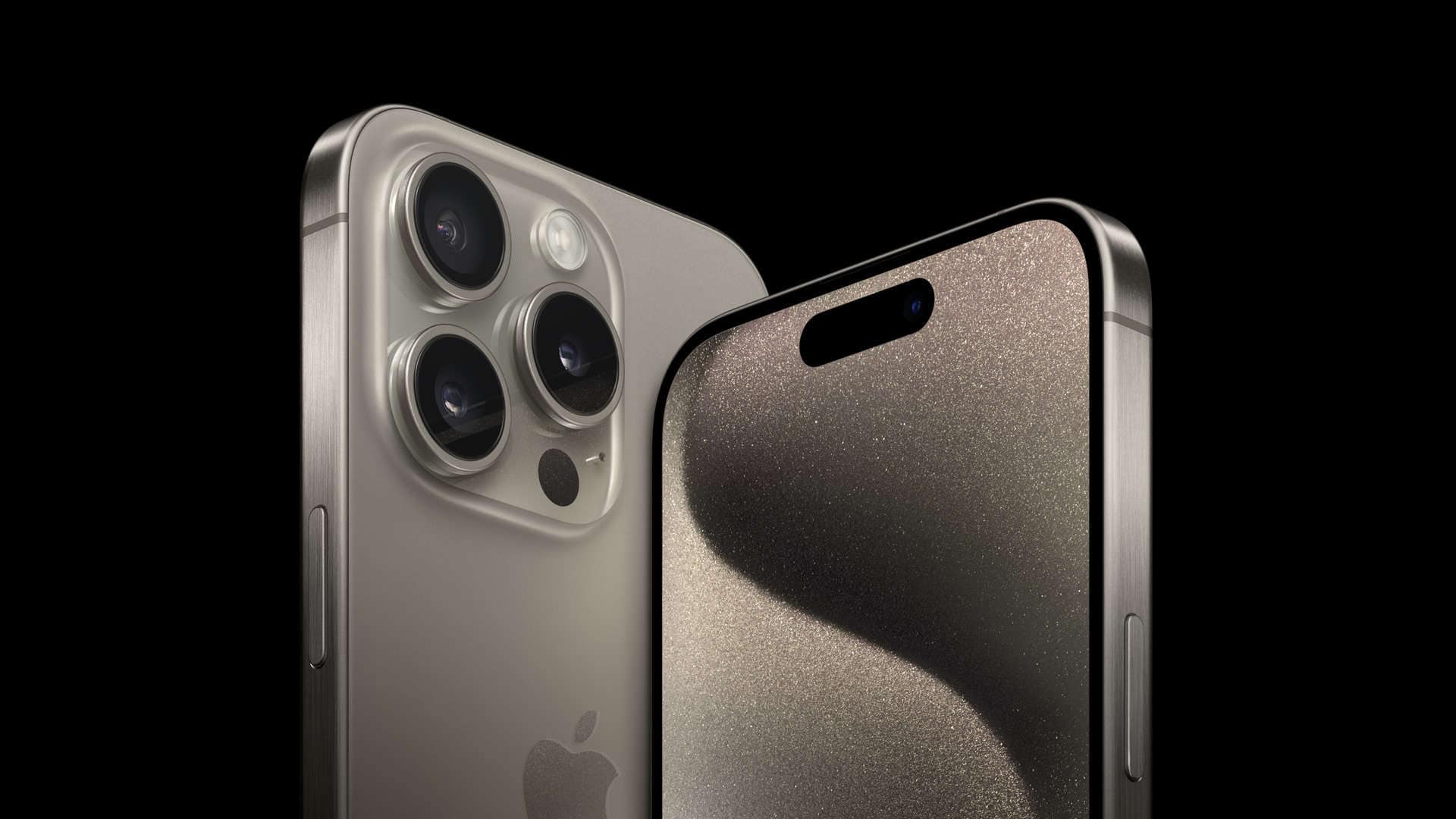
The iPhone 15 camera brings powerful new features to mobile photography. With advanced settings and modes, you can capture stunning images in various conditions. Mastering these settings unlocks the full potential of your iPhone 15’s camera system.
The iPhone 15 lineup offers different camera capabilities across models. The base iPhone 15 and 15 Plus feature dual-lens setups, while the Pro models boast triple-lens arrays with a new periscope zoom. Each version allows you to adjust resolution, file formats, and shooting modes to suit your needs.
Key settings to explore include switching between JPEG and ProRAW formats, enabling HDR, and using Night mode for low-light shots. You can also fine-tune advanced options like Scene Detection and Lens Correction to enhance your photos further.
| Setting | Function | Models |
|---|---|---|
| ProRAW | Captures uncompressed images | 15 Pro, 15 Pro Max |
| Night mode | Improves low-light photos | All iPhone 15 models |
| Photographic Styles | Customizes image processing | All iPhone 15 models |
| Macro mode | Close-up photography | 15 Pro, 15 Pro Max |
iPhone 15 Camera Settings: Tips for Optimal Photography (2026 Guide)
The iPhone 15 and iPhone 15 Pro feature powerful camera systems, including a 48MP main sensor, improved Smart HDR, and advanced computational photography. But to get the best results, you need the right settings.
This guide walks you through the best iPhone 15 camera settings for sharper photos, better night shots, and professional-level results.
📸 1. Enable 48MP for Maximum Detail (Main Camera)
By default, iPhone 15 shoots 24MP images (a balance of detail and file size). If you want full 48MP resolution:
How to Enable 48MP:
- Go to Settings > Camera
- Tap Formats
- Enable ProRAW & Resolution Control (Pro models)
- Select 48MP
The 48MP mode captures significantly more detail, ideal for landscapes and cropping (source: DPReview).
✅ Best for: Daylight landscapes, architecture, detailed scenes
⚠️ Note: File sizes are much larger
🎯 2. Turn On ProRAW (iPhone 15 Pro Models)
If you want maximum editing flexibility:
- Go to Settings > Camera > Formats
- Enable Apple ProRAW
- Toggle RAW inside the Camera app when shooting
ProRAW preserves more image data for advanced editing (source: The Mac Observer).
✅ Best for: Professional editing in Lightroom or Photoshop
⚠️ Not necessary for everyday snapshots
🌙 3. Optimize Night Mode
Night Mode turns on automatically in low light, but you can control it.
Tips:
- Tap the moon icon
- Adjust exposure time manually (up to several seconds)
- Keep your phone steady or use a tripod
Night Mode dramatically improves low-light detail and brightness (source: iGeeksBlog).
✅ Best for: Night cityscapes, indoor low-light scenes
👤 4. Use Portrait Mode the Right Way
Portrait mode works best when:
- Subject is 2–8 feet away
- Lighting is even and soft
- Background has depth
After taking the photo, you can adjust:
- Depth blur (f-stop slider)
- Focus point
- Lighting effects
Using proper distance improves background separation and edge detection (source: FocalFun).
🎨 5. Adjust Photographic Styles
Photographic Styles let you customize tone and warmth without affecting skin tones unnaturally.
To Set:
- Go to Settings > Camera > Photographic Styles
- Choose a preset or customize tone and warmth
These styles apply automatically to every photo unless changed.
✅ Good for: Consistent color look across images
⚠️ Not the same as filters (these affect capture processing)
📱 6. Turn On Grid for Better Composition
- Go to Settings > Camera
- Enable Grid
The grid helps you apply the rule of thirds for better composition.
Composition improvements are one of the easiest ways to elevate smartphone photography (source: Geeky Gadgets).
⚡ 7. Use Action Mode for Moving Subjects (iPhone 15/15 Pro)
Action Mode stabilizes video while moving.
Best used when:
- Running
- Walking
- Filming sports
- Shooting handheld motion
🔄 8. Disable “View Outside the Frame” (Optional)
If you prefer precise framing:
- Go to Settings > Camera
- Turn off View Outside the Frame
Some users prefer exact framing instead of previewing the wider lens area.
🌄 9. Use 2x Zoom Smartly
The iPhone 15’s 2x zoom uses a crop of the 48MP sensor.
✅ Great for portraits
✅ Maintains strong detail in good lighting
⚠️ Avoid excessive digital zoom beyond optical range
📹 10. Set Video to 4K
For best video quality:
- Go to Settings > Camera > Record Video
- Select 4K at 30fps or 4K at 60fps
Higher resolution improves clarity and flexibility in editing (source: TechTimes).
🔍 11. Lock Focus & Exposure (Pro Tip)
To avoid exposure shifts:
- Tap and hold on your subject
- Wait for AE/AF Lock
- Adjust brightness using the slider
This prevents the camera from constantly refocusing.
📊 Best iPhone 15 Camera Settings (Quick Summary)
| Scenario | Recommended Settings |
|---|---|
| Landscapes | 48MP enabled |
| Portraits | Portrait Mode + 2x zoom |
| Night photos | Night Mode + steady hold |
| Action shots | Burst mode |
| Video | 4K at 30/60fps |
| Editing flexibility | ProRAW |
✅ Bonus Tips for Better Photos
- Clean the lens before shooting
- Tap to focus manually
- Avoid using flash unless necessary
- Shoot in natural light whenever possible
- Keep HDR enabled
🎯 Final Thoughts
The iPhone 15 camera system is powerful, but small setting adjustments make a big difference. Enabling 48MP for detail, using ProRAW for editing flexibility, and optimizing Night Mode can dramatically improve your results.
Camera Features and User Interface
The iPhone 15’s camera app offers a user-friendly interface with easy access to settings and modes. Its intuitive design lets you quickly adjust options and capture photos.
Accessing Camera Settings
To access camera settings on your iPhone 15, open the Camera app and tap the arrow at the top of the screen. This reveals a row of icons for quick adjustments. Swipe left or right to see more options.
Key settings include:
- Flash: On/Off/Auto
- Live Photos: On/Off
- Aspect Ratio: 4:3/16:9/1:1
- Exposure Compensation: Slide to adjust
- Timer: Off/3s/10s
For more advanced settings, go to the main Settings app and scroll down to “Camera”. Here you can toggle features like:
- Grid lines
- Preserve Settings
- Mirror Front Camera
Navigating the Camera App
The Camera app’s main screen is simple to use. The viewfinder takes up most of the space. At the bottom, you’ll find a slider to switch between modes:
| Mode | Function |
|---|---|
| Photo | Standard still images |
| Video | Record video footage |
| Portrait | Depth-of-field effects |
| Pano | Panoramic shots |
Tap the 1x button to switch between available lenses. Use pinch gestures to zoom in or out. The shutter button is centered at the bottom. Press it to take a photo or start/stop video recording.
Swipe left or right on the mode slider to access Night mode, Cinematic video, and Slo-mo. The top-right corner houses options for Live Photos, filters, and timer settings.
Photo and Video Quality Options
The iPhone 15 offers powerful settings to control image quality and style. You can adjust resolution, file formats, and apply creative enhancements to achieve your desired results.
Choosing Resolution and Formats
The iPhone 15 allows you to capture photos at 48MP resolution. To enable this, go to Settings > Camera > Formats and turn on Resolution Control. For Pro models, set Pro Default to HEIF Max or ProRAW Max.
You can choose between HEIF and JPEG formats. HEIF offers better quality at smaller file sizes. ProRAW is available on Pro models for maximum editing flexibility.
| Format | Pros | Cons |
|---|---|---|
| HEIF | Smaller file size, High quality | Limited compatibility |
| JPEG | Universal compatibility | Larger file size |
| ProRAW | Maximum editing control | Very large file size |
To switch between 12MP, 24MP, and 48MP resolutions, adjust the settings in Photo Mode. Higher resolutions capture more detail but use more storage space.
Enhancing Images with Photographic Styles and Filters
Photographic Styles let you customize the look of your photos. Access them by tapping the arrow at the top of the Camera app. Choose from options like Rich Contrast, Vibrant, or Cool.
You can fine-tune each style by adjusting Tone and Warmth sliders. This gives you precise control over your image’s appearance.
Filters offer quick creative effects. Tap the filter icon in the Camera app to preview and apply them. Popular choices include Vivid, Dramatic, and Noir.
Remember, Photographic Styles affect RAW files, while filters do not. This gives you more flexibility when editing RAW images later.
Advanced Camera Functionalities
The iPhone 15 offers powerful camera features for photography enthusiasts. These tools allow you to capture stunning images in various conditions and unleash your creativity.
Mastering ProRAW and Pro Modes
ProRAW Max gives you unparalleled control over your photos. To enable it, go to Settings > Camera > Formats and turn on ProRAW & Resolution Control. Choose HEIF Max or ProRAW Max as your Pro Default option.
ProRAW preserves more image data, letting you fine-tune your shots later. Use the granular adjustment wheel in editing apps to perfect exposure, color, and detail.
Pro Mode offers manual control over settings like ISO, shutter speed, and focus. This mode is ideal for challenging lighting situations or creative effects.
| Setting | ProRAW | Pro Mode |
|---|---|---|
| File Size | Larger | Smaller |
| Editing Flexibility | High | Moderate |
| Manual Controls | Limited | Extensive |
Using Night and Macro Modes
Night Mode activates automatically in low light. It takes longer exposures to capture more detail and color. You can adjust the exposure time manually for creative effects.
To use Macro Mode, get close to your subject. The camera switches automatically when you’re near enough. For more control, enable the Macro Control toggle in Camera settings.
Both modes work with Live Photos. This feature captures moments before and after you press the shutter, adding movement to your images.
Creative Control with Cinematic and Action Modes
Cinematic Mode adds a shallow depth of field to your videos. It mimics the look of professional film cameras. You can adjust the focus during or after recording.
Action Mode stabilizes your footage when you’re moving. It’s perfect for capturing sports or other fast-paced scenes. To use it, swipe to “Action” in the camera app before recording.
These modes give your videos a polished, professional look without complex equipment or editing.
Adjusting and Preserving Camera Settings
The iPhone 15 offers extensive customization options for its camera. You can tailor shooting preferences and ensure your settings are remembered for future use.
Customizing Shooting Preferences
You can adjust various camera settings on your iPhone 15 to match your photography style. To access these options, go to Settings > Camera.
Resolution Control lets you switch between 12MP and 48MP photos. Enable this in Settings > Camera > Formats.
For exposure adjustments, tap the screen while in the Camera app and use the slider that appears. You can also set exposure compensation to maintain across sessions.
Aspect ratio can be changed by tapping the crop icon in the top right corner of the Camera app. Choose from 4:3, 16:9, or 1:1 square formats.
To prioritize faster shooting, turn on “Prioritize Faster Shooting” in camera settings. This may slightly reduce image quality but increases capture speed.
Memory and Preservation of Settings
The iPhone 15 can remember your preferred camera settings. This feature saves time and ensures consistency across your photos.
To enable this, go to Settings > Camera > Preserve Settings. Here’s what you can preserve:
| Setting | Description |
|---|---|
| Camera Mode | Keeps the last used mode (Photo, Video, etc.) |
| Creative Controls | Remembers filters and aspect ratio |
| Exposure Adjustment | Maintains your chosen exposure compensation |
| Night Mode | Keeps your Night Mode preferences |
Volume buttons can be set to act as shutter buttons. This option is found in Settings > Camera.
For video settings, you can preserve resolution and frame rate choices. This ensures your preferred video quality is always selected when you switch to video mode.
Frequently Asked Questions
The iPhone 15 camera offers numerous settings to enhance your photography and videography. These options allow you to capture high-quality images and videos in various situations.
What are the optimal camera settings for high-quality photos on the iPhone 15?
To capture high-quality photos on your iPhone 15, enable ProRAW & Resolution Control. This setting allows you to shoot in 48MP resolution. Use the grid feature to improve composition.
Adjust exposure by tapping the screen and sliding the sun icon up or down. For enhanced detail, turn on Smart HDR.
How do I adjust the iPhone 15 camera settings for high-resolution selfies?
For high-resolution selfies, switch to the front camera and enable Portrait mode. This setting adds depth to your selfies. Adjust lighting effects by swiping left or right.
Enable ProRAW for the front camera in Settings > Camera > Formats. This option captures more detail in your selfies.
Which settings should I use for the best video quality on the iPhone 15?
For top-notch video quality, select 4K resolution at 60 fps in Camera settings. Enable HDR video for improved dynamic range. Use the Cinematic mode for professional-looking depth-of-field effects.
Activate ProRes video recording for higher quality footage. This option is available on iPhone 15 Pro models.
What steps can be taken to enhance the camera quality of the iPhone 15?
To boost camera quality, clean the lens regularly. Use a microfiber cloth to remove smudges and fingerprints. Keep your iPhone updated to the latest iOS version for new camera features.
Experiment with different lighting conditions. Natural light often produces the best results for iPhone photography.
How can I ensure I’m making the most of the iPhone 15’s camera features?
Explore all camera modes like Night, Pano, and Portrait. Practice using these modes in different scenarios. Experiment with Live Photos to capture moments before and after you take a picture.
Learn to use the volume buttons as shutter release. This technique can reduce camera shake when taking photos.
What are the recommended settings for professional-quality photography on the iPhone 15?
For professional-quality photos, shoot in ProRAW format. This setting gives you more flexibility in post-processing. Use the Manual mode to adjust ISO, shutter speed, and white balance.
Try long exposure techniques for creative effects. Enable the Level tool to ensure straight horizons in your shots.
| Setting | Recommendation |
|---|---|
| Resolution | 48MP (ProRAW) |
| HDR | On |
| Video | 4K at 60 fps |
| Selfie | Portrait mode |
| Low Light | Night mode |





