
Is your iPhone camera acting up? This can be frustrating, especially when you need to capture important moments. Many iPhone users face camera issues ranging from blurry photos to complete camera failure. You can often fix a broken iPhone camera through basic troubleshooting like restarting your phone, updating iOS, or clearing the camera app cache before resorting to professional repair options.
Camera problems sometimes happen due to software glitches that are easy to fix at home. Try force-closing the camera app, checking for iOS updates, or removing any case that might block the lens. For more serious issues, you might need to consider a camera replacement at an Apple Store or authorized service provider.
If your iPhone camera has physical damage like a cracked lens, you have several options. For minor issues, some users have successfully completed DIY repairs with parts from online retailers. For professional service, Apple offers repair options with different costs based on your warranty status and AppleCare+ coverage.
How To Fix a Broken iPhone Camera (Step‑by‑Step Guide)
A broken iPhone camera can show up in different ways — blurry photos, black screen, shaking image, cracked lens, or the Camera app freezing. This guide walks you through how to diagnose and fix the issue, from simple software fixes to hardware repair options.
🔍 Step 1: Identify the Problem
Common iPhone camera issues include:
- 📸 Blurry or unfocused photos
- ⚫ Black camera screen
- 🔄 Camera app freezing or crashing
- 💡 Flash not working
- 📷 Shaky or vibrating image
- 🔎 Cracked rear camera lens
Physical cracks and internal lens damage can cause distortion or glare in photos (source: GeekChamp).
✅ Step 2: Try Quick Software Fixes First
Many camera problems are software-related.
1. Restart Your iPhone
- Hold the power button + volume button
- Slide to power off
- Turn it back on after 30 seconds
This often fixes temporary glitches.
2. Force Close the Camera App
- Swipe up from the bottom (or double-press Home button)
- Swipe the Camera app away
- Reopen it
Freezing and black-screen issues are commonly resolved this way (source: GeeksChalk).
3. Update iOS
- Go to Settings > General > Software Update
- Install any available updates
Updates frequently fix camera-related bugs.
4. Reset All Settings
If problems persist:
Settings > General > Transfer or Reset iPhone > Reset > Reset All Settings
This does NOT delete your data, but it resets Wi‑Fi, Bluetooth, and system settings.
🔧 Step 3: Fix a Blurry Camera
If photos look blurry:
✔ Clean the Lens
Use a microfiber cloth. Even fingerprints can cause blur.
✔ Remove Case or Magnetic Accessories
Some cases interfere with autofocus or optical stabilization.
✔ Tap to Focus
Open Camera and tap your subject to refocus.
If wide-angle photos show cracks or distortion but ultra-wide works fine, the main camera module may be damaged (source: iFixit).
⚫ Step 4: Fix Black Camera Screen
If the screen is black:
- Switch between front and rear cameras
- Restart the phone
- Check for third-party camera apps causing conflict
- Reset settings (see above)
If the problem remains, it could indicate hardware failure (source: Asurion).
📷 Step 5: Fix a Cracked Camera Lens
If the outer glass is cracked but the camera still works:
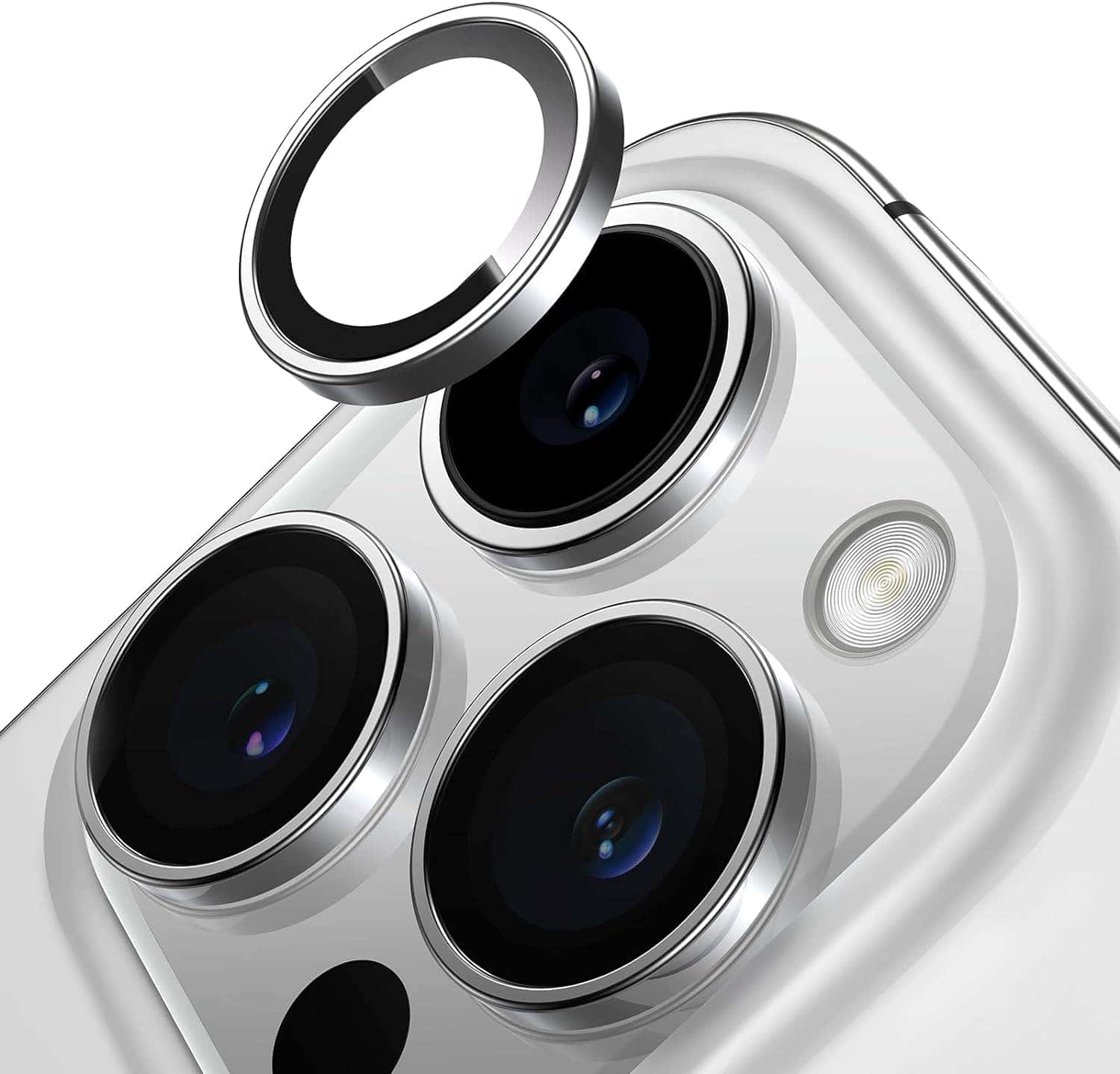
Option 1: Replace the Camera Lens Cover (DIY)
- Purchase a lens replacement kit
- Remove broken glass carefully
- Install new adhesive-backed lens cover
Step-by-step DIY repair guides are available (source: Steady Fix).
⚠️ Warning: If internal lenses are damaged, replacing only the glass won’t fix blurry or distorted images.
🔄 Step 6: Fix Shaky or Vibrating Camera
If the image shakes or buzzes:
- Remove magnetic mounts
- Restart the phone
- Test in different apps
Persistent shaking usually means a faulty optical image stabilization (OIS) system — this requires camera module replacement.
🛠 Step 7: Replace the Camera Module (Advanced)
If software fixes fail and physical damage is confirmed, you may need:
- Rear camera module replacement
- Front (selfie) camera replacement
Detailed repair guides are available from iFixit (source: iFixit Repair Guide).
⚠️ Important:
- iPhones are delicate and sealed
- Opening the device may void warranty
- Face ID and other features can be affected if not repaired correctly
Professional repair is strongly recommended unless you’re experienced.
🍎 Step 8: Check Warranty or Apple Support
Before attempting repair:
- Go to Settings > General > About
- Check warranty status
- Or visit Apple’s coverage website
If your iPhone is under warranty or AppleCare+, repair may be significantly cheaper.
Lifehacker notes that while camera repair can be tricky, professional repair is often the safest option (source: Lifehacker).
🚨 When to Seek Professional Repair
Get professional help if:
- Camera won’t open at all
- Persistent black screen
- Severe internal blur
- Image shaking after restart
- Face ID stops working after camera issue
- Phone was dropped in water
✅ Quick Troubleshooting Checklist
✔ Clean the lens
✔ Restart iPhone
✔ Force close Camera app
✔ Update iOS
✔ Remove case
✔ Reset all settings
✔ Test front and rear cameras
✔ Check for physical cracks
Final Thoughts
Most iPhone camera issues are software glitches and can be fixed in minutes. However, cracked lenses, internal sensor damage, or stabilization failure usually require hardware repair.
Key Takeaways
- Try software fixes like restarting your phone and updating iOS before seeking professional repair.
- Physical camera damage might require replacement parts or professional service from Apple or authorized providers.
- Check your warranty or AppleCare+ status to understand your repair costs and options before making a decision.
Understanding iPhone Camera Issues
iPhone cameras can develop several issues that prevent normal operation. Problems range from physical damage to software glitches that may cause your camera to stop working properly.
Common iPhone Camera Problems
Many iPhone users face camera problems at some point. Blurry photos, visual artifacts, and lens flare are frequent complaints. Poor image quality often happens when the lens gets dirty or scratched.
Software glitches can also cause problems. The camera app may freeze, crash, or fail to open. Sometimes, the flash doesn’t work correctly, making it hard to take pictures in low light.
Another common issue is the camera focusing incorrectly. This problem makes pictures look fuzzy or blurred. Some users also report that their camera makes strange noises when they try to take photos.
These problems might happen after an iOS update or if your phone gets too hot.
Assessing Physical Damage to the Camera
Physical damage is a major cause of camera failure. Drops, impacts, and accidents can break the camera lens or harm internal components.
Look for cracks or scratches on the camera lens. Even tiny cracks can ruin your photos. Check if the lens is flush with the phone body. If it sticks out or sits at an angle, it might be damaged.
Dust or debris accumulation under the lens can also cause problems. This often looks like small specks in all your photos.
Water damage is another serious issue. If your iPhone got wet, the camera might show condensation under the lens or stop working entirely.
Sometimes the damage isn’t visible. Internal components might be broken even if the lens looks fine.
Causes of a Black Screen in Camera App
A black screen in the Camera app is frustrating but often fixable. Several things can cause this problem.
First, check if your case is blocking the lens. This simple issue is often overlooked. Sometimes removing and reattaching your case can solve the problem.
Software issues commonly cause black screens. The Camera app might need to be forced closed and reopened. Sometimes a full device restart fixes the problem.
Privacy settings can also be the culprit. If you denied camera permissions to the Camera app, you’ll only see a black screen. Check your settings to make sure the app has permission.
Memory problems may cause the black screen too. If your iPhone is almost full, the camera might not work properly. Try clearing some space.
Hardware issues like disconnected cables inside the phone can also cause a black screen. This usually requires professional repair.
Basic Troubleshooting Steps
When your iPhone camera stops working, there are several simple fixes you can try before seeking professional help. These methods have helped many users restore their camera function without needing repairs.
How to Restart Your iPhone
Restarting your iPhone is often the quickest fix for camera problems. This simple step can fix many camera issues including black screens and freezing.
For iPhone X or newer models:
- Press and hold the side button and either volume button
- Slide to power off when prompted
- Wait 30 seconds
- Press and hold the side button until the Apple logo appears
For iPhone 8 or older models:
- Press and hold the top or side button
- Slide to power off
- Wait 30 seconds
- Hold the power button until you see the Apple logo
After restarting, open your Camera app to test if it works. Many users find that this quick reset clears temporary software glitches affecting the camera.
Resetting All Settings on iPhone
If restarting doesn’t work, try resetting your settings. This won’t delete your photos or apps, but it will restore your iPhone settings to factory defaults.
Steps to reset all settings:
- Open the Settings app
- Tap General
- Scroll down and tap Transfer or Reset iPhone
- Tap Reset
- Select Reset All Settings
- Enter your passcode if prompted
- Confirm by tapping Reset All Settings
This process fixes camera issues caused by incorrect settings. Your phone will restart after completing the reset.
Be patient as your iPhone applies these changes. Once done, test your camera again to see if the problem is fixed.
Checking for Insufficient Storage
Low storage can cause your iPhone camera to malfunction. The camera needs free space to save new photos and operate properly.
To check your storage:
- Open Settings
- Tap General
- Select iPhone Storage
- Review available space at the top
If you have less than 1GB free, try these quick fixes:
- Delete unused apps
- Remove old photos and videos after backing them up
- Clear your browser cache
- Delete old messages with attachments
After freeing up space, restart your iPhone and test the camera again. Many users find their camera starts working properly once storage issues are resolved.
Advanced Camera Solutions
When your iPhone camera breaks, there are several effective fixes beyond basic troubleshooting. These advanced solutions can help restore camera function and improve photo quality without expensive replacements.
Cleaning the iPhone Camera Lens
A dirty lens is often the culprit behind poor iPhone photos. To clean your camera lens properly:
- Turn off your iPhone before cleaning.
- Use a microfiber cloth to gently wipe the lens in circular motions.
- For stubborn smudges, lightly dampen the cloth with distilled water.
- Avoid using alcohol, ammonia, or other harsh chemicals that can damage the lens coating.
You can also try using a small brush or compressed air to remove dust from the camera edges. This simple maintenance can fix many camera issues and should be done regularly.
Phone cases and screen protectors sometimes block the lens or flash. Remove these accessories to check if they’re causing the problem.
Dealing with Blurry Photos
Blurry photos can result from several issues. Here’s how to fix them:
Check for cracks: Even tiny cracks on the camera lens can cause blurry photos. If the lens is cracked, you may need to visit an Apple Store for a replacement.
Restart the camera app: Sometimes switching between front and rear cameras can reset the focus mechanism.
Update iOS: Outdated software often causes camera glitches. Install the latest iOS update.
Reset camera settings: Go to Settings → Camera and reset to default settings.
If your photos are still blurry after trying these fixes, your camera module might be damaged. In this case, getting professional repair service may be the best option.
Hardware Repairs and Service Programs
When your iPhone camera stops working properly, you may need professional hardware repairs. Apple offers several options for fixing camera problems through official channels and service programs.
Finding Your iPhone’s Serial Number
Before seeking repair services, you’ll need to locate your iPhone’s serial number. This unique identifier helps Apple track your device and warranty status.
To find your serial number:
- Open the Settings app
- Tap General
- Tap About
- Look for “Serial Number” in the list
You can also find the serial number printed on the original packaging or by connecting your iPhone to a computer and checking through iTunes or Finder.
If your iPhone is too damaged to turn on, check the SIM tray or original receipt. Some models have the serial number printed on the SIM tray. This number is crucial when checking repair eligibility or service coverage.
Apple’s Service Program for Camera Issues
Apple sometimes offers special service programs for known camera issues affecting specific iPhone models. These programs provide free repairs even if your warranty has expired.
Past programs have addressed problems like:
- Blurry photos on iPhone 6 Plus
- Rear camera failures on certain models
- Flash malfunctions
To check if your device qualifies:
- Visit Apple’s service programs website
- Enter your serial number
- Review the list of current programs
If your iPhone camera issue matches a covered problem, you can get it fixed at no cost. These programs typically run for specific time periods, so it’s best to act quickly once you notice camera problems.
Locating an Apple Authorized Service Provider
For camera repairs, you have several options to get genuine Apple service. Using authorized providers ensures your iPhone receives proper parts and maintains its warranty.
Your repair options include:
Apple Store – Make an appointment at a Genius Bar for direct service from Apple technicians. They can handle most iPhone camera issues on-site.
Apple Authorized Service Providers – These third-party shops are certified by Apple to perform repairs with genuine parts. Best Buy’s Geek Squad is one popular option with locations nationwide.
Mail-in Service – If you don’t live near a physical location, Apple offers mail-in repair services through their website.
Repair costs vary based on your warranty status and iPhone model. Most camera repairs take 1-5 business days to complete.
When to Seek Professional Help
Sometimes DIY fixes won’t solve your iPhone camera problems. Knowing when to hand your device over to professionals can save you time, money, and prevent further damage.
Criteria for Repair Center Evaluation
Look for repair centers with Apple certification when possible. Apple Authorized Service Providers offer genuine parts and maintain warranty coverage. Check online reviews and ask about warranty policies before committing.
Consider seeking professional help when:
- Camera shows “Unknown Part” errors after DIY fixes
- Lens is severely cracked or shattered
- Camera functions fail completely
- Moisture damage is visible inside lens
- Camera quality has significantly dropped
The repair cost matters too. If your phone is older, compare repair prices against the cost of a new phone. Many repair shops offer free estimates.
Working with Experienced Technicians
Skilled technicians have the tools and knowledge to fix complex camera issues. They can determine if you need a full camera replacement or just a lens repair.
Be specific about your camera problems. Tell the technician when the issue started and what you’ve already tried. This helps them diagnose accurately.
Ask questions before repairs begin:
- Will they use genuine Apple parts?
- How long will the repair take?
- Is there a service guarantee?
For newer models like the iPhone 14 Pro, be aware that fixing just the camera lens glass might require replacing the entire back panel. Experienced technicians will explain these requirements.
Keep backup copies of your photos before handing over your device. While data loss during camera repair is rare, it’s always better to be safe.
Frequently Asked Questions
iPhone camera repairs can be confusing with many options and costs to consider. Here are answers to common questions about fixing broken iPhone cameras.
How much is the average repair cost for an iPhone camera?
The average repair cost for an iPhone camera varies based on the model and damage type. For newer models like iPhone 12 or 13, expect to pay between $60-$150 for just the camera glass repair.
Out-of-warranty repairs through Apple typically cost more, ranging from $150-$600 depending on the extent of damage. Apple Care+ coverage can significantly reduce these costs.
Where can I find a reputable iPhone repair service near my location?
The most reliable option is visiting an Apple Store or Apple Authorized Service Provider. These locations offer genuine parts and Apple-certified technicians.
For alternative options, check local repair shops with positive reviews and warranties on their work. Many malls have kiosks specializing in phone repairs.
Make sure any repair shop you choose has experience specifically with iPhone cameras to avoid further damage.
What is the price for replacing an iPhone 13 camera lens?
Replacing just the iPhone 13 camera lens typically costs between $70-$120 at third-party repair shops. These shops often offer quick service within 1-2 hours.
If the entire camera module needs replacement, costs increase to $150-$250. Apple’s official replacement service might charge more but includes genuine parts and labor warranty.
How can I resolve issues with non-genuine Apple camera warnings?
If you see a “non-genuine camera” warning after a repair, it usually means non-Apple parts were used. Only genuine Apple camera parts will eliminate these warnings completely.
You may need to visit an Apple Store to have the camera replaced with authentic components. Recent iPhone models can detect third-party cameras and may limit certain camera functions.
Ask repair shops specifically if they use genuine Apple parts before proceeding with repairs.
What are the steps to improve iPhone camera quality after damage?
First, clean the lens carefully with a microfiber cloth to remove any dust or fingerprints. Small scratches on the outer lens might be polished with specialized lens polish.
Try resetting the camera settings in the Settings app. If image quality remains poor, troubleshoot basic camera issues by closing background apps and restarting your phone.
Software updates sometimes include camera improvements, so make sure your iPhone is running the latest iOS version.
Is it possible to repair a broken iPhone camera lens, and what does it entail?
Yes, repairing a broken iPhone camera lens is possible and typically involves replacing the glass covering the camera. For DIY repairs, replacement kits are available for around $10.
Professional repairs take 30-60 minutes and involve carefully removing the broken glass, cleaning the camera area, and installing a new lens cover.
More serious damage affecting the actual camera sensors requires module replacement, which is more complex and expensive. This job is best left to professionals who have specialized tools and clean-room conditions.





