
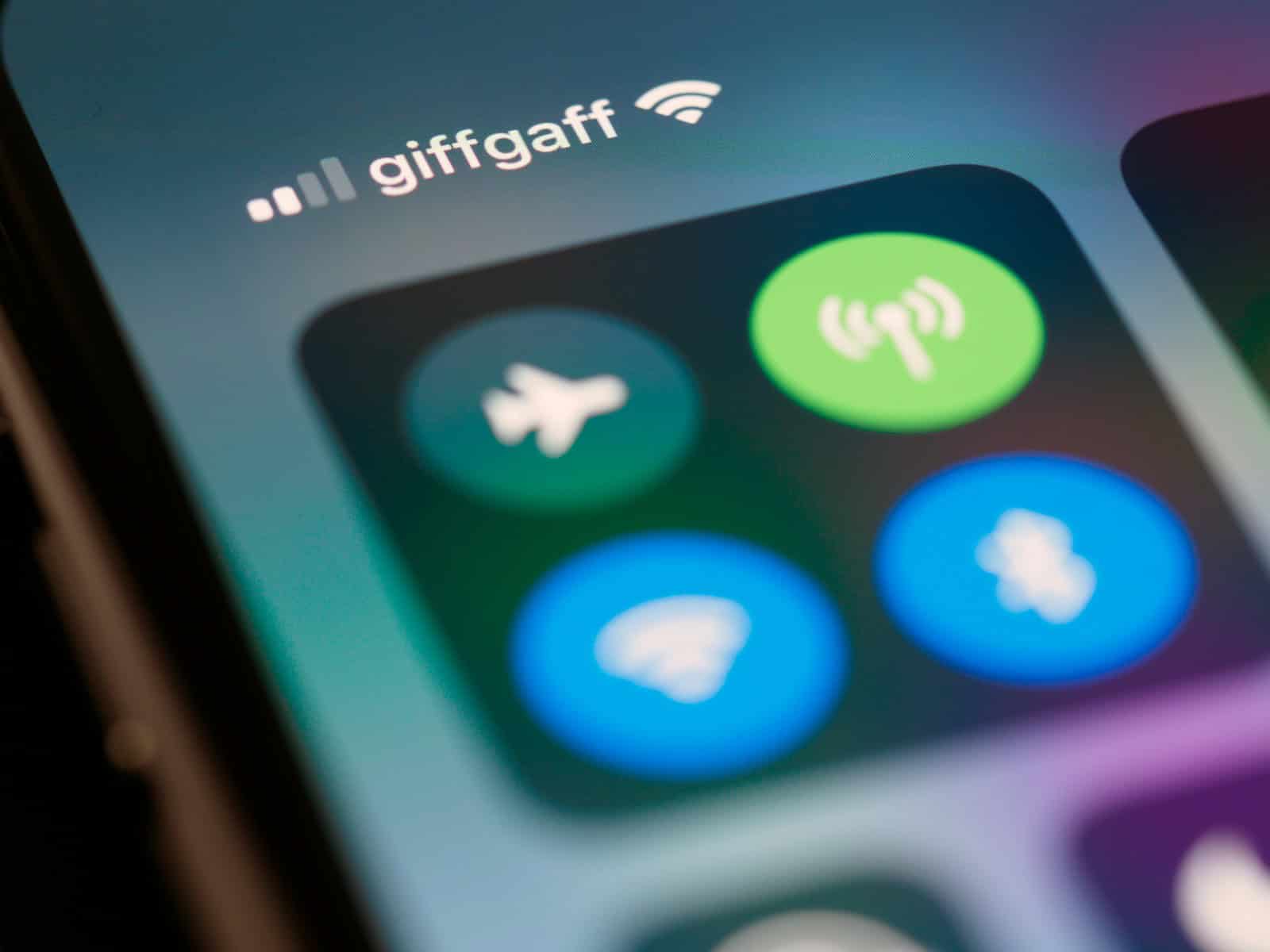
Is your iPhone Bluetooth acting up? You’re not alone. Many iPhone users face Bluetooth problems that make it hard to connect to speakers, headphones, or cars. Most Bluetooth issues can be fixed with a few simple steps like turning Bluetooth off and on, forgetting and reconnecting devices, or restarting your phone.
Bluetooth problems can happen for many reasons. Sometimes it’s just a small glitch that needs a quick fix. Other times, your iPhone might need a software update or settings change. The good news is that you can solve most Bluetooth issues yourself in just a few minutes.
Before taking your phone to a repair shop, try the easy fixes first. Make sure your Bluetooth accessory is close to your iPhone and has enough battery power. Check if your iPhone’s Bluetooth is turned on in Settings. These small steps often solve the problem right away.
Fix Bluetooth Not Working on iPhone (Step‑by‑Step Guide)
Is your iPhone not connecting to Bluetooth devices like AirPods, speakers, or your car? Bluetooth issues are usually caused by settings conflicts, pairing errors, or software glitches — and they’re often easy to fix.
Here’s a complete troubleshooting guide to get Bluetooth working again.
✅ 1. Make Sure Bluetooth Is Turned On
- Open Settings
- Tap Bluetooth
- Make sure the toggle is ON
You can also check in Control Center, but if issues persist, verify it directly in Settings.
Apple recommends ensuring both devices are close together and powered on before troubleshooting further (source: Apple Support).
✅ 2. Turn Bluetooth Off and Back On
A quick reset can fix temporary glitches:
- Go to Settings → Bluetooth
- Toggle Bluetooth OFF
- Wait 10 seconds
- Toggle it back ON
Then try reconnecting your device.
✅ 3. Restart Your iPhone
Restarting clears minor software bugs.
- iPhone with Face ID:
Press and hold the Side button + Volume button, then slide to power off. - iPhone with Home button:
Hold the Power button, then slide to power off.
Wait 30 seconds, turn it back on, and test Bluetooth again.
✅ 4. Forget the Device and Reconnect
Corrupt pairing data is a common cause of Bluetooth problems.
- Go to Settings → Bluetooth
- Tap the ⓘ (info icon) next to the device
- Tap Forget This Device
- Confirm
- Re-pair the device
This is one of the most effective fixes (source: The Mac Observer).
✅ 5. Make Sure the Accessory Is in Pairing Mode
If your device doesn’t appear in the list:
- Turn the accessory off and back on
- Put it into pairing mode
- Keep it within a few feet of your iPhone
Apple advises keeping devices close together during pairing (source: Apple Support).
✅ 6. Check for iOS Updates
Bluetooth bugs are sometimes caused by firmware issues. Updating iOS can resolve these problems (source: iGeeksBlog).
To update:
- Go to Settings → General
- Tap Software Update
- Install any available update
✅ 7. Reset Network Settings
If Bluetooth still isn’t working:
- Go to Settings → General
- Tap Transfer or Reset iPhone
- Tap Reset
- Choose Reset Network Settings
⚠️ This will erase:
- Saved Wi‑Fi networks
- VPN settings
- Paired Bluetooth devices
You’ll need to reconnect everything afterward.
✅ 8. Check for Interference
Bluetooth can be affected by:
- Wi‑Fi routers
- Microwaves
- USB 3 devices
- Multiple active Bluetooth connections
Try:
- Turning off nearby Bluetooth devices
- Moving away from wireless routers
- Disconnecting unused devices
Additional troubleshooting methods are outlined here (source: Guiding Tech).
✅ 9. Reset All Settings (Last Resort)
If nothing works:
- Go to Settings → General
- Tap Transfer or Reset iPhone
- Select Reset All Settings
This does not delete your data, but resets system preferences.
🚨 When to Contact Apple Support
Contact Apple if:
- Bluetooth won’t turn on (toggle is greyed out)
- Devices constantly disconnect
- You see “Unavailable” under Bluetooth
- The issue started after physical damage
Official troubleshooting guidance:
(source: Apple Support)
✅ Quick Fix Checklist
✔ Bluetooth ON
✔ Restart iPhone
✔ Forget & reconnect device
✔ Update iOS
✔ Reset Network Settings
Final Thoughts
Most Bluetooth issues are caused by pairing errors or minor software bugs. In most cases, forgetting the device and reconnecting or restarting your iPhone solves the problem.
Key Takeaways
- Turn Bluetooth off and on or restart your iPhone to fix most common connection issues.
- Check that both devices have enough battery and are within range of each other.
- Update your iPhone’s software and reset your Bluetooth connections if problems persist.
Initial Troubleshooting Steps
Fixing Bluetooth issues on your iPhone often requires just a few simple steps. These basic solutions can resolve most connection problems without needing technical help or visiting an Apple Store.
Check Bluetooth Status
First, make sure Bluetooth is actually turned on. Open the Control Center by swiping down from the top-right corner (iPhone X or newer) or up from the bottom (older iPhones).
Look for the Bluetooth icon – it should be blue when active. If it’s gray or white, it’s turned off.
You can also check this in Settings. Tap Settings > Bluetooth and verify the toggle is green. If Bluetooth is on but still not working, check if your iPhone is in Airplane Mode, which disables Bluetooth by default.
Sometimes the Bluetooth icon shows it’s on, but the system needs a refresh. This simple check saves time before trying more complex fixes.
Toggle Bluetooth On and Off
Turning Bluetooth off and on again often fixes connection issues. This process refreshes the Bluetooth system and clears minor glitches.
Here’s how to toggle Bluetooth:
- Open Settings
- Tap Bluetooth
- Turn the toggle off (gray)
- Wait 5-10 seconds
- Turn the toggle back on (green)
You can also do this from Control Center by tapping the Bluetooth icon twice. When toggling, wait a few seconds between turning it off and on to let the system fully reset.
This simple fix works for many iPhone Bluetooth problems and should be one of your first troubleshooting steps before trying more complex solutions.
Restart iPhone
Restarting your iPhone can fix many Bluetooth issues by clearing temporary memory and refreshing all connections. This works like a mini reset for your phone’s systems.
For iPhone X or newer models:
- Press and hold the side button and either volume button
- Slide to power off when prompted
- Wait 30 seconds
- Press and hold the side button until the Apple logo appears
For iPhone 8 or older models:
- Press and hold the power button
- Slide to power off
- Wait 30 seconds
- Press and hold the power button to restart
A restart fixes many connection issues by clearing software glitches that might prevent Bluetooth from working properly.
Verify Compatibility and Pairing Mode
Not all Bluetooth devices work the same way with iPhones. Check if your device is compatible with iOS and make sure it’s in pairing mode.
Most Bluetooth devices have a specific way to enter pairing mode:
- Headphones/Earbuds: Usually hold the power button for 3-5 seconds until lights flash
- Speakers: Look for a dedicated pairing button or hold the power button
- Car systems: Check your car manual for Bluetooth pairing instructions
Make sure your device is charged and within range (typically 30 feet/10 meters). Remember that walls and other objects can reduce this range.
If your device was previously paired, you might need to “forget” it first. Go to Settings > Bluetooth, tap the ⓘ icon next to the device, and select “Forget This Device.” Then try pairing again from scratch.
Software Analysis and Update
Software issues are often the root cause of Bluetooth problems on iPhones. These can range from outdated iOS versions to bugs in the current software.
Check for iOS Update
When your iPhone Bluetooth isn’t working, checking for an iOS update should be your first step. Apple regularly releases fixes for known Bluetooth issues in their updates.
To check for updates, go to Settings > General > Software Update. If an update is available, make sure your phone is charged and connected to Wi-Fi before installing it.
Sometimes, incorrect date and time settings can cause Bluetooth issues. Ensure your iPhone’s time settings are set to “Automatic” in Settings > General > Date & Time.
Users running older iOS versions (especially pre-iOS 13) may experience more Bluetooth problems. Newer iOS versions have improved Bluetooth stability and connectivity.
Analyze for Software Bugs
Software bugs can appear even on the latest iOS version. These bugs might prevent your iPhone from maintaining stable Bluetooth connections.
A simple restart can resolve temporary software glitches. Turn off your iPhone, wait about 10 seconds, then turn it back on.
If problems persist after a restart, try resetting your network settings. Go to Settings > General > Reset > Reset Network Settings. This will clear all saved Bluetooth connections, so you’ll need to pair devices again.
Many users report Bluetooth disconnecting after just a few seconds following iOS updates. In these cases, the problem may be fixed in a future update from Apple.
For persistent issues, check Apple’s support website for known bugs in your iOS version.
Settings and Configuration
Your iPhone has several settings options that can help fix Bluetooth issues. Most problems can be solved by checking Bluetooth settings, removing problematic devices, or resetting network configurations.
Explore Bluetooth Settings
First, make sure Bluetooth is actually turned on. Go to Settings and check if the Bluetooth toggle is green. If it’s already on, try turning it off and back on again after waiting about 10 seconds.
Make sure your Bluetooth accessory and iPhone are close to each other. Bluetooth has a limited range, typically around 30 feet in ideal conditions.
Check if your iPhone is in Airplane Mode. When this mode is active, Bluetooth may be disabled. You can keep Airplane Mode on but manually turn Bluetooth back on if needed.
Also verify if your accessory has enough battery power. Many Bluetooth connection problems happen simply because devices have low batteries.
Forget This Device and Re-Pair
If your iPhone sees the device but won’t connect, try the “Forget This Device” option. Go to Settings > Bluetooth, tap the “i” icon next to the problematic device, and select “Forget This Device.”
After removing the device, restart both your iPhone and the Bluetooth accessory. This clears temporary connection data that might be causing problems.
Now pair the devices again as if for the first time. Put your accessory in pairing mode (check its manual for instructions) and look for it in your iPhone’s Bluetooth settings menu.
This process often fixes connection issues because it sets up the connection fresh without old configuration problems.
Reset Network Settings
If simpler fixes don’t work, you may need to reset network settings. This is a more serious step since it erases all network configurations.
Go to Settings > General > Transfer or Reset iPhone > Reset > Reset Network Settings. Your iPhone will ask for your passcode to confirm.
This process removes:
- All saved Wi-Fi networks and passwords
- Bluetooth pairings
- VPN configurations
- Cellular settings
After the reset, your iPhone will restart. You’ll need to reconnect to Wi-Fi networks and pair Bluetooth devices again.
A network reset often fixes stubborn Bluetooth problems that simpler methods can’t solve. It’s especially helpful when a hard reset only temporarily fixes issues that keep coming back.
Advanced Solutions
When basic Bluetooth troubleshooting fails, it’s time to try more powerful fixes. These methods can resolve deeper system issues that prevent Bluetooth connections on your iPhone.
Utilize Apple Diagnostics
Apple offers built-in diagnostic tools that can identify hardware or software issues affecting Bluetooth functionality. To run these diagnostics, contact Apple Support directly through the Support app on your iPhone. They can run remote diagnostics to check if your Bluetooth hardware is working properly.
You can also check Bluetooth analytics yourself:
- Go to Settings > Privacy & Security > Analytics & Improvements
- Tap Analytics Data
- Look for files with “Bluetooth” in the name
These logs may contain error codes that help identify the problem. If you see repeated disconnections or errors, note them down to share with Apple Support for more targeted help.
For persistent issues, you can use third-party diagnostic apps from the App Store that specifically test Bluetooth signal strength and connection stability.
Factory Reset Your iPhone
A factory reset can fix stubborn Bluetooth problems that resist other solutions. This option erases all content and settings, giving your iPhone a fresh start.
Before resetting:
- Back up your iPhone to iCloud or computer
- Make sure you know your Apple ID password
- Note your important settings
To perform a factory reset:
- Go to Settings > General > Transfer or Reset iPhone
- Select Erase All Content and Settings
- Enter your passcode when prompted
- Confirm the reset
After the reset completes, set up your iPhone as new rather than restoring from backup initially. This helps determine if a previous backup contained corrupted settings. Test Bluetooth connections with this clean setup.
Enter Recovery Mode
Recovery Mode is a powerful troubleshooting option that reinstalls iOS without erasing your data. This can fix system-level Bluetooth issues when the iOS Bluetooth stack becomes corrupted.
To enter Recovery Mode:
Connect your iPhone to a computer with iTunes or Finder
Force restart your iPhone while connected:
- For iPhone 8 or newer: Press and quickly release Volume Up, then Volume Down, then hold Side button
- For iPhone 7: Hold Side and Volume Down buttons together
- For older models: Hold Home and Side buttons together
Keep holding until you see the Recovery Mode screen
Once in Recovery Mode, choose the “Update” option rather than “Restore” to reinstall iOS while keeping your data. This process can fix iOS system problems that affect Bluetooth without losing your information.
Hardware Considerations
When Bluetooth isn’t working on your iPhone, sometimes the issue lies with the hardware itself. Physical damage or compatibility problems might be preventing proper connections between your device and accessories.
Inspect Bluetooth Accessory
Before assuming your iPhone has problems, check your Bluetooth accessory. Make sure the device has enough battery power to function properly. Many Bluetooth connection issues occur simply because the accessory has run out of power.
Look for physical damage on both your iPhone and the accessory. Check for dirt or debris blocking connection ports.
Try testing your Bluetooth accessory with another device if possible. This helps determine if the problem is with your iPhone or the accessory itself.
For wireless headphones, make sure they’re in pairing mode before trying to connect. Most headphones have specific button combinations to enter this mode.
Reset your Bluetooth accessory according to the manufacturer’s instructions. This often fixes minor connection glitches.
Contact Apple Support
If hardware inspections don’t solve the problem, it’s time to contact Apple Support. They can run remote diagnostics on your device to check for hardware failures.
Look for the nearest Apple Store or authorized service provider using Apple’s website. Make an appointment before visiting to save time.
Be prepared to share what troubleshooting steps you’ve already tried when speaking with support. This helps them narrow down the problem faster.
If your iPhone is still under warranty, hardware repairs might be covered. Check your warranty status on Apple’s website before contacting support.
For persistent Bluetooth problems, Apple technicians can test your device’s Bluetooth antenna and other internal components that aren’t user-accessible.
Model-Specific Concerns
Different iPhone models can have unique Bluetooth issues that require specific solutions. The iPhone 11 in particular has several known Bluetooth quirks that users commonly encounter.
iPhone 11 Bluetooth Nuances
iPhone 11 users often face specific Bluetooth connection problems. One common issue is intermittent disconnections with car audio systems. This typically happens when the phone is in a pocket or bag.
A known fix is to reset all settings on your iPhone 11. This doesn’t erase data but returns all settings to factory defaults. Go to Settings > General > Transfer & Reset > Reset > Reset All Settings.
Some iPhone 11 devices experience reduced Bluetooth range after iOS updates. To fix this:
- Toggle Airplane Mode – Turn it on for 30 seconds, then off
- Restart your iPhone – Press and hold side button and volume down button
- Forget and reconnect devices – In Settings > Bluetooth, tap the “i” icon and select “Forget This Device”
Background app refresh can also affect Bluetooth stability on iPhone 11. Try turning off this feature for apps you don’t need updating in the background.
Frequently Asked Questions
iPhone Bluetooth issues can be fixed with simple troubleshooting steps. Many common problems have straightforward solutions that don’t require technical expertise.
Why does the iPhone fail to detect Bluetooth devices?
iPhones might fail to detect Bluetooth devices due to several reasons. The device might be out of range or have low battery.
Sometimes the problem is with the iOS system itself. A simple restart of both devices can often fix detection issues.
Make sure Bluetooth is enabled on both devices. Check if the device you’re trying to connect to is in pairing mode.
How can I resolve connectivity issues between my iPhone and a Bluetooth-enabled car?
Car connectivity issues often require specific fixes. First, try to forget the car’s Bluetooth from your iPhone settings.
Restart your iPhone completely before attempting to pair again. Some cars require you to be in park or have the engine running for Bluetooth to work properly.
Check if your car’s infotainment system needs an update. Car manufacturers sometimes release updates that improve iPhone compatibility.
What steps can be taken when the iPhone’s Bluetooth is intermittently cutting out?
Intermittent Bluetooth issues often relate to interference or software bugs. Make sure your iPhone and the connected device are close to each other to maintain a strong signal.
Turn off Wi-Fi temporarily to check if it’s causing interference. Some frequency bands can overlap and cause problems.
Update to the latest iOS version. Apple regularly fixes Bluetooth bugs in system updates.
In instances where Bluetooth is on but fails to connect, what troubleshooting methods are available for iPhone users?
When Bluetooth is on but not connecting, try toggling Bluetooth off and on again. This quick reset often clears minor connection issues.
Reset your network settings by going to Settings > General > Reset > Reset Network Settings. This will remove all saved Bluetooth devices.
Check for any physical obstructions or electronic interference. Metal objects, walls, and other electronic devices can block Bluetooth signals.
How does one clear the Bluetooth cache on an iPhone to address pairing problems?
iPhones don’t have a direct way to clear just the Bluetooth cache. Instead, you can reset all network settings which includes Bluetooth data.
Go to Settings > General > Reset > Reset Network Settings. This will remove all saved Bluetooth devices and Wi-Fi networks.
For stubborn issues, you can try a harder reset by forgetting individual devices before pairing them again.
What are the potential reasons for an iPhone’s Bluetooth to suddenly stop functioning?
Software updates can sometimes cause Bluetooth to stop working. A recent iOS update might need a follow-up fix from Apple.
Hardware issues may develop over time. If your iPhone has been damaged or exposed to water, Bluetooth components might be affected.
Third-party apps can interfere with Bluetooth functionality. Try closing all apps or restarting your iPhone to see if the problem persists.





