
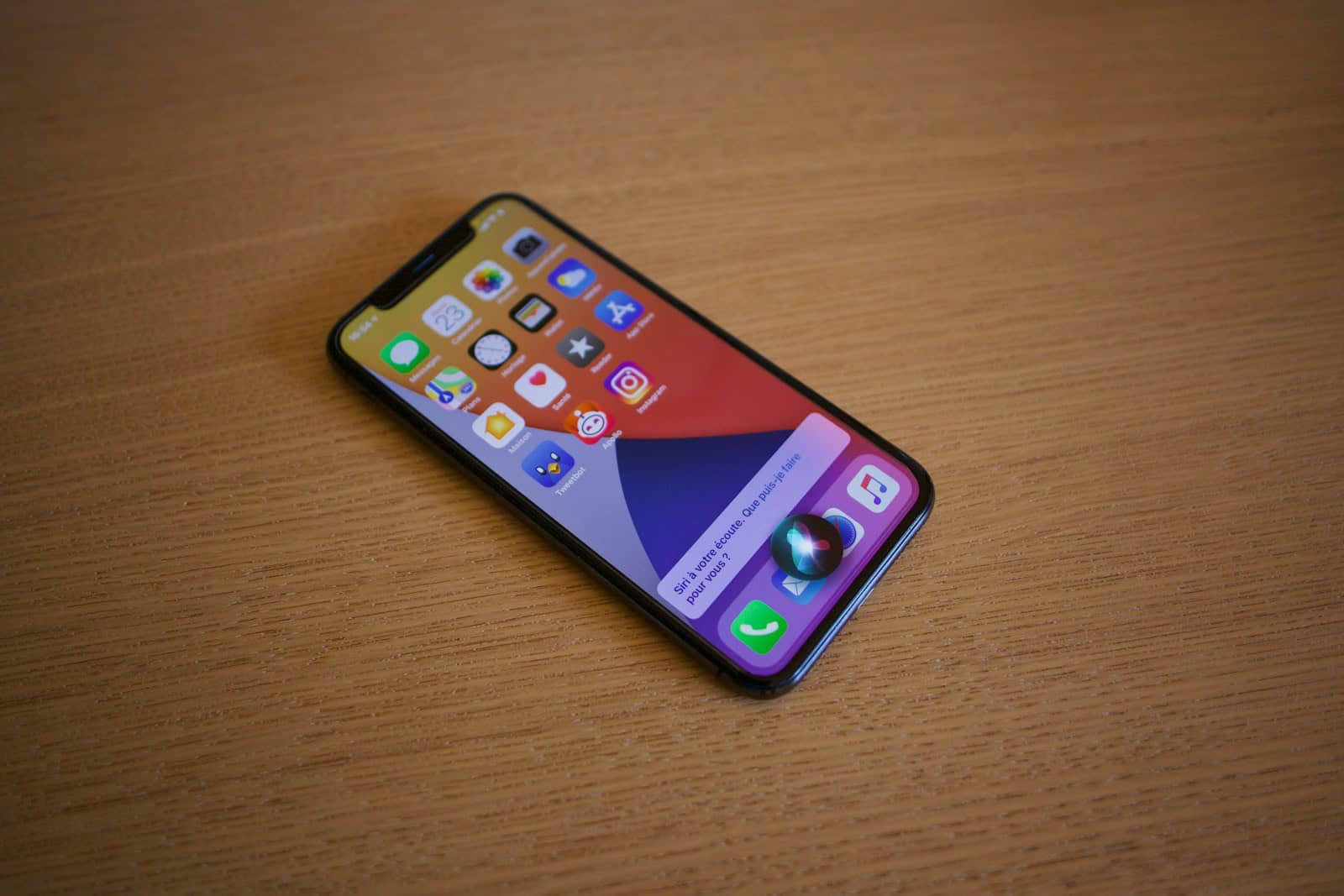
Setting timers with Siri simplifies daily tasks. This handy feature works on iPhones, iPads, and other Apple devices. To set a timer using Siri, simply say “Hey Siri, set a timer for [desired time]”.
Voice commands make it easy to start timers while cooking, exercising, or managing your time. You can ask Siri to set timers for any duration, from seconds to hours. This hands-free option proves especially useful when your hands are busy or dirty.
Siri’s timer function offers more than just starting timers. You can also pause, resume, or cancel timers with voice commands. Check how much time is left on your timer by asking Siri. The Clock app on your device shows active timers too.
| Command | Action |
|---|---|
| “Hey Siri, set a timer for 15 minutes” | Starts a 15-minute timer |
| “Hey Siri, pause timer” | Pauses the current timer |
| “Hey Siri, resume timer” | Resumes a paused timer |
| “Hey Siri, cancel timer” | Stops and cancels the timer |
“Hey Siri, Set a Timer”: A Quick Guide
Using Siri to set a timer is one of the fastest ways to stay on track—whether you’re cooking, working out, studying, or just need a reminder. With a simple voice command, your iPhone, iPad, Apple Watch, HomePod, or Mac can handle it instantly.
This quick guide shows how to set timers with Siri, common variations, and helpful tips.
How to Set a Timer With Siri
Just say:
“Hey Siri, set a timer for 10 minutes.”
That’s it. The timer starts immediately.
✅ Works on:
- iPhone
- iPad
- Apple Watch
- HomePod
- Mac (with Siri enabled)
Popular Timer Commands You Can Use
Siri understands natural language. Try:
- “Set a timer for 5 minutes”
- “Set a 30‑minute timer”
- “Start a timer for 1 hour”
- “Set a timer for 90 seconds”
You don’t need to be exact—Siri is flexible.
Setting Multiple Timers
You can run more than one timer at a time.
Examples:
- “Hey Siri, set a 10‑minute timer”
- “Hey Siri, set another timer for 25 minutes”
Each timer will run independently.
Naming Timers (Helpful!)
You can label timers to keep them organized.
Try:
- “Set a pasta timer for 8 minutes”
- “Set a laundry timer for 45 minutes”
When the timer ends, Siri will announce the name.
Checking or Managing Timers With Siri
You can control timers without touching your device:
- “How much time is left on my timer?”
- “Pause the timer”
- “Resume the timer”
- “Cancel the timer”
- “Cancel the pasta timer”
Where to Find Timers Manually
If you want to see or adjust timers:
- iPhone / iPad: Clock app → Timers
- Apple Watch: Timer app
- HomePod: Ask Siri
- Mac: Clock app (macOS Ventura and later)
Make Sure “Hey Siri” Is Turned On
If Siri doesn’t respond:
On iPhone or iPad
- Go to Settings
- Tap Siri & Search
- Turn on Listen for “Hey Siri”
On Apple Watch
- Settings → Siri → Enable “Hey Siri”
Common Problems and Fixes
Siri doesn’t hear you
- Speak clearly
- Check microphone access
- Disable Low Power Mode (sometimes helps)
Timer sets but doesn’t alert
- Check volume level
- Make sure Silent Mode isn’t on
- Check Focus or Do Not Disturb settings
Timer vs Alarm: What’s the Difference?
| Feature | Timer | Alarm |
|---|---|---|
| Counts down | ✅ | ❌ |
| Fixed time | ❌ | ✅ |
| Auto‑stops | ✅ | ❌ |
| Best for | Cooking, tasks | Waking up |
Pro Tips
- Siri timers work even when your screen is locked
- HomePod timers sync with voice control
- You can say “Hey Siri, set a timer” and add the time when prompted
- Timers keep running even if you switch apps
Final Thoughts
Saying “Hey Siri, set a timer” is one of the easiest ways to use Siri effectively. Once you get used to it, you’ll rarely open the Clock app again.
Understanding Siri and Its Capabilities
Siri is Apple’s virtual assistant that can perform various tasks on your devices. It excels at setting timers and alarms, making it a useful tool for time management and productivity.
Activating Siri on Various Apple Devices
You can activate Siri on Apple devices in several ways. On iPhones and iPads, say “Hey Siri” or press and hold the side button. For Mac computers, click the Siri icon in the menu bar or use a keyboard shortcut.
To customize Siri settings:
- Open the Settings app
- Tap “Siri & Search”
- Choose your preferred activation method
Some AirPods models allow you to summon Siri with a double-tap gesture. The latest AirPods Pro support the “Siri” command without saying “Hey” first.
Siri’s Role in Setting Timers and Alarms
Siri simplifies setting timers and alarms on your Apple devices. To use Siri for timers:
- Activate Siri
- Say “Set a timer for [duration]”
- Siri will confirm and start the timer
You can also ask Siri to check remaining time, pause, resume, or cancel timers. For alarms, tell Siri the time you want to wake up, and it will set it for you.
| Command | Action |
|---|---|
| “Set a timer for 20 minutes” | Starts a 20-minute timer |
| “How much time is left?” | Checks remaining time |
| “Pause the timer” | Pauses current timer |
| “Cancel the timer” | Stops and deletes the timer |
Compatibility Across Different iOS Versions
Siri’s capabilities have expanded since its introduction in iOS 5. iOS 8 brought significant improvements, including hands-free “Hey Siri” activation when plugged in. iOS 14 introduced a compact Siri interface, allowing you to use other apps while interacting with Siri.
Recent iOS versions offer enhanced timer features. You can now set multiple named timers, which is helpful for cooking or multitasking. Siri also integrates with more third-party apps, expanding its functionality beyond built-in features.
To get the most out of Siri, keep your device updated to the latest iOS version. This ensures you have access to the newest features and improvements in Siri’s voice recognition and task execution abilities.
Setting up Timers and Alarms Using Siri
Siri makes it easy to manage your time with voice-activated timers and alarms. You can set up basic timers, use advanced functions, and handle multiple timers and alarms simultaneously on your Apple devices.
Standard Timer Setup
To set a timer with Siri, simply activate it by saying “Hey Siri” or pressing the appropriate button on your device. Then say “Set a timer for 20 minutes” or any duration you need. Siri will confirm and start the countdown immediately.
You can check the remaining time by asking “How much time is left on the timer?” Siri will display the countdown on your device’s screen.
When the timer ends, an alarm will sound to alert you. To stop the timer early, just say “Cancel the timer” or “Stop the timer.”
Advanced Timer Functions
Siri offers more than basic timing. You can pause and resume timers as needed. Say “Pause the timer” to temporarily stop it, and “Resume the timer” to continue.
You can also name your timers for easier management. For example, say “Set a cooking timer for 30 minutes.” This helps when you have multiple timers running.
To adjust an ongoing timer, tell Siri to add or subtract time. Say “Add 5 minutes to my timer” or “Reduce my timer by 2 minutes.”
Setting Multiple Timers and Alarms
Siri can handle several timers and alarms at once. To set multiple timers, simply give each one a unique name or purpose. For example, “Set a laundry timer for 45 minutes” and “Set a study timer for 2 hours.”
For alarms, you can set up recurring wake-up calls by saying “Wake me up at 7 AM every weekday.” You can also create one-time alarms like “Set an alarm for 3 PM tomorrow.”
To manage multiple alarms, give them names or purposes. Say “Set a gym alarm for 6 AM” or “Set a medication alarm for 8 PM daily.”
| Device | Timer Command | Alarm Command |
|---|---|---|
| iPhone/iPad | “Hey Siri, set a 20-minute timer” | “Hey Siri, set an alarm for 7 AM” |
| Apple Watch | “Hey Siri, start a workout timer” | “Hey Siri, set a sleep alarm” |
| HomePod | “Hey Siri, set a kitchen timer for 30 minutes” | “Hey Siri, wake me up at 6:30 AM tomorrow” |
Interacting with Siri for Timer Management
Siri simplifies timer management on Apple devices. You can easily start, stop, and manage multiple timers using voice commands.
Starting and Stopping Timers with Voice
To set a timer with Siri, activate the voice assistant by saying “Hey Siri” or pressing the designated button on your device. Then, use commands like “Set a timer for 15 minutes” or “Start a 30-minute timer.” Siri will confirm the timer has been created and started.
To stop a timer, say “Hey Siri, stop the timer.” If you need to pause it temporarily, use “Pause the timer” and “Resume the timer” to continue. You can also check the remaining time by asking “How much time is left on the timer?”
For quick access to your active timers, tap the countdown displayed in Siri or open the Clock app on your device.
Voice Commands for Managing Multiple Timers
Siri allows you to manage several timers simultaneously. To create additional timers, simply ask Siri to set another one. You can name timers for easy reference, such as “Set a pasta timer for 8 minutes” or “Start a laundry timer for 45 minutes.”
To check specific timers, use commands like “What’s the status of my pasta timer?” or “How much time is left on the laundry timer?” You can stop individual timers by name or cancel all active timers at once.
Here’s a table of useful commands for managing multiple timers:
| Action | Voice Command |
|---|---|
| Set named timer | “Set a [name] timer for [duration]” |
| Check specific timer | “How much time is left on [name] timer?” |
| Stop named timer | “Stop the [name] timer” |
| Cancel all timers | “Cancel all timers” |
How to Delete All Alarms with Siri
While timers and alarms are different features, Siri can help manage both. To delete all alarms at once, say “Hey Siri, delete all my alarms.” Siri will ask for confirmation before removing them.
You can also remove specific alarms by name or time. For example, “Delete my 7 AM alarm” or “Remove my workout alarm.” If you change your mind, you can always ask Siri to create new alarms or restore previously deleted ones.
Remember that deleting alarms is permanent. Consider reviewing your alarms in the Clock app before using this command to avoid accidentally removing important alerts.
Frequently Asked Questions
Siri offers numerous timer-related features to enhance productivity and time management on your iPhone. These capabilities range from basic timer setup to advanced functionalities for sleep and multiple timers.
How can I set a timer using Siri on my iPhone?
To set a timer with Siri, activate it by saying “Hey Siri” or pressing the side button. Then say “Set a timer for [duration].” Siri will confirm your timer and start the countdown immediately.
What voice command prompts Siri to set a timer for a specific duration?
You can use phrases like “Hey Siri, start a timer for 15 minutes” or “Siri, set timer for 25 minutes.” These commands will initiate a countdown for the specified duration.
Is it possible to ask Siri to set a sleep timer?
Yes, you can ask Siri to set a sleep timer. Say “Hey Siri, set a sleep timer for 30 minutes.” This will stop audio playback after the set time, useful for falling asleep to music or podcasts.
Can Siri manage multiple timers simultaneously?
Siri can handle multiple timers at once. To set another timer, simply ask Siri to “Set another timer for [duration].” You can name your timers for easy tracking, like “Set a 20-minute timer called ‘Pasta’.”
Does Siri offer any timer-related shortcuts or hacks for efficiency?
Siri provides efficient timer shortcuts. You can set timers to go off at specific times by saying “Hey Siri, set a timer to go off at 3 PM titled ‘Meeting’.” This feature helps manage your day more effectively.
How do I cancel or adjust a timer that I’ve set with Siri?
To cancel a timer, say “Hey Siri, cancel the timer.” To adjust it, you can say “Hey Siri, change the timer to [new duration].” For multiple timers, specify which one by name if you’ve labeled them.
| Timer Command | Example Phrase |
|---|---|
| Set Timer | “Hey Siri, set a timer for 10 minutes” |
| Name Timer | “Set a 30-minute timer called ‘Laundry'” |
| Cancel Timer | “Hey Siri, cancel the timer” |
| Adjust Timer | “Change the timer to 15 minutes” |
| Check Timer | “How much time is left on my timer?” |





