
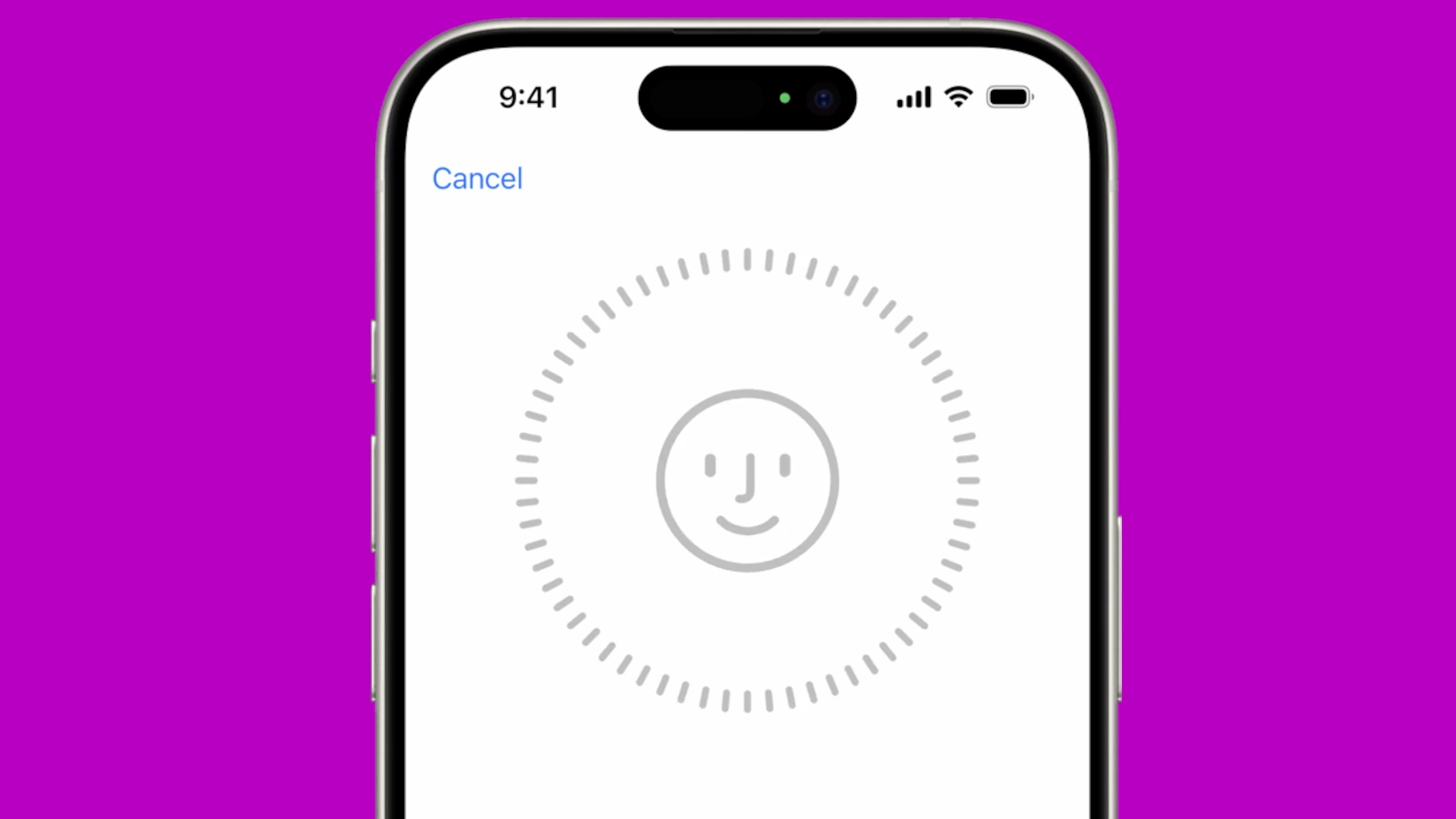
Face ID not working on your iPhone or iPad can be frustrating. This handy feature lets you unlock your device with a glance, but sometimes it fails. To fix Face ID issues, start by checking for software updates, cleaning the camera, and ensuring your face is visible and well-lit.
If those quick fixes don’t work, you have other options. You can try resetting Face ID or adding an alternate appearance. For older iPhones, make sure you’re holding the device vertically. Newer models work in both portrait and landscape modes.
Sometimes Face ID problems stem from recent iOS updates. The iOS 18 update has caused issues for some users. If you’re running this version, you might need to reset your Face ID data or restart your device. Let’s look at some common Face ID problems and their solutions.
| Issue | Quick Fix |
|---|---|
| Software glitch | Update iOS |
| Dirty camera | Clean TrueDepth camera |
| Face not recognized | Add alternate appearance |
| Wrong orientation | Hold device correctly |
| Hardware problem | Contact Apple Support |
Face ID Stopped Working on Your iPhone? Here’s How to Fix It
Face ID has become an essential feature for iPhone users, providing seamless authentication for unlocking your device, authorizing payments, and signing into apps. But what happens when it suddenly stops working? Whether you’re seeing “Face ID unavailable” errors, having trouble enrolling a face, or finding the setup option greyed out, this comprehensive guide will help you troubleshoot and fix the issue.
Quick Fixes to Try First
1. Clean the TrueDepth Camera
The most common culprit is surprisingly simple: a dirty camera. The TrueDepth camera system at the top of your iPhone needs a clear view of your face to function properly.
How to clean it:
- Use a soft, lint-free cloth to gently wipe the notch area at the top of your screen
- Remove any screen protectors that might be covering the sensors
- Make sure there’s no dirt, dust, or debris blocking the camera (source: Apple Support)
2. Check Your Lighting and Face Coverage
Face ID uses infrared technology, but it still needs proper conditions to work:
- Ensure you’re in a well-lit environment
- Remove anything covering your face (sunglasses, masks, scarves)
- Hold your iPhone 10-20 inches away from your face
- Make sure your face is centered in the frame (source: iPhone Life)
3. Restart Your iPhone
A simple restart can resolve many software glitches affecting Face ID.
For iPhone X and later:
- Press and hold the Side button and either Volume button
- Drag the slider to power off
- Wait 30 seconds, then press and hold the Side button to turn it back on
Advanced Troubleshooting Steps
4. Check Face ID Settings
Your Face ID settings might have been accidentally changed:
- Go to Settings > Face ID & Passcode
- Enter your passcode
- Toggle off all the Face ID options (iPhone Unlock, iTunes & App Store, Apple Pay, etc.)
- Wait a few seconds, then toggle them all back on
- Test Face ID again (source: iPhone Life)
5. Check Attention Settings
Face ID has attention-awareness features that might be causing issues:
- Go to Settings > Face ID & Passcode
- Look for Require Attention for Face ID
- Try toggling this setting off to see if Face ID works
- Also check Attention Aware Features (source: Mac Observer)
6. Re-Enroll Your Face
Sometimes the stored Face ID data becomes corrupted:
- Go to Settings > Face ID & Passcode
- Enter your passcode
- Tap Reset Face ID
- Tap Set Up Face ID to enroll your face again
- Follow the on-screen instructions, moving your head in a circle to capture all angles (source: Mac Observer)
7. Update to the Latest iOS Version
Software bugs can affect Face ID functionality, especially after major updates. Many users reported issues after updating to iOS 26, which were later fixed in subsequent updates.
To update:
- Go to Settings > General > Software Update
- Download and install any available updates
- Restart your iPhone after updating (source: Geek’s Chalk)
8. Reset All Settings
This won’t delete your data but will reset system settings to defaults:
- Go to Settings > General > Transfer or Reset iPhone
- Tap Reset > Reset All Settings
- Enter your passcode and confirm
- Your iPhone will restart
- Set up Face ID again after the reset
9. Check for Hardware Issues
If Face ID still isn’t working after trying all software fixes, you may have a hardware problem:
- The TrueDepth camera system might be damaged
- Water damage could have affected the sensors
- A failed component may need professional repair
When to Contact Apple Support
If none of these fixes work, it’s time to reach out to Apple. You should contact support if:
- Face ID setup is greyed out and unavailable
- You see persistent “Face ID unavailable” or “Face ID disabled” messages
- Face ID stopped working after a drop or water exposure
- The TrueDepth camera shows visible damage
How to get help:
- Visit an Apple Store or authorized service provider
- Contact Apple Support online or by phone
- Check if your device is still under warranty or AppleCare+ coverage (source: Apple Support Community)
Common Face ID Issues After iOS Updates
After major iOS updates like iOS 26, users have reported specific issues:
- Face ID not enrolling: Usually fixed by updating to the latest iOS 26 build
- “Face ID unavailable” errors: Often resolved by resetting Face ID and re-enrolling
- Setup greyed out: May require a full settings reset or update
The good news is that most Face ID problems after updates are software-based and can be fixed at home within minutes (source: Tech2Geek).
Prevention Tips
To keep Face ID working smoothly:
- Keep your iPhone and TrueDepth camera clean
- Use high-quality screen protectors that don’t cover the sensors
- Update iOS regularly to get bug fixes and improvements
- Avoid exposing your iPhone to extreme temperatures or moisture
- Set up an alternate appearance if you frequently wear glasses or change your hairstyle
Summary Table: Face ID Troubleshooting at a Glance
| Issue | Quick Fix | Time Required |
|---|---|---|
| Face ID occasionally fails | Clean TrueDepth camera | 1 minute |
| Face ID not recognizing you | Re-enroll your face | 3-5 minutes |
| Settings not working | Toggle Face ID options off/on | 2 minutes |
| After iOS update | Update to latest iOS version | 10-20 minutes |
| General glitches | Restart iPhone | 2 minutes |
| Persistent issues | Reset all settings | 10 minutes |
| Nothing works | Contact Apple Support | Varies |
Face ID is a reliable technology, but like any feature, it can occasionally experience hiccups. By working through these troubleshooting steps systematically, you should be able to get Face ID working again. Start with the simplest solutions first—you’d be surprised how often a quick camera cleaning or restart does the trick!
Understanding Face ID Technology
Face ID revolutionized smartphone security with advanced facial recognition. This biometric system uses sophisticated hardware and software to provide secure, convenient access to your device.
How Face ID Works
Face ID uses the TrueDepth camera system on compatible iPhones and iPads. This system includes:
- Infrared camera
- Flood illuminator
- Dot projector
The dot projector casts over 30,000 invisible dots onto your face. The infrared camera reads this pattern to create a detailed 3D map of your facial features.
Your device stores this map securely as mathematical representations. When you try to unlock your device, it compares the current scan to the stored data.
Face ID adapts to changes in your appearance like glasses, makeup, or facial hair. It even works in low light conditions thanks to the infrared technology.
Security and Privacy Considerations
Apple designed Face ID with strong security measures:
- Encrypted facial data never leaves your device
- 1 in 1,000,000 chance of a random person unlocking your iPhone
- Requires attention awareness (eyes open and looking at device)
- Disables after 5 failed attempts
Face ID can’t be fooled by photos or masks. The depth-sensing technology ensures it only works with a real, 3D face.
You can disable Face ID anytime for added privacy. Your passcode is always required after restarting the device or not using Face ID for 48 hours.
Compatibility and System Requirements
Face ID is available on these devices:
| iPhone Models | iPad Models |
|---|---|
| iPhone X and later | iPad Pro 11-inch (all generations) |
| iPad Pro 12.9-inch (3rd generation and later) |
Your device must run iOS 11 or later for Face ID to work. Ensure you’ve updated to the latest version for optimal performance and security.
Face ID works with many third-party apps for authentication. Developers can integrate it into their apps for secure logins and purchases.
You need to set up Face ID during the initial device setup or in Settings later. The process is quick and guides you through scanning your face from different angles.
Troubleshooting Common Face ID Issues
Face ID problems can be frustrating but often have simple solutions. The following tips will help you diagnose and fix many common Face ID issues on your iPhone or iPad Pro.
Face ID Setup and Configuration
Start by checking your Face ID settings. Go to Settings > Face ID & Passcode. Make sure Face ID is set up and turned on for the features you want to use it with.
If Face ID isn’t working for certain apps, check that you’ve allowed those apps to use it. Go to Settings > Face ID & Passcode > Other Apps.
For better accuracy, set up an alternate appearance. This helps if your look changes often. Go to Settings > Face ID & Passcode > Set Up an Alternate Appearance.
Make sure nothing is blocking the TrueDepth camera. Remove screen protectors or cases that might cover it.
Resetting Face ID
If setup tweaks don’t help, try resetting Face ID:
- Go to Settings > Face ID & Passcode
- Tap “Reset Face ID”
- Set up Face ID again
This often fixes glitches from software updates or incorrect initial setup.
After resetting, test Face ID in different lighting and angles. This helps the system learn your face better.
If problems persist, try resetting all settings. Go to Settings > General > Transfer or Reset iPhone > Reset > Reset All Settings. This won’t erase your data but will reset system settings.
Dealing with Software Glitches
Software glitches can cause Face ID issues. Here’s how to address them:
- Update iOS: Go to Settings > General > Software Update
- Restart your device
- Force restart if a normal restart doesn’t work
If Face ID stops working after an iOS update, wait a day. Sometimes it needs time to recalibrate.
Clear Face ID data: Settings > Face ID & Passcode > Reset Face ID. Then set it up again.
If nothing else works, try a factory reset. Back up your data first!
Assessing and Resolving Hardware Problems
Hardware issues are less common but can happen. Check for these signs:
- Face ID fails consistently
- TrueDepth camera doesn’t work in other apps
- Device shows “Face ID is not available” message
If you suspect hardware problems:
- Check for physical damage to the front camera area
- Ensure you’re using genuine Apple components if you’ve had repairs
- Clean the front camera and sensors gently with a soft, lint-free cloth
If these steps don’t work, contact Apple Support or visit an Apple Store. They can run diagnostics and determine if you need a repair.
| Issue | Possible Solution |
|---|---|
| Face ID not recognizing | Reset Face ID |
| “Move iPhone lower/higher” message | Adjust how you hold the device |
| Face ID disabled | Check passcode settings |
| Not working after screen repair | Verify genuine Apple parts used |
Optimizing Face ID Experience
Face ID technology can be enhanced through various adjustments and techniques. These improvements boost recognition accuracy and accommodate different usage scenarios.
Improving Facial Recognition Accuracy
To enhance Face ID performance, start by resetting the feature. Go to Settings > Face ID & Passcode > Reset Face ID. Then set it up again, ensuring proper lighting and positioning.
Add an alternate appearance for better recognition in different looks. This helps Face ID work with glasses, hats, or makeup changes. Access this option in Face ID settings.
Keep your iPhone’s software up to date. Apple often releases updates that improve Face ID functionality.
| Face ID Tips | Benefits |
|---|---|
| Reset and re-enroll | Fixes glitches |
| Add alternate appearance | Recognizes different looks |
| Update iOS | Improves performance |
Adjust your phone’s position during setup and use. Hold it at arm’s length and align your face within the frame.
Using Face ID with Accessories
Face ID works with many accessories, but some may require adjustments. Sunglasses are generally compatible, but certain types with UV blocking can interfere.
For masks, newer iOS versions allow Face ID to work while wearing one. Enable this feature in Face ID settings if available on your device.
When using Face ID with glasses, set up the feature both with and without them for best results. This creates a more comprehensive facial map.
Hats and scarves usually don’t pose problems. However, items covering a large portion of your face may require removal for recognition.
Face ID and Accessibility
Apple has made Face ID more inclusive through accessibility features. For users with limited mobility, there’s an option to disable the requirement to turn your head during setup.
Voice Control can be used alongside Face ID for hands-free device unlocking. Enable this in Accessibility settings.
For vision-impaired users, VoiceOver can guide through the Face ID setup and usage process. This feature provides audio descriptions of on-screen elements.
Face ID works in both portrait and landscape orientations on compatible devices. This flexibility aids users who may have difficulty holding the device in a specific position.
Advanced Face ID Features
Face ID offers sophisticated capabilities beyond basic device unlocking. These features enhance security and streamline your digital interactions across Apple devices and services.
Integrating Face ID with Apple Ecosystem
Face ID seamlessly works across your Apple devices. You can use it to unlock your Mac when wearing an Apple Watch. It also syncs passwords and payment info through iCloud Keychain.
On iPads, Face ID functions in any orientation. This flexibility makes it convenient for both portrait and landscape use.
iOS 16 expanded Face ID support to landscape mode on iPhone 13 and newer models. This update improved usability for tasks like watching videos or gaming.
Face ID for Authorizing Payments and Autofill
Face ID simplifies secure transactions. You can authorize Apple Pay purchases with a glance. This eliminates the need to enter passwords or PINs for each transaction.
The feature also works with password autofill. When logging into apps or websites, Face ID can automatically input your saved credentials. This saves time and enhances security.
| Feature | Compatibility |
|---|---|
| Landscape mode | iPhone 13+ (iOS 16+) |
| iPad orientation | All orientations |
| Apple Pay | All Face ID devices |
| Password Autofill | All Face ID devices |
To manage these features, visit Settings > Face ID & Passcode. Here you can enable or disable specific Face ID functions to suit your preferences.
Frequently Asked Questions
Face ID issues can arise for various reasons. Common problems include unexpected malfunctions, error messages, and compatibility issues with iOS updates. Here are some solutions to frequently encountered Face ID problems.
What steps can I take if my Face ID has stopped functioning unexpectedly?
First, ensure your face is not obstructed by masks, sunglasses, or unusual lighting. Clean the TrueDepth camera and sensors near the top of your iPhone screen. If issues persist, try resetting Face ID in your device settings.
Restart your iPhone if the problem continues. As a last resort, update your iOS to the latest version or contact Apple Support for further assistance.
How can I resolve the ‘Move iPhone Lower’ error when using Face ID?
This error often occurs when your iPhone is too close to your face. Hold your device at arm’s length and slowly bring it closer until Face ID activates. Ensure proper lighting conditions and remove any face coverings.
If the issue persists, try resetting Face ID and setting it up again. This can help recalibrate the system to recognize your face more accurately.
What should I do if Face ID is not available and suggests setting up later?
Check for any pending iOS updates and install them. Restart your iPhone to refresh the system. If the problem continues, try resetting all settings on your device.
As a last option, back up your data and perform a factory reset. If Face ID remains unavailable after these steps, your device may have a hardware issue requiring professional repair.
How do I troubleshoot Face ID not working after updating to iOS 17?
After updating, restart your iPhone to ensure all changes take effect. Check Face ID settings to confirm they weren’t altered during the update. If needed, reset Face ID and set it up again.
Ensure your iPhone has the latest iOS 17 version. If problems persist, try resetting all settings or contacting Apple Support for specialized assistance.
What are common solutions when Face ID is not responding on an iPhone 11?
Clean the TrueDepth camera and sensors. Ensure your face is well-lit and not obscured. Try toggling Face ID off and on in settings.
If issues continue, reset Face ID and set it up again. Update to the latest iOS version. As a last resort, perform a factory reset after backing up your data.
What can cause Face ID to fail on an iPhone 13, and how can it be fixed?
Face ID failures on iPhone 13 can be caused by software glitches, outdated iOS, or physical obstructions. Start by cleaning the TrueDepth camera and ensuring your face is unobstructed.
Check Face ID settings and toggle them off and on. Update to the latest iOS version. If problems persist, reset Face ID or contact Apple Support for potential hardware issues.
| Common Face ID Issues | Quick Fixes |
|---|---|
| Unexpected malfunction | Clean sensors, reset Face ID |
| ‘Move iPhone Lower’ error | Adjust phone distance, reset Face ID |
| Not available | Update iOS, reset all settings |
| Post-update issues | Restart device, check settings |
| Unresponsive (iPhone 11) | Clean sensors, toggle Face ID |
| Failure (iPhone 13) | Update iOS, check for obstructions |





