
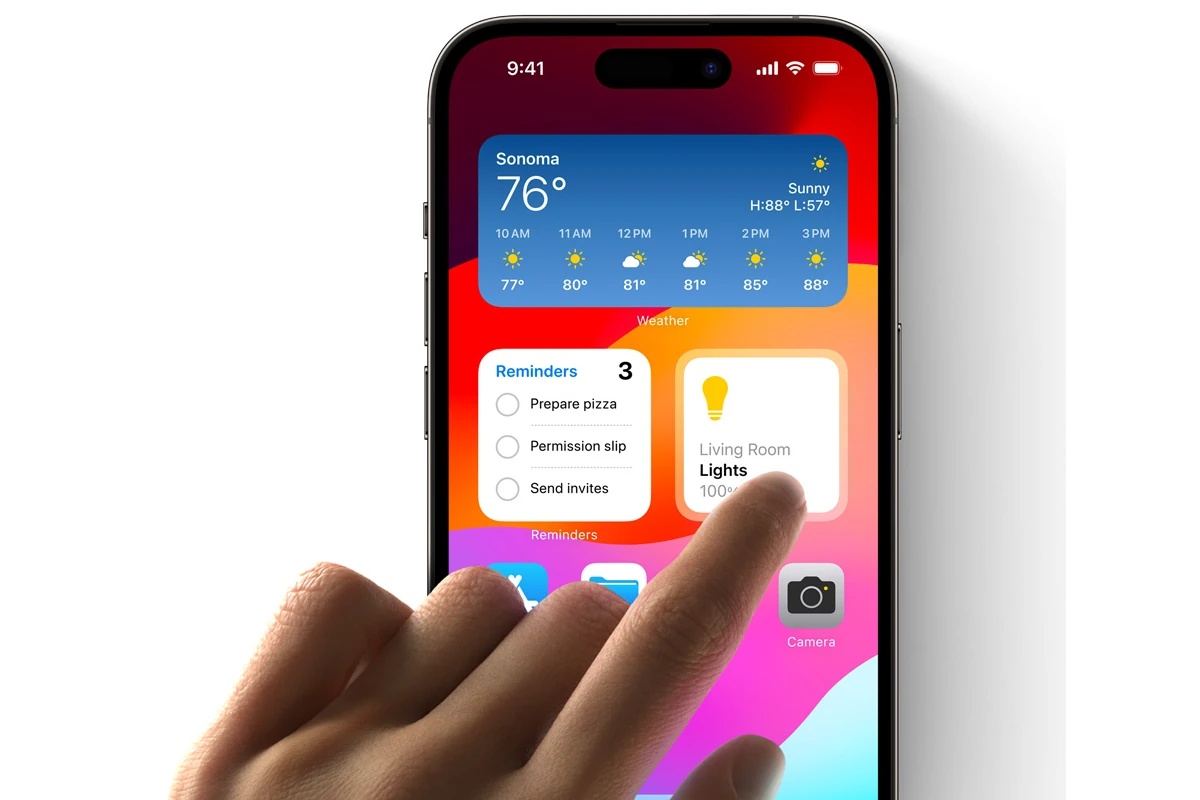
iOS 18 and 26 brought significant upgrades to widget customization on iPhones. Users can now resize widgets directly on their Home Screen without removing and re-adding them – a simple long press reveals new size options for compatible widgets.
The widget resizing feature saves time and keeps widget settings intact during size changes. Prior iOS versions required users to delete existing widgets and add them again in different sizes, which meant reconfiguring preferences each time.
This enhancement matches the flexibility users expect from their iPhone’s Home Screen layout. The ability to adjust widget sizes helps users optimize their screen space while maintaining quick access to important information.
How To Change Widget Sizes On iPhone: A Step-by-Step Guide
Customizing widget sizes on your iPhone lets you personalize your Home Screen layout and display the information you want in a way that fits your style and needs. Since iOS 14, Apple has supported widgets of different sizes, and with iOS 18 (2025), resizing widgets directly on the Home Screen became even easier.
Here’s how to change widget sizes on your iPhone:
Step 1: Enter Jiggle Mode
- From your Home Screen, touch and hold an empty area or any widget/app icon until the apps start to jiggle.
- Alternatively, touch and hold a widget until a menu appears, then tap Edit Home Screen.
Step 2: Add a New Widget (If Needed)
- Tap the “+” button in the upper-left corner.
- Browse or search for the widget you want.
- You’ll see size options (Small, Medium, Large).
- Select the size you want and tap Add Widget.
Step 3: Resize an Existing Widget (iOS 18 and Later)
- While in jiggle mode, tap the widget you want to resize.
- A size selector will appear showing available sizes for that widget.
- Choose the new size.
- The widget will resize immediately on your Home Screen.
Note: Not all widgets support all sizes. If the widget doesn’t show size options, you may need to delete and re-add it in the desired size.
Step 4: Rearrange and Exit Jiggle Mode
- Drag widgets/apps to rearrange them as desired.
- Tap Done in the upper-right corner (or press the Home button on older iPhones) to exit jiggle mode.
Additional Tips
- Smart Stacks: You can create Smart Stacks of widgets that rotate through multiple widgets in the same space. These can also be resized.
- Third-Party Widgets: Many third-party apps offer widgets with multiple sizes—check the app’s widget options.
- Widget Settings: Some widgets allow you to customize their content by long-pressing and selecting Edit Widget.
Summary Table
| Action | How to Do It | Notes |
|---|---|---|
| Enter Jiggle Mode | Long press empty area or widget | Apps and widgets start jiggling |
| Add Widget | Tap “+” > Select widget > Choose size | Adds new widget in chosen size |
| Resize Existing Widget | Tap widget in jiggle mode > Select size | Only available in iOS 18+ |
| Rearrange Widgets | Drag widget/app in jiggle mode | Customize Home Screen layout |
| Exit Jiggle Mode | Tap Done or press Home button | Saves changes |
By following these steps, you can easily change and customize widget sizes on your iPhone, making your Home Screen both functional and beautiful.
For more official details, visit:
Apple Support: How to add and edit widgets on your iPhone
Key Takeaways
- iOS 18 enables direct widget resizing through a simple long-press menu
- Widget preferences stay intact when changing sizes
- Home Screen customization becomes faster with streamlined size adjustments
Customizing Widget Size on iOS Devices
iOS 18 introduces a simplified widget resizing system that lets users modify widget dimensions directly from the Home Screen without removing and re-adding them.
Understanding Different Sizes and Their Functions
iPhone widgets come in three standard sizes: small (2×2), medium (2×4), and large (4×4). Each size serves specific purposes and displays different amounts of information.
Small widgets work best for quick glances at essential data like weather conditions or battery status. They take minimal space while remaining functional.
Medium-sized widgets display more detailed information such as calendar events, news headlines, or music controls. They strike a balance between screen real estate and functionality.
Large widgets provide the most comprehensive view, perfect for maps, photo galleries, or detailed weather forecasts. They offer rich content but occupy significant space.
Adjusting Widget Sizes on iPhone Home Screen
iOS 18 simplifies widget resizing with a new direct adjustment feature. Users can now long-press any widget to access size options instantly.
Steps to resize widgets:
- Long-press the widget
- Select the resize option
- Choose from available size options
- Tap outside to confirm
This new method saves time compared to the old process of deleting and re-adding widgets in different sizes.
Adding and Removing Widgets
To add a widget:
- Long-press any empty Home Screen area
- Tap the “+” button
- Select an app from the widget gallery
- Choose the preferred size
- Position the widget
Removing widgets requires a simple long-press and tap on the remove button. The process takes seconds and helps maintain a clean Home Screen layout.
Optimizing Home Screen Layout
Smart widget placement maximizes screen efficiency. Place frequently used widgets at the top for easy access.
Mix different widget sizes to create an organized layout. Small widgets work well in corners, while medium widgets can anchor the middle of the screen.
Consider grouping related widgets together, such as keeping all productivity tools in one area and entertainment widgets in another.
Use widget stacks to save space by combining multiple widgets in one location. Swipe up or down to cycle through them.
Frequently Asked Questions
Widget resizing options vary across different devices and operating systems, with specific size limitations and customization methods for each platform.
How do I adjust the dimensions of a widget on my iPhone?
Users can resize compatible widgets by pressing and holding the widget until it jiggles. Not all widgets support resizing.
The available sizes are small (2×2), medium (4×2), and large (4×4).
What steps are necessary to alter the size of widgets on an Android device?
Android users can resize widgets by long-pressing the widget and dragging the blue handles that appear around its borders.
Different widgets offer varying size options based on their design and functionality.
Can widget sizes be modified on the iPhone Lock Screen, and if so, how?
Lock Screen widgets support two sizes: circular and rectangular. Users select the size during widget placement.
Lock Screen customization requires iOS 16 or later.
What is the process for resizing widgets on the iPad Home Screen?
iPad users can resize widgets using the same method as iPhone – long press until the widget jiggles.
The iPad supports additional widget sizes due to its larger screen, including extra large (8×4) options.
Is there a method to personalize widget displays on the iPhone?
Users can stack multiple widgets of the same size to save space. Smart Stacks automatically rotate widgets based on usage patterns.
Widget colors and themes adapt to match system settings and wallpapers.
What is the procedure for managing widget dimensions in iOS 18?
iOS 18 will introduce new widget size options and improved resizing controls.
The update adds dynamic resizing that adapts to screen orientation and app content.
Smart sizing will automatically adjust widgets based on displayed information.





