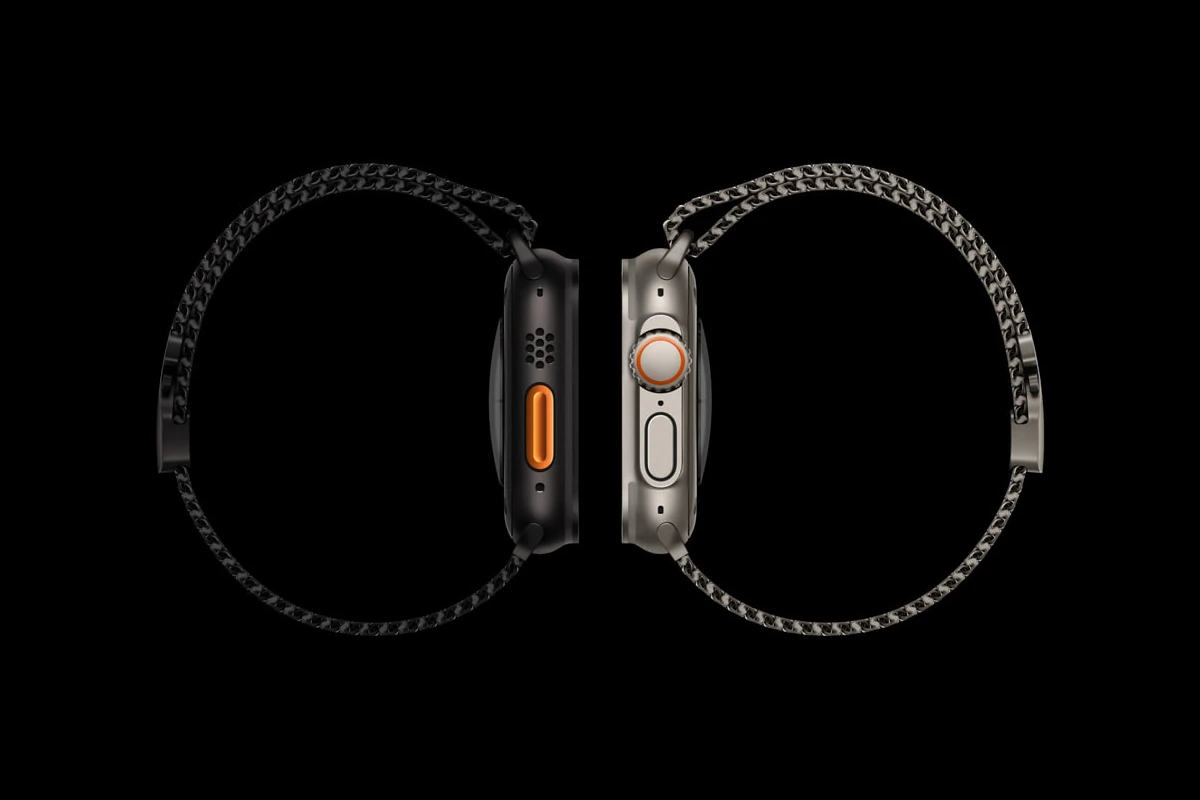
The Apple Watch Ultra (and its successor, the Ultra 2) is a powerhouse of a wearable, designed not just for daily notifications, but for extreme athletes, divers, and outdoor adventurers. With its rugged titanium casing, massive battery life, and unique hardware features, there is a lot to explore.
Whether you just unboxed yours or you’ve had it for months, here are the best tips and tricks to master your Apple Watch Ultra.
1. Master the Action Button
The international orange Action Button is the Ultra’s most distinct hardware feature. You can customize it to perform specific tasks instantly.
- The Trick: Go to Settings > Action Button on your watch. You can set it to start a Workout, open the Flashlight, set a Waypoint, or even run a Custom Shortcut.
- Pro Tip: If you set it to “Workout,” you can choose a specific activity (like Outdoor Run). A single press starts the workout immediately, bypassing the 3-2-1 countdown.
2. Use “Precision Start” for Workouts
Standard Apple Watches start tracking the moment you tap the workout type. For serious runners or cyclists, this isn’t ideal if you’re still waiting for a GPS signal or adjusting your gear.
- The Trick: Enable Precision Start in the Workout settings. When you press the Action Button to start a run, the watch will show a “Ready” screen. You can wait until the GPS indicator at the top turns solid green, then press the Action Button again to start the timer exactly when you begin moving.
3. Activate Night Mode (Wayfinder & Modular Ultra)
The Ultra features exclusive watch faces like Wayfinder and Modular Ultra that are designed for high visibility. In low-light conditions, you can turn the interface bright red to preserve your night vision.
- The Trick: On the Ultra 1, turn the Digital Crown upward while on the Wayfinder face to engage Night Mode.
- For Ultra 2 users: Night Mode can be set to Auto, using the ambient light sensor to switch to the red interface automatically when it gets dark.
4. Use the 86-Decibel Siren
If you are ever lost, injured, or feel unsafe, the Ultra has a built-in siren that can be heard up to 600 feet (180 meters) away.
- The Trick: Press and hold the Action Button (or the side button) until the Siren slider appears, then swipe it. Alternatively, continue holding the Action Button to trigger the sound automatically. It plays two distinct high-pitched patterns to signal distress.
5. Find Your Way Back with “Backtrack”
If you’re hiking and lose the trail, the Compass app’s Backtrack feature uses GPS to create a breadcrumb path of where you’ve been.
- The Trick: Open the Compass app. Tap the small footprint icon in the bottom right to start recording your path. If you get lost, tap the pause icon and select Retrace Steps. The watch will guide you back to your starting point.
6. Double Tap Gesture (Ultra 2 Only)
If you have the Apple Watch Ultra 2, you can control the watch without even touching the screen.
- The Trick: Tap your index finger and thumb together twice quickly. This gesture can answer a phone call, pause a timer, play/pause music, or scroll through your Smart Stack. It’s perfect for when your other hand is full of grocery bags or climbing gear.
7. Customize the “Bezel” Data
The Modular Ultra face allows you to use the outermost edge of the display to show real-time data.
- The Trick: Long-press the watch face, tap Edit, and swipe to the Bezel section. You can set the outer ring to show Altitude, Depth, or Seconds. This makes use of every millimeter of that large 49mm screen.
8. Optimize Battery for Multi-Day Trips
The Ultra already has the best battery life of any Apple Watch, but you can push it further for long-distance backpacking.
- The Trick: Go to Settings > Battery > Low Power Mode. For even more savings, you can toggle on “Fewer GPS and Heart Rate Readings” within the Workout settings. This is ideal for hiking, as it can extend the battery life up to 60–72 hours while still providing enough data to track your journey.
9. Instant Flashlight Shortcut
The Ultra’s screen can reach 2,000 to 3,000 nits of brightness, making it a surprisingly effective flashlight.
- The Trick: If you don’t want to dedicate your Action Button to the flashlight, swipe up to open the Control Center and tap the Flashlight icon.
- Bonus: Swipe left while the flashlight is on to change it to a flashing strobe or a red light (great for walking at night without blinding others).
10. Water Lock and Eject
Since the Ultra is rated for diving (up to 40 meters), it’s likely to get wet.
- The Trick: After a swim or dive, your speakers might sound muffled. Press and hold the Digital Crown to turn off “Water Lock.” The watch will play a series of tones to vibrate and “spit” the water out of the speaker grill.
Final Thought: The Apple Watch Ultra is more than a timepiece; it’s a tool. By mastering the Action Button and the Compass features, you turn a high-tech luxury item into a vital piece of safety and performance gear.