
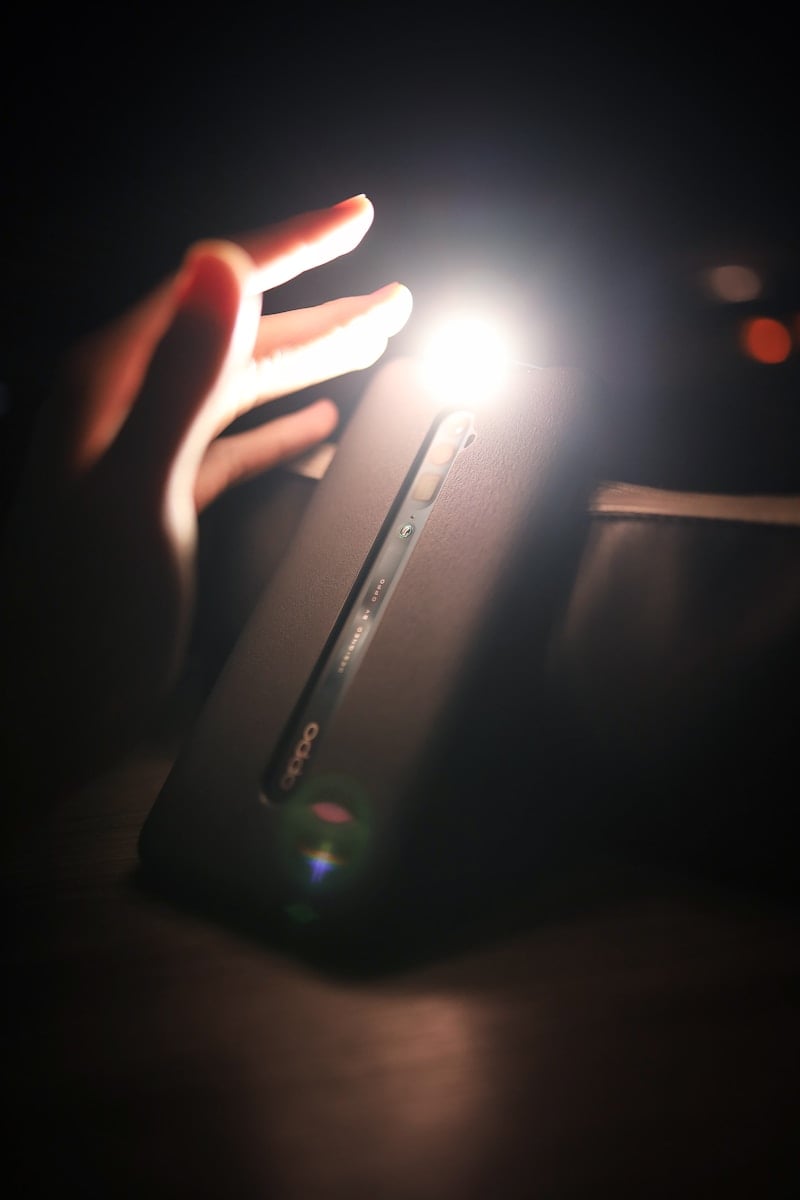
Finding the flashlight on your Android phone can be tricky, especially in the dark when you need it most. Most Android phones come with built-in flashlight features that are easy to access once you know where to look. To turn on your Android phone’s flashlight, swipe down from the top of your screen twice to open Quick Settings and tap the flashlight icon.
There are several other ways to light up your surroundings with your phone. You can ask Google Assistant by saying “Hey Google, turn on flashlight” or use special gestures on some phone models. Some Android phones even let you shake the device to activate the light, which can be very handy in emergencies.
Your phone’s flashlight is more than just a convenience—it’s a tool that can help you find lost items, navigate during power outages, or light your way on dark paths. Learning the quickest ways to access this feature makes your phone even more useful in daily life.
How to Turn On Flashlight on an Android Phone
The flashlight on an Android phone is a handy feature for low-light situations, power outages, or finding lost items. While Android devices may look different depending on the brand, the steps to turn on the flashlight are generally similar. This guide covers the most common ways to turn on and use the flashlight on an Android phone.
Turn On Flashlight Using Quick Settings
The easiest and most common way to turn on the flashlight is through Quick Settings.
- Swipe down from the top of the screen to open the notification shade.
- Swipe down again (if needed) to fully expand Quick Settings.
- Look for the Flashlight or Torch icon.
- Tap the icon to turn the flashlight on.
- Tap it again to turn the flashlight off.
Tip: If you don’t see the flashlight icon, tap the Edit or pencil icon to add it to your Quick Settings panel.
Turn On Flashlight from the Lock Screen
Some Android phones allow flashlight access directly from the lock screen.
- Wake your phone without unlocking it.
- Look for a Flashlight shortcut or icon.
- Tap or press and hold the icon to turn the flashlight on.
This feature may vary depending on your phone brand and Android version.
Use Google Assistant to Turn On Flashlight
You can turn on the flashlight using voice commands.
- Say: “Hey Google, turn on the flashlight.”
- To turn it off, say: “Hey Google, turn off the flashlight.”
Make sure Google Assistant is enabled and your phone can hear you.
Use the Power Button or Gestures (Brand-Specific)
Some Android manufacturers include gesture-based shortcuts:
- Motorola phones: Perform a double chop motion to turn the flashlight on or off.
- Samsung phones: Use the Side key shortcut (if configured in Settings).
- OnePlus phones: Draw a gesture on the screen (like a “V”) when the screen is off.
Check Settings > Gestures or Advanced features to see what’s available on your device.
Turn Off the Flashlight
You can turn off the flashlight by:
- Tapping the Flashlight/Torch icon in Quick Settings
- Using Google Assistant
- Repeating the same gesture or shortcut you used to turn it on
Flashlight Not Working? Try These Fixes
If your Android flashlight isn’t working, try the following:
- Close the Camera app, as it may be using the flash.
- Restart your phone.
- Check battery level—low power mode may disable the flashlight.
- Make sure your phone isn’t overheating.
- Update your phone’s software if an update is available.
Final Thoughts
Turning on the flashlight on an Android phone is quick and convenient, whether you use Quick Settings, voice commands, or gestures. Once you know where to find it on your device, you’ll always have a reliable light source right in your pocket.
Key Takeaways
- Android flashlights can be turned on through Quick Settings, voice commands, or phone-specific gestures
- Third-party apps offer additional flashlight features like brightness control and strobe effects
- Regular flashlight use can drain your battery quickly, so turn it off when not needed
Understanding Your Android Device’s Flashlight Feature
Android phones come with a built-in flashlight that uses the LED flash near the camera. This feature is handy in many situations and can be accessed in several ways depending on your device model.
Types of Flashlights in Android Phones
Most Android phones use the camera’s LED flash as a flashlight. This is the small, bright light located on the back of your phone near the camera lens. The LED (Light Emitting Diode) is energy-efficient and produces a strong beam of light.
Some newer Android models have upgraded flashlight features:
- Adjustable brightness levels that let you control how strong the light shines
- Color temperature options on premium models
- SOS mode for emergency situations
Budget phones typically have a single-LED flashlight, while premium models may include dual-LED setups for better lighting. The quality of your flashlight depends on your phone’s hardware.
The flashlight function is built into your Android’s operating system. You don’t need to download extra apps to use this basic feature.
Benefits of Using Flashlight in Dark Environments
The flashlight on your Android phone offers many practical uses in low-light situations. When walking at night, it helps you see the path ahead and avoid obstacles that might cause trips or falls.
During power outages, your phone flashlight becomes an instant emergency light. It’s always with you, unlike traditional flashlights that may be hard to find when lights go out.
Some key benefits include:
- Hands-free options when combined with standing your phone upright
- Always available as long as your phone has battery
- No extra weight to carry around
- Bright enough for most everyday tasks
The flashlight can help you find lost items under furniture or in dark corners. It’s also useful for reading menus in dimly lit restaurants or checking maps while camping.
Remember that using the flashlight will drain your battery faster. For extended use in dark environments, consider carrying a power bank.
Activating the Flashlight from the Lock Screen
Modern Android phones offer quick access to the flashlight without unlocking your device. This feature saves time during power outages or when searching for items in the dark.
Using Lock Screen Gestures for Flashlight
Many Android phones support special gestures to activate the flashlight directly from the lock screen. On Pixel phones, you can set up torch shortcuts on your lock screen for instant access.
To enable this feature:
- Go to Settings
- Find Lock Screen settings
- Look for Shortcuts or Gestures
- Select Flashlight/Torch as one of your shortcuts
Some Samsung phones allow you to turn on the flashlight by holding the power button for two seconds. This works whether the phone is locked or not.
On many Android devices, you can also use a simple “draw” gesture. Try drawing a “V” or “W” shape on the lock screen to trigger the flashlight. Check your phone’s settings to customize these gestures.
Lock Screen Widgets and Flashlight Access
Android phones typically display flashlight controls directly on the lock screen. Look for a small flashlight icon at the bottom of your screen when you press the power button.
To use this feature:
- Press the power button to wake your screen
- Tap and hold the flashlight icon at the bottom of your screen
- Release when the light turns on
Samsung Galaxy users can add dedicated flashlight shortcuts to their lock screen. Open Settings, then select Lock Screen and turn on Shortcuts. Choose the flashlight as either the left or right quick access button.
Some Android versions include a quick settings panel accessible from the lock screen. Swipe down from the top of your locked screen to reveal these controls, then tap the flashlight icon to toggle it on or off.
Using Quick Settings to Turn On the Flashlight
The Quick Settings panel offers the fastest way to turn on your flashlight without unlocking your phone. This feature works on almost all Android devices and can be customized for easier access.
Locating the Flashlight Button in Quick Settings
To access Quick Settings, simply swipe down from the top of your screen. On most phones, you’ll need to swipe down twice – once to see notifications and again to reveal the full Quick Settings panel.
Look for the flashlight icon (it usually looks like a small torch or light). It’s typically located among other common tools like Wi-Fi, Bluetooth, and airplane mode.
Simply tap the flashlight icon to turn it on. The icon will highlight or change color to show it’s active. Tap again to turn it off.
If your screen is locked, you can still access Quick Settings without entering your passcode. Just swipe down from the lock screen to reveal the panel.
Customizing Quick Settings for Easier Access
Android lets you rearrange Quick Settings icons to put your most-used tools first. This helps you access the flashlight faster.
To customize your Quick Settings:
- Swipe down twice to open the full panel
- Tap the pencil icon or three dots (menu)
- Drag the flashlight icon to your preferred position
- Tap “Done” or “Save” when finished
On newer Android versions, you can place the flashlight in the first row of icons so it appears immediately with a single swipe down. Some phones even let you reduce the number of icons per row, making each one larger and easier to tap.
If you use the flashlight often, consider placing it in one of the four corner positions for quickest access.
Voice Activation via Google Assistant
Google Assistant makes it easy to turn on your phone’s flashlight with just your voice. You can use simple voice commands without touching your phone, which is perfect for when your hands are full or dirty.
Commands to Control Flashlight Using Google Assistant
To control your flashlight with voice, simply say “Hey Google” followed by a specific command. The most common commands include:
- “Turn on flashlight”
- “Turn off flashlight”
- “Toggle flashlight”
- “Flashlight on/off”
Some phones also respond to fun commands like saying “Lumos” to turn on and “Nox” to turn off the flashlight, inspired by Harry Potter spells.
If Google Assistant doesn’t recognize your command, try being more specific. Say “Hey Google, turn on my phone’s flashlight” for better results.
Users can also activate the flashlight by opening Google Assistant and tapping the microphone icon instead of using the wake phrase.
Setting Up Google Assistant for Flashlight Commands
Before using voice commands, make sure Google Assistant is properly set up on your phone. First, check if your Android device has Google Assistant installed.
To enable Google Assistant:
- Open the Google app on your phone
- Tap your profile picture in the top right
- Select “Settings” then “Google Assistant”
- Make sure “Hey Google” detection is turned on
For enhanced flashlight control, some users install third-party apps. Commandr is a popular option that adds extra commands like “torch on” to Google Assistant.
If commands aren’t working, try adding the flashlight action to your Google Assistant routine. This creates a custom command that reliably turns your flashlight on or off with your preferred phrase.
Third-Party Flashlight Applications
While most Android phones have built-in flashlight functions, third-party apps offer extra features and customization options that might better suit your needs.
Choosing the Right Flashlight App
When looking for a flashlight app, focus on ones with high ratings and minimal permissions. Free options often work well, but many include ads that can be annoying when you need light quickly.
Look for these key features:
- Simple interface that turns on quickly
- Battery usage indicators to prevent drain
- SOS or emergency modes for safety situations
- Widget support for faster access
Apps like “Flashlight HD” and “Tiny Flashlight” are popular choices in the Google Play Store. Remember that the best flashlight app has no ads and doesn’t request unnecessary permissions.
Some apps offer bonus features like screen lighting modes, colored lights, or strobe effects. These can be helpful in specific situations but aren’t needed for basic use.
Safety and Permissions for Third-Party Apps
Be careful when installing flashlight apps as some request excessive permissions. A basic flashlight app should only need camera access (to control the flash) and maybe storage for settings.
Red flags to watch for:
- Apps requesting contacts access
- Location tracking permissions
- Network or phone state access
- Identity information
Always check app reviews before downloading. Many free flashlight apps collect and sell user data. This practice helps developers make money but can compromise your privacy.
For maximum safety, stick with well-known developers and apps with at least 4-star ratings. Update your apps regularly to get security patches. When possible, use your phone’s built-in flashlight feature instead of third-party options.
Flashlight Gestures and Shortcut Settings
Modern Android phones offer quick ways to access your flashlight without unlocking your screen or opening apps. These time-saving features include gesture controls and customizable shortcuts.
Enabling Gesture Controls for Flashlight
Most Android phones come with built-in gesture options to turn on the flashlight. To set up these gestures:
- Open your phone’s Settings app
- Tap on Gestures or Motion & gestures
- Look for options like Quick gestures or Shortcuts
- Find and enable the flashlight gesture option
On many phones, you can draw specific patterns on the lock screen to activate the flashlight. Common gestures include drawing the letter “V” or double-tapping the back of your phone.
Samsung users have special options. You can add a torch shortcut to your lock screen by going to Settings → Lock screen → and turning on Shortcuts.
Some phones let you shake the device twice to turn on the light. This works even when the screen is off, making it perfect for dark situations.
Creating Flashlight Shortcuts and Widgets
Adding a flashlight widget or shortcut to your home screen gives you one-tap access to light. Here’s how to set it up:
- Long-press on an empty area of your home screen
- Select Widgets from the menu that appears
- Find the Flashlight widget and drag it to your desired location
For quick access, you can also use the Quick Settings menu. Swipe down from the top of your screen once or twice to find the flashlight tile. If it’s not visible, tap the edit button (usually a pencil icon) to add it.
Some launchers let you set custom swipe actions on app icons. You could set your camera app to turn on the flashlight when you swipe up on its icon.
Third-party apps offer even more options. These apps can add floating buttons or voice commands to control your flashlight.
Troubleshooting Common Flashlight Issues
When your Android phone’s flashlight stops working, it’s usually due to simple software issues that can be fixed quickly. The LED flash on most phones serves as both camera flash and flashlight.
Flashlight Not Turning On
If your flashlight won’t turn on, start with basic fixes. First, try restarting your phone, which often fixes flashlight problems.
Check if your device is in power-saving mode. This mode often limits flashlight function to save battery. Go to Settings > Battery and switch off any power-saving features.
Another common issue is when the flashlight appears greyed out with a message saying “Camera in use.” This happens when another app is using the camera. To fix:
- Close all apps that might use the camera
- Check recently used apps and force-stop them
- Restart your phone if needed
Sometimes clearing the camera app cache helps. Go to Settings > Apps > Camera > Storage > Clear Cache.
Flashlight Brightness and Performance
Flashlight brightness issues can affect how useful your phone’s LED flash is in dark situations. If your flashlight seems dim, first check for any physical obstructions like dirt or case covers blocking the LED.
Some phones have adjustable flashlight brightness settings. To access these:
- Pull down the quick settings panel
- Press and hold the flashlight icon
- Adjust the brightness slider if available
If your flashlight turns off unexpectedly, it might be overheating. The LED flash generates heat, and phones have safety features that turn it off when too hot. Let your phone cool down before trying again.
Battery level also affects flashlight performance. When your battery is below 15%, many phones limit flashlight brightness or disable it completely to conserve power.
After installing system updates, check if flashlight controls have changed. Sometimes updates move flashlight settings to different menus.
Considering the Impact of Flashlight Use on Battery Life
Using your phone’s flashlight can drain your battery quickly. This is especially true when you leave it on for long periods.
The LED flash on Android phones uses more power than many other phone functions. When you turn on the flashlight, your battery level can drop noticeably within just an hour.
Why flashlights drain batteries:
- Continuous power to the LED light
- Heat generation (which affects battery health)
- Screen usually stays on while flashlight is active
Leaving your flashlight on for extended periods can be hard on your phone. Keeping it on for 6-7 hours can not only drain the battery but also generate heat that might harm battery health.
Many Android phones won’t let you use the flashlight when battery levels drop too low. This is a built-in protection feature to preserve remaining power for essential functions.
Some phones show a warning message when battery levels are below 15% and you try to use the flashlight. Others disable the flashlight feature completely.
Did you know? With root access on some Android devices, users can create command shortcuts to bypass these restrictions. This trick makes the phone think it has more battery than it actually does.
Battery saving modes can also affect your flashlight. When you enable power saving mode, some Android phones may limit or disable the flashlight function to conserve energy.
For everyday use, it’s best to use your flashlight in short bursts. Turn it off when not needed to keep your smartphone battery lasting longer.
Related Android Features and Accessories
Android phones offer several features and accessories that work alongside the flashlight function. These extras can enhance your phone usage and provide additional lighting options when needed.
Enhancing Your Android Experience
You can make your Android phone more useful with built-in features. Many phones allow you to turn on the flashlight by tapping the back of your device. This works through gesture controls found in your settings menu.
Google Assistant helps too. Just say “Hey Google, turn on the flashlight” to activate it hands-free. This is perfect when your hands are dirty or full.
Some Android phones include a scheduled flashlight feature. You can set it to turn on at specific times, which is helpful for home security.
Many newer models offer adjustable brightness levels for the flashlight. This lets you control how strong the light shines based on your needs.
Quick Settings tiles can be customized to put your most-used features front and center. Move the flashlight tile to the first position for faster access.
Complementary Devices and Accessories
External light accessories can work with your Android phone. Clip-on LED lights attach to your phone’s charging port and offer wider lighting angles than the built-in flash.
Phone cases with built-in lights provide better lighting for photos and videos. Some premium cases include a ring light around the camera for perfect selfies in dark places.
Samsung Galaxy phones work with their SmartThings ecosystem. This lets your phone’s flashlight turn on automatically when linked to motion sensors.
Battery packs with built-in flashlights serve dual purposes. They charge your phone while providing an extra light source that saves your phone’s battery.
For outdoor activities, consider GPS-enabled flashlight apps. These combine your phone’s flashlight with location tracking for hiking or camping safety.
Frequently Asked Questions
Android phones offer several ways to access the flashlight feature. These methods range from using quick settings to voice commands, making it easy to turn the light on or off whenever needed.
What is the process for activating the flashlight feature on a Samsung Android device?
On Samsung devices, swipe down from the top of your screen twice to see the full quick settings panel. Look for the flashlight icon (usually shaped like a torch) and tap it to turn on the light.
Some Samsung phones also support the back tap feature, which lets you turn on the flashlight by tapping the back of your phone.
How can I quickly enable the flashlight on my Android smartphone?
The fastest way to turn on your flashlight is through the quick settings menu. Swipe down from the top of your screen to access this menu and tap the flashlight icon.
You can also use Google Assistant by saying “Hey Google, turn on the flashlight” without even touching your phone. This voice command works well when your hands are busy or dirty.
What steps should be followed to deactivate the flashlight on an Android phone?
To turn off the flashlight, use the same method you used to turn it on. If you used quick settings, swipe down and tap the flashlight icon again to toggle it off.
If you turned it on with Google Assistant, simply say “Hey Google, turn off the flashlight” to deactivate it.
Is there a way to access the flashlight function directly from the home screen on an Android device?
Yes, you can add a flashlight widget to your home screen for one-tap access. Press and hold on an empty area of your home screen, select “Widgets,” and look for the flashlight widget.
Some phones also let you create custom shortcuts. You can set up gestures like double-tapping the back of your phone to trigger the flashlight instantly.
Can you guide me through turning off the flashlight feature on my Samsung handset?
To turn off the flashlight on a Samsung phone, swipe down from the top of the screen to open the notification panel. Find the lit-up flashlight icon and tap it once to turn it off.
If the flashlight won’t turn off, try restarting your phone. This usually fixes any software glitches that might keep the light stuck on.
Does my Android device come with a pre-installed flashlight utility?
Yes, all modern Android phones come with a built-in flashlight function. This feature uses the camera flash LED as a light source.
There’s no need to download third-party flashlight apps. The built-in flashlight works perfectly and is accessible through your phone’s quick settings menu.





