
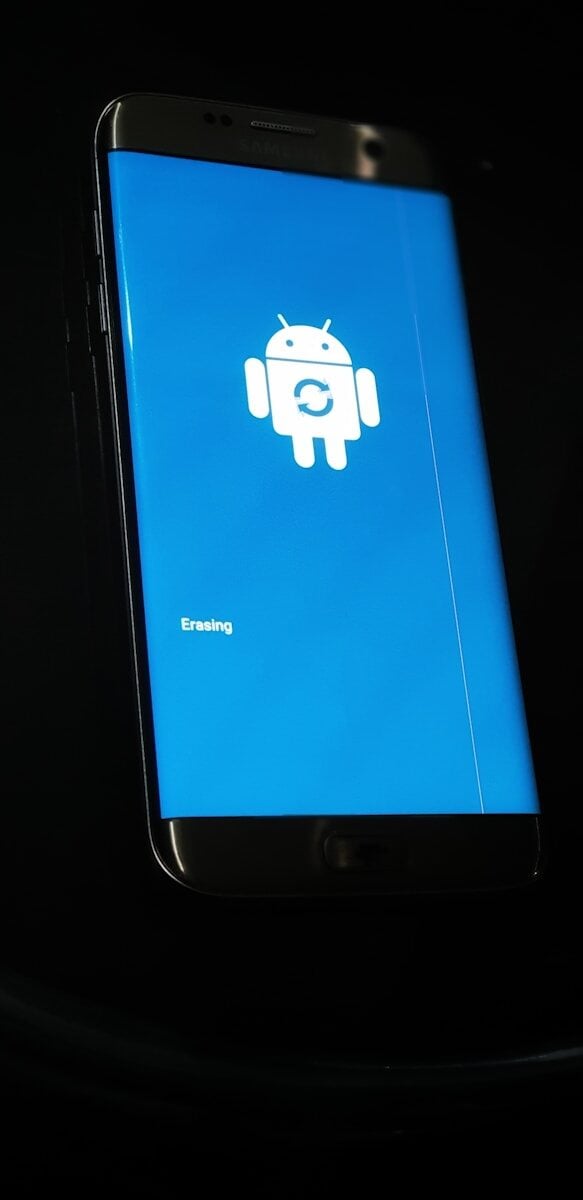
Is your phone running slow? Does it take forever to load apps? Your Android might need a quick cleanup. Clearing the cache on your Android device can speed up your phone and free up valuable storage space. Old files, images, and data build up over time, making your device sluggish when you least expect it.
Many Android users don’t know how easy it is to clear their cache. You can clear cache in Chrome by tapping the three-dot menu and selecting “Delete browsing data.” For system cache, you can use your phone’s settings menu. This simple step often fixes many common performance issues without deleting any important information.
Think of cache clearing as spring cleaning for your phone. Just like a clean house works better, a phone with less junk runs smoother. Whether you have a Samsung, Google Pixel, or any other Android device, the process is simple and can be done in under a minute.
How to Clear Cache on Android (Step‑by‑Step Guide)
If your Android phone feels slow, apps keep crashing, or storage is running low, clearing the cache can help. Cache files are temporary data stored by apps and websites to make things load faster — but over time, they can build up and cause problems.
Here’s a complete guide on how to clear cache on Android, whether you want to clean a single app or free up system-wide space.
What Is Cache on Android?
Cache is temporary data stored by apps and the system to speed up performance.
Examples:
- Instagram stores images you’ve viewed
- Chrome saves website files
- Spotify caches songs for faster playback
Clearing cache: ✅ Frees up storage
✅ Fixes app glitches
✅ Can improve performance
Clearing cache does NOT delete:
- Photos
- Messages
- Account logins
- Personal data
Method 1: Clear Cache for Individual Apps (Recommended)
This is the safest and most effective way.
Steps:
- Open Settings
- Tap Apps (or Apps & Notifications)
- Select the app you want to clean
- Tap Storage & cache
- Tap Clear cache
That’s it.
⚠️ Don’t tap “Clear storage” unless you want to reset the app completely.
Method 2: Clear Cache on Samsung Galaxy Phones
If you’re using a Samsung device:
- Go to Settings
- Tap Battery and Device Care
- Tap Storage
- Select Apps
- Choose an app
- Tap Clear cache
Samsung also offers built-in storage cleanup suggestions under Device Care.
Method 3: Clear All App Cache (Older Android Versions)
Older Android versions (Android 8 and earlier) allowed clearing all app cache at once. On modern Android (Android 9+), this option has been removed.
Now, you must clear cache app-by-app or use a third-party cleaning tool.
Method 4: Clear Chrome Browser Cache
If websites aren’t loading properly:
- Open Google Chrome
- Tap the three dots (⋮)
- Tap Settings
- Tap Privacy and security
- Tap Clear browsing data
- Select:
- ✅ Cached images and files
- Tap Clear data
Method 5: Wipe Cache Partition (Advanced)
If your phone is experiencing major system issues, wiping the cache partition can help.
⚠️ This does NOT delete personal data.
General Steps (may vary by brand):
- Power off your phone
- Hold Power + Volume Up (or Power + Volume Down)
- Enter Recovery Mode
- Use volume buttons to select:
- Wipe Cache Partition
- Confirm with the Power button
- Reboot device
Check your manufacturer’s instructions before attempting this.
When Should You Clear Cache?
Consider clearing cache if:
- Apps keep crashing
- Phone feels slow
- Storage is almost full
- An app isn’t updating properly
- You’re troubleshooting bugs
You don’t need to clear cache regularly unless you’re having issues.
How Much Space Can You Free?
It depends on the app.
Common heavy cache users:
- TikTok
- Chrome
- YouTube
- Spotify
Some apps can store 500MB to several GB of cached data.
Does Clearing Cache Improve Speed?
Sometimes — especially if:
- An app is corrupted
- Cache files are outdated
- Storage is nearly full
However, clearing cache too often may temporarily slow apps down since they need to rebuild data.
Clear Cache vs Clear Data: What’s the Difference?
| Clear Cache | Clear Data |
|---|---|
| Deletes temporary files | Deletes app data completely |
| Keeps you logged in | Logs you out |
| Safe to use anytime | Resets app to default |
| Fixes minor issues | Fixes major app problems |
Should You Use Cache Cleaner Apps?
Be cautious.
Many “phone cleaner” apps:
- Run ads
- Drain battery
- Offer little real benefit
Android already manages cache automatically. Manual clearing is usually enough.
Final Thoughts
Clearing cache on Android is a simple way to:
- Fix slow apps
- Free up storage
- Solve minor glitches
For most users, clearing cache for specific apps is the safest and most effective method.
If your phone is still slow after clearing cache, you may want to:
- Delete unused apps
- Move photos/videos to cloud storage
- Restart your device
- Check for software updates
A quick cache cleanup can often make your Android feel refreshed — without deleting anything important.
Key Takeaways
- Clearing cache can fix slow performance and free up storage space on Android phones.
- You can clear app cache through Settings and browser cache through the Chrome app.
- Regular cache clearing helps maintain your device’s speed and prevents common problems.
Understanding Cache on Android
Cache plays a vital role in your Android device’s performance. It stores temporary data to help apps run faster, but it can also take up valuable storage space over time.
What Is Cache?
Cache is a storage area that keeps temporary files your apps use often. When you use an app, it saves certain information to make future loading faster. For example, when you browse Instagram, it stores images you’ve viewed so they don’t need to be downloaded again.
Think of cache like a notebook where your phone writes down things it might need later. This saves time and data usage. Without cache, apps would need to reload everything from scratch each time you open them.
Cache files are meant to be temporary. Your phone manages some automatically, but sometimes you need to clear it manually for best performance.
Types of Cache on Android
Android devices have several types of cache:
App Cache – Each app creates its own cache files. These include images, videos, and other data the app needs to run smoothly.
Browser Cache – Your web browser saves information from websites including images and page data.
System Cache – This is used by Android itself to store temporary system files.
You can clear app cache individually by going to Settings > Apps > (select app) > Storage > Clear cache. Browser cache can be cleared through the browser settings. System cache might require different steps depending on your device.
Effects of Cached Data on Performance
Cached data has both positive and negative effects on your Android device. The right amount of cache helps apps load faster and reduces data usage. Your phone doesn’t need to download the same information repeatedly.
However, as cache builds up, it can take up significant storage space. A full cache can make your phone run slower. Old cached data might also cause apps to misbehave or crash.
When should you clear cache? Consider doing it when:
- Your phone is running slowly
- You’re low on storage space
- An app isn’t working properly
- You haven’t cleared it in several months
Clearing cache won’t delete important data like your photos, messages, or app settings. It only removes temporary files that can be downloaded again when needed.
The Importance of Clearing Cache
Clearing your Android phone’s cache regularly offers significant benefits for device performance, storage management, and personal privacy. This simple maintenance task can help solve many common phone issues.
Enhancing Phone Performance
Cached data can slow down your Android phone over time. When apps store too much temporary information, they may run sluggishly or crash unexpectedly. Clearing the cache can make your device feel like new again.
Old or corrupted cache files often cause performance issues. You might notice apps taking longer to load or responding slowly to your touch. This happens because the phone must sort through unnecessary data.
Removing cached data forces apps to rebuild fresh, optimized files. This process can fix many common problems like:
- App freezing or crashing
- Slow response times
- Battery draining too quickly
- Overheating issues
Many users report their phones running much smoother after a cache cleanup. It’s like giving your device a fresh start without losing important data.
Managing Storage Space
Cache files can consume surprising amounts of storage space. Some apps store hundreds of megabytes or even gigabytes of temporary data. Clearing this cache frees up valuable space on your device.
When your phone storage fills up, you’ll notice:
- Difficulty installing new apps
- Problems taking photos or videos
- Slower overall performance
- Trouble receiving messages or updates
Cache files are designed to be temporary. The system can recreate them as needed, so removing them is safe. Unlike deleting photos or apps, you won’t lose anything important.
Many Android phones now include built-in tools to identify which apps use the most cache space. This makes it easier to target the biggest storage hogs first when cleaning up your device.
Privacy and Security Considerations
Your cache stores information about your browsing habits and app usage. This can include login details, search history, and site preferences. Clearing cache helps protect your privacy and security.
Old cached data might contain outdated or vulnerable information. Hackers can sometimes exploit these files to access your personal data. Regular cache clearing reduces this risk.
When using public Wi-Fi or shared devices, clearing your cache becomes even more important. It helps prevent others from seeing your private information.
Some types of cached data worth clearing for privacy include:
- Browser history and cookies
- Saved form data
- App login information
- Location data
Apps can’t track your activity as easily when you regularly clear their cached data. This simple habit helps maintain your digital privacy in an increasingly connected world.
Step-by-Step Guide to Clear Cache
Clearing your Android device’s cache can help free up storage space and fix many app performance issues. Follow these simple steps to refresh your phone’s performance.
Accessing Settings Menu
To start clearing cache on your Android phone, you first need to open the Settings app. Look for the gear icon in your app drawer or swipe down from the top of your screen and tap the gear icon in the notification panel.
On most Android versions, you can also access Settings by:
- Swiping up from the home screen to open the app drawer
- Using the quick settings panel
- Asking your voice assistant to “open settings“
The Settings menu might look slightly different depending on your phone brand (Samsung, Google, etc.) and Android version, but the basic navigation remains similar.
Navigating to App Info
After opening Settings, you need to find where apps are listed. There are two main ways to reach app info:
- Go to Storage first, then find Apps or App Manager
- Tap directly on Apps or Application Manager from the main Settings menu
On newer Android versions, follow these steps:
- Tap Apps in Settings
- You’ll see a list of all installed apps on your device
- Scroll through the list or use the search bar to find a specific app
Some phones may require you to tap “See all apps” to view the complete list of installed apps on your Android device.
Clearing Cache for Individual Apps
Once you’ve found the app you want to clean up, tap on its name to open the App Info screen. Here’s what to do next:
- Tap Storage or Storage & cache (the exact wording may vary)
- Look for the Clear Cache button at the bottom of the screen
- Tap it to remove temporary files for that app
This process won’t delete any important data like your login information or saved preferences. It only removes temporary files.
For apps that use a lot of space, like browsers or social media apps, clearing cache can free up significant storage. On Samsung devices, the steps are similar: go to Settings > Apps > select app > Storage > Clear cache.
Clearing Cache for All Apps
If you want to clear cache for all apps at once, there are a few methods available:
Method 1: Through Storage Settings
- Go to Settings > Storage
- Look for “Cached data” or “Cache”
- Tap on it and confirm when prompted
Method 2: Using Chrome Browser
If you need to clear your browser cache:
- Open Chrome
- Tap the three dots menu in the top right
- Select “History” then “Clear browsing data”
- Choose “Cached images and files”
- Select the time range and tap “Clear data”
For system cache on some devices, you can clear the entire system cache by turning off your device and booting into recovery mode. However, this method varies by phone model and isn’t available on all newer Android versions.
Special Considerations for Common Apps
Different apps store and manage cache in unique ways. Some apps need special steps to clear cache properly, while others might have built-in tools to help you manage storage better.
Clearing Cache in Google Chrome
Google Chrome is one of the most popular browsers on Android and can accumulate a lot of cache data. To clear the Chrome cache:
- Open Chrome on your Android device
- Tap the three dots in the top right corner
- Select “Settings” from the menu
- Tap “Privacy and Security”
- Select “Clear browsing data”
You can choose what to delete and the time range. For a complete cleanup, select “Cached images and files” and pick “All time” as your time range.
Chrome also offers a built-in cache management tool that lets you see how much space is being used. This is helpful when your device is running low on storage.
Remember that clearing the browser cache will log you out of most websites. Make sure you know your passwords before proceeding.
Dealing With Cache in Social Media Apps
Social media apps are known for storing large amounts of cache data from photos, videos, and other media content.
For most social media apps like Facebook, Instagram, and Twitter, you can clear the cache through your Android settings:
- Go to Settings > Apps
- Find and select the social media app
- Tap “Storage & cache”
- Hit “Clear cache”
Some social media apps also have in-app options to clear cache. Check the app’s settings menu for storage or data options.
Facebook, for example, tends to store lots of data. Clearing its cache can free up significant storage space without deleting your account information or posts.
Be careful not to tap “Clear data” unless you want to reset the app completely. This would log you out and remove all app data.
Handling Cache in Gaming and Multimedia Apps
Gaming and multimedia apps often store the largest cache files on Android devices. Games may keep large asset files, while video streaming apps cache previews and videos.
For gaming apps:
- Clear cache through Settings > Apps > (Game Name) > Storage > Clear Cache
- Some games have their own data management options in the game settings
- Be careful not to delete game progress when clearing cache
For multimedia apps like Netflix, Spotify, or YouTube:
- Clear cache through the Android settings menu as described above
- Check in-app settings for cache controls
- Some apps like Spotify let you set cache size limits
Video streaming apps may need regular cache clearing if you watch a lot of content. This helps prevent buffering issues and storage problems.
Gaming apps might run faster after clearing cache if they’ve accumulated too much temporary data. This is especially important for older Android devices with limited storage.
Clearing Cache on Different Android Devices
Android phones have different interfaces and settings layouts based on the manufacturer. Knowing how to clear the cache on your specific device can help you free up space and solve many performance issues quickly.
Instructions for Samsung Galaxy Phones
Samsung Galaxy phones offer several ways to clear cache. The easiest method is through the Settings app.
- Open Settings on your Samsung phone
- Tap on Battery and device care
- Select Storage
- Tap Cached data at the bottom of the screen
- Confirm by tapping Clear
You can also clear cache for individual apps. Go to Settings → Apps → select an app → Storage → Clear cache. This removes temporary files without deleting important data like login credentials.
For older Samsung models running Android 10 or below, you might find the option under Device maintenance instead of Device care.
Samsung phones also let you clean all caches in one click using the built-in Device Care tool.
Steps for Google Pixel Devices
Google Pixel phones run stock Android and have a straightforward process for clearing cache.
To clear cache for all apps at once:
- Open Settings
- Tap Storage
- Select Cached data
- Tap OK to confirm
For individual apps on your Pixel:
- Go to Settings → Apps
- Select the app you want to manage
- Tap Storage & cache
- Choose Clear cache
Google Pixel devices let you clear the cache without removing app data. This helps fix app issues while keeping your login information safe.
If your Pixel phone still runs slowly, try clearing the system cache by restarting your phone.
Clearing Cache on Xiaomi Phones
Xiaomi phones with MIUI have a built-in cleaner tool that makes cache clearing simple.
To clear all app caches at once:
- Open the Security app (or Cleaner app)
- Tap on Deep Clean
- Select Cache
- Tap Clean button at the bottom
For individual apps:
- Go to Settings → Apps
- Select the app you want to clean
- Tap Clear data → Clear cache
Xiaomi also offers a special feature called Memory extension that helps manage RAM and cache automatically. You can find this in the Settings app under Special features.
The Security app on Xiaomi phones can be scheduled to clean the cache regularly, saving you time.
General Tips for Other Android Devices
Most Android phones follow a similar process for clearing cache, with small variations in menu names.
Common steps that work on most devices:
- Open Settings
- Find Storage or Apps
- Select Cached data or choose a specific app
- Tap Clear cache
For system-wide cache clearing:
- Some phones let you wipe the cache partition by booting into recovery mode
- Press and hold Power + Volume Up buttons while restarting (this varies by device)
- Select Wipe cache partition using volume buttons to navigate
Third-party cache cleaner apps like CCleaner and Files by Google can also help. They work across most Android brands and offer one-tap cleaning.
Always clear your browser cache regularly by opening Chrome, tapping the three dots, and selecting Clear browsing data.
Troubleshooting Cache-Related Issues
When cache problems persist on your Android device, you might need more advanced solutions than simply clearing cache. Different issues require different approaches, especially when dealing with stubborn apps or system-wide problems.
When Clearing Cache Is Not Enough
Sometimes the standard cache clearing process doesn’t work as expected. If you tap “Clear Cache” and notice the storage fills back up immediately, your device might have background processes reinstating the cache files.
Try these steps:
- Restart your device before and after clearing cache
- Boot into Safe Mode to disable third-party apps that might interfere
- Force stop the app before clearing its cache
- Check for app updates that might fix cache-related bugs
If an app’s cache keeps returning after clearing, you might need to clear the app’s data completely. This will remove all app settings and logged-in information but often fixes persistent issues.
Identifying Corrupted Cache Files
Corrupted cache files often cause apps to crash, freeze, or behave unpredictably. Signs of corrupted cache include:
Common indicators:
- App crashes immediately after opening
- Strange visual glitches or formatting issues
- Unusually slow performance in specific apps
- Error messages mentioning “data” or “storage”
To identify which app has corrupted cache, check your device’s battery usage statistics. Apps with corrupted cache often show higher-than-normal battery drain. You can also use the device’s built-in storage analyzer to find apps taking up unusual amounts of cache space.
For browser apps specifically, corrupted cache often causes loading or formatting issues on websites.
Alternative Solutions for Persistent Problems
When standard cache clearing methods fail, try these alternative approaches:
- Use a cleaning app from trusted developers (be cautious with permissions)
- Clear cache partition through Recovery Mode:
- Power off your device
- Hold Volume Up + Power button
- Select “Wipe cache partition”
- Reboot system
For browser-specific issues, try clearing cookies alongside cache. This often resolves stubborn web browsing problems.
If problems persist across multiple apps, check your device’s available storage. A nearly-full device can prevent proper cache clearing. Delete unnecessary files or move media to external storage.
As a last resort, you might need to perform a factory reset—but always back up important data first.
Implications of Cache Management
Managing your phone’s cache affects how quickly apps work, how well websites load, and your device’s overall performance. Cache management is a key part of keeping Android devices running smoothly.
Impact on App Load Times
Clearing app cache can significantly improve load times for apps that have become sluggish. When cache builds up, apps may take longer to start and respond to your touches.
Fresh cache helps apps load faster because they don’t need to download the same data repeatedly. This is especially true for apps you use often, like social media or games.
Some signs that app cache needs clearing:
- App freezes or crashes
- Unusually slow response time
- Features not working properly
Most Android users see immediate improvements after clearing problematic app caches. The first launch after clearing might be slower, but subsequent opens become much faster.
Influence on Internet Browsing Experience
Browser cache affects how quickly websites load on your phone. When you visit websites, your browser saves images and data to make future visits faster.
Over time, this browsing data can become outdated or corrupt. Clearing browser cache helps fix issues like:
- Websites showing old content
- Forms not working correctly
- Pages failing to load properly
Many Android users report better browsing speeds after clearing their Chrome or Samsung Internet cache. Fresh cache means websites can display their newest content without conflicts from old data.
Browser performance improvements are often most noticeable on news sites and online stores that update frequently.
Long-Term Effects on Android Performance
Regular cache maintenance has positive long-term effects on device performance. Many Android problems stem from neglected cache management.
Clearing cache is completely safe and can be done as often as needed without damaging your phone. Unlike some maintenance tasks, there are no negative consequences to frequent cache clearing.
Benefits of regular cache management include:
- Extended battery life
- Reduced storage usage
- Fewer system slowdowns
- Less frequent crashes
Users who clear cache monthly often report their phones remain responsive for longer. This can extend the useful life of older Android devices that might otherwise need replacement.
Cache management becomes more important as phones age and fill with apps and data. The performance gap between maintained and unmaintained devices grows wider over time.
Advanced Cache Techniques
Beyond basic cache clearing, Android offers several advanced methods to manage your device’s temporary data more effectively. These techniques can help you save space, boost performance, and take control of how your apps use storage.
Using Third-Party Cache-Cleaning Apps
When built-in options aren’t enough, third-party apps can provide more thorough cache cleaning. Apps like CCleaner and Files by Google offer one-tap cache clearing for multiple apps at once.
These specialized tools can access areas that standard methods might miss. Many show detailed breakdowns of which apps use the most cache space.
Popular cache cleaning apps include:
- Files by Google
- CCleaner
- SD Maid
- Norton Clean
Some apps can set up automatic schedules to clear cache daily or weekly. This helps keep your phone running smoothly without manual work.
Be careful not to use apps that claim to clear “system cache” without root access. Many fake apps make this claim but can’t deliver.
Adjusting Cache Settings for Optimal Performance
Many Android apps let you control their cache behavior directly. In Chrome, you can tap the three dots, select Settings, and find options to clear browsing data including site data and cookies.
Some streaming apps like Spotify and Netflix have settings to choose cache size limits. This helps balance offline content against storage space.
Look for these common cache settings in apps:
- Maximum cache size
- Auto-clear thresholds
- Content download quality
Remember that smaller cache sizes may mean more data usage. Apps will need to download content again instead of using cached versions.
For system-wide settings, check your phone’s Developer Options menu. You can find cache limits and behavior controls there on many devices.
Leveraging External Storage Options
Modern Android phones can use SD cards and other external storage to ease the burden on internal memory. Some phones allow moving cache data to external storage.
To set this up, insert your microSD card and format it as internal storage in your device settings. This process varies by phone model but usually starts in the Storage menu.
Apps like Spotify and Netflix offer options to store their cache on SD cards. This keeps temporary data off your main storage.
Benefits of external cache storage include:
- Freeing up internal storage
- Faster main storage performance
- Less need for frequent cache clearing
Not all apps support external cache storage. System apps especially tend to keep their data on internal storage only.
Remember to regularly check and clear caches on external storage too. Just because it’s not in main memory doesn’t mean it can’t build up.
Frequently Asked Questions
Android devices store temporary data as cache to help apps run faster. Clearing this cache can solve performance issues and free up storage space on your device.
What are the steps to clear the cache for individual apps on an Android device?
To clear cache for individual apps, first open your device Settings. Tap on Apps or Application Manager depending on your Android version.
Select the app you want to clear cache for from the list. This will take you to the app’s info page.
Tap on Storage, then look for the Clear Cache option. Tap this button to remove temporary files for just that app without affecting your personal data.
How can one clear the entire cache on an Android phone at once?
Most modern Android devices don’t offer a direct way to clear all cache at once through settings. Users typically need to clear cache app by app.
Some Android devices might offer a cache partition wipe through recovery mode. This requires restarting the phone and using volume and power buttons to access recovery options.
Third-party cleaner apps can also help clear cached data across multiple apps, though built-in options are generally safer to use.
What is the process for clearing cache in Chrome on an Android device?
Open Chrome on your Android device. Tap the three dots menu in the top right corner.
Select “History” and then “Clear browsing data.” This opens options for what you want to delete.
Check the box for “Cached images and files” and tap the Clear data button to remove Chrome’s cache without affecting your bookmarks or passwords.
How can cookies be cleared on Android browsers?
Open your browser app (like Chrome) on your Android device. Tap the menu button (usually three dots).
Go to Settings, then Privacy or Privacy and Security. Look for an option called “Clear browsing data” or similar.
Check the box for “Cookies and site data” and tap Clear data to remove cookies. This will sign you out of websites you were logged into.
Is there a way to remove cached data for all applications simultaneously on an Android phone?
Android doesn’t provide a built-in way to clear all app caches with a single tap in recent versions. Users must generally clear cache app by app.
Some manufacturers add special features to clear all cache. Check your phone’s storage settings for options like “Clean now” or “Free up space.”
Third-party cleaning apps can help, but use these with caution as some Reddit users recommend only clearing cache about once a month for good performance balance.
How does one clear cache for applications on a Samsung Android device?
On Samsung devices, open Settings and tap on “Battery and device care” or “Device care” depending on your One UI version.
Tap on “Storage” or “Memory” option. Then look for and tap on the Apps button.
Select the app you want to clear cache for, tap Storage, and then tap the Clear Cache button. Samsung also sometimes offers optimization features that can clear cache for multiple apps.





