
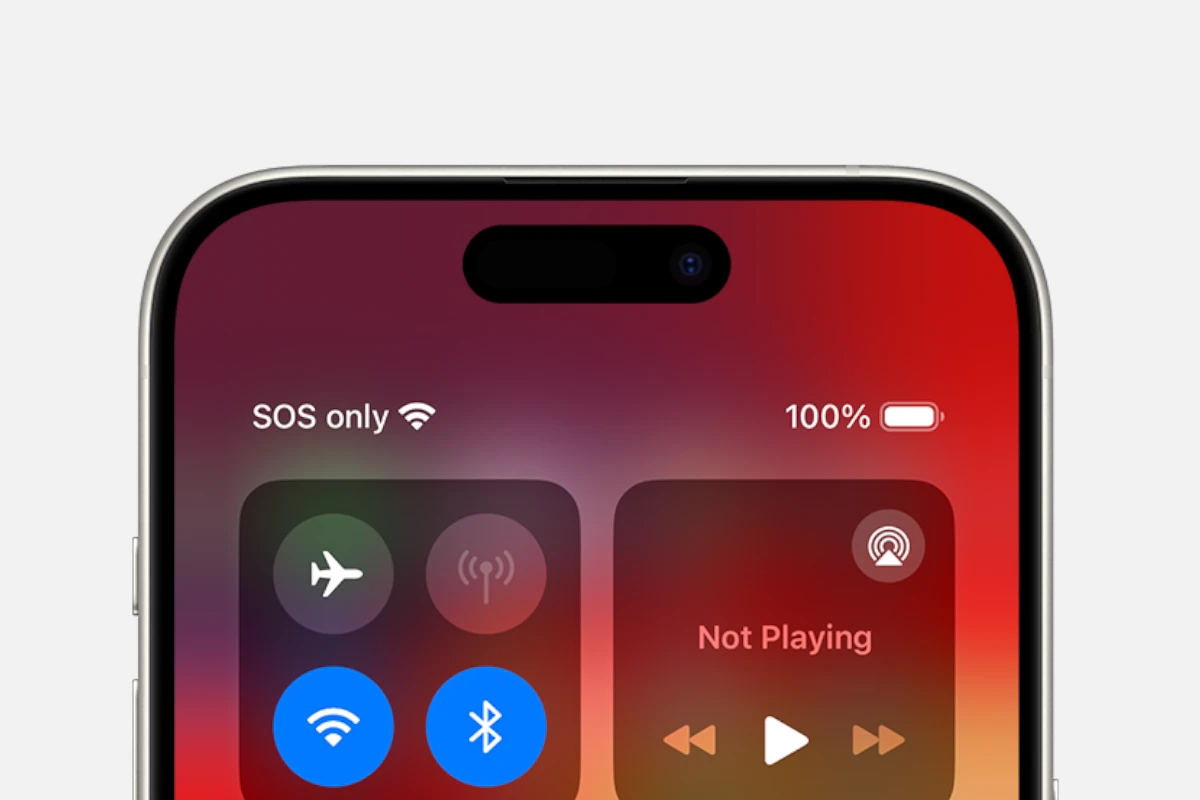
Is your iPhone showing SOS mode but won’t connect to regular service? This frustrating problem affects many iPhone users when their device gets stuck displaying “SOS Only” in the status bar. To fix an iPhone stuck in SOS mode, restart your device, toggle Airplane Mode on and off for at least 15 seconds, or check for carrier updates in your settings. These simple steps solve most cases right away.
SOS mode happens when your iPhone can’t connect to your cellular network but still allows emergency calls. This can be caused by signal issues, software glitches, or network problems. Many users panic when they see this message, but in most cases, you can fix an iPhone stuck in Emergency SOS mode with a few quick steps.
Don’t worry if basic fixes don’t work right away. Sometimes your iPhone needs a force restart to break out of SOS mode. If problems continue, carrier settings may need updating or you might need to check if your account has any issues with your service provider.
How to Fix an iPhone Stuck on SOS Mode
If your iPhone is stuck on Emergency SOS mode, it may show “SOS” or “SOS Only” in the status bar, limiting your ability to make normal calls or use mobile data. This can happen due to software glitches, network issues, or accidental activation of Emergency SOS. Here’s how to fix it.
What Is SOS Mode on iPhone?
- SOS Mode indicates your iPhone can only make emergency calls.
- It usually appears when your phone cannot connect to your cellular network.
- Emergency SOS can be triggered by pressing certain button combinations or by software/network problems.
How to Fix an iPhone Stuck on SOS Mode
1. Toggle Airplane Mode On and Off
- Swipe down from the top-right corner (iPhone X and later) or swipe up from the bottom (iPhone 8 and earlier) to open Control Center.
- Tap the Airplane Mode icon to turn it on.
- Wait about 10 seconds, then tap it again to turn it off.
- This resets your network connection and often resolves the issue.
2. Restart Your iPhone
- Press and hold the Side (Power) button and either Volume button until the slider appears.
- Drag the slider to turn off your iPhone.
- After it powers down, press and hold the Side button again until the Apple logo appears.
- Restarting can clear temporary glitches causing SOS mode.
3. Check SIM Card
- Remove your SIM card using a SIM ejector tool or paperclip.
- Inspect the SIM card for damage or dirt.
- Reinsert the SIM card properly.
- If possible, try using a different SIM card to see if the issue persists.
4. Reset Network Settings
- Go to Settings > General > Transfer or Reset iPhone > Reset > Reset Network Settings.
- Enter your passcode and confirm.
- This resets Wi-Fi, cellular, and VPN settings, which may fix network-related SOS issues.
- Note: You will need to reconnect to Wi-Fi networks afterward.
5. Update iOS to the Latest Version
- Go to Settings > General > Software Update.
- If an update is available, download and install it.
- Software updates often include bug fixes that can resolve SOS mode problems.
6. Disable Emergency SOS Auto Call (Optional)
If your iPhone enters SOS mode accidentally:
- Go to Settings > Emergency SOS.
- Turn off Call with Side Button and Auto Call to prevent accidental activation.
7. Restore Your iPhone (Last Resort)
If none of the above works:
- Backup your iPhone via iCloud or iTunes/Finder.
- Restore your iPhone to factory settings using iTunes/Finder on a computer.
- Set up your iPhone as new or restore from backup.
8. Contact Your Carrier or Apple Support
- If the problem persists, contact your cellular carrier to check for network issues or SIM problems.
- Visit an Apple Store or authorized service provider for hardware diagnostics.
Summary Table
| Fix Step | What It Does | Notes |
|---|---|---|
| Toggle Airplane Mode | Resets network connections | Quick and easy first step |
| Restart iPhone | Clears temporary glitches | Often resolves minor issues |
| Check SIM Card | Fixes SIM-related problems | Inspect and reseat SIM |
| Reset Network Settings | Resets all network configs | Requires Wi-Fi reconnection |
| Update iOS | Fixes software bugs | Keep iPhone updated |
| Disable Emergency SOS Auto Call | Prevents accidental SOS activation | Optional step |
| Restore iPhone | Resets device software | Backup data first |
| Contact Carrier/Apple Support | For persistent or hardware issues | Last resort |
By following these steps, you should be able to fix your iPhone if it’s stuck in SOS mode. If you need help with any step, feel free to ask!
Key Takeaways
- Restart your iPhone or toggle Airplane Mode on/off for 15 seconds to quickly fix most SOS mode problems.
- Force restart your device by pressing volume up, volume down, then holding the side button if regular restart fails.
- Check for carrier setting updates and contact your service provider if SOS mode persists after trying basic solutions.
Understanding SOS Mode on iPhone
SOS mode on iPhone is a safety feature that helps users contact emergency services when they’re in trouble. This system works even when regular cellular service isn’t available, providing a critical lifeline in emergencies.
The Purpose of Emergency SOS
Emergency SOS lets you quickly call for help when you’re in danger. On newer iPhones, you can activate it by pressing and holding the side button and either volume button until the Emergency SOS slider appears. On older models, press the side button five times quickly.
When activated, your iPhone:
- Automatically calls local emergency services (911 in the US)
- Sends your current location to emergency contacts
- Continues to share location updates with contacts for a period of time
- Plays a warning sound unless you have Silent Mode on
This feature works even in areas with poor signal, making it valuable during hiking accidents, natural disasters, or other dangerous situations when regular calls might not work.
Differences Between SOS Only and Standard Modes
SOS Only mode appears when your iPhone can’t connect to your regular carrier network but can still reach emergency services. In this state:
- The status bar shows “SOS” or “SOS Only” instead of your carrier name
- You can only make emergency calls (like 911)
- Regular calls, texts, and data won’t work
- Your phone keeps searching for available networks
Standard mode means your phone is connected normally to your carrier. You can make all types of calls, use data, and send messages.
The main difference is functionality – standard mode gives full access to all services, while SOS Only provides a limited connection just for emergencies. Your phone switches to SOS Only automatically when regular service isn’t available but emergency networks can still be reached through different cellular bands.
Common Causes for iPhone Stuck in SOS Mode
When your iPhone displays “SOS Only,” it can’t connect to your carrier’s network. Several issues can trigger this problem, ranging from software problems to physical damage to the device.
Software Glitches
Software glitches are a common reason why iPhones get stuck in SOS mode. These temporary malfunctions can happen after an iOS update or when multiple apps are running simultaneously.
A simple force restart often fixes these glitches. For newer iPhones, press and quickly release the volume up button, then volume down, and hold the side button until the Apple logo appears.
Background processes might conflict with your network connection. Try closing all apps and restarting your phone.
Sometimes your iPhone needs a settings refresh. Go to Settings > General > Reset > Reset Network Settings. This clears saved WiFi networks and Bluetooth connections but often resolves network issues.
Cache buildup can also cause connectivity problems. Periodically clearing app caches through Settings helps maintain smooth operation.
iOS Issues
Outdated iOS versions may cause network connection issues that trigger SOS mode. Apple regularly releases updates that fix bugs affecting network connectivity.
Check if a new update is available by going to Settings > General > Software Update. Installing the latest version often resolves persistent SOS mode problems.
Some iOS updates might contain bugs that affect carrier settings. These files control how your iPhone connects to your mobile network.
Try updating your carrier settings through Settings > General > About. If an update is available, you’ll be prompted to install it.
In rare cases, a recent iOS update might be incompatible with your carrier. Waiting for the next patch or contacting Apple Support may be necessary if the problem persists after trying other solutions.
Physical Damage
Physical damage to your iPhone can disrupt its ability to connect to networks. The most common issue is damage to the SIM card or SIM tray.
Examine your SIM card for scratches, bends, or dirt. Remove it using the SIM ejection tool, clean it gently with a soft cloth, and reinsert it properly.
Water damage often affects internal components that handle network connections. If your iPhone was recently exposed to liquid, allow it to dry completely before attempting repairs.
Dropped phones might suffer damage to antennas located around the edges. These are crucial for cellular connectivity. Look for dents or cracks near the top or sides of your device.
If physical inspection shows damage, professional repair may be needed. Contact Apple Support or visit an authorized service provider for assessment.
Immediate Actions to Take
When your iPhone gets stuck in SOS mode, quick action can restore normal service. These steps focus on restarting your device and checking if you’re in an area with proper cellular coverage.
Force Restart to Exit SOS Mode
A force restart often fixes an iPhone stuck in SOS mode without losing any data. The process varies depending on which iPhone model you have:
For iPhone 8 or newer: Press and quickly release the volume up button, then the volume down button. Next, press and hold the side button until you see the Apple logo.
For iPhone 7 series: Press and hold both the side button and volume down button for about 10 seconds until the Apple logo appears.
For older models: Press and hold both the home and top/side buttons for about 10 seconds until you see the Apple logo.
This force restart technique works like rebooting a computer. It clears temporary software glitches that may be preventing your phone from connecting properly to cellular networks.
Verifying Network Coverage Area
Your iPhone displays “SOS Only” when it can’t connect to your carrier’s network but can still make emergency calls. This might happen because:
- You’re in an area with no cellular coverage from your provider
- There’s a network outage in your area
- Your account has billing issues
Try these quick fixes:
Toggle Airplane Mode: Turn it on for 15 seconds, then off again. This forces your iPhone to search for a signal.
Check carrier settings: Go to Settings > General > About to see if any carrier updates are available.
Move to a different location if possible to see if the signal improves.
Check your carrier’s website or call their customer service (from another phone) to verify if there are known outages in your area.
Software Solutions and Troubleshooting
When your iPhone gets stuck in SOS mode, software fixes are often the most effective solution. These methods can resolve network connection issues without requiring technical expertise or special equipment.
Resetting Network Settings
Resetting your network settings can fix an iPhone stuck in SOS mode by clearing corrupted network configurations. This is often the first troubleshooting step experts recommend.
To reset network settings:
- Open the Settings app on your iPhone
- Tap General
- Scroll down and select Reset or Transfer or Reset iPhone
- Choose Reset Network Settings
- Enter your passcode if prompted
- Confirm your choice
This process clears all saved WiFi networks and passwords, Bluetooth connections, and cellular settings. Your iPhone will restart afterward.
The phone will reconnect to your cellular network automatically in most cases. If it doesn’t, try turning Airplane Mode on and off to trigger a network search.
iOS System Repair with Tenorshare ReiBoot
When standard troubleshooting fails, system repair software like Tenorshare ReiBoot can fix deeper iOS issues causing the SOS mode problem.
ReiBoot works by:
- Diagnosing iOS system errors
- Repairing the system without data loss
- Fixing stuck states including SOS mode
To use ReiBoot:
- Download and install Tenorshare ReiBoot on your computer
- Connect your iPhone using a USB cable
- Select Standard Repair mode
- Follow on-screen instructions to download firmware
- Wait for the repair process to complete
This method is particularly useful when your iPhone won’t respond to normal restarts or settings changes. The repair process takes about 10-15 minutes depending on your internet speed.
Updating Carrier Settings
Outdated carrier settings can sometimes cause network connection problems that trigger SOS mode. Updating these settings often resolves the issue.
To check for carrier updates:
- Make sure your iPhone is connected to Wi-Fi
- Go to Settings > General > About
- Wait a few seconds on this screen
If an update is available, you’ll see a popup asking if you want to update your carrier settings. Tap Update when prompted.
You can also try removing and reinserting your SIM card to establish a fresh connection to your carrier. Power off your iPhone first, use the SIM ejection tool, clean the SIM card gently, then reinsert it properly.
Most carriers push updates automatically, but manually checking can help resolve persistent SOS mode issues.
Advanced Recovery Techniques
When basic fixes fail, advanced recovery techniques can help rescue an iPhone stuck in SOS mode. These methods use your computer to reset or restore your iPhone’s software when standard troubleshooting isn’t working.
Using Recovery Mode
Recovery Mode offers a way to fix serious software problems on your iPhone. This method works when your iPhone is stuck in SOS mode due to software issues that regular restarts can’t fix.
- Connect your iPhone to a computer with the latest iTunes or Finder.
- Force restart your iPhone while connected:
- For iPhone 8 or newer: Press and release Volume Up, press and release Volume Down, then press and hold the Side button until the recovery screen appears.
- For iPhone 7: Hold the Side and Volume Down buttons together.
Once in Recovery Mode, you’ll see a computer and cable icon on your iPhone. Your computer will detect the iPhone and prompt you to Update or Restore.
Try the Update option first as it keeps your data intact. The process takes about 15 minutes. If updating fails, you may need to restore your iPhone, which erases all content.
Entering DFU Mode for Restoration
DFU (Device Firmware Update) Mode is the deepest type of restore possible. It’s more powerful than Recovery Mode and can fix problems when nothing else works.
To enter DFU Mode:
- Connect your iPhone to your computer with iTunes open.
- For iPhone 8 or newer:
- Quickly press Volume Up then Volume Down
- Hold the Side button for 10 seconds
- While still holding Side button, press and hold Volume Down for 5 seconds
- Release Side button but keep holding Volume Down for 10 more seconds
Your screen should stay completely black in DFU Mode. If you see any logos, try again. iTunes will detect your iPhone in recovery mode.
DFU Mode completely reloads the software and firmware. Warning: This erases all data on your iPhone, so having a backup is crucial before attempting this method.
Contacting Professional Support
When your iPhone is stuck in SOS mode, sometimes you need expert help. Professional support offers solutions that DIY methods can’t fix, especially for persistent network or hardware issues.
Reaching Out to Apple Customer Support
Apple’s customer support team can help resolve SOS mode problems through several channels. You can contact Apple support by phone, chat, or email. Their technical experts are trained to diagnose network-related issues that cause SOS mode problems.
Before calling, have your Apple ID, iPhone model, and iOS version ready. This information helps support staff provide faster assistance.
You can also use the Apple Support app on another device to schedule a call at your convenience. The app offers step-by-step troubleshooting that might fix your issue without speaking to someone.
For complex problems, Apple support may recommend sending diagnostic information from your device. This data helps them identify if the SOS issue stems from hardware failure or software bugs.
Visiting an Authorised Service Provider
If remote support doesn’t solve your problem, visiting an Apple Authorized Service Provider might be necessary. Look for locations displaying the official Apple logo to ensure you’re getting genuine service.
Make an appointment before visiting to reduce wait times. Most service providers offer free diagnostics to determine if hardware issues are causing the SOS mode problem.
Bring your iPhone, Apple ID information, and proof of purchase if your device is under warranty. Technicians have specialized tools to test your iPhone’s cellular components and antenna connections.
Some repairs might be covered under Apple’s warranty program if the SOS issue relates to manufacturing defects. Ask about loaner devices if repairs require leaving your iPhone at the service center.
Preventative Measures and Best Practices
Taking steps to prevent your iPhone from getting stuck in SOS mode can save you time and frustration. Proper maintenance and staying current with software are key to avoiding emergency mode problems.
Regular Software Updates
Keeping your iPhone’s software updated is one of the best ways to prevent SOS mode issues. Apple regularly releases patches that fix bugs and improve system stability.
To check for updates:
- Go to Settings > General > Software Update
- Download and install any available updates
- Turn on Automatic Updates to stay current without manual checks
Updates often contain fixes for known SOS mode problems. Some iPhone users have reported fewer emergency mode glitches after installing the latest iOS version.
Don’t ignore update notifications. Even small point releases (like 16.4.1) can contain important fixes for SOS-related bugs.
Maintaining iPhone 15 and Other Models
Proper iPhone maintenance goes beyond software updates. Several simple habits can help prevent SOS mode problems on iPhone 15 and older models.
Network maintenance tips:
- Reset network settings monthly if you travel frequently
- Remove and reinsert your SIM card if signal issues occur
- Keep your carrier settings updated
Physical care matters too:
- Avoid extreme temperatures that can affect cellular components
- Use a quality case that doesn’t block signal reception
- Clean the SIM tray area gently with compressed air
If you live in an area with poor reception, consider checking carrier settings updates regularly. This helps your iPhone better connect to available networks.
Backing up your data regularly is also smart. This way, if you need to reset network settings to fix SOS issues, you won’t lose important information.
Frequently Asked Questions
iPhones stuck in SOS mode can be frustrating, but several troubleshooting methods can quickly solve this problem. Most fixes involve simple steps you can do yourself without visiting a repair shop.
How can I troubleshoot my iPhone when it becomes stuck in SOS mode?
When your iPhone is stuck in SOS mode, start with basic troubleshooting. First, check for network coverage in your area as poor signal strength often triggers SOS mode.
Try toggling Airplane Mode on and off to reset your connection. This quick fix often resolves SOS issues by forcing your phone to reconnect to available networks.
Next, update your carrier settings if prompted, as outdated settings can cause connectivity problems. These settings control how your iPhone connects to your mobile network.
What are the steps to perform a hard reset on an iPhone that is displaying the SOS screen?
For iPhones with Face ID (iPhone X and later), press and quickly release the volume up button, then the volume down button, and finally hold the side button until the Apple logo appears.
For iPhone 8 or SE (2nd generation), press and quickly release the volume up button, then volume down, then hold the side button. This restart method differs from simply turning your phone off and on.
For older models with a Home button, hold both the Home and Power buttons together until you see the Apple logo on screen.
Why does my iPhone unexpectedly enter SOS mode and how can I prevent this?
iPhones enter SOS mode when they can’t connect to cellular networks or detect very weak signals. Moving to an area with better coverage often fixes this issue immediately.
Some users accidentally trigger Emergency SOS by pressing button combinations. To prevent this, go to Settings > Emergency SOS and adjust your settings to avoid accidental activation.
Network outages or tower maintenance can also cause SOS mode. In these cases, waiting for service restoration is necessary.
Is there a specific reason why newer iPhone models, such as the iPhone 14 or 15, become stuck in SOS mode?
Newer iPhones like the 14 and 15 have enhanced emergency features that may make them more sensitive to network disruptions. Their advanced network detection systems sometimes activate SOS mode more readily.
These newer models include Crash Detection and Emergency SOS via satellite, which can sometimes trigger SOS mode during setup or system updates. After initial setup, these issues typically decrease.
Software bugs in recent iOS versions occasionally cause SOS mode problems on newer models. Keeping your iPhone updated to the latest iOS version helps prevent these issues.
What should I do if my iPhone is stuck in SOS mode and a standard restart doesn’t resolve the issue?
If a restart doesn’t work, try resetting your network settings by going to Settings > General > Reset > Reset Network Settings. This clears all saved Wi-Fi passwords and cellular settings.
Check for iOS updates by connecting to Wi-Fi and going to Settings > General > Software Update. Outdated software often causes connection problems that lead to SOS mode.
As a last resort, you might need to restore your iPhone using iTunes or Finder. Back up your data first if possible, as this process erases all content from your device.
Are there any carrier-specific solutions for an iPhone stuck in SOS mode with Verizon or other networks?
For Verizon customers, removing and reinserting your SIM card can help refresh the connection. Power off your phone first, then use the SIM tool to carefully eject the tray.
AT&T and T-Mobile users should check if there’s an outage in their area using the carrier’s website or app. Carrier outages are a common cause of persistent SOS mode.
Contacting your carrier’s customer service can help identify account-related issues. Sometimes, updating carrier settings through Settings > General > About solves carrier-specific problems.





