
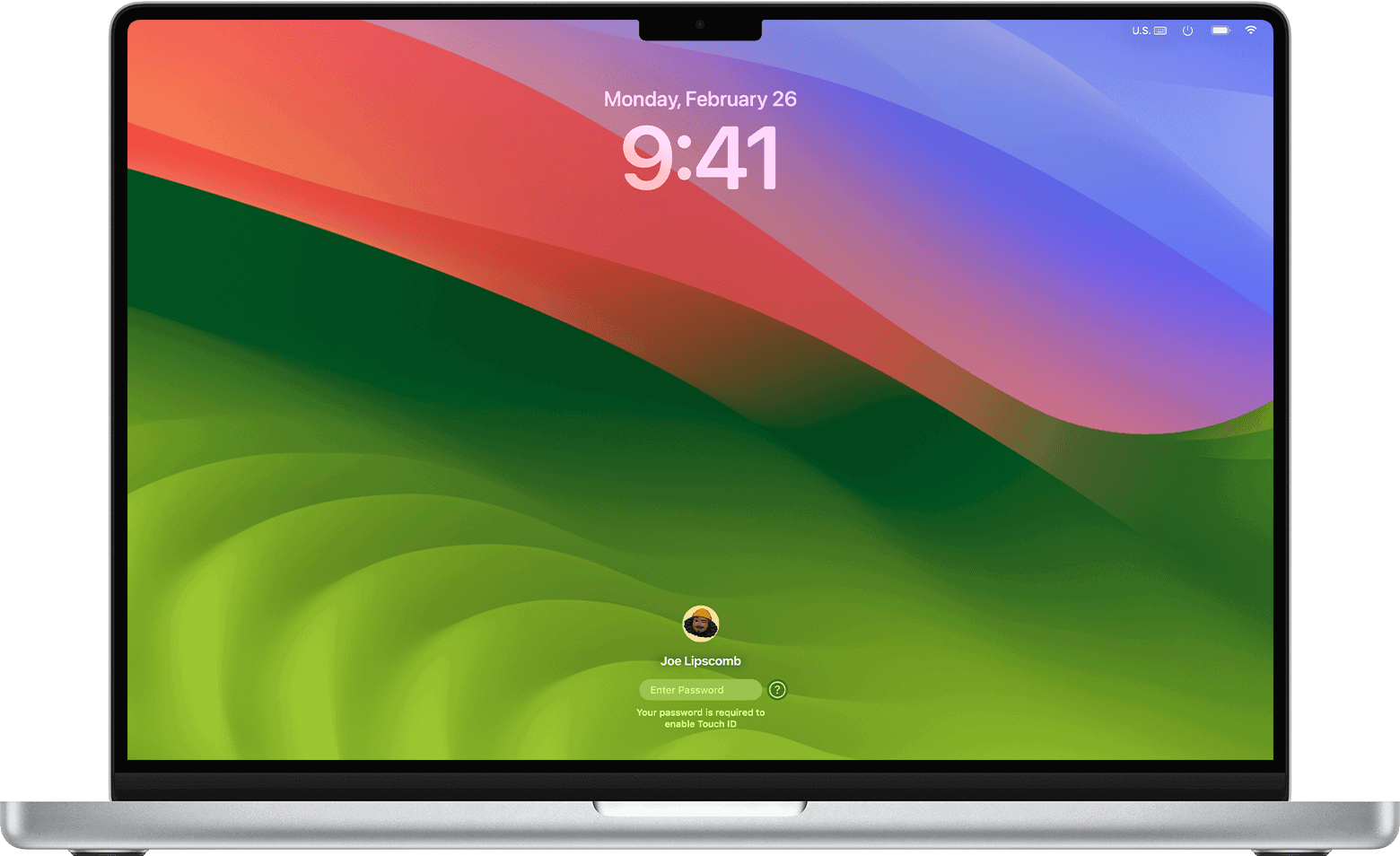
Keeping your Mac secure means updating your password from time to time. Many people put off this task because they think it’s complicated, but it’s actually quick and easy. Changing your Mac password takes just a few clicks through the Apple menu and System Settings, where you can enter your old password and create a new one.
If you’ve forgotten your current password, don’t worry. You have options like using Recovery Mode or the Reset Password Assistant to get back into your account. These built-in tools from Apple make password recovery straightforward even when you’re locked out.
Regular password updates help protect your personal data from unauthorized access. A strong password should include a mix of letters, numbers, and symbols that would be hard for others to guess but easy for you to remember.
How To Change the Password on a Mac
Changing your Mac password regularly helps keep your personal data secure. You can change your password whether you know your current one or need to reset it.
Method 1: Change Your Password (You Know the Current Password)
Step 1: Open System Settings
- Click the Apple menu () in the top‑left corner.
- Select System Settings (or System Preferences on older macOS versions).
Step 2: Go to Users & Groups
- Click Users & Groups.
- Select your user account from the list on the left.
Step 3: Change Your Password
- Click Change Password.
- Enter your current password.
- Enter your new password and verify it.
- (Optional) Add a password hint.
- Click Change Password.
✅ Your new password takes effect immediately.
Method 2: Change Your Password Using Touch ID
If your Mac supports Touch ID:
- Open System Settings → Users & Groups.
- Click Change Password.
- Authenticate using Touch ID instead of typing your current password.
- Enter and confirm your new password.
Method 3: Reset Your Password (Forgot Password)
Option A: Reset Using Apple ID
- On the login screen, enter the wrong password several times.
- Select Reset using Apple ID when prompted.
- Sign in with your Apple ID.
- Create a new password.
⚠️ You may need to log out and back in after resetting.
Option B: Reset Using macOS Recovery
- Shut down your Mac.
- Turn it on and immediately:
- Apple silicon Macs: Hold the Power button until “Loading startup options” appears.
- Intel Macs: Hold Command (⌘) + R.
- Select Options → Continue.
- From the menu bar, choose Utilities → Terminal.
- Type
resetpasswordand press Return. - Follow the on‑screen instructions.
Tips for Creating a Strong Password
- Use at least 12 characters
- Combine uppercase, lowercase, numbers, and symbols
- Avoid names, birthdays, or common words
- Consider using a password manager
Troubleshooting
- Keychain password issue: After changing your password, macOS may ask to update your Keychain. Choose Update Keychain Password when prompted.
- Admin access required: Only an administrator account can change other users’ passwords.
Summary
- Use System Settings to change your password if you know it.
- Use Apple ID or Recovery Mode if you forgot it.
- Always choose a strong, unique password for better security.
If you’d like, I can also provide a short version, macOS‑version‑specific steps, or screenshots guidance.
Key Takeaways
- You can change your Mac password through System Settings by clicking the Apple menu, selecting Users & Groups, and following the prompts.
- If you forget your password, you can reset it using Recovery Mode by typing “resetpassword” in Terminal.
- Strong Mac passwords protect your personal data and should be updated regularly for better security.
Understanding Password Security on Mac
Mac computers have robust security features to protect your data. Your password is the first line of defense in this security system.
The Role of Apple ID
Your Apple ID is a key part of Mac security. This ID links all your Apple devices and services together. It also helps you recover your Mac password if you forget it.
When you set up a new Mac, you’ll be asked to sign in with your Apple ID. This connects your computer to iCloud services and helps track your device if it’s lost.
Apple uses two-factor authentication with your Apple ID for extra security. This means you need your password plus a code sent to another device.
If you forget your Apple ID password, you can reset it through the Apple website. Apple provides several ways to verify your identity, including security questions and trusted phone numbers.
FileVault and Encryption
FileVault is Mac’s built-in disk encryption. It protects data by scrambling it so others can’t read it without your password.
When FileVault is turned on, your entire disk is encrypted. This means if someone takes your computer, they can’t access your files without your password.
To enable FileVault:
- Go to System Settings
- Select Privacy & Security
- Click FileVault
- Toggle it on
Mac users should keep their recovery key in a safe place. This key can unlock the disk if the password is forgotten.
Password Best Practices
Creating a strong Mac password is essential for security. A good password has:
- At least 12 characters
- A mix of letters, numbers, and symbols
- No personal information like birthdates
It’s smart to change your Mac password regularly. Many security experts suggest updating it every 3-6 months.
Never share your password or write it down where others can find it. Instead, consider using a password manager to keep track of complex passwords.
When setting up security questions, choose answers that aren’t easily guessed. These questions help verify your identity if you need to reset your password.
Remember to log out of your Mac when you’re not using it, especially in public places.
Changing Your Password through System Preferences
Mac users can change their password through System Settings (formerly System Preferences). This process is straightforward and can be done either using your Apple ID or directly through your admin account.
Using Your Apple ID
To change your password with your Apple ID, first click on the Apple menu in the top left corner of your screen. Then select System Settings (or System Preferences on older macOS versions).
Look for Login Password in the sidebar menu. You might need to scroll down to find it. Click on it to continue.
In the Login Password section, you’ll see an option to use your Apple ID to reset your password. Click on this option and enter your Apple ID credentials when prompted.
Follow the on-screen instructions to verify your identity. The system will ask you to create a new password. Make sure to choose a strong password that combines letters, numbers, and special characters.
Without Apple ID
If you prefer not to use your Apple ID, you can change your MacBook password directly. Start by clicking the Apple menu and selecting System Settings (or System Preferences).
Next, look for Users & Groups in the sidebar and click on it. If you’re using a newer macOS version, this might be under a different category.
Click the lock icon in the bottom left corner and enter your current password to make changes. Then select Change Password.
You’ll need to:
- Enter your current password
- Type your new password
- Confirm your new password
- Add a password hint (optional but recommended)
Click Change Password to complete the process. The system will update your login credentials immediately.
Resetting Mac Password in Recovery Mode
Recovery Mode offers a reliable way to reset a forgotten Mac password. You can use either your recovery key or the Terminal tool to regain access to your account.
Using Recovery Key
If you’ve forgotten your Mac password, you can restart your Mac and enter Recovery Mode by holding Command+R during startup. Wait until you see the Apple logo and a progress bar.
Once in Recovery Mode, select “Utilities” from the top menu bar. Then click on “Startup Security Utility” or “Firmware Password Utility” depending on your Mac model.
If you have FileVault enabled, you’ll need your FileVault recovery key. This is the key you received when you first set up FileVault encryption on your Mac.
Enter your recovery key when prompted. The system will then allow you to create a new password for your user account. Make sure to choose a strong password you’ll remember.
Using Terminal
The Terminal method offers another way to reset your password through Recovery Mode. After booting into Recovery Mode by holding Command+R during startup, find the Terminal app in the Utilities menu.
In Terminal, simply type resetpassword and press Enter. This launches the Password Reset tool without needing to navigate through menus.
A window will appear showing all user accounts on your Mac. Select your account from the list.
You’ll then be prompted to create a new password. Type your new password twice to confirm it. You can also add a password hint to help you remember it later.
Click Reset to save your new password. After this, restart your Mac and log in with your new password.
Using the Reset Password Assistant
The Reset Password Assistant is a handy tool to help you when you forget your Mac password. You can access this tool even if you can’t log in to your Mac.
To start, restart your Mac and hold down Command + R keys until you see the Apple logo. This boots your Mac into Recovery Mode.
Once in Recovery Mode, look for the Utilities menu at the top of the screen. Click on it and select Terminal from the dropdown menu.
In the Terminal window, type resetpassword (with no spaces) and press Return. This will open the Reset Password Assistant.
If you have multiple user accounts, you’ll need to select the specific admin account you want to reset the password for.
Follow the on-screen prompts to reset your Mac password. You’ll create a new password and can also add a password hint to help you remember it next time.
After setting your new password, click Next and then restart your Mac. You can now log in with your new password!
Remember that this process will create a new password but won’t recover your old one. Any passwords stored in your keychain will remain locked if you used a different password before.
This method works for most Mac models and recent versions of macOS. It’s a quick fix when you get locked out of your account.
Troubleshooting Mac Password Issues
Password problems can lock you out of your Mac and cause stress when you need access quickly. Mac systems have built-in tools to help fix these issues, but knowing which approach to use is key.
Dealing with Forgotten Passwords
If you’ve forgotten your Mac login password, don’t panic. Apple provides several ways to reset it.
The simplest method is to use your Apple ID. When you enter the wrong password three times at the login screen, you’ll see a message that lets you reset your password using your Apple ID.
For Macs with macOS Recovery, you can also:
- Restart your Mac and hold Command+R during startup
- Select “Utilities” from the menu bar
- Open Terminal
- Type “resetpassword” (one word) and press Enter
- Follow the on-screen instructions to create a new password
This method works even if you don’t remember your Apple ID or it isn’t connected to your account.
Resolving FileVault Complications
FileVault encryption adds security but can create password recovery challenges. When FileVault is on, standard password reset methods may not work.
If you’ve enabled FileVault and forgotten your password, you’ll need your recovery key. This key was generated when you first turned on FileVault. Check your records or iCloud for this key.
Without the recovery key, try using:
- Your Apple ID (if you set it as a backup)
- The FileVault recovery key stored in iCloud
- An institutional recovery key (for company Macs)
Important: If none of these options work, you may need to erase your Mac and restore from a backup. This is why keeping good backups is crucial.
Addressing Admin Account Problems
Admin accounts control important Mac settings, including other user passwords. When admin account access is lost, it creates special challenges.
If you can’t access your admin account but have another admin account available, use it to reset the password. Go to System Settings > Users & Groups, select the locked account, and click the reset password option.
With no admin access at all, you’ll need to:
- Boot into Recovery Mode (Command+R at startup)
- Open Terminal
- Type “resetpassword” and press Enter
- Choose the main drive
- Select the user account
- Create a new password
After resetting an admin password, you might need to update your login keychain since the old one used your previous password.
Enhancing Password Security
Protecting your Mac with strong passwords and using built-in security tools can greatly improve your overall device protection. A robust password strategy combines both strong creation practices and Apple’s password management features.
Creating Strong Passwords
Creating strong passwords is critical for Mac security. A good password should be at least 12 characters long and include a mix of uppercase letters, lowercase letters, numbers, and symbols.
Avoid using obvious information like birthdays, names, or common words. Instead, try using a phrase that’s meaningful to you but convert some letters to numbers or symbols. For example, “ILoveFishing!” could become “1L0v3F!$h!ng”.
Mac users can also set up security questions as a backup for password recovery. Choose questions with answers only you would know.
Consider turning on FileVault to encrypt your entire disk. This keeps your data safe even if someone takes your Mac.
Remember to change your password every 90 days for maximum security.
Using Passwords App
Apple’s built-in Passwords app helps manage all your login information securely. This tool generates unique, strong passwords whenever you create new accounts.
To access Passwords, go to System Settings and find the Passwords section. You’ll need to verify your identity with Touch ID or your Mac password.
The app automatically syncs across all your Apple devices through iCloud, making it easy to use the same strong passwords everywhere. When you visit a website, your Mac can fill in saved passwords automatically.
You can also check if any of your passwords have been compromised in data breaches. The app will alert you if it finds weak or repeated passwords that need changing.
For extra security, set up two-factor authentication on important accounts when prompted by the Passwords app.
Special Considerations
When changing your Mac password, there are some important factors to think about beyond the basic steps. These include working across different operating systems and preparing for future updates.
Cross-Platform Tips for Linux Users
Linux users who also work on Macs may find password management challenging across platforms. If you regularly switch between Linux and macOS, consider using a password manager that works on both systems.
For Linux users, the Terminal commands on Mac might feel familiar. You can use Terminal to change passwords with the passwd command, similar to Linux. This helps create a consistent experience across both systems.
Remember to:
- Use different passwords for each OS for better security
- Keep track of which password belongs to which system
- Consider using password hints that make sense on both platforms
When setting up SSH keys between Linux and Mac systems, store them securely to avoid password issues when connecting remotely.
Planning for Future MacOS Installations
Before upgrading to a new macOS version, it’s smart to reset your password to something you’ll remember easily. Many users forget passwords during major updates.
Apple now offers the option to reset passwords using Apple ID in newer versions. Enable this feature in System Settings → Users & Groups → select your account → click the info button → then turn on “Allow user to reset password using Apple ID.”
For future installations, consider:
- Writing down your password in a secure location
- Setting up multiple admin accounts as backup
- Enabling FileVault with a recovery key
This preparation prevents the stress of being locked out of your Mac after an update. It’s much harder to recover passwords after a fresh installation than to plan ahead.
Frequently Asked Questions
Mac passwords can be changed or reset through different methods depending on your situation. Here are the answers to common password-related questions for Mac users.
How do I reset my Mac login password if I’ve forgotten it?
If you’ve forgotten your Mac login password, you can reset it using your Apple ID. First, try entering an incorrect password three times. A message will appear with an option to reset your password using your Apple ID.
You can also restart your Mac in Recovery Mode. Hold Command+R while your computer starts up. Open Terminal from the Utilities menu, type “resetpassword” (all one word), and press Return. This opens the password reset tool where you can create a new password.
What is the process for changing the administrator password on a Mac?
To change your administrator password on a Mac, click on the Apple menu and select System Settings. Then click on “Login Password” in the sidebar. You might need to scroll down to find it.
Enter your current password, then type your new password twice. Add a password hint if you want, but make sure it doesn’t give away your password. Click “Change Password” to save the changes.
How can I update my MacBook Air password?
Updating your MacBook Air password is simple. Click the Apple menu in the top left corner and choose “System Settings” (or “System Preferences” on older systems). Find and click on “Users & Groups”.
Select your user account, then click “Change Password.” Enter your old password, type your new password twice, and add an optional hint. Click “Change Password” to complete the process.
Is it possible to modify my Mac’s password from an iPhone and, if so, how?
It’s not possible to directly change your Mac password from an iPhone. You must be logged into your Mac to change its password. However, if you use the same Apple ID on both devices, you can change your Apple ID password on your iPhone, which will affect sign-ins on your Mac.
For local Mac user accounts, you need to be at your Mac to make the change. This helps maintain security for your computer access.
What are the steps to change the lock screen password on a Mac?
The lock screen password on your Mac is the same as your login password. To change it, go to the Apple menu and select “System Settings.” Scroll down and click on “Login Password” in the sidebar.
Enter your current password first. Then type your new password twice to confirm it. You can add a hint to help you remember it. Click “Change Password” to save your new lock screen password.
Can I change my MacBook password without being able to log in, and what is the procedure?
Yes, you can change your MacBook password even if you can’t log in. One method is to restart your Mac and hold Command+R to enter Recovery Mode. From here, open Terminal from the Utilities menu and type “resetpassword” (as one word).
Another option is to use your Apple ID. At the login screen, try entering your password incorrectly three times. You’ll see an option to reset your password using your Apple ID. Enter your Apple ID credentials and follow the prompts to create a new password.





