
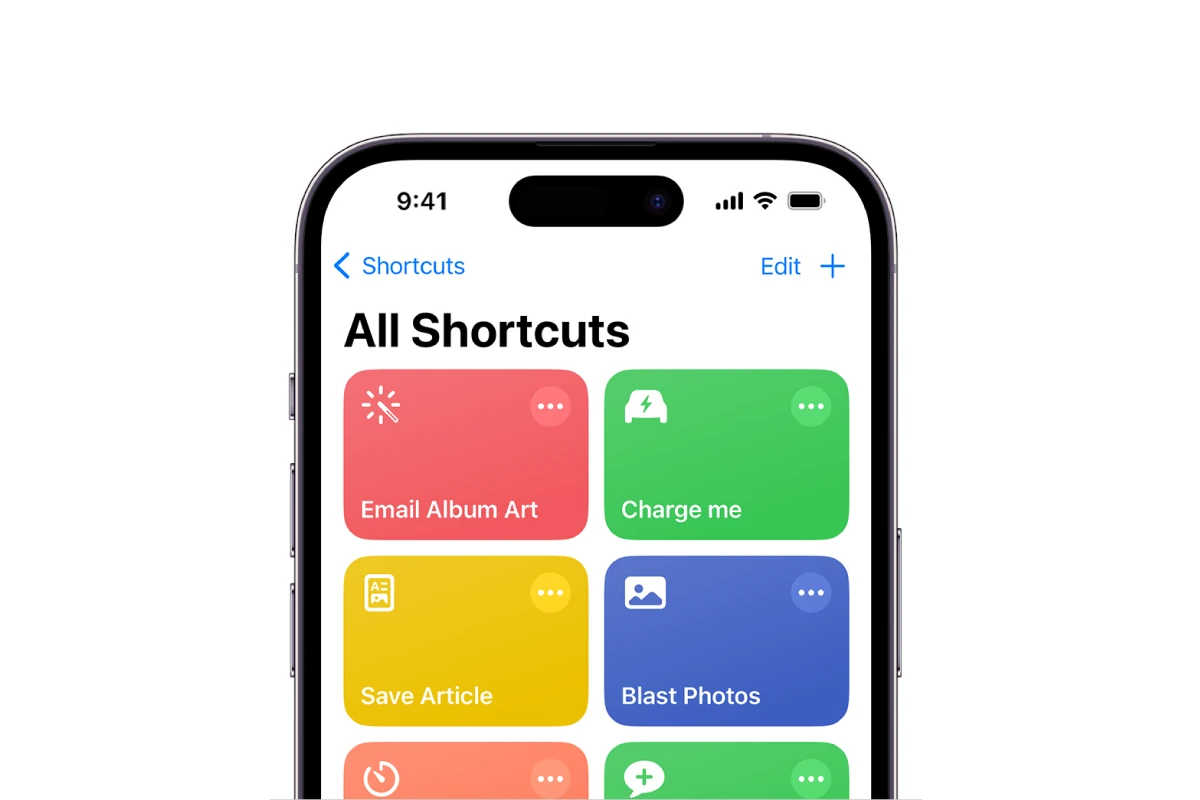
iPhone shortcuts can make your life easier by automating repetitive tasks with just a tap or voice command. Apple’s Shortcuts app lets you create simple or complex workflows that save time and effort. The best iPhone shortcuts help you automate everyday tasks like sending messages, playing music, getting directions, and controlling smart home devices without opening multiple apps.
Many people don’t realize how powerful the Shortcuts app can be for both beginners and tech-savvy users. Some popular shortcuts include turning on water heaters remotely when heading to vacation homes, tracking hotel rooms, and managing clipboard content. These quick automations work across iPhone, iPad, Mac, and Apple Watch to streamline your digital life.
The app comes with over 300 built-in actions and works with many favorite apps including Contacts, Calendar, Maps, and Photos. Users can find ready-made shortcuts online or create custom ones to fit their unique needs. The Shortcuts community on Reddit offers inspiration and help for anyone looking to expand their shortcuts collection.
Best iPhone Shortcuts for Streamlining Daily Tasks
Apple’s Shortcuts app is one of the most powerful productivity tools on the iPhone, yet many users barely scratch the surface. With the right shortcuts, you can automate repetitive actions, save time, and make your daily routine smoother with just a tap or voice command.
Below is a curated list of the best iPhone shortcuts to help you streamline everyday tasks, organized by use case, along with tips on how to get the most out of them.
Getting Started with iPhone Shortcuts
Before diving in:
- Open the Shortcuts app on your iPhone.
- Browse the Gallery tab for ready-made shortcuts.
- Tap Add Shortcut to install one.
- Run shortcuts from:
- The Shortcuts app
- Siri (“Hey Siri, run my morning routine”)
- Home Screen widgets
- The Action Button (on supported iPhones)
1. Morning Routine Shortcut
What it does:
- Turns off Do Not Disturb
- Reads the weather and calendar events
- Plays your favorite music or podcast
- Shows traffic time to work
Why it’s useful:
Instead of checking multiple apps, one tap gives you everything you need to start your day.
Pro tip:
Trigger it automatically using Personal Automations at a specific time each morning.
2. Smart Home Control Shortcut
What it does:
- Turns lights on/off
- Adjusts thermostat
- Locks or unlocks doors
- Activates “Home” or “Away” scenes
Why it’s useful:
Control your entire smart home with a single shortcut instead of opening the Home app.
Example use:
“Hey Siri, I’m leaving home.”
3. One-Tap Navigation Shortcut
What it does:
- Opens Maps
- Automatically navigates to a saved location (home, work, gym)
Why it’s useful:
Perfect for daily commutes or frequent destinations.
Advanced option:
Add conditional logic to choose routes based on traffic.
4. Quick Message Shortcut
What it does:
- Sends a pre-written text to a chosen contact
Why it’s useful:
Ideal for messages like:
- “I’m on my way”
- “Running late”
- “Made it home safely”
Bonus:
Use Siri hands-free while driving.
5. Battery Saver Shortcut
What it does:
- Turns on Low Power Mode
- Disables background app refresh
- Lowers screen brightness
- Turns off Bluetooth or Wi‑Fi (optional)
Why it’s useful:
Instantly extend battery life when you’re running low.
Automation idea:
Trigger it automatically when battery drops below 20%.
6. Notes-to-PDF Shortcut
What it does:
- Converts selected Notes into a PDF
- Saves it to Files or shares it instantly
Why it’s useful:
Great for students, professionals, and anyone who shares notes frequently.
7. Screenshot Cleaner Shortcut
What it does:
- Finds screenshots older than a set number of days
- Prompts you to delete them
Why it’s useful:
Keeps your Photos app clutter-free without manual cleanup.
8. Social Media Timer Shortcut
What it does:
- Opens a chosen social app
- Starts a timer
- Alerts you when time is up
Why it’s useful:
Helps reduce mindless scrolling and improve focus.
9. Travel Mode Shortcut
What it does:
- Turns on Airplane Mode
- Enables Wi‑Fi and Bluetooth
- Downloads offline maps
- Displays boarding pass or travel notes
Why it’s useful:
Perfect for airports and long trips.
10. End-of-Day Wind Down Shortcut
What it does:
- Turns on Do Not Disturb or Sleep Focus
- Dims the screen
- Plays calming music or sounds
- Opens a journaling or meditation app
Why it’s useful:
Creates a consistent bedtime routine and improves sleep quality.
Tips for Creating Powerful Shortcuts
- Use Automations: Let shortcuts run automatically based on time, location, or battery level.
- Add to Home Screen: Treat shortcuts like custom apps.
- Combine with Focus Modes: Trigger shortcuts when Focus modes activate.
- Name shortcuts clearly: Makes Siri commands more reliable.
Final Thoughts
iPhone Shortcuts can dramatically simplify your daily life once you tailor them to your habits. Start with one or two shortcuts, then gradually build a personalized automation system that works for you.
With a little setup, your iPhone can feel less like a distraction—and more like a personal assistant.
Key Takeaways
- iPhone shortcuts save time by automating everyday tasks with a single tap or voice command.
- The Shortcuts app works with over 300 built-in actions and many popular iOS apps for endless customization.
- Both beginners and power users can find helpful shortcuts through online communities or create their own personal automations.
Understanding iPhone Shortcuts
iPhone Shortcuts provide powerful automation tools that save time and streamline daily tasks. These mini-programs connect various apps and functions to create customized workflows that run with a simple tap or voice command.
The Basics of Shortcuts in iOS
Shortcuts are quick ways to complete one or more tasks with your apps. They work like small programs that automate actions you do regularly on your iPhone. You can run shortcuts with a tap, by asking Siri, or even automatically at certain times or locations.
Each shortcut consists of actions – the building blocks that perform specific functions. For example, an action might get your current location, send a text message, or play music. By combining these actions, you can create workflows that handle complex tasks automatically.
Apple introduced Shortcuts in iOS 12, and it has become more powerful with each iOS update. The app comes pre-installed on new iPhones and is free to download for older devices.
Native vs Custom Shortcuts
Native shortcuts come built into your iPhone and require minimal setup. These ready-made shortcuts handle common tasks like:
- Sharing your ETA with contacts
- Creating PDFs from webpages
- Scanning QR codes quickly
- Setting timers or alarms
Custom shortcuts offer much more flexibility. You build these yourself to match your specific needs. The Shortcuts app lets you combine multiple actions across different apps into a single automated process.
Many apps offer their own actions for shortcuts. For instance, you can create a custom shortcut that:
- Logs your water intake
- Uploads photos to specific albums
- Clears completed reminders automatically
- Plays your favorite playlist when you start a workout
Shortcuts App Overview
The Shortcuts app serves as the command center for creating and managing all your automated tasks. Its clean interface makes automation accessible even if you’re not tech-savvy.
The app has three main sections:
- Gallery – Browse pre-made shortcuts sorted by category
- My Shortcuts – View and organize your personal collection
- Automation – Set up shortcuts that run automatically based on triggers
When creating shortcuts, you’ll use the editor which displays a vertical list of actions. Simply tap the “+” button to add new actions and drag them to rearrange the sequence. The app includes a powerful search function to find specific actions among the hundreds available.
You can also learn from tutorials that explain the basics of using the Shortcuts app. These guides help beginners understand how to build effective automations that truly save time.
Creating Your First Shortcut
Setting up shortcuts on your iPhone gives you the power to automate tasks and save time. The process is straightforward and allows you to customize actions to fit your specific needs.
Accessing the Shortcuts App
The Shortcuts app comes pre-installed on newer iPhones. If you can’t find it, you can download it from the App Store. To begin, tap the Shortcuts icon on your home screen.
Once inside the app, you’ll see a gallery of pre-made shortcuts. These are helpful examples of what’s possible. The main interface has three tabs: Shortcuts, Automation, and Gallery.
To create a custom shortcut, tap the “+” button in the top right corner. This opens the shortcut editor where you’ll build your workflow.
The app organizes actions by category, making it easy to find what you need. Popular categories include:
- Essentials
- Media
- Location
- Documents
- Sharing
Designing a Basic Workflow
Building a shortcut means connecting actions in a logical sequence. Think of it like creating a recipe where each step builds toward your goal.
Start by tapping “Add Action” and browse or search for functions you want to include. For example, if creating a morning routine shortcut, you might add weather, calendar, and news actions.
Each action you add becomes part of your workflow. You can rearrange them by holding and dragging up or down. This flexibility lets you build exactly what you need.
Test your shortcut frequently by tapping the play button. This helps catch problems early. When satisfied, tap “Done” and give your shortcut a meaningful name and icon.
For easy access, add shortcuts to your home screen or widgets. This puts your automation just a tap away.
Tips for Shortcut Creation
Start simple: Begin with basic shortcuts before trying complex ones. A good first project might be a text message shortcut or setting a timer.
Use variables: Variables store information between actions. They act like containers that hold text, numbers, or other data for later use in your workflow.
Consider these helpful techniques:
- Group related actions to keep things organized
- Add comments to remind yourself what each section does
- Use “If” statements to create different paths based on conditions
Don’t worry about perfection at first. You can always edit shortcuts later as you learn more. The Shortcuts Gallery offers great inspiration.
Sharing shortcuts with friends is easy. Just tap the share button and send via message or email. You can also find useful shortcuts online from other users.
Advanced Shortcuts Configuration
iPhone shortcuts can do much more than simple tasks when you set them up with advanced features. These powerful tools let you build custom workflows that respond to different conditions and work across all your Apple devices.
Utilizing Variables in Shortcuts
Variables are key building blocks for making complex shortcuts. They store information that can be used throughout your workflow. To create a variable, tap the “+” button in your shortcut and select “Variables” from the actions list.
You can save almost anything as a variable:
- Text strings
- Numbers
- Dates
- Files
- Images
- Web content
For example, you might create a morning routine shortcut that stores the current temperature in a variable. Then it uses that value to suggest what to wear based on the weather.
Variables also let you ask for input and use it multiple times. This is perfect for shortcuts that need the same information at different steps. The Toggle Color Filters shortcut uses variables to remember your preferred accessibility settings.
Conditional Statements and Loops
Conditional statements make your shortcuts smarter by running different actions based on specific conditions. The basic “If” statement checks if something is true or false before deciding what to do next.
You can create branches in your workflow using:
- If/Otherwise
- Choose from Menu
- Repeat loops
For instance, a battery-saving shortcut might check your iPhone’s battery level. If it’s below 20%, it could turn on Low Power Mode and dim the screen. If it’s above 80%, it might run background tasks that need more power.
Loops let you repeat actions several times or process items in a list. This is useful when you need to perform the same task on multiple items, like resizing several photos. Advanced battery automations use conditional logic to trigger different actions at various battery levels.
Sharing and Syncing Shortcuts Across Devices
Your shortcuts aren’t limited to just one device. They can work across your iPhone, iPad, and even Mac computers. This makes your custom workflows available wherever you need them.
To share a shortcut, open the Shortcuts app and:
- Find the shortcut you want to share
- Tap the ⋮ (three dots) icon
- Select “Share”
- Choose how you want to share it
You can send shortcuts through Messages, email, or generate a link for anyone to download. This is great for sharing expert-level iPhone shortcuts with friends or colleagues.
iCloud automatically syncs your shortcuts between devices. Make sure iCloud Drive is enabled in your settings. This keeps all your shortcuts updated everywhere you use them.
For privacy, you can review shared shortcuts before adding them. Some advanced shortcuts might need adjustments to work with your specific setup or apps.
Time-Saving Shortcuts for Daily Use
iPhone shortcuts can save you precious minutes throughout your day by automating common tasks. These digital helpers work behind the scenes to streamline your routine and make your phone work smarter for you.
Communication and Social Media Shortcuts
The morning transit shortcut that provides BART arrival times helps many commuters plan their day better. This simple automation delivers transit info without opening multiple apps.
For quick messaging, create text templates for common responses. These shortcuts allow users to send pre-written messages with just a tap, perfect for busy days.
Instagram users can benefit from content management shortcuts. These tools help schedule posts, download media, and organize collections without switching between apps.
Social Media Time Savers:
- Quick reply templates for frequent messages
- Auto-post schedulers for optimal timing
- Content download shortcuts for saving media
- Caption generators with custom formatting
Video call shortcuts can automatically set up your lighting, mute background apps, and prepare your device for important meetings.
Productivity and Task Management Shortcuts
The SiriGPT shortcut transforms how users interact with their device. It combines Siri’s accessibility with AI capabilities for faster information retrieval and task completion.
Timer shortcuts help track work sessions using the Pomodoro technique. Set up a shortcut to start a 25-minute focus timer, followed by a 5-minute break without manual adjustments.
Task Management Helpers:
- One-tap meeting joiners
- Focus mode activators based on location
- Document scanners that automatically organize files
- Calendar event creators from text messages
Email management shortcuts can sort messages, create quick responses, and file documents. These tools reduce inbox overflow and keep communication flowing.
Quick note shortcuts capture ideas instantly and send them to your preferred app. This prevents losing important thoughts during busy moments.
Entertainment and News Shortcuts
YouTube viewing shortcuts enhance how users interact with video content. Create shortcuts that download videos for offline viewing or extract audio from music videos.
The Shazam++ shortcut identifies songs playing around you and automatically adds them to your preferred music service. This seamless integration makes discovering new music effortless.
News aggregation shortcuts compile headlines from favorite sources. These tools deliver customized morning briefings without opening multiple apps.
Entertainment Automations:
- Music playlist generators based on weather or time
- Movie recommendation shortcuts using rating APIs
- Podcast queue managers for commutes
- Screen time limiters for specific apps
Media download shortcuts save content for offline viewing. These tools prove invaluable during travel or in areas with poor connectivity.
Shortcuts for Power Users
iPhone power users can take their automation to the next level with advanced Shortcuts techniques. These methods go beyond basic tasks to handle complex operations that save significant time and effort.
Automating Complex Workflows
Power users can connect multiple apps and actions in a single shortcut to handle complicated tasks. The Shortcuts app allows for conditional logic with “If” statements to create different outcomes based on specific conditions.
For example, a morning routine shortcut might:
- Check the weather and suggest appropriate clothing
- Read your calendar events for the day
- Start playing your favorite news podcast
- Adjust smart home settings
Users can create shortcuts that process text or files in batches. A photo processing workflow might resize multiple images, add watermarks, and share them to specific platforms all at once.
Time-based automations can trigger without user input. A work-focused automation could silence notifications during meetings by checking your calendar status, then restore normal settings afterward.
Integrating with External APIs
Advanced shortcuts can connect to web services and external data sources. This opens up powerful possibilities for bringing information into your iPhone workflows.
Power users can set up shortcuts to:
- Pull stock market data for specific companies
- Check flight status information
- Access weather forecasts from specialized services
- Retrieve and process data from personal web servers
The iOS Control Center can provide quick access to these API-connected shortcuts. Users can place their most-used data retrieval tools just a swipe away.
Authentication methods like API keys and OAuth can be handled within shortcuts. This allows secure connections to services like Dropbox, GitHub, or custom business systems.
Webhooks enable two-way communication between shortcuts and web services. A shortcut might both send and receive data from a service like IFTTT or Zapier.
Custom UIs and Input Forms
Power users can create tailored interfaces for their shortcuts, making them more user-friendly and flexible. Custom input forms turn shortcuts into mini-apps.
The menu action lets users choose from options each time a shortcut runs. This works great for shortcuts that might need different settings based on the situation.
Text input fields can collect specific information:
- Names and contact details
- Amounts for expense tracking
- Custom messages for templated emails
- Search terms for specialized lookups
Users can toggle system settings like Color Filters and White Point through custom interfaces. This makes accessibility features much easier to access.
Dictionary variables store multiple pieces of information that the UI collects. This allows shortcuts to remember user preferences and previous inputs for more personalized experiences.
Organizing and Managing Your Shortcuts
As your collection of iPhone shortcuts grows, keeping them organized becomes essential. Good organization saves time and helps you find the shortcuts you need quickly.
Categorizing Shortcuts for Easy Access
The Shortcuts app offers several ways to organize your growing collection. You can create folders to group similar shortcuts together. For example, make separate folders for work, home, travel, or entertainment shortcuts.
Color coding is another helpful strategy. The iPhone lets you assign different colors to shortcuts, making them visually distinct. Some users find that adding prefixes to names helps with organization. Try using symbols or letters (like “W-” for work) at the beginning of shortcut names.
For those with very large collections, consider using LaunchCuts, a third-party app that provides advanced organization features. It offers custom folders, tags, and powerful search options that go beyond the built-in Shortcuts app capabilities.
Placing your most-used shortcuts on your homescreen as widgets or app icons can save time. You can create custom app icons using shortcuts for a personalized look.
Updating and Maintaining Your Shortcuts
Regular maintenance keeps your shortcuts working properly. Check your collection monthly to remove shortcuts you no longer use. This prevents clutter and makes finding important shortcuts easier.
When iOS updates happen, some shortcuts may stop working correctly. Test your important shortcuts after each update and fix any issues. The Shortcuts app usually highlights errors that need attention.
Keep an eye on apps that your shortcuts depend on. When these apps update, they might change how they work with shortcuts. If a shortcut suddenly stops working, check if the linked app was recently updated.
Consider reviewing the newest iOS features every few months. Apple often adds new shortcut actions that might help you improve existing shortcuts or create better ones.
Backing Up Your Shortcuts Library
Backing up your shortcuts prevents losing your work if something goes wrong. The easiest method is using iCloud sync, which happens automatically when you’re signed in with your Apple ID.
For extra safety, manually export important shortcuts. Open a shortcut, tap the three dots, select “Share,” and save it to Files or send it to yourself via email.
Consider creating a dedicated backup folder in Files or iCloud Drive for your exported shortcuts. Label them clearly with dates to track versions.
If you’re switching to a new iPhone, your shortcuts will transfer automatically through iCloud. If you prefer manual transfer, use AirDrop to send shortcuts to your new device.
For complex shortcuts that took hours to build, take screenshots of each step. This documentation helps if you need to rebuild them later.
Exploring Shortcuts in Popular Apps
iPhone shortcuts streamline app functions, saving time and reducing steps needed to complete tasks. Popular apps like Safari, YouTube, and the App Store all offer helpful shortcut options that can make your phone easier to use.
Shortcuts for Safari Browsing
Safari offers many built-in shortcuts that make web browsing faster. Users can create shortcuts to quickly open favorite websites with just a tap.
To search text on a page, users can tap the share button and select “Find on Page” instead of scrolling manually. This saves time when looking for specific information.
Safari’s Reader Mode shortcut cleans up cluttered web pages. Users activate it by tapping the paragraph icon in the address bar. This makes articles easier to read by removing ads and distractions.
Bookmark management shortcuts help organize saved sites. Users can hold down the bookmark icon to add a site directly to a specific folder rather than sorting later.
For privacy, users can set up a shortcut to automatically open private browsing mode for certain websites. This helps protect sensitive information when using public networks.
Shortcuts for YouTube Viewing
YouTube viewing becomes more efficient with the right shortcuts. Users can create custom shortcuts to jump directly to subscribed channels rather than navigating through the app.
Picture-in-picture mode is accessible through a shortcut. Users can swipe up while a video plays to continue watching while using other apps. This multitasking feature helps viewers stay productive.
Video quality shortcuts allow quick adjustments based on connection speed. Tapping the three dots and selecting “Quality” lets users choose resolution without stopping playback.
Subscription management shortcuts help organize content. Users can create a shortcut to see only unwatched videos from favorite creators, saving scrolling time.
For offline viewing, download shortcuts streamline saving videos. Users can customize shortcuts to automatically download videos at preferred quality settings for later viewing.
Shortcuts for App Store Navigation
App Store navigation becomes more intuitive with shortcuts. Users can create shortcuts to check for app updates without opening the full App Store interface.
Wishlist shortcuts help track desired apps. Though Apple removed the official wishlist feature, users can create custom shortcuts to save apps they want to purchase later.
For app discovery, category shortcuts take users directly to specific sections like Games or Productivity. This bypasses the main store page and saves navigation time.
Price drop alerts work through shortcuts that check for discounts on selected apps. Users receive notifications when apps on their watchlist go on sale.
Update management shortcuts give users control over their apps. A shortcut can be created to update only specific apps rather than all at once, helping manage data usage and storage space.
Troubleshooting Common Shortcuts Issues
Even the most useful iPhone shortcuts can sometimes break or behave unexpectedly. These problems often have simple solutions that can get your automations working again quickly.
Resolving Syncing Problems
If your shortcuts aren’t syncing between devices, first check your iCloud settings. Go to Settings > Your Name > iCloud and make sure Shortcuts is toggled on. This simple step fixes many syncing issues.
Try signing out of iCloud and signing back in if problems persist. This refreshes your connection and often resolves stubborn syncing problems.
Network issues can also cause sync failures. Restarting your iPhone has helped many users get their shortcuts working again without more drastic measures.
For persistent problems, try these steps:
- Force close the Shortcuts app
- Restart your device
- Check for iOS updates
- Make sure you have enough iCloud storage
Dealing with Broken Shortcuts
When shortcuts stop working correctly, start with the basics. Updating your iOS can fix many issues, as Apple regularly patches bugs affecting the Shortcuts app.
Check each action in your broken shortcut. One faulty step can break the entire sequence. Try running each action separately to identify the problem.
Apps referenced in your shortcuts need permissions to work properly. Go to Settings > Shortcuts > Advanced and verify all permissions are enabled.
Complex shortcuts tend to break more often. Consider splitting them into smaller, simpler shortcuts that run in sequence. This makes troubleshooting much easier.
Shortcuts App Compatibility
App compatibility issues are common when shortcuts stop working. Make sure all apps used in your shortcuts are updated to their latest versions, as developers regularly fix compatibility issues.
Location-based shortcuts should work without asking for confirmation, but privacy settings might interfere. Check that Location Services are enabled for the Shortcuts app in Settings > Privacy > Location Services.
iOS updates can sometimes cause compatibility problems. If shortcuts break after updating iOS, wait for app developers to release updates that work with the new iOS version.
VoiceOver users may experience additional challenges with shortcuts. If you use accessibility features, make sure your shortcuts don’t rely on visual elements that might not translate well to screen readers.
Frequently Asked Questions
iPhone users can save time and simplify daily tasks with useful shortcuts. These automation tools handle everything from productivity boosts to screen customization and voice commands.
What are the top iPhone shortcuts for enhancing productivity?
Several shortcuts can make your iPhone work harder for you. The Toggle Dopamine shortcut reduces screen brightness and switches to grayscale, which is perfect for nighttime use.
For work efficiency, try shortcuts that automatically organize files or schedule meetings. Some users create shortcuts that open specific app combinations for different tasks.
Time-saving shortcuts can also help with email management. They can sort messages or create quick responses to common questions.
How can one create custom automations with the Shortcuts app in iOS 17?
Creating custom shortcuts in iOS 17 is simple. Users start by opening the Shortcuts app and tapping the plus sign to begin a new automation.
Next, they select triggers like time of day, location, or when opening specific apps. The app then guides users to choose actions that happen when the trigger occurs.
Testing is important before saving. Many iOS 17 shortcuts use multiple steps to create powerful automations that work across different apps.
Where can users find a comprehensive gallery of iPhone shortcuts?
Apple provides a built-in gallery within the Shortcuts app. This collection includes popular automations sorted by category.
Online communities like Reddit have active shortcut-sharing groups. Users share their creations and explain how they work.
Websites like Zight offer lists of the best shortcuts for 2025. These curated collections save time by highlighting the most useful options.
Which shortcuts should iPhone users download for improved efficiency?
Clipboard manager shortcuts help users store and retrieve multiple copied items. This prevents the frustration of losing important information.
Focus mode shortcuts automatically adjust phone settings based on activities. For example, work mode might silence social media while keeping email notifications active.
The hotel room tracker and focus-per-event shortcuts help travelers and busy professionals stay organized. These automations adjust to your schedule without manual input.
How can Siri be integrated with iPhone shortcuts for voice-activated commands?
Users can assign voice commands to their shortcuts during setup. They simply record a phrase that Siri will recognize later.
When the phrase is spoken, Siri launches the associated shortcut. This works even when the phone is locked for many shortcuts.
Multiple shortcuts can be chained together and activated by a single Siri command. This creates powerful voice-controlled workflows for complex tasks.
Can you provide some advanced scripting examples for iOS Shortcuts?
Advanced users can create shortcuts that use JavaScript for complex calculations. These scripts can process data before completing actions.
API integration allows shortcuts to connect with web services. This enables features like checking weather data before suggesting outfit choices.
Those seeking detailed guidance on advanced scripting can find comprehensive tutorials online. These resources walk through creating conditional logic and variables in shortcuts.





