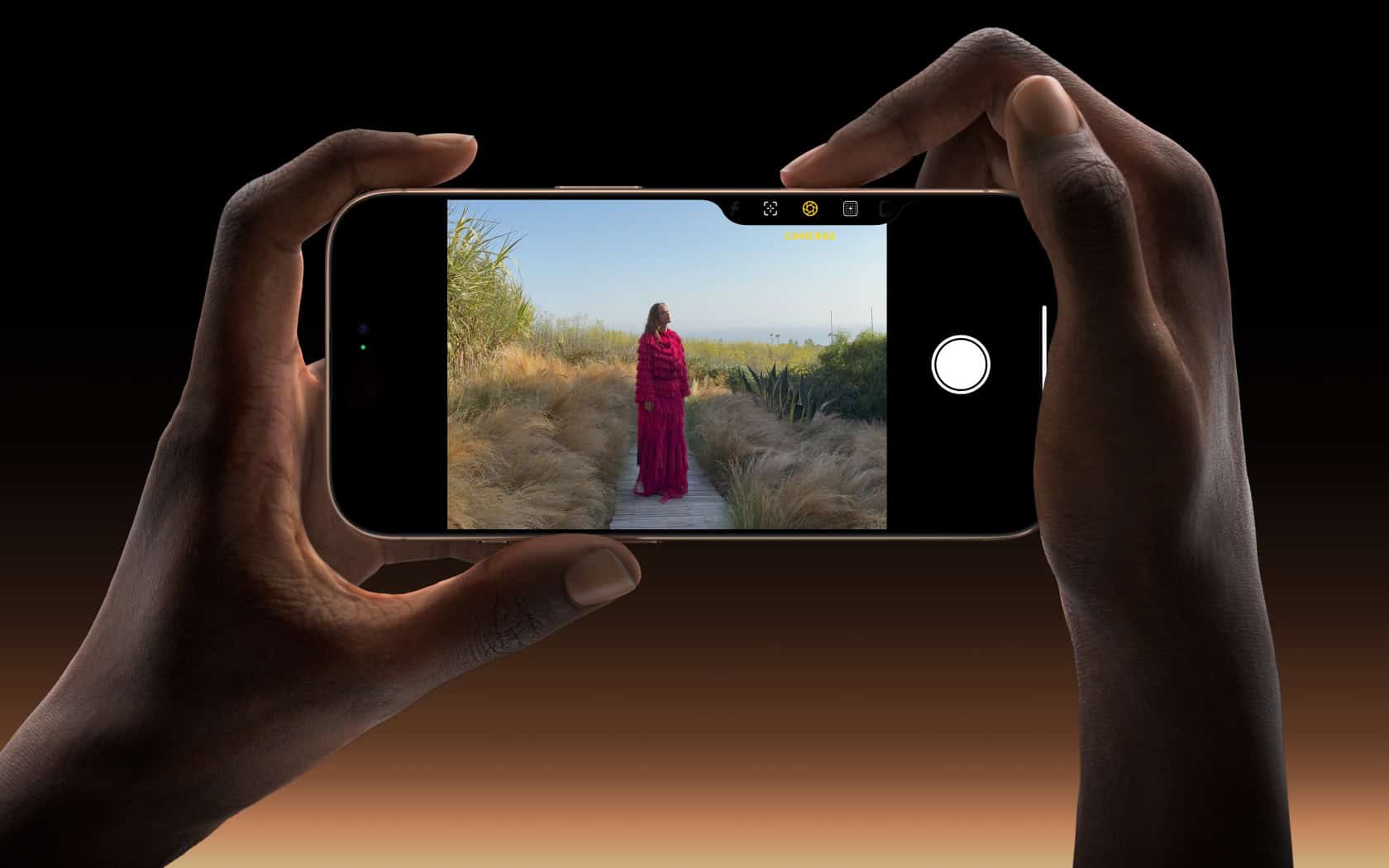
Taking videos on your iPhone is a simple process that can help you capture life’s important moments. The Camera app on your iPhone has powerful video features that are ready to use right away. To record video on your iPhone, open the Camera app, swipe right or tap “Video,” then press the red record button or hold down the shutter button to start recording.
Your iPhone camera isn’t just for photos – it’s a complete video recording studio in your pocket. You can record high-quality videos with just a few taps. The best part is you don’t need any special skills or extra equipment to get started.
Did you know you can even take photos while recording video? This handy feature lets you capture still images without stopping your recording. It’s perfect for birthday parties, sports events, or any moment where you want both videos and photos.
How to Take a Video on iPhone: Complete Guide
Taking videos on your iPhone is one of the most fundamental features of the device, yet many users don’t take full advantage of the powerful video capabilities built into their cameras. Whether you’re capturing memories, creating content, or filming professionally, this comprehensive guide will teach you everything you need to know about recording videos on your iPhone.
Quick Start: Basic Video Recording
The Simple Method:
- Open the Camera app
- Swipe to Video mode (or tap “VIDEO” at the bottom)
- Tap the red record button to start recording
- Tap the red button again to stop recording
- Your video is automatically saved to Photos
That’s it! But there’s so much more you can do…
Opening the Camera App
Method 1: From Lock Screen
- Swipe left on the lock screen
- The Camera app opens directly in Photo mode
- Switch to Video mode if needed
Method 2: Control Center
- Swipe down from the top-right corner (iPhone X and later)
- Swipe up from the bottom (iPhone 8 and earlier)
- Tap the Camera icon
Method 3: Home Screen
- Tap the Camera app icon
- Opens to the last mode used
Method 4: Siri
- Say “Hey Siri, open Camera”
- Or “Hey Siri, take a video” (starts recording immediately)
Method 5: 3D Touch/Haptic Touch
- Press and hold the Camera app icon
- Tap “Take Video” from the quick actions menu
- Starts recording immediately
Understanding Video Modes
Standard Video Mode
The default video recording mode with full control over settings.
Access: Swipe to “VIDEO” in the Camera app
Features:
- Multiple resolution and frame rate options
- Zoom capability
- Flash/torch
- Focus and exposure control
- Filters
Cinematic Mode (iPhone 13 and Later)
Creates a shallow depth-of-field effect with automatic focus transitions.
Access: Swipe to “CINEMATIC” mode
Features:
- Automatic focus changes
- Bokeh effect (blurred background)
- Adjustable aperture after recording
- 1080p at 30fps or 24fps
- Professional-looking footage
Best For:
- Interviews
- Narrative content
- Artistic videos
- Portrait-style videos
Slo-Mo Mode
Records high frame rate video for smooth slow-motion playback.
Access: Swipe to “SLO-MO” mode
Options:
- 1080p at 120fps or 240fps
- Adjustable slow-motion section after recording
Best For:
- Sports and action
- Dramatic moments
- Creative effects
- Analyzing movement
Time-Lapse Mode
Captures extended periods and compresses them into short videos.
Access: Swipe to “TIME-LAPSE” mode
Features:
- Automatic interval shooting
- Automatic stabilization
- Variable compression based on length
Best For:
- Sunsets/sunrises
- Construction projects
- Cloud movement
- Events (parties, crowds)
- Artistic projects
Action Mode (iPhone 14 and Later)
Advanced stabilization for extremely smooth handheld footage.
Access: Tap the running person icon in Video mode
Features:
- Extreme digital stabilization
- Best for moving shots
- Slightly crops the frame
- Records in 2.8K at 60fps or 1080p
Best For:
- Running videos
- Biking footage
- Walking shots
- Action sports
- Vlogging
Video Settings and Quality Options
Changing Video Resolution and Frame Rate
Via Camera App (Quick Method):
- Open Camera in Video mode
- Tap the resolution/fps indicator in the top-right corner (e.g., “4K 60”)
- Choose from available options:
- 720p HD at 30fps
- 1080p HD at 30fps
- 1080p HD at 60fps
- 4K at 24fps (cinematic)
- 4K at 30fps
- 4K at 60fps (iPhone 8 and later)
Via Settings (Default Setting):
- Open Settings
- Scroll to Camera
- Tap Record Video
- Select your preferred default resolution:
- 720p HD at 30 fps – 40 MB per minute
- 1080p HD at 30 fps – 130 MB per minute
- 1080p HD at 60 fps – 200 MB per minute
- 4K at 24 fps – 270 MB per minute
- 4K at 30 fps – 350 MB per minute
- 4K at 60 fps – 400 MB per minute
Understanding Resolution Options:
720p HD:
- Lowest quality, smallest file size
- Suitable for basic recording
- Good for storage-limited devices
- Not recommended for 2025+
1080p HD:
- Good balance of quality and file size
- Widely compatible
- Standard for most social media
- Recommended for general use
4K:
- Highest quality, largest file size
- Future-proof
- Best for professional work
- Can be downscaled for perfect 1080p
- Requires more storage and processing power
Frame Rate Guide:
- 24fps: Cinematic look, film-like motion blur
- 30fps: Standard video, natural motion
- 60fps: Smooth motion, good for action
- 120fps/240fps: Slow-motion only
ProRes Video (iPhone 13 Pro and Later)
Professional video codec for maximum editing flexibility.
Enable:
- Settings > Camera > Formats
- Turn on Apple ProRes
Requirements:
- iPhone 13 Pro or later
- 256GB storage minimum (128GB limited to 1080p)
- Massive file sizes (up to 6GB per minute at 4K 30fps)
Best For:
- Professional video production
- Maximum color grading flexibility
- When file size isn’t a concern
HDR Video (iPhone 12 and Later)
Records in Dolby Vision HDR for enhanced dynamic range.
Settings:
- Settings > Camera > Record Video
- Toggle HDR Video on/off
Notes:
- Available at 4K up to 60fps
- Creates larger files
- Best viewed on HDR-compatible displays
- May have compatibility issues with older devices/apps
Advanced Recording Techniques
Using Zoom While Recording
Digital Zoom:
- Pinch to zoom in/out while recording
- Or use the zoom wheel (tap 1x/0.5x/2x buttons)
- Slide the wheel for precise zoom control
Optical Zoom (iPhone Models with Multiple Lenses):
- 0.5x: Ultra-wide lens
- 1x: Wide lens (main camera)
- 2x: Telephoto lens (or digital zoom)
- 3x-5x: Telephoto (Pro models)
Tips:
- Zoom slowly for smooth transitions
- Avoid excessive digital zoom (quality degrades)
- Use optical zoom when possible
- Lock exposure/focus before zooming
Locking Focus and Exposure
How to Lock:
- Tap and hold on your subject for 2-3 seconds
- “AE/AF LOCK” appears at the top
- Focus and exposure are now locked
- Slide up/down to adjust exposure manually
When to Use:
- Subject is moving
- Lighting is changing
- You want consistent exposure
- Filming through windows
To Unlock:
- Tap anywhere on the screen
Using the Flash/Torch
The flash can be used as a continuous light source during video recording.
Activate:
- Tap the flash icon (lightning bolt)
- Choose:
- Auto: Camera decides
- On: Always on while recording
- Off: No flash/torch
Best For:
- Low-light situations
- Close-up subjects
- Emergency lighting
Caution:
- Drains battery quickly
- Creates harsh lighting
- Can overheat the phone
Using Filters While Recording
Apply a Filter:
- Tap the three circles icon (filters)
- Swipe through available filters
- Tap to select
- Start recording with the filter applied
Available Filters:
- Vivid, Vivid Warm, Vivid Cool
- Dramatic, Dramatic Warm, Dramatic Cool
- Mono, Silvertone, Noir
Note: Filters are baked into the video and cannot be changed after recording.
Quick Toggle Between Photo and Video
Method 1: Swipe
- Swipe left or right through modes
Method 2: QuickTake (iPhone 11 and Later)
- In Photo mode, press and hold the shutter button
- Starts recording video immediately
- Release to stop (saves as video)
- Slide to the right and release to keep recording hands-free
- Tap the white button to stop
QuickTake Benefits:
- Capture unexpected moments
- No need to switch modes
- Fast and convenient
Recording Tips for Better Videos
Stability and Stabilization
Built-in Stabilization:
- iPhones have optical and digital stabilization
- Works automatically
- More effective at higher frame rates
Additional Stability Tips:
- Hold with both hands
- Brace your elbows against your body
- Use a tripod or gimbal for best results
- Lean against a wall or stable surface
- Walk heel-to-toe for smoother motion
- Use Action Mode (iPhone 14+) for handheld shots
Recommended Accessories:
- Gimbal stabilizer (DJI OM, Zhiyun)
- Tripod with phone mount
- Phone cage with handles
Lighting Tips
Natural Light:
- Film during “golden hour” (after sunrise, before sunset)
- Use window light indoors
- Position subject facing the light source
- Avoid harsh overhead sun
Artificial Light:
- Use soft, diffused light
- Avoid mixing light temperatures
- Use reflectors to fill shadows
- Consider portable LED lights
Avoid:
- Backlighting (unless intentional)
- Harsh shadows
- Flickering lights
- Mixed color temperatures
Composition Guidelines
Rule of Thirds:
- Enable grid lines: Settings > Camera > Grid
- Place subjects along grid lines or intersections
- Creates more dynamic, professional compositions
Other Composition Tips:
- Leave headroom (space above subject’s head)
- Consider the background
- Use leading lines
- Maintain eye-level or intentional angles
- Leave “looking room” if subject is facing sideways
Audio Considerations
Built-in Microphone:
- Records from bottom of phone
- Picks up handling noise
- Limited quality in loud environments
Improving Audio:
- Get close to your subject
- Minimize wind (cup your hand around mic)
- Reduce background noise when possible
- Use external microphone:
- Wired: Lightning/USB-C compatible mics
- Wireless: Bluetooth mics (may have lag)
- Lavalier mics for interviews
Popular External Mics:
- Rode VideoMic Me
- Shure MV88
- Rode Wireless GO II
Battery and Storage Management
Battery Tips:
- Start with full charge for long recordings
- Enable Low Power Mode after recording
- Close other apps
- Reduce screen brightness
- Carry a portable charger
Storage Tips:
- Check available storage before important recordings
- Offload old videos to iCloud or computer
- Lower resolution/frame rate if storage-limited
- Use external storage (Lightning/USB-C drives)
Monitor Storage:
- Settings > General > iPhone Storage
Key Takeaways
- Open the Camera app and swipe right or tap “Video” to access video recording mode on your iPhone.
- Press the red record button or hold the shutter button to start recording your video instantly.
- Access advanced video features like screen recording from the Control Center with a simple swipe down.
Getting Started with the Camera App
The iPhone camera app is simple to use but packed with features. You’ll need to learn how to find and open the app, then understand the different modes available for capturing videos.
Opening the Camera App
There are several quick ways to open the Camera app on your iPhone. The fastest method is to swipe left from your lock screen. This works even when your phone is locked.
From your home screen, tap the Camera icon to launch the app. It usually appears on the first page of apps.
For even quicker access, swipe down from the top-right corner (on iPhone X and newer) to open Control Center, then tap the Camera icon.
You can also ask Siri to “Open Camera” for hands-free operation. This is helpful when your hands are busy or dirty.
On newer models like iPhone 12 through iPhone 14, you can set up a back tap shortcut for the camera in Accessibility settings.
Understanding Camera Modes
The iPhone Camera app offers several video recording modes. To access these, open the Camera app and swipe right or left on the mode selector until you reach “VIDEO” mode.
Standard video mode is perfect for everyday recording. Just tap the red Record button or hold the Shutter button to start a QuickTake video.
For slow-motion effects, select “SLO-MO” mode. This captures videos at a high frame rate that plays back in slow motion.
“TIME-LAPSE” mode speeds up long recordings into short videos – great for sunsets or busy scenes.
Newer iPhones (iPhone 13 and 14) offer “CINEMATIC” mode for adding professional-looking depth effects. iPhone 14 Pro models also include “ACTION” mode for super-stable video when moving quickly.
To switch between front and back cameras while recording, tap the camera flip icon. You can also pinch to zoom in or out before or during recording.
Setting Up Your Video Shot
The right setup makes a huge difference in iPhone video quality. Good preparation helps you capture clear, professional-looking footage without spending money on expensive equipment.
Adjusting Focus and Exposure
iPhone cameras automatically focus and set exposure, but manual control gives better results. To adjust focus, simply tap where you want the camera to focus. A yellow box appears showing the focus point.
To set exposure (brightness), tap to focus, then slide the sun icon up or down. This helps when filming in tricky lighting situations like sunsets or dark rooms.
For consistent footage, use the AE/AF lock feature. Hold your finger on the screen until “AE/AF LOCK” appears at the top. This prevents the camera from refocusing or changing exposure if something moves in the frame.
Some newer iPhone models offer additional control. Go to the Camera settings to set your preferred resolution and frame rate before shooting.
Using Grid and Level Features
The grid feature helps create well-composed shots. Turn it on in Settings > Camera > Grid. This divides your screen into nine equal sections, making it easier to use the “rule of thirds” for more engaging videos.
The level indicator helps keep your horizon straight. When shooting, a white line appears across the screen. When perfectly level, this line turns yellow, showing you’ve got a straight shot.
These guides are especially helpful for landscape videos, architecture shots, or any scene where straight lines matter. They’re simple tools that dramatically improve composition and make videos look more professional.
For product videos or interviews, the grid also helps center subjects precisely or place them strategically within the frame.
Stabilizing Your Device
Shaky video looks amateur, so stabilization is crucial. Using a tripod specifically designed for smartphones creates the most stable footage. These are affordable and portable.
No tripod? Find a stable surface like a table, shelf, or wall. Prop your iPhone against books or use a phone case that stands up.
When hand-holding, keep your elbows close to your body for support. Hold your phone with both hands and move slowly and smoothly. Many iPhones have built-in optical image stabilization, but physical stability still matters.
For moving shots, try walking heel-to-toe and bending your knees slightly to absorb impact. This creates smoother motion than regular walking. Some iPhone models offer Auto FPS settings that help with motion stability.
Recording Your Video
Once you’ve opened your iPhone camera app, you’re ready to capture video. The process is simple but offers many options to customize your recording for the best quality and creative results.
Starting and Stopping Video Capture
To start recording video on your iPhone, first open the Camera app. Swipe right on the camera modes at the bottom until “VIDEO” is selected.
Press the red shutter button to begin recording. A timer will appear at the top of the screen showing how long you’ve been recording.
You can also use the volume buttons on the side of your iPhone to start and stop recording. This is helpful when you need steady shots or can’t easily reach the screen.
To stop recording, press the red stop button. Your video will automatically save to your Photos app in the “Recents” album.
For quick videos without switching modes, use QuickTake. On iPhone 11 and newer, simply hold down the photo shutter button while in photo mode, and slide right to lock recording.
Always check your available storage space before recording lengthy videos, especially at higher resolutions.
Changing Video Modes While Recording
iPhones offer several video modes you can select before you start recording. Go to “VIDEO” mode and tap on the resolution display (like “4K” or “HD”) at the top of the screen to change quality settings.
For special effects, you can choose:
- Slo-Mo: Records at high frame rates for smooth slow motion playback
- Time-Lapse: Creates sped-up videos over long periods
- Cinematic Mode: Available on newer iPhones, adds professional-looking depth effects
You can’t switch between these modes during recording, so choose wisely before you start.
The zoom feature works while recording. Pinch the screen to zoom in or out, or use the zoom controls that appear above the shutter button on newer models.
Some iPhones allow filter adjustments during recording. Tap the filters icon (three overlapping circles) to apply different looks to your video.
Controlling Audio and Microphone Settings
Good audio is crucial for quality videos. Your iPhone has built-in microphones that automatically record sound with your video.
Before recording in noisy places, try to position yourself where your voice can be clearly captured. The main microphone is at the bottom of your iPhone.
To adjust audio settings:
- Open Camera app
- Select VIDEO mode
- Tap the microphone icon at the top of the screen to mute/unmute
For better audio, consider using external microphones that connect through the Lightning port or via Bluetooth. These greatly improve sound quality for interviews or vlogs.
Screen recording also captures audio. When starting a screen recording, press deeply on the record button and enable the microphone to record your voice along with screen content.
Remember that notifications can interrupt your recording with sounds, so consider enabling Do Not Disturb before important video sessions.
Optimizing Video Quality
Your iPhone can capture stunning videos with the right settings. Getting familiar with resolution options and file formats will help you save space while maintaining quality.
Selecting Resolution and Frame Rates
The iPhone offers several video resolution and frame rate options in the Camera app. To find these settings:
- Open the Camera app
- Swipe to Video mode
- Tap the resolution/fps numbers in the corner of the screen
Modern iPhones can record in these formats:
- 4K: 24fps, 30fps, or 60fps (highest quality)
- 1080p HD: 30fps or 60fps (balanced option)
- 720p HD: 30fps (saves the most space)
Higher frame rates like 60fps create smoother motion, perfect for action shots. For normal videos, 30fps works well and uses less storage.
For slow-motion videos, check your iPhone’s slow-mo settings. Most newer models support 240fps at 1080p, creating super smooth slow-motion effects.
Benefits of High Efficiency File Format
iPhones offer HEVC (High Efficiency Video Coding), also called H.265 format. This format has major advantages:
- Smaller file sizes – videos take up about half the space of standard formats
- Same visual quality as larger files
- More storage for other apps and media
To enable High Efficiency format:
- Go to Settings > Camera > Formats
- Select High Efficiency
This setting is especially helpful when recording in 4K, as these files can get very large. A 1-minute 4K video at 60fps can use 400MB in standard format but only 170MB in high efficiency.
The only downside is compatibility – older devices or some non-Apple products might have trouble playing HEVC files.
Editing Your Videos
After capturing your video on iPhone, you can transform it into something amazing with the built-in editing tools. iPhone offers several ways to trim, enhance, and share your footage without downloading extra apps.
Using the Photos App for Quick Edits
The Photos app includes simple but powerful video editing tools. To get started, open the Photos app and tap the video you want to edit. Tap “Edit” in the upper right corner to see your options.
To trim your video, tap the small camera icon at the bottom of the screen. Yellow handles will appear at both ends of the timeline. Drag these handles to set a new beginning and end point for your clip.
You can also apply filters to change the look of your video. Tap the filter icon (three overlapping circles) and scroll through options like Vivid, Dramatic, or Noir.
The Photos app lets you adjust basic settings too. Tap the dial icon to change brightness, contrast, and saturation. These simple tweaks can make your iPhone videos look more professional without complex editing.
Advanced Editing with iMovie
For more control over your videos, iMovie offers advanced features. This free app comes pre-installed on your iPhone and provides more editing power.
To begin, open iMovie and create a new project. Tap the “+” button and select “Movie.” Choose the video clips you want to include in your project.
iMovie lets you combine multiple clips, add transitions between scenes, and include title text. The app offers several pre-made themes that automatically add matching transitions and text styles.
You can add background music from your library or use iMovie’s built-in soundtracks. The app makes it easy to adjust audio levels so your music doesn’t overpower important sounds in your video.
For vloggers, iMovie includes picture-in-picture effects and split-screen options. These features are perfect for creating YouTube content or instructional videos right from your iPhone.
Exporting and Sharing Your Video
When you’ve finished editing your video, it’s time to save and share your creation. In both the Photos app and iMovie, tap “Done” to save your edits.
To export your video, tap the share icon (square with an arrow). You’ll see options for video quality. Higher quality looks better but creates larger files that take longer to send.
You can share directly to social platforms like Instagram and YouTube. The sharing menu integrates with these apps to make posting simple and quick.
If you’re creating content regularly, consider saving in Apple ProRes format for the highest quality. This works best for professional videos that need further editing on a computer.
For large videos, try AirDrop to transfer to another Apple device. You can also save to Files or iCloud to access your video from any device later. This keeps your original footage safe while you share the edited version.
Additional Camera Features
The iPhone camera offers powerful features beyond basic video recording. These tools help create better-quality videos and capture special moments in different formats.
Capturing Still Photos While Recording
You don’t need to switch between photo and video modes to get both formats. When recording video on your iPhone, you can take photos simultaneously without interrupting your recording.
Simply tap the white shutter button that appears next to the red record button while filming. This works great for catching key moments during special events or sports games.
On newer models like the iPhone 11 Pro, you can also use QuickTake video by pressing and holding the shutter button in Photo mode. This lets you start recording instantly without switching modes.
For longer videos, slide the record button to the right to lock it in recording mode. This frees your finger so you can tap the shutter button for photos.
Utilizing HDR for Enhancing Video Quality
HDR (High Dynamic Range) video significantly improves the quality of iPhone recordings. On supported models, you can turn HDR video on or off in your camera settings.
To enable HDR:
- Go to Settings → Camera
- Find “Record Video”
- Toggle HDR Video on
HDR helps capture better details in both bright and dark areas of your scene. This is especially useful when filming in tricky lighting conditions like sunsets.
The iPhone 11 Pro and newer models support Dolby Vision HDR, which offers even better color and brightness. These videos look amazing on HDR-compatible screens but take up more storage space.
Creating Live Photos from Videos
The Live Photos feature blends still images with short video clips. While not directly converting videos to Live Photos, there are several ways to capture motion moments:
Take a Live Photo by pressing the Live button (circles icon) in the camera app before shooting. This captures 1.5 seconds before and after you press the shutter.
When viewing videos in the Photos app, you can extract still frames by:
- Playing the video
- Pausing at the desired moment
- Tapping the Share button
- Selecting “Save as Photo”
Some third-party apps can convert video clips into Live Photo format. This lets you set these motion clips as animated wallpapers for your lock screen.
The iPhone camera in iOS 13 and later also offers “Video to Photo” extraction with better quality than earlier versions.
Frequently Asked Questions
iPhone video recording offers many options from basic capture to advanced settings. These common questions cover essential steps, adjustments, and editing techniques for capturing great video.
What are the steps to initiate video recording on an iPhone?
To record video on your iPhone, first open the Camera app. This app comes pre-installed on all iPhones.
Swipe right or left in the camera mode selector at the bottom of the screen until “VIDEO” is highlighted. The selector is located just above the shutter button.
Press the red circular button to start recording. The timer at the top of the screen will begin counting, showing you how long you’ve been recording.
To stop recording, press the red square button. Your video will automatically save to your Photos app in the Videos album.
How can one capture a video clip using an iPhone’s camera?
Open the Camera app and select VIDEO mode by swiping left or right on the mode selector.
Frame your shot using the screen as your viewfinder. You can pinch to zoom in or out before or during recording.
For quick clips, press and hold the shutter button in photo mode and swipe right to lock recording. This “QuickTake” feature works on iPhone 11 and newer models.
Release the button to stop recording or swipe right to lock the recording in place, allowing you to take your finger off the screen while still recording.
Can you explain how to adjust focus and exposure when taking a video on an iPhone?
Tap anywhere on the screen to set focus on that specific area before or while recording. A yellow square appears showing where the focus is set.
After tapping to focus, a sun icon appears. Slide it up or down to adjust the exposure (brightness) of your video.
For advanced control, press and hold on the screen until “AE/AF Lock” appears. This locks both focus and exposure, even if you move the phone.
This feature is particularly useful when filming moving subjects or when lighting conditions change during recording.
Is there a way to quickly start recording a video from the iPhone lock screen?
Yes! Firmly press (or long press on models without 3D Touch) the Camera icon on your lock screen.
Swipe left to select VIDEO mode from the options that appear at the bottom.
Alternatively, swipe left on the lock screen to access the Camera app directly, then select VIDEO mode.
On newer iPhone models, you can also record videos quickly by setting up the Camera app in Control Center for faster access.
What methods are available to edit a video after recording it on an iPhone?
Open the Photos app and select the video you want to edit. Tap “Edit” in the top right corner.
Trim your video by dragging the yellow handles at either end of the timeline. Tap “Done” to save your changes.
For more advanced editing, use the built-in tools to adjust brightness, contrast, saturation, and apply filters.
iMovie, available free from the App Store, offers more editing options like adding text, transitions, and combining multiple clips.
How does one switch between different video resolutions and frame rates on an iPhone?
Go to Settings > Camera > Record Video to access resolution and frame rate options. Your iPhone will show all supported video formats.
Higher resolutions (like 4K) offer better quality but use more storage space. Higher frame rates (like 60fps) create smoother motion.
You can also quickly switch between some video settings directly in the Camera app. Look for numbers like “4K” or “60” at the top of the screen when in video mode.
Different iPhone models support different maximum resolutions and frame rates, with newer models offering more advanced options.