
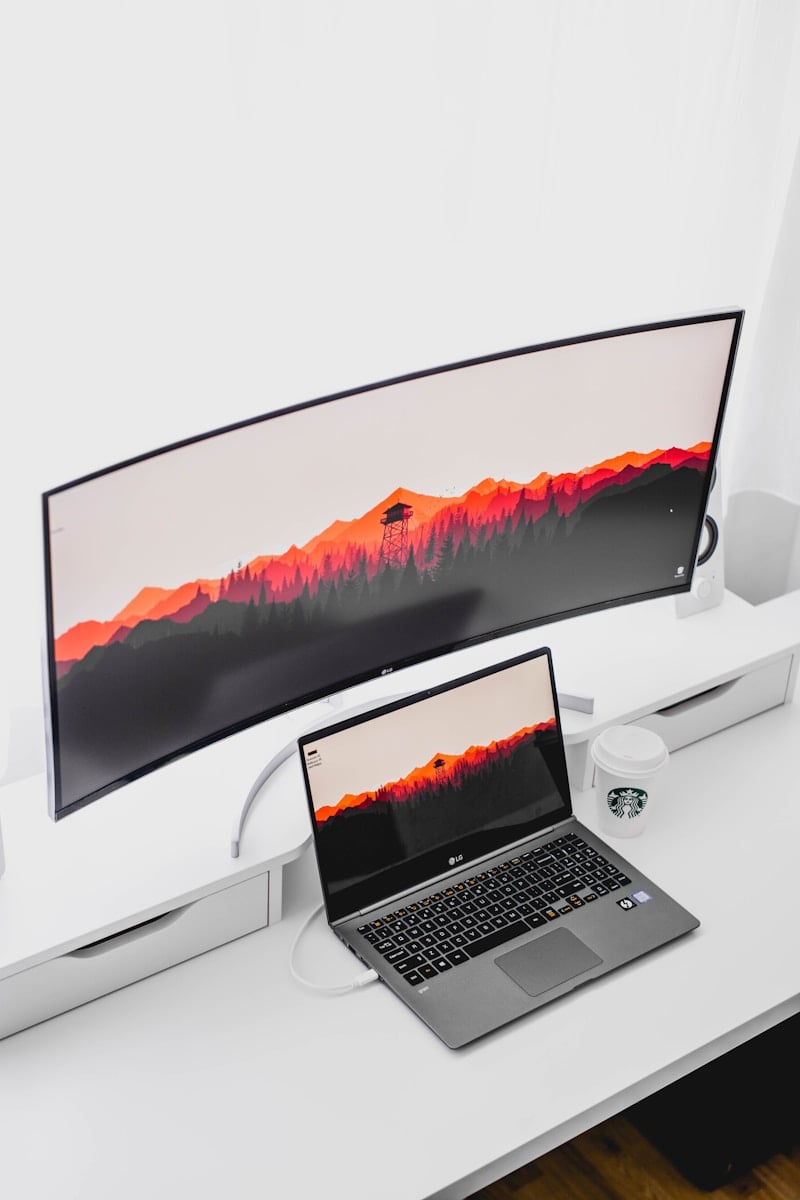
Choosing the perfect monitor for your MacBook Pro can significantly enhance your working experience and productivity. The latest displays in 2026 offer impressive features specifically designed to complement Apple’s powerful laptops. The best MacBook Pro monitors combine sharp resolution, accurate color reproduction, and seamless connectivity options like USB-C with power delivery to create a truly optimized setup.
Currently, several standout options dominate the market. The Dell UltraSharp U2720Q has earned recognition as a versatile 4K workhorse that handles most tasks exceptionally well. For those seeking an Apple-optimized experience, the Apple Studio Display provides a premium 27-inch 5K panel with Retina-style pixel density, though at a higher price point. Budget-conscious users might consider the Acer Nitro XV275K, which offers sharp images and excellent text clarity at a more accessible price.
Monitor selection ultimately depends on your specific needs. Professional creative work demands displays with superior color accuracy and resolution, while general productivity benefits from screen size and ergonomic features. Connectivity options also matter greatly, with the best monitors offering USB-C connections that can charge your MacBook while transmitting display data through a single cable.
Best Monitors for MacBook Pro: A Complete Buyer’s Guide
Choosing the right external monitor for your MacBook Pro can dramatically improve productivity, color accuracy, and comfort—whether you’re editing photos, writing code, or running multiple apps at once. However, not all monitors work equally well with macOS, especially when it comes to scaling, resolution, and connectivity.
This guide explains what to look for in a MacBook Pro monitor and highlights some of the best options available, with a comparison table to make choosing easier.
What to Look for in a Monitor for MacBook Pro
1. Resolution and Scaling
macOS works best with:
- 5K (5120×2880) at 27″
- 4K (3840×2160) at 24–27″
- 1440p (2560×1440) at 27″
Avoid low‑resolution monitors, as text may look blurry due to macOS scaling.
2. Connectivity
Your monitor should support:
- Thunderbolt 3 or Thunderbolt 4 (best option)
- USB‑C with DisplayPort Alt Mode
- Power delivery (ideally 96W for MacBook Pro charging)
A single‑cable setup keeps your desk clean and charges your laptop.
3. Color Accuracy
For creative professionals:
- Look for P3 color gamut support
- At least 99% sRGB
- Factory color calibration is a plus
4. Refresh Rate
- 60Hz is sufficient for most work
- 120Hz–144Hz is ideal for smoother scrolling and gaming
Best Monitors for MacBook Pro (Quick Comparison)
| Monitor | Size | Resolution | Connectivity | Best For |
|---|---|---|---|---|
| Apple Studio Display | 27″ | 5K | Thunderbolt 3 | macOS perfection, creatives |
| LG UltraFine 5K | 27″ | 5K | Thunderbolt 3 | Apple‑approved, color work |
| Dell UltraSharp U2720Q | 27″ | 4K | USB‑C / Thunderbolt | Office & productivity |
| LG 27EP950‑B | 27″ | 4K OLED | Thunderbolt / USB‑C | Color‑critical editing |
| Samsung ViewFinity S9 | 27″ | 5K | Thunderbolt / USB‑C | High resolution, value |
| BenQ PD3220U | 32″ | 4K | Thunderbolt 3 | Design & development |
Top Monitor Picks Explained
Apple Studio Display (27″ 5K)
Best overall MacBook Pro monitor
- Perfect macOS scaling
- Stunning 5K Retina resolution
- 600 nits brightness, P3 wide color
- Built‑in speakers, webcam, and hub
✅ Best for Apple‑centric setups
❌ Expensive, 60Hz only
LG UltraFine 5K
Best Apple‑approved alternative
- Designed specifically for macOS
- Excellent brightness and color accuracy
- Single‑cable Thunderbolt setup
✅ Seamless Mac compatibility
❌ Basic design, limited ports
Dell UltraSharp U2720Q
Best value 4K monitor
- Excellent build quality
- Accurate colors (factory calibrated)
- 90W USB‑C power delivery
✅ Affordable and reliable
❌ Not ideal for macOS scaling purists
LG 27EP950‑B (OLED Pro)
Best for color‑critical professionals
- OLED contrast and deep blacks
- Nearly perfect color accuracy
- Ideal for HDR and video editing
✅ Incredible image quality
❌ Very expensive, lower brightness
Samsung ViewFinity S9 (5K)
Best 5K value option
- Sharp 5K resolution
- Thunderbolt support
- Sleek, minimalist design
✅ High resolution at lower cost
❌ Speakers and webcam are basic
BenQ PD3220U
Best large monitor for multitasking
- 32″ 4K display
- Thunderbolt 3 with KVM switch
- Excellent for coding and design
✅ Big screen productivity
❌ Lower pixel density than 5K
Best Monitor by Use Case
- Best Overall: Apple Studio Display
- Best 5K Alternative: LG UltraFine 5K
- Best Budget Option: Dell UltraSharp U2720Q
- Best for Creative Pros: LG 27EP950‑B OLED
- Best Large Display: BenQ PD3220U
Tips for Using a Monitor with MacBook Pro
- Use Thunderbolt cables for best performance
- Avoid HDMI if possible (macOS scaling issues)
- Adjust Display Scaling in System Settings
- Enable True Tone if supported
- Calibrate display for professional color work
Final Thoughts
The best monitor for your MacBook Pro depends on resolution, budget, and workflow. If you want the smoothest macOS experience, a 5K display is unmatched. For productivity and value, a high‑quality 4K USB‑C monitor is often more than enough.
Key Takeaways
- The ideal MacBook Pro monitor should provide high resolution, color accuracy, and USB-C connectivity with power delivery.
- Different user needs require different monitor features, with professionals needing color accuracy while general users may prioritize size and price.
- Proper monitor selection can significantly improve workflow by reducing cable clutter and creating an ergonomic workspace.
Understanding Monitor Compatibility With MacBook Pro
Connecting external monitors to a MacBook Pro requires understanding specific connectivity options and display capabilities. Modern MacBook Pro models offer different port configurations that affect monitor compatibility, while resolution and size considerations play crucial roles in selecting the right display.
USB-C and Thunderbolt Connectivity
MacBook Pro models from 2016 onward primarily use USB-C ports with Thunderbolt technology for monitor connections. The latest models feature Thunderbolt 3 or Thunderbolt 4, which provide up to 40Gbps data transfer speeds—essential for high-resolution displays.
These ports offer significant advantages over older connection types. A single Thunderbolt cable can transmit video signal, data, and power simultaneously, allowing for a cleaner desk setup.
Different MacBook Pro generations support varying numbers of external displays. M1 MacBook Pros can only connect to one external monitor natively, while M1 Pro models support up to two external displays, and M1 Max/M2 Max configurations can handle up to four.
For users with monitors that don’t have USB-C inputs, adapters or docks are necessary. These range from simple USB-C to HDMI adapters to full-featured Thunderbolt docks with multiple video outputs.
Resolution and Screen Size Considerations
MacBook Pros can support impressive display resolutions, but compatibility varies by model. Most recent MacBooks easily drive 4K monitors (3840 x 2160 pixels), while higher-end models can handle 5K (5120 x 2880) or even 6K displays.
Screen size selection should complement the MacBook’s capabilities. For productivity work, 27-inch 4K monitors like the Dell UltraSharp U2720Q offer excellent clarity without overwhelming desk space.
Ultrawide monitors with WQHD resolution (2560 x 1440 or 3440 x 1440) provide expanded horizontal workspace, ideal for video editing or multi-window workflows.
For creative professionals, color accuracy matters as much as resolution. Look for monitors with 95-100% DCI-P3 color gamut coverage to match the MacBook Pro’s built-in display quality.
Consider scaling settings in macOS when selecting resolution. Some high-resolution displays may require scaling adjustments to ensure text and interface elements remain comfortably sized.
Leveraging Apple’s Native Displays
Apple’s own monitor offerings provide seamless integration with MacBook Pro systems. The Apple Studio Display (27-inch, 5K) offers exceptional clarity and brightness with built-in features optimized for macOS.
The Pro Display XDR represents Apple’s premium option with its 6K resolution and extreme dynamic range, though its high price targets professional video and photography workflows.
Apple displays include additional MacBook-friendly features like integrated webcams, studio-quality microphones, and spatial audio speaker systems that extend the MacBook experience.
Both Apple displays connect via a single Thunderbolt cable, providing up to 96W of power delivery—enough to charge even the 16-inch MacBook Pro while in use.
For users seeking Apple’s design language at a lower price point, third-party options from brands like BenQ and Acer offer “Mac-friendly” features such as matching aluminum aesthetics and preset color profiles for macOS.
Critical Monitor Features for MacBook Pro Users
When connecting a MacBook Pro to an external monitor, certain features can dramatically improve workflow efficiency and output quality. The right display will enhance color accuracy, provide crystal-clear resolution, and incorporate cutting-edge technologies that complement Apple’s premium hardware.
Color Accuracy and Gamut
Color accuracy is paramount for creative professionals using MacBook Pros. A monitor should reproduce colors faithfully to ensure what appears on screen matches the final output. Professional-grade monitors supporting wide color gamuts are essential.
Look for displays covering at least 99% of the sRGB color space for standard work. For creative professionals, monitors supporting 98-99% DCI-P3 or Adobe RGB gamuts provide significantly better color reproduction for photo and video editing.
Many high-end monitors for MacBook Pros come factory-calibrated. The Dell UltraSharp series and BenQ PD monitors specifically offer excellent color accuracy right out of the box.
Color consistency across the entire screen is another critical factor. IPS panels typically provide better color uniformity than VA or TN alternatives, making them preferred for professional work.
Enhanced Resolution and Pixel Density
Resolution significantly impacts clarity and workspace size when using a MacBook Pro with an external display. 4K (3840×2160) has become the standard for professional work, offering sharp text and detailed images.
For design professionals, 5K (5120×2880) and 6K (6144×3160) displays provide even greater detail and working space. The additional pixels are particularly beneficial when working with high-resolution photos, complex designs, or multiple application windows.
Pixel density, measured in pixels per inch (PPI), affects how sharp content appears. Displays with 163+ PPI deliver crisp text without scaling issues when connected to a MacBook Pro.
Screen size should be proportional to resolution. A 27-inch monitor works well with 4K resolution, while 32-inch displays complement 5K or 6K resolutions without requiring excessive scaling.
Advanced Display Technologies
Mini-LED technology brings significant improvements to display quality, offering deeper blacks and higher contrast ratios than traditional LED displays. These advantages make them excellent for video editing and graphic design.
OLED displays provide perfect blacks and exceptional contrast ratios, though they’re less common in professional monitors due to potential burn-in concerns. They excel at HDR content creation and consumption.
HDR support enhances the dynamic range of images, showing more detail in both shadows and highlights. Look for monitors supporting HDR10 at minimum, with higher standards like DisplayHDR 600 or 1000 providing better performance.
Anti-glare coatings help reduce reflections in bright environments. Apple-specific monitors sometimes offer nano-texture glass options that minimize glare while maintaining image clarity.
Proper brightness (300-500 nits for standard work, 600+ nits for HDR) ensures visibility in various lighting conditions and accurate color representation when editing high-dynamic-range content.
Optimizing Workflow and Productivity
The right monitor can transform a MacBook Pro setup from basic to exceptional, significantly boosting efficiency in day-to-day tasks. Key features like screen size, adjustability, and integrated connectivity options work together to create a more comfortable and productive workspace.
Monitors for Multitasking
Ultrawide monitors offer MacBook Pro users unparalleled multitasking capabilities. Models like the HP E45c G5 curved screen excel at displaying multiple applications simultaneously without constant window switching.
The 32-inch or larger displays provide enough real estate to arrange several documents side by side. This setup is particularly beneficial for programmers, data analysts, and content creators who typically work across multiple applications.
Monitors with Picture-in-Picture (PiP) or Picture-by-Picture (PbP) functionality enable users to display inputs from different sources simultaneously. This feature proves valuable when connecting both a MacBook Pro and another device to the same screen.
Many premium monitors now include built-in KVM (Keyboard, Video, Mouse) switches. These allow users to control multiple computers with a single keyboard and mouse setup, streamlining workflows for professionals managing several devices.
Ergonomic Design and Adjustable Stands
Height-adjustable stands prevent neck strain by positioning screens at eye level. This ergonomic positioning is crucial for professionals who spend extended hours in front of their monitors.
Tilt, swivel, and rotation capabilities let users customize their viewing experience based on lighting conditions and work requirements. Some monitors can rotate 90 degrees for portrait mode, which benefits coders and document editors.
VESA mount compatibility offers additional flexibility for users who prefer monitor arms. These mounting solutions free up desk space and provide greater positioning options than standard stands.
Anti-glare coatings and blue light filters reduce eye fatigue during long work sessions. These features are increasingly important as remote work becomes more common, with professionals spending more screen time than ever before.
Integrated Features for Convenience
USB-C connectivity simplifies the MacBook Pro connection process with single-cable solutions for video, data, and power. This reduces cable clutter and creates a cleaner workspace environment.
Built-in USB hubs expand the limited port selection on modern MacBook Pros. Premium monitors often include multiple USB-A ports, SD card readers, and Ethernet connections that extend the laptop’s functionality.
Integrated speakers eliminate the need for external audio equipment in many setups. While not replacing dedicated audio systems, they provide convenience for video calls and casual media consumption.
Cable management systems built into monitor stands help maintain an organized desk. These simple features significantly impact workspace aesthetics and usability, allowing professionals to focus on their work rather than tangled cables.
Performance Metrics for Selecting a Monitor
When choosing a monitor for your MacBook Pro, understanding the key technical specifications is crucial for finding the perfect match for your workflows and visual needs. These metrics directly impact your viewing experience and productivity.
Assessing Refresh Rates and Response Time
The refresh rate of a monitor indicates how many times per second the image is refreshed, measured in Hertz (Hz). For MacBook Pro users handling video editing or gaming, higher refresh rates like 144Hz or 180Hz provide smoother motion and reduced blur.
Standard office work functions well with 60Hz displays, but creative professionals benefit from 120Hz or higher for more fluid animations and scrolling. Many premium monitors for MacBook Pro now offer 144Hz refresh rates as a sweet spot between performance and cost.
Response time, measured in milliseconds (ms), shows how quickly pixels can change colors. For gaming or video work, look for monitors with 1ms response time to eliminate ghosting effects.
Professional creators should prioritize monitors with both high refresh rates and fast response times, especially when working with motion graphics or gaming content.
Brightness and HDR Support
Monitor brightness, measured in nits, is critical for accurate content viewing. For standard office work, 300-350 nits is sufficient, but creative professionals should seek displays offering at least 400-500 nits for better color accuracy.
Peak brightness becomes especially important for HDR content. True HDR support requires monitors to reach at least 600 nits, with premium models achieving 1,000+ nits in specific screen zones.
Local dimming technology enhances HDR performance by controlling the backlight in zones, creating deeper blacks and more vibrant highlights. More dimming zones translate to better contrast and HDR performance.
MacBook Pro users working with photo and video editing should prioritize monitors with HDR10 or DisplayHDR certification. The Dell UltraSharp and BenQ DesignVue series offer excellent brightness and HDR support specifically optimized for MacBook compatibility.
Viewing Angles and Contrast Ratio
Viewing angles determine how well a monitor maintains image quality when viewed from different positions. IPS (In-Plane Switching) panels typically offer superior viewing angles of 178 degrees both horizontally and vertically, making them ideal for collaborative work environments.
VA (Vertical Alignment) panels sacrifice some viewing angle performance but deliver superior contrast ratios, often 3000:1 or higher compared to the typical 1000:1 of IPS panels.
Contrast ratio represents the difference between the brightest whites and darkest blacks a monitor can display. Higher contrast ratios provide more depth and detail in images, especially important for photo and video editors.
For MacBook Pro users, monitors with wide viewing angles prove beneficial for collaborative work. The Acer Nitro XV275K stands out with excellent viewing angles while maintaining strong contrast performance, making it suitable for both solo and team environments.
OLED monitors offer near-infinite contrast ratios with perfect blacks, though they come at a premium price point compared to traditional LCD technologies.
Specialized Monitors for Different User Needs
MacBook Pro users have diverse requirements when it comes to external displays. Some need budget-friendly options, while others require professional-grade color accuracy or enhanced audio capabilities for a complete workstation experience.
The Best Budget Monitor for MacBook Pro
Budget-conscious MacBook Pro users don’t need to sacrifice quality for affordability. The AOC Q27G3XMN offers exceptional value with its 27-inch QHD display and 165Hz refresh rate. This monitor delivers impressive color accuracy with 99% sRGB coverage at a fraction of premium display prices.
For those needing a reliable workstation on a budget, the Dell SE2722H provides a solid 27-inch Full HD experience with anti-glare coating and ComfortView technology that reduces blue light emissions. This monitor is particularly suited for everyday productivity tasks.
Another standout budget option is the LG 24QP500-B, featuring a 24-inch QHD display with USB-C connectivity that can charge your MacBook Pro while transmitting video signals through a single cable. Its compact size makes it ideal for smaller workspaces.
| Model | Size | Resolution | Key Feature | Price Range |
|---|---|---|---|---|
| AOC Q27G3XMN | 27″ | QHD | 165Hz refresh | $250-300 |
| Dell SE2722H | 27″ | Full HD | ComfortView | $180-230 |
| LG 24QP500-B | 24″ | QHD | USB-C connectivity | $220-270 |
Top Monitors for Creative Professionals
Creative professionals demand exceptional color accuracy and resolution. The Dell UltraSharp U2723QE stands out with its 4K resolution and 95% DCI-P3 color gamut coverage, making it perfect for photo and video editing.
For designers working with detailed graphics, the BenQ PD3225U offers factory-calibrated color accuracy with Delta E≤2 and specialized display modes for CAD/CAM, animation, and darkroom work. Its 32-inch display provides ample screen real estate for complex projects.
The Apple Studio Display offers seamless integration with macOS and includes a 12MP Center Stage camera with Spatial Audio capabilities through its six-speaker sound system. Its P3 wide color gamut and 600 nits of brightness deliver true-to-life images.
Professional videographers often choose the ASUS ProArt PA32UCX for its mini-LED backlighting that provides incredible HDR performance with 1,152 dimming zones. This monitor supports multiple HDR formats including HDR10, HLG, and Dolby Vision.
Monitors With Enhanced Audio Features
The LG UltraFine Ergo features built-in 5W stereo speakers with MaxxAudio technology, eliminating the need for external speakers. Its ergonomic stand allows for flexible positioning while saving desk space.
Samsung’s M8 Smart Monitor combines display capabilities with smart TV functionality and includes powerful built-in speakers with Adaptive Sound technology. The monitor automatically adjusts audio settings based on content type for optimal listening experiences.
For immersive audio experiences, the Huawei MateView GT ultrawide monitor includes a soundbar built directly into its stand. This innovative design delivers 2.0 channel stereo sound with customizable RGB lighting effects.
The Harman Kardon partnership gives the Philips Momentum 559M1RYV exceptional audio quality with dedicated sound modes for gaming, movies, and music. Its 5.1 virtual surround capability creates an immersive workspace without additional equipment.
Advanced Connectivity and Cable Management
Modern monitors for MacBook Pro offer sophisticated connectivity solutions that simplify workspace setup while reducing cable clutter. The right connectivity options can transform your MacBook experience by streamlining your workflow and creating a cleaner desk environment.
Docking Stations and Port Replicators
USB-C and Thunderbolt monitors have revolutionized MacBook Pro connectivity by enabling single-cable solutions. Many premium displays like the LG 40WP95C-W feature built-in USB hubs that function as docking stations, eliminating the need for separate hardware.
These monitors can deliver up to 65W of power—sufficient for MacBook Air and 14-inch MacBook Pro models—while simultaneously transferring data and video signals. The Acer Nitro XV275K includes multiple USB ports that allow users to connect peripherals directly to the monitor rather than the laptop.
For professionals requiring additional connectivity, dedicated Thunderbolt docks expand options further:
- Integrated Ethernet ports for reliable wired connections
- SD card readers for media professionals
- Multiple display outputs for extended workspaces
- Audio jacks for headphones and speakers
Overcoming Cable Clutter
Cable management becomes increasingly important as setup complexity grows. Modern monitors often include thoughtful design elements to address this issue directly.
Built-in cable routing channels guide cords neatly behind displays, while some models feature removable panels that conceal connection points. The Asus ProArt PA279CV includes a cable management hole in its stand, keeping workspace tidy.
Consider these practical solutions for maintaining order:
- Cable clips and ties attach to monitor stands or desk edges
- Cable sleeves bundle multiple cords into a single visual element
- Under-desk cable trays keep excess cable length hidden
Wireless peripherals further reduce cable requirements. Bluetooth keyboards, mice, and headphones eliminate additional cables while maintaining performance suitable for professional use.
Smart placement of your monitor can also help manage connectivity. Positioning the display near your MacBook minimizes required cable lengths and reduces desk clutter.
Choosing Your Ideal Monitor
When selecting a monitor for your MacBook Pro, resolution should be a top priority. For the best visual experience, 4K (3840 x 2160) is now standard for professional work, with some high-end options offering 5K resolution like Apple’s Studio Display.
Screen size matters significantly based on your workspace and needs. The most popular sizes range from 24 to 32 inches, with 27 inches being a sweet spot for many MacBook Pro users who need extra screen real estate without overwhelming their desk.
Color accuracy is crucial, especially for creative professionals. Look for monitors that cover at least 95% of the sRGB color gamut, with professional models offering coverage of DCI-P3 or Adobe RGB color spaces.
Connection options should align with your MacBook Pro model. Modern monitors typically offer USB-C with Power Delivery, allowing you to connect and charge your MacBook with a single cable.
| Feature | Recommendation |
|---|---|
| Resolution | 4K or 5K for professionals |
| Size | 24-32 inches (27″ ideal for most) |
| Connections | USB-C with Power Delivery |
| Color Accuracy | ≥95% sRGB, DCI-P3 for pros |
Budget considerations will ultimately guide your choice. Entry-level 4K monitors start around $300, while professional-grade displays with perfect color accuracy can cost $1,000 or more.
The Dell UltraSharp U2720Q stands out as a versatile option that balances features and price, making it popular among MacBook Pro users. For those with higher budgets, Apple’s Studio Display provides seamless integration with macOS.
Consider your primary use case before purchasing. Designers need color accuracy, programmers benefit from portrait mode options, and video editors require high resolution and refresh rates.
Frequently Asked Questions
MacBook Pro users often need to connect their laptops to external monitors for enhanced productivity and better visual experiences. These questions address the most common concerns about monitor compatibility, specifications, and value.
What specifications should I look for in a monitor compatible with MacBook Pro?
When selecting a monitor for a MacBook Pro, resolution should be a top priority. A 4K display (3840×2160) provides crisp visuals that complement the MacBook’s Retina display.
Color accuracy is crucial, especially for creative professionals. Look for monitors with at least 99% sRGB coverage, while those working in video or photography should consider displays with good Adobe RGB and DCI-P3 coverage.
Connection types matter significantly. Modern MacBook Pros use USB-C/Thunderbolt ports, so monitors with these connections allow for single-cable solutions that can charge the laptop while transmitting data and video.
Can MacBook Pro support 4K resolution on external monitors?
Yes, MacBook Pro models can support 4K resolution on external monitors. Recent models (2018 and newer) can even drive multiple 4K displays simultaneously.
The exact number of supported displays varies by MacBook Pro model. M1 MacBook Pros can natively support one external display, while M1 Pro models support up to two external displays, and M1 Max models support up to four external displays.
Connection bandwidth matters for high refresh rates. For 4K at 60Hz or higher, ensure you’re using Thunderbolt/USB-C connections rather than adapters that might limit performance.
What are the best budget-friendly monitors suitable for use with a MacBook Pro?
Dell’s UltraSharp line offers excellent value, with models like the U2720Q providing 4K resolution at reasonable prices. These monitors frequently go on sale, making them accessible options for MacBook users.
BenQ makes several budget-conscious monitors with good color accuracy. Their PD series balances performance and affordability, offering professional-grade features without the premium price tag.
LG’s UltraFine displays, while not the cheapest option, provide excellent compatibility with MacBooks at a lower price point than Apple’s own Studio Display.
Are there any monitors designed specifically for Apple MacBook users?
LG UltraFine monitors were developed in partnership with Apple. These displays offer seamless integration with macOS, including brightness and volume controls directly from the keyboard.
Apple’s Studio Display is purpose-built for Mac users. It features a 5K resolution, excellent color accuracy, and built-in features like a webcam and microphone array specifically designed for the Apple ecosystem.
Several monitor manufacturers now include Mac-specific modes in their displays. These preset color profiles are calibrated to match macOS color handling, making them excellent alternatives to Apple-specific monitors.
How does the Apple Studio Display compare to other high-end monitors for MacBook Pro?
Apple’s Studio Display offers an impressive 5K resolution (5120×2880), exceeding the 4K resolution found in most high-end alternatives like the Dell UltraSharp UP2720Q.
The Studio Display includes unique integration features such as Center Stage for video calls, spatial audio capabilities, and Hey Siri functionality, which aren’t available in third-party options.
Price is a significant differentiator. The Studio Display starts at a premium price point compared to non-Apple high-end monitors, though it lacks HDR capabilities found in similarly priced alternatives from companies like Dell and BenQ.
What are the advantages of portable monitors for MacBook Pro users?
Portability is the key benefit. Lightweight models from companies like ASUS ZenScreen and Lenovo ThinkVision can easily fit in a laptop bag alongside a MacBook Pro.
Power delivery simplicity makes portable monitors convenient. Many draw power directly from the MacBook Pro through a single USB-C connection, eliminating the need for a separate power supply.
Portable monitors are ideal for travel or temporary workspace setups. They enable dual-screen productivity without being tied to a desk, perfect for remote workers who frequently change locations.





