
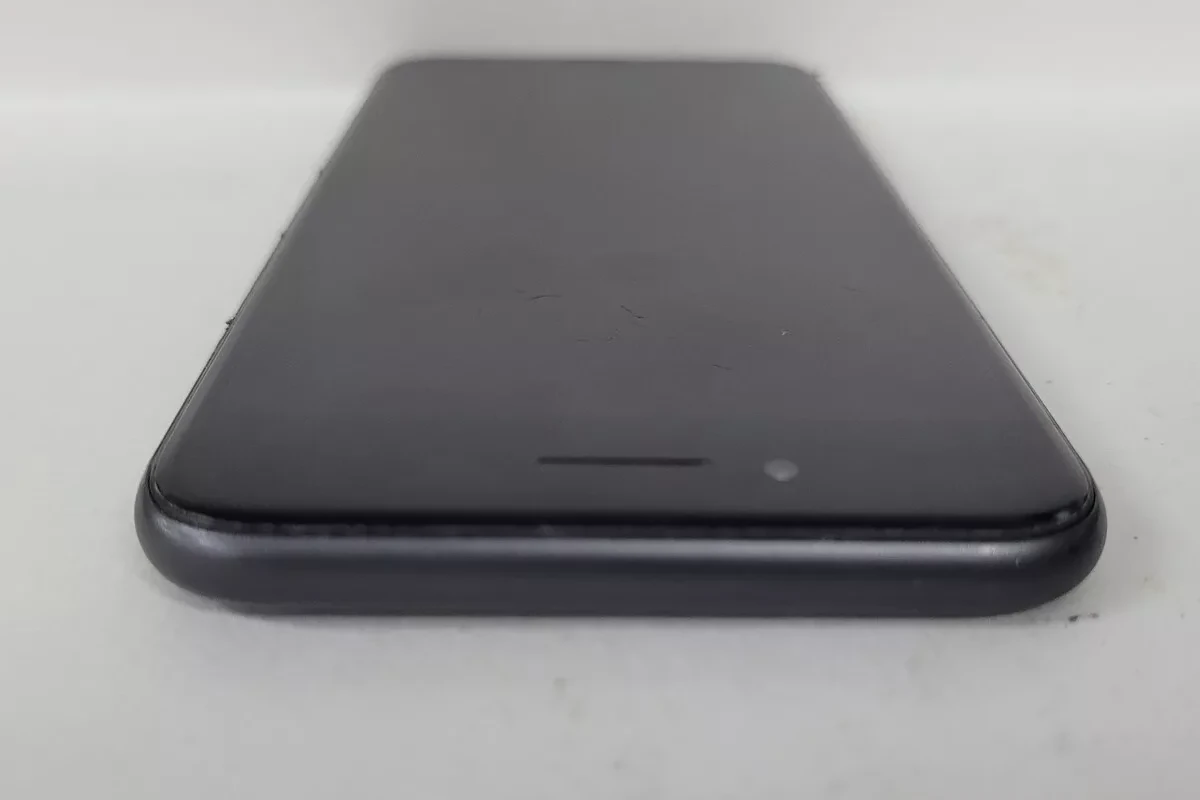
Has your iPhone screen started to lift at the edges? You’re not alone. This common issue can happen to any iPhone model and might leave you worried about your device. A lifting iPhone screen is often caused by a swollen battery, hardware damage, or a previous repair job that wasn’t done correctly.
When your screen lifts, you might notice gaps along the edges, a screen that feels loose, or even black adhesive oozing out from under the display. In some cases, you may see your screen flicker, crack, or go completely black. These signs shouldn’t be ignored as they could point to a more serious problem with your phone.
The good news is that many screen lifting issues can be fixed. For minor lifting, a simple restart of your device might help. But if you notice resistance when trying to press the screen back down, it could be a swollen battery that needs professional attention right away.
How to Fix iPhone Screen Lifting Issues: A Complete Guide
If you notice your iPhone screen is lifting or separating from the body, it’s a concerning issue that can affect usability and potentially damage internal components. Screen lifting is commonly caused by a swollen battery, hardware damage, or previous poor repairs. This guide explains why this happens and how to fix it safely.
Why Is My iPhone Screen Lifting?
Common Causes:
- Swollen Battery: The most frequent cause. Batteries can swell due to age, overheating, or manufacturing defects, pushing the screen out.
- Physical Damage: Drops or impacts can loosen the screen adhesive or frame.
- Poor Repair Jobs: Improperly installed screens or adhesives can cause lifting over time.
- Water Damage: Moisture can degrade adhesive and internal parts.
Risks of Ignoring a Lifting Screen
- Further internal damage to components.
- Increased risk of screen cracking or detachment.
- Potential safety hazard if battery swelling worsens.
- Reduced touchscreen responsiveness and device functionality.
How to Fix a Lifting iPhone Screen
1. Stop Using the iPhone Immediately
If the battery is swollen, continued use can be dangerous. Power off your device to prevent further damage or hazards.
2. Inspect the Device
- Check if the screen is visibly raised or gaps appear between the screen and frame.
- Look for signs of battery swelling like bulges or warping.
3. Backup Your Data
Before any repair, back up your iPhone via iCloud or iTunes/Finder to avoid data loss.
4. Do Not Attempt DIY Repairs If Battery Is Swollen
Swollen batteries can be hazardous. Avoid puncturing or pressing on the battery.
5. Visit an Authorized Repair Center
- Take your iPhone to an Apple Store or certified repair shop.
- Professionals can safely replace the battery and reseal or replace the screen.
6. If Screen Lift Is Due to Adhesive Failure
- Authorized technicians can reapply adhesive or replace the screen assembly.
- Avoid using glue or tape yourself as it can damage the device.
Temporary Workaround (Not Recommended Long-Term)
If you must use the phone temporarily:
- Avoid pressing on the lifted screen.
- Keep the device cool and avoid charging it if battery swelling is suspected.
- Use a protective case to hold the screen in place gently.
Preventing Screen Lifting Issues
- Avoid exposing your iPhone to extreme heat.
- Use original or certified chargers to prevent battery damage.
- Handle your iPhone carefully to avoid drops.
- Get repairs done only by authorized service providers.
Summary Table
| Cause | Solution | Notes |
|---|---|---|
| Swollen Battery | Professional battery replacement | Do not attempt DIY |
| Physical Damage | Screen/frame repair or replacement | Visit authorized repair center |
| Adhesive Failure | Reapply adhesive or screen replacement | Avoid DIY glue or tape |
When to Contact Apple Support
If your iPhone screen is lifting, especially due to battery swelling, contact Apple Support immediately for advice and repair options.
Additional Resources
Key Takeaways
- Screen lifting is typically caused by swollen batteries, physical damage, or poor previous repairs.
- Never ignore a lifting screen as it may indicate serious battery issues that could be dangerous.
- Quick fixes work for minor problems, but professional repair is best for battery-related screen lifting.
Understanding iPhone Screen Issues
iPhone screen lifting can be a frustrating problem that affects usability and appearance. Screen separation typically happens gradually and can lead to more serious damage if not addressed promptly.
Common Hardware Issues
iPhone screens may develop several hardware problems over time. Screen lifting is one of the most common issues, especially in models like the iPhone X.
When a screen starts to separate from the frame, it can cause other problems. Face ID might stop working because the sensors need proper alignment. Some users also report that the “Raise to Wake” feature becomes unreliable.
Many iPhone models use LCD screens that are particularly sensitive to pressure changes. When these screens lift, you might notice touch sensitivity problems in certain areas.
Early signs often include small gaps between the frame and screen that grow larger over time. Users should check the edges of their phone regularly for any changes.
Signs of Screen Lift
A lifting screen shows several distinct warning signs. The most obvious is visible separation between the display and the phone body, usually starting at one corner.
Black adhesive may appear around the edges of the phone. This is the melted or damaged glue that normally holds the screen in place.
Screen response issues often develop. Parts of the screen may become less responsive to touch, especially near the lifting areas.
The phone might make clicking sounds when pressed lightly. This happens because the loose screen moves slightly when touched.
If you try pressing the screen back down and feel resistance, this strongly suggests a swollen battery pushing against the display from inside.
Potential Causes of Screen Separation
A swollen battery is the most common cause of screen lifting. As batteries age, they can expand and push against the display from underneath.
Physical damage plays a major role too. Dropping an iPhone can break the adhesive seal around the edges, allowing the screen to gradually separate over time.
Heat exposure weakens the adhesive that holds the screen in place. Leaving your phone in hot cars or direct sunlight can speed up screen separation.
Poor-quality repairs are another culprit. If your iPhone was previously fixed with low-quality parts or improper techniques, the screen may not be securely attached.
Water damage often leads to screen issues. Even water-resistant iPhones can suffer internal damage if exposed to moisture, causing components to expand and push against the screen.
Pre-Repair Diagnostics
Before attempting to fix an iPhone screen lift, it’s crucial to properly diagnose the problem to determine the best repair approach. Proper diagnosis helps identify whether the issue is hardware-related, software-driven, or caused by a swollen battery.
Assessing Screen Functionality
Start by checking if your screen responds to touch. Gently press near the lifted area to see if the touchscreen still works. If some areas don’t respond, this might indicate damaged flex cables underneath.
Look for visual issues like dark spots, lines, or flickering. These symptoms often appear when screen connectors are loose due to lifting.
Test the Tap to Wake feature to see if your iPhone responds. If this doesn’t work, the connection between the display and logic board might be compromised.
Check for any black areas spreading from the edges. This could be the adhesive that’s been pushed out, possibly by a swollen battery.
Document all symptoms carefully, as these details will help determine if you need a screen replacement or battery service.
Identifying Software Issues
Sometimes what appears to be screen lifting might actually be related to software problems. Run a basic software check first:
- Force restart your iPhone:
- For iPhone 8 or newer: Press and release volume up, press and release volume down, then hold the side button
- For iPhone 7: Hold the side and volume down buttons together
- For older models: Hold home and power buttons
Check if any apps crash when you try to use specific screen features. This could indicate a software conflict rather than physical damage.
Watch for unusual behavior after iOS updates. Some users report screen issues following firmware updates, especially on devices with third-party screens.
Battery performance is also telling. If your phone shuts down unexpectedly or battery life has dramatically decreased, this could mean a swollen battery is causing the screen to lift.
Checking for iOS Updates and Compatibility
Ensure your iPhone is running the latest iOS version. Outdated firmware can sometimes cause display issues that might be mistaken for physical lifting.
Go to Settings > General > Software Update to check if any updates are available. Install any pending updates and restart your device.
For older iPhones, check if your model is still compatible with the latest iOS. Devices running software versions beyond their optimal performance range can experience screen responsiveness issues.
If you recently updated to a new iOS version and started experiencing problems, consider using recovery mode to restore your device. This can fix system-related issues affecting the display.
Run a diagnostic test through Settings > Privacy > Analytics & Improvements > Analytics Data to look for recurring system crashes that might affect display functionality.
Essential Tools and Materials for Screen Repair
Fixing a lifted iPhone screen requires specific tools and quality materials to ensure proper adhesion and prevent damage during the repair process. The right equipment makes all the difference between a professional-looking fix and a frustrating DIY failure.
Choosing the Right Suction Cup
A good suction cup is essential for safely lifting screens without causing damage. Look for cups with strong suction power and easy-grip handles. Phone repair toolkits often include these specialized suction cups.
When selecting a suction cup, consider these factors:
- Size: Choose one that fits comfortably on your iPhone model
- Material: Rubber cups provide better grip than plastic ones
- Handle design: Dual-handle designs offer more control
Avoid using makeshift alternatives like household suction cups, as they may lack the precision needed for delicate screen work. Professional repair shops use cups with pressure gauges to apply even force.
Adhesive Strips and Their Application
Quality adhesive strips are crucial for securing a lifted screen. Repair specialists recommend pre-cut adhesive strips designed specifically for your iPhone model for best results.
Application tips:
- Clean both surfaces thoroughly with isopropyl alcohol
- Remove all old adhesive residue
- Apply strips without touching the sticky surface
- Press firmly and hold for 30-60 seconds
Temperature matters when working with adhesives. Warm environments (70-80°F) help the adhesive flow and bond better. Some technicians use heat mats to slightly warm the phone before applying new adhesive strips.
Additional Tools: Spudger and Screen Protectors
A plastic spudger tool is vital for safely prying and separating components without scratching or damaging your iPhone. iFixit’s repair guides recommend using non-conductive spudgers to prevent accidental shorts.
Spudgers come in different shapes:
- Flat-edge: For general prying
- Pointed-tip: For precision work
- Guitar pick style: For sliding between tight components
Screen protectors serve dual purposes in repairs. They provide protection for your newly fixed screen and can help identify alignment issues. Apply a screen protector immediately after repair to prevent dust from getting under the glass.
Tweezers, anti-static wrist straps, and magnetic screw mats round out the essential toolkit. DIY repair experiences show that organization is key to successful screen repairs.
Step-by-Step Guide to Fixing iPhone Screen Lift
When your iPhone screen is lifting, you can fix it yourself with the right tools and careful attention to detail. This repair process involves preparing your device, safely removing the damaged screen, and installing a new one properly.
Initial Steps before Screen Repair
Before starting any repair, power off your iPhone and discharge the battery below 25% for safety. Gather all necessary tools including a pentalobe screwdriver for iPhone screws, a suction cup, plastic opening tools, and a set of small screwdrivers.
Back up your data to iCloud or a computer to prevent any loss during repair. Work in a clean, well-lit area with minimal dust. Place a soft mat on your work surface to prevent scratches and organize small screws.
Remove your iPhone case and screen protector. Clean the screen with a microfiber cloth to remove dirt that might interfere with the repair. Identify the cause of the screen lift – is it a swollen battery, hardware damage, or a previous poor repair job?
Removing the Damaged Screen
Start by removing the two pentalobe screws at the bottom of the iPhone near the charging port. Apply a suction cup to the bottom half of the screen and press firmly to create a strong seal.
Gently pull up on the suction cup while inserting a thin plastic opening tool into the gap that forms. Carefully slide the tool around the edges to separate the adhesive holding the screen.
Take extra caution near the top of the phone where display cables connect to the motherboard. Don’t fully remove the screen yet – it’s still connected internally.
Once the edges are loose, lift the screen like a book cover, opening from bottom to top. Locate the shield covering the display cable connectors and remove the tiny screws holding it in place. Use a plastic tool to disconnect the display cables from the logic board.
Installing the New Screen
Before placing the new screen, check for any remaining adhesive or debris on the phone frame and clean it carefully. If the screen lift was caused by a swollen battery, this must be replaced before installing the new screen.
Connect the display cables from the new screen to the logic board. This requires precise alignment – don’t force the connectors. Replace the metal shield and secure it with screws to protect the connections.
Test the screen function before sealing everything. With the screen connected but not yet adhered, power on the iPhone briefly to check if the display, touch response, and Face ID work properly.
If everything tests correctly, power off the phone again. Apply new adhesive strips around the frame edge. Carefully align the new screen starting from the top (cable end) and press the edges firmly until the adhesive secures the screen all around.
Finally, replace the two pentalobe screws at the bottom and power on to verify your DIY screen replacement was successful.
Software Configuration After Physical Repair
After fixing a lifted iPhone screen, you need to properly configure the software to make everything work correctly. This includes resetting, adjusting settings, and sometimes entering special modes to complete the repair process.
Performing a Factory Reset
A factory reset is sometimes needed after a screen repair when the phone doesn’t recognize the new display. This process erases all data and returns the iPhone to its original state. Before doing this:
- Back up your data to iCloud or a computer
- Go to Settings > General > Reset
- Select Erase All Content and Settings
- Enter your passcode and Apple ID password when prompted
The reset takes about 5-10 minutes to complete. After the reset, you might see a “Display with an option to Restart & Finish Repair” message in Settings, which is normal for new screen installations.
On newer iOS versions like iOS 18, there’s a specific “Finish Repairing Your Display” option that appears in Settings. Tap this to complete the screen installation process.
Reset All Settings Option
For less severe problems, a “Reset All Settings” option works well. This keeps your data but resets system settings that might cause screen issues.
To do this:
- Go to Settings > General > Reset
- Tap Reset All Settings (not Erase All Content)
- Enter your passcode to confirm
This resets network settings, keyboard dictionary, home screen layout, and location settings. It can fix many software glitches related to screen lifting issues.
After the reset, check if the iPhone properly recognizes the screen in Settings > About > Parts & Service History. Some aftermarket screens might show warnings here, which is normal.
Entering Recovery Mode
When standard resets don’t work, Recovery Mode can solve serious software conflicts with new hardware.
Steps to enter Recovery Mode:
- Connect your iPhone to a computer with iTunes or Finder
- For iPhone 8 or newer: Press and release Volume Up, press and release Volume Down, then hold the Side button
- For iPhone 7: Hold Side and Volume Down buttons together
- Keep holding until you see the recovery screen (not the Apple logo)
Once in Recovery Mode, you can choose to “Update” the iPhone first, which tries to fix software issues without erasing data. If that doesn’t work, the “Restore” option will perform a complete reset.
Recovery Mode is especially helpful when the iPhone screen configuration fails after repair and gives “unable to configure” errors.
Post-Repair Testing and Verification
After fixing an iPhone screen lift issue, proper testing ensures everything works correctly. This prevents future problems and confirms the repair was successful.
Ensuring Functionality of Raise to Wake and Tap to Wake
Once the screen is reattached, test the motion sensors right away. Go to Settings > Display & Brightness and make sure both Raise to Wake and Tap to Wake options are turned on.
Try lifting your iPhone to see if the screen lights up automatically. This tests the Raise to Wake feature that depends on proper screen connections.
For Tap to Wake, gently tap the screen when it’s off. The screen should light up with each tap. If it doesn’t respond, the screen connections might need adjustment.
These features are especially important on newer models like the iPhone X and iPhone 13, which rely heavily on these gestures for daily use.
If either feature fails, check the screen connector ribbon cables. They might be loose or slightly damaged during the repair process.
Testing Face ID After Screen Replacement
Face ID often stops working after screen repairs. Open Settings > Face ID & Passcode to verify it’s still enabled and working.
Try unlocking your iPhone with your face in different lighting conditions. Face ID should work quickly and consistently each time.
If Face ID fails, check if the front camera and sensors are properly aligned. Even slight misalignment can cause problems.
For iPhone X and newer models, the True Depth camera system must be perfectly positioned for Face ID to work.
Sometimes a simple restart fixes Face ID issues. Press and hold the side button and either volume button, then slide to power off.
If problems persist, try resetting Face ID completely and setting it up again. This often resolves issues caused by slight position changes during repair.
Final Checks for Screen Security and Responsiveness
Press around all edges of the screen to check for lifting or uneven spots. The screen should feel completely secure with no movement or clicking sounds.
Complete Screen Test Checklist:
- Swipe in all directions to test touch responsiveness
- Test all gestures (pinch, zoom, rotate)
- Check for dead spots by drawing in Notes app
- Test screen brightness at different levels
- Look for color issues or display artifacts
If the screen shows flickering or black areas, this indicates connection problems that need immediate attention.
Check for battery swelling by placing the phone on a flat surface. Any rocking indicates the battery might be swollen and pushing against the screen.
Test in both bright and dim environments to ensure the ambient light sensor works properly and adjusts screen brightness.
Additional Considerations
Beyond fixing your iPhone screen lift, there are several important factors to keep in mind for maintaining your device and knowing when professional help is needed. Proper aftercare and understanding repair limitations can save you time and money.
Caring for Your Newly Repaired Screen
After fixing a lifted iPhone screen, proper care is essential to prevent future issues. Use a high-quality screen protector to add an extra layer of protection against damage. This small investment can prevent scratches and absorb impact if you drop your phone.
Keep your repaired iPhone away from extreme temperatures. Heat and cold can affect the adhesive that holds your screen in place. Never leave your phone in a hot car or exposed to direct sunlight for long periods.
Clean your screen gently with a microfiber cloth. Avoid harsh chemicals that might damage the seal around the edges. A simple mixture of water and a small amount of alcohol works well for cleaning.
When charging your device, use Apple-certified cables and adapters. Poor quality chargers can cause battery issues that might lead to screen lifting problems again.
When to Seek Professional Help for iPhone Repair
Some screen lift issues require expert attention. If the screen is lifting due to a swollen battery, seek professional help immediately. This condition can be dangerous and should not be handled at home.
Look for these warning signs that indicate professional repair is needed:
- Resistance when trying to press the screen back down
- Black adhesive oozing from the edges
- Screen that continues to lift after DIY fixes
- Battery that feels hot to the touch
- Unusual bulging anywhere on the device
Apple Stores and authorized repair centers have the right tools and parts to fix these issues safely. While DIY repairs may seem cheaper, improper fixes can cause more damage and void your warranty.
Professional technicians can also check for related problems that might not be visible to you.
Compatibility of iPhone Screen with iPad Devices
iPhone screens and iPad screens are not interchangeable. They differ in size, resolution, and connection types. Each Apple device model uses unique parts designed specifically for that device.
The touch technology in iPhones and iPads works similarly, but the components are not compatible. If you have both devices with screen issues, each needs its own specific repair solution.
Some repair tools and cleaning products work for both devices. Microfiber cloths, isopropyl alcohol, and adhesive removal techniques are useful for all Apple products with screen problems.
When purchasing replacement parts, always check that they match your exact device model. Using wrong parts can cause performance issues or further damage to your device.
Frequently Asked Questions
iPhone screen lifting issues can happen to anyone and are often due to specific causes with particular solutions. The repair options and costs vary depending on the severity and model.
What are the common reasons for an iPhone screen lifting or separating from the body?
The most common reason for an iPhone screen lifting is a swollen battery pushing against the display. When batteries age or get damaged, they can expand and force the screen upward.
Physical damage from drops or impacts can also break the adhesive seal holding the screen in place. This weakens the bond between the screen and phone body.
Poor repair work is another frequent cause. If a previous screen replacement wasn’t done properly, the adhesive might not hold well over time.
How does one repair an iPhone screen that has started to lift up on the side?
If you notice your screen lifting, do not try to push it back in place as this could damage the display further. This is especially important if a swollen battery is the cause.
Take your iPhone to an Apple Store or authorized repair center right away. They have the proper tools and parts to fix the issue safely.
For minor lifting caused by weak adhesive (not battery swelling), professional repair shops can reapply proper adhesive and secure the screen correctly.
What steps should be taken if an iPhone screen is lifting after being dropped?
First, stop using the phone immediately. A lifted screen after a drop could mean internal damage that might get worse with use.
Check for any visible damage like cracks or dents that might explain the lifting. Take clear photos of the damage for repair technicians or insurance claims.
Take the phone to Apple or a trusted repair shop for assessment. They can determine if the problem is just broken adhesive or something more serious like internal component damage.
What is the estimated cost of repairing a lifted screen on an iPhone?
If the issue is just resealing a lifted screen with no other damage, repair costs typically range from $50 to $100 at third-party shops. This is for adhesive replacement only.
If the screen lifting is due to a swollen battery, expect to pay between $50 to $100 for battery replacement at Apple (depending on warranty status).
When both screen and battery need replacement, costs can range from $150 to $400+ depending on your iPhone model and whether you use Apple or a third-party service.
How can one address a bulging or protruding screen on an iPhone?
A bulging screen usually signals a swollen battery, which is a safety hazard. Stop using the phone immediately and don’t charge it any further.
Keep the phone away from extreme heat and in a safe place where it won’t be pressed or punctured. A swollen battery can leak or catch fire if damaged.
Take the phone to Apple or an authorized service center as soon as possible. This issue requires professional attention and should not be ignored.
What measures can be taken if the screen of an iPhone, such as the iPhone 11 or iPhone X, starts to come out of the frame?
For newer models like iPhone 11 or iPhone X with screen lifting, check if your device is still under warranty or AppleCare+. Apple may cover the repair at no cost.
Back up your data immediately if possible, but stop using the phone if the battery appears swollen. A black gooey substance around the edges often indicates adhesive being pushed out by battery expansion.
Never attempt DIY repairs on newer iPhones with lifted screens. Their waterproof seals and delicate components require professional repair tools and expertise.





