
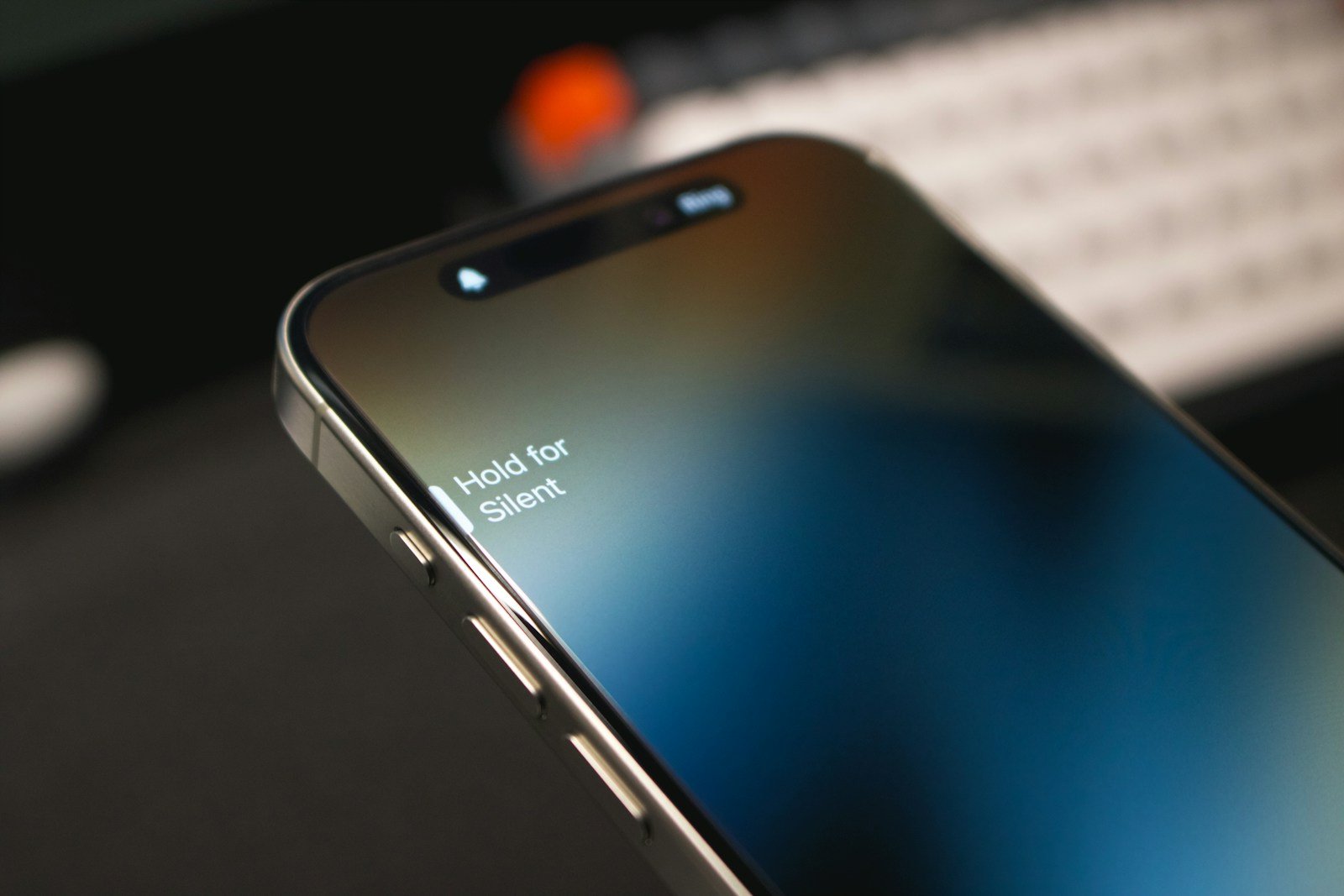
Apple’s Action button got a significant upgrade in recent versions of iOS, expanding its functionality beyond the basic features introduced with the iPhone 15 Pro. The new update adds dozens of Control Center options to the Action button, letting users assign functions like Dark Mode, Airplane Mode, and Personal settings with a single press.
The Action button serves as a versatile hardware control on iPhone 15 Pro and Pro Max models. Users can press and hold the button to toggle settings on or off, making it a quick access point for frequently used features.
Action Button in iOS: Complete Guide
The Action button is a customizable physical button introduced on iPhone 15 Pro and iPhone 15 Pro Max models. It replaces the traditional Ring/Silent switch and offers much more functionality. Here’s everything you need to know about using and customizing it.
What is the Action Button?
The Action button is a programmable button on the left side of your iPhone that you can customize to perform various quick actions with a simple press and hold. By default, it controls Silent Mode, but you can change it to do much more (source: Apple Support).
Which iPhones Have the Action Button?
Currently available on:
- iPhone 15 Pro
- iPhone 15 Pro Max
- iPhone 16 Pro
- iPhone 16 Pro Max
How to Use the Action Button
To perform the assigned action, simply press and hold the Action button. For many functions, the button can toggle settings on or off. For example, if set to Silent Mode (the default), pressing and holding will put your iPhone in Silent mode, and pressing again will turn Silent mode off (source: Apple Support).
Built-In Action Button Options
Apple provides several preset actions you can assign:
- Silent Mode (Default) – Toggle silent mode on/off
- Camera – Instantly launch the Camera app
- Flashlight – Turn the flashlight on/off
- Voice Memo – Start recording a voice memo
- Focus – Activate a specific Focus mode
- Magnifier – Open the Magnifier accessibility tool
- Translate – Launch the Translate app
- Accessibility – Quick access to accessibility features like VoiceOver or Zoom
- Shortcut – Run any custom Shortcut you’ve created
(source: iPhone Life)
How to Customize the Action Button
- Open the Settings app
- Tap Action Button
- Swipe left or right to browse through available actions
- Tap on the action you want to assign
- Some actions allow further customization – tap to configure them
- Press and hold the Action button to test your selection
Creative Uses with Shortcuts
The real power of the Action button comes from pairing it with the Shortcuts app. You can create custom workflows to perform multiple actions at once:
Examples of Custom Shortcuts:
- Car Mode – Unlock your car, start navigation, and play music (source: Macworld)
- Bedtime Routine – Enable Do Not Disturb, set an alarm, and dim lights
- Work Mode – Enable Work Focus, open email, and start a timer
- Emergency Contact – Call or text a specific person instantly
- Home Control – Control smart home devices
- Share Location – Automatically send your location to someone
(source: How-To Geek)
How to Trigger Multiple Actions
Since Apple limits the Action button to one action at a time, use the Shortcuts app to create workflows:
- Open the Shortcuts app
- Tap the + button to create a new shortcut
- Add multiple actions to your workflow
- Name your shortcut
- Go to Settings > Action Button
- Select Shortcut and choose your custom shortcut
(source: How-To Geek)
Accessibility Benefits
The Action button is particularly valuable for users with disabilities, creating quick shortcuts to important accessibility features like:
- VoiceOver
- Zoom
- AssistiveTouch
- Magnifier
- Voice Control
This makes the iPhone easier to use with just one press (source: SimplyMac).
Best Practices
- Choose your most-used function – Since you can only assign one action, pick what you use most frequently
- Experiment – Try different actions for a few days to see what works best for your workflow
- Use Shortcuts for complex tasks – Combine multiple actions into one shortcut for maximum productivity
- Consider context – If you’re in your car often, a driving-related shortcut might be ideal
- Update seasonally – Change your Action button assignment based on your current needs
(source: Geeky Gadgets)
Troubleshooting
Action button not working?
- Make sure you’re pressing and holding, not just tapping
- Check that the action is properly configured in Settings
- For Shortcuts, ensure the shortcut isn’t experiencing errors
- Restart your iPhone if the button becomes unresponsive
Conclusion
The Action button transforms how you interact with your iPhone, providing instant access to your most important functions. Whether you use it for the simple convenience of toggling Silent mode or create complex Shortcuts workflows, it’s a powerful productivity tool that makes your iPhone more personalized and efficient.
Key Takeaways
- iOS 18 adds extensive Control Center integration to the Action button
- The Action button works with a press-and-hold gesture to toggle settings
- iPhone 15 Pro users gain access to dozens of new customization options
Exploring Action Button Capabilities in iOS 18
iOS 18 transforms the Action button into a powerful tool with expanded customization features, direct access to system controls, and deeper integration with third-party apps.
Control Center Enhancements
The Action button now bypasses Control Center entirely, providing instant access to specific controls. Users can assign shortcuts to essential functions like Dark Mode, Flashlight, and Calculator.
A new Control Center Gallery offers preset configurations for quick setup. The button supports toggle functions – a single press can switch features on or off.
The Remote interface for Apple TV navigation becomes directly accessible through the Action button. This eliminates multiple steps previously needed to control media playback.
Camera and Photography Improvements
iOS 18 grants third-party camera apps direct access through the Action button. Instagram and other photography apps can be launched instantly from the lock screen.
New Camera Controls:
- Quick capture mode
- Portrait mode toggle
- Video recording start/stop
- Custom shooting modes
The system remembers preferred camera settings between sessions. Photography shortcuts can be configured based on time of day or location.
Interactivity and Access
Face ID authentication can be triggered directly through the Action button. This speeds up secure access to banking apps and password managers.
Quick Access Features:
- Wallet and Apple Pay
- Voice Memos
- Focus modes
- Sleep settings
The button supports contextual actions that change based on the active app. Third-party developers can define custom actions for their apps.
System Controls and Shortcuts
Silent Mode toggles remain available but gain new customization options. Users can set different vibration patterns for various notifications.
Popular System Controls:
- Low Power Mode
- Airplane Mode
- Personal Hotspot
- Do Not Disturb
Background app processes can be managed through Action button shortcuts. The system settings menu provides templates for common control combinations.
Frequently Asked Questions
The Action button in iOS 18 brings expanded functionality through Control Center integration, third-party app support, and enhanced customization options across iPhone models.
How do you configure and use the action button on iOS 18?
Users can configure the Action button through Settings > Action Button. The setup process takes under a minute.
The new Control Gallery offers dozens of quick actions to assign to the button. Users can search through available options or browse by category.
Custom actions can be saved and switched between different tasks based on time of day or location.
What new functionalities does the iOS 18 action button bring to iPhone models?
iOS 18 adds Control Center integration to the Action button. This enables quick access to system controls like Dark Mode and Airplane Mode.
Third-party camera apps can now be launched directly from the Action button. This expands photography options beyond the native Camera app.
The button supports dozens of new controls through the Control Gallery, giving users more ways to interact with their device.
Can the action button be integrated with iOS Shortcuts for automation on iOS 18?
The Action button works seamlessly with iOS Shortcuts. Users can trigger complex automated tasks with a single press.
Custom shortcuts can chain multiple actions together, like sending a message while activating Do Not Disturb mode.
What are the differences between the action button on iPhone 16 and iPhone 15 Pro versions?
Both iPhone 16 and iPhone 15 Pro models feature the Action button with identical iOS 18 capabilities. The hardware design and responsiveness remain consistent across devices.
The button placement and physical characteristics match on both generations.
Is the silent mode feature controllable through the action button on iOS 18?
Silent mode remains a configurable option for the Action button. Users can toggle between ring and silent modes instantly.
This classic function works alongside the new iOS 18 features, maintaining backward compatibility.
How can users activate Apple Intelligence features using the action button?
The Action button can trigger Siri commands and AI-powered features. Voice interactions start immediately upon button press.
Smart suggestions adapt based on usage patterns and time of day.
Quick AI tasks like text summarization or image recognition launch directly through button shortcuts.





