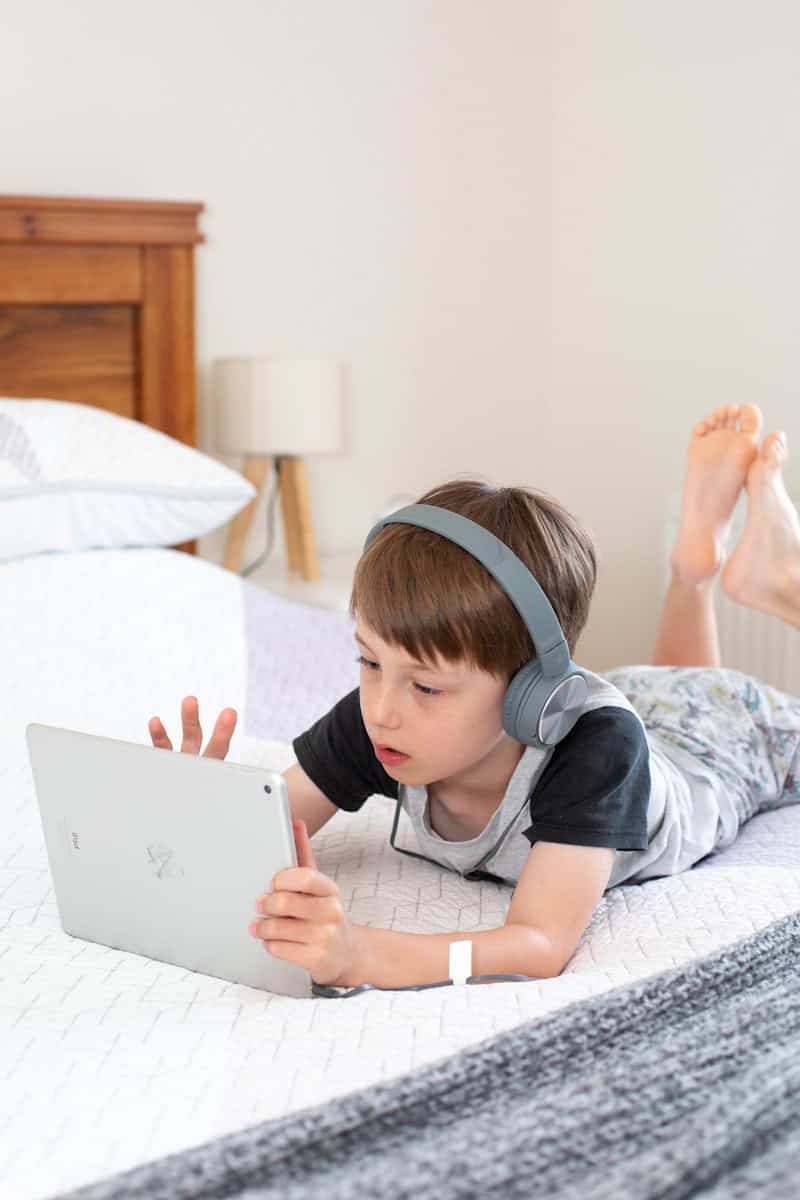
iPads are powerful learning and entertainment tools for children, but without proper controls, they can also expose kids to inappropriate content, excessive screen time, and unwanted purchases. Apple’s built‑in iPad parental controls make it easy for parents to create a safe, age‑appropriate digital environment.
This guide explains how iPad parental controls work, how to set them up, and how to use them effectively.
What Are iPad Parental Controls?
iPad parental controls are managed through Apple’s Screen Time feature. Screen Time allows parents to:
- Limit screen time
- Block inappropriate content
- Control app downloads and purchases
- Monitor device usage
- Restrict communication and privacy settings
These tools are built directly into iPadOS and don’t require any third‑party apps.
How to Set Up Parental Controls on an iPad
Step 1: Turn On Screen Time
- Open Settings
- Tap Screen Time
- Select Turn On Screen Time
- Choose This is My Child’s iPad
- Create a Screen Time passcode (different from the device passcode)
This passcode prevents children from changing the settings.
Set Screen Time Limits
Downtime
Downtime blocks the iPad during certain hours (such as bedtime).
How to enable:
- Go to Settings → Screen Time → Downtime
- Set start and end times
- Choose which apps are allowed during downtime
App Limits
App Limits restrict how long your child can use specific apps or categories.
Steps:
- Open Screen Time → App Limits
- Tap Add Limit
- Choose app categories or individual apps
- Set daily time limits
Block Inappropriate Content
Content & Privacy Restrictions
- Go to Screen Time
- Tap Content & Privacy Restrictions
- Turn the toggle On
From here, you can control:
App Ratings
- Limit apps by age rating (4+, 9+, 12+, 17+)
Movies, TV Shows, and Music
- Block explicit content
- Restrict media by age rating
Web Content
- Limit Adult Websites
- Allowed Websites Only
- Add specific websites to block or allow
Prevent In‑App Purchases and App Store Spending
To avoid surprise charges:
- Open Screen Time
- Tap Content & Privacy Restrictions
- Select iTunes & App Store Purchases
You can:
- Require a password for purchases
- Disable in‑app purchases
- Block app downloads entirely
Control Communication and Contacts
Parents can manage who their child can communicate with.
Steps:
- Go to Screen Time → Communication Limits
- Set who they can contact during allowed time and downtime
- Limit communication to contacts only or approved people
Track iPad Usage and Activity
Screen Time provides detailed reports, including:
- Time spent on apps
- Number of device pickups
- Most used apps
- Notification activity
This helps parents understand usage patterns and adjust limits accordingly.
Family Sharing: Manage Multiple Devices
With Family Sharing, parents can manage Screen Time remotely.
Benefits:
- Control your child’s iPad from your own device
- Approve app downloads
- View usage reports in real time
To enable:
- Go to Settings → Family Sharing
- Add your child’s Apple ID
- Manage Screen Time from your own iPhone or iPad
Privacy and Location Controls
Under Content & Privacy Restrictions, parents can control:
- Location services
- Camera and microphone access
- Contacts, photos, and Bluetooth access
- Ad tracking and analytics
This helps protect your child’s personal data.
Tips for Using iPad Parental Controls Effectively
- Talk to your child about screen time rules
- Adjust limits as your child gets older
- Review Screen Time reports weekly
- Combine technical controls with healthy usage habits
Parental controls work best when paired with open communication.
Final Thoughts
iPad parental controls offer a powerful, built‑in solution for keeping children safe online. With Screen Time, parents can manage content, limit usage, and monitor activity without installing extra apps.
By taking a few minutes to configure these settings, you can turn an iPad into a secure, educational, and age‑appropriate device for your child.