
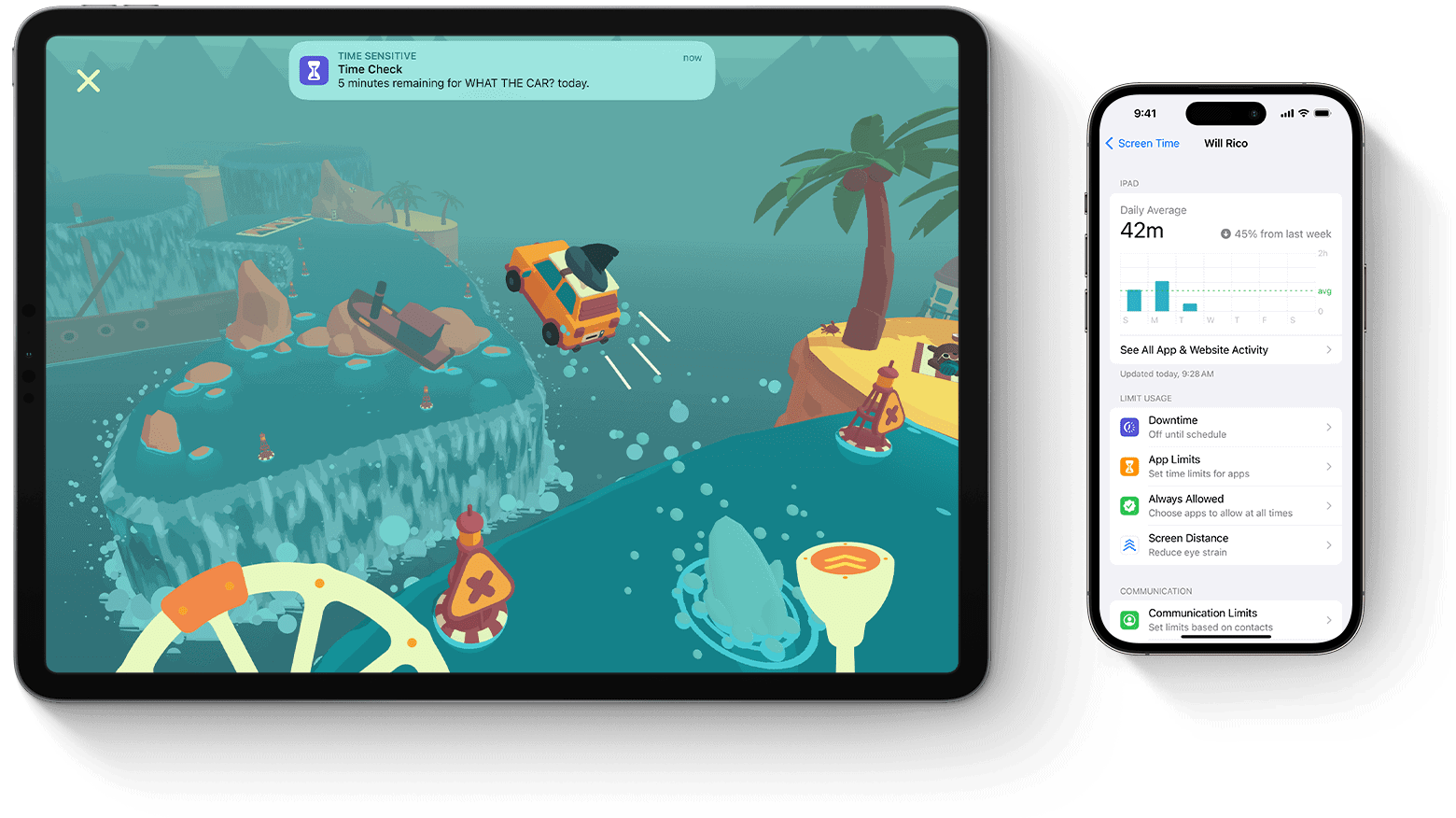
iPad screen time limits offer a powerful tool for managing digital habits. You can easily set up app limits and downtime schedules to curb excessive device use. These features help promote a healthier balance between screen time and other activities.
Setting up Screen Time on your iPad is straightforward. You can create limits for specific app categories or individual apps. This flexibility allows you to tailor restrictions to your unique needs or those of your children.
Parents find Screen Time particularly useful for monitoring and controlling their child’s device usage. You can set communication limits and manage content restrictions to ensure a safe digital environment for your kids.
| Feature | Description | Benefit |
|---|---|---|
| App Limits | Set time limits for app categories or specific apps | Prevents overuse of certain apps |
| Downtime | Schedule periods when only approved apps are available | Encourages breaks from screen time |
| Content Restrictions | Control access to mature content | Ensures age-appropriate usage |
| Usage Reports | View detailed breakdowns of screen time | Helps identify areas for improvement |
iPad Screen Time Limit
Apple’s Screen Time feature on iPad is a powerful tool for managing device usage, whether you’re setting limits for a child or trying to reduce your own screen habits. This guide explains what iPad Screen Time limits are, how to set them up, and how to fix common problems.
What Is Screen Time on iPad?
Screen Time is a built-in iPadOS feature that helps you:
- Track how much time is spent on apps and websites
- Set daily usage limits for specific apps or categories
- Block or restrict content
- Control purchases and downloads
- Manage a child’s iPad remotely using Family Sharing
Screen Time works across iPads, iPhones, and Macs when signed into the same Apple ID.
How to Turn On Screen Time on iPad
- Open Settings
- Tap Screen Time
- Tap Turn On Screen Time
- Choose:
- This is My iPad, or
- This is a Child’s iPad
- Follow the on-screen instructions
✅ For kids, it’s recommended to set a Screen Time passcode different from the device unlock code.
How to Set App Limits on iPad
App Limits allow you to control how long certain apps or app categories can be used each day.
Steps:
- Go to Settings → Screen Time
- Tap App Limits
- Tap Add Limit
- Choose an app category (e.g., Games, Social) or individual apps
- Set the allowed time
- Tap Add
Once the limit is reached, the app will be blocked unless a passcode is entered.
How to Set Downtime on iPad
Downtime blocks most apps during specific hours (like bedtime or study time).
Steps:
- Open Settings → Screen Time
- Tap Downtime
- Turn on Scheduled
- Set start and end times
Only apps marked as Always Allowed will be accessible during Downtime.
How to Always Allow Certain Apps
You can allow essential apps (such as Phone or educational apps) even during limits.
- Go to Settings → Screen Time
- Tap Always Allowed
- Add or remove apps
Setting Screen Time Limits for Kids (Family Sharing)
If your child uses Family Sharing, you can manage their Screen Time remotely.
- Open Settings
- Tap Family
- Select your child’s name
- Tap Screen Time
- Adjust:
- App Limits
- Downtime
- Content & Privacy Restrictions
Changes apply instantly to the child’s iPad.
Content & Privacy Restrictions Explained
These settings help keep kids safe:
- Block explicit content
- Restrict websites
- Disable in-app purchases
- Limit app installs or deletions
- Control location sharing
Find them under: Settings → Screen Time → Content & Privacy Restrictions
Can Screen Time Limits Be Bypassed?
Screen Time is effective, but not perfect. Common loopholes include:
- Guessing or knowing the passcode
- Using a different Apple ID
- Changing the system time (older iPadOS versions)
How to prevent bypassing:
- Use a strong Screen Time passcode
- Keep iPadOS updated
- Disable account changes in Content Restrictions
Fixing Screen Time Not Working on iPad
If limits aren’t applying:
- Restart the iPad
- Update to the latest iPadOS
- Turn Screen Time off and back on
- Ensure the correct Apple ID is signed in
- Check that Share Across Devices is enabled (if needed)
Is Screen Time Worth Using?
✅ Yes, especially for parents and students.
Benefits:
- Encourages healthy screen habits
- Improves focus and sleep routines
- Helps parents monitor digital activity
Limitations:
- Requires proper setup
- Can be frustrating if passcodes are forgotten
Final Thoughts
The iPad Screen Time limit feature is one of the best built-in tools for managing digital usage without installing third-party apps. Whether you’re setting boundaries for a child or controlling your own screen habits, Screen Time offers flexibility, security, and peace of mind.
Understanding Screen Time on iPad and iPhone
Screen Time is a powerful tool for managing device usage on iOS. It provides insights and controls to help you balance your digital life.
The Basics of Screen Time
Screen Time tracks how you use your iPad or iPhone. It shows which apps you open and how long you spend on them. You can view daily and weekly reports of your device usage. These reports break down time spent by app category like social networking, productivity, and entertainment.
Screen Time also lets you set limits on app usage. You can restrict certain apps or app categories to a specific amount of time each day. When you reach the limit, the app is locked unless you choose to extend the time.
App Limits can be customized for each day of the week. This flexibility allows you to set different limits for workdays versus weekends.
iOS Screen Time System
The Screen Time system is built into iOS devices. You don’t need to download a separate app. It runs in the background, collecting usage data automatically.
Screen Time settings sync across all your iOS devices linked to the same Apple ID. This gives you a complete picture of your total screen time across iPhone and iPad.
Key features include:
- Downtime: Schedule time away from screens
- App Limits: Restrict daily time for app categories
- Always Allowed: Select apps available at all times
- Content & Privacy Restrictions: Control app installs, purchases, and content ratings
| Feature | Purpose |
|---|---|
| Downtime | Set device-free hours |
| App Limits | Cap time spent on apps |
| Always Allowed | Exempt key apps from limits |
| Content Restrictions | Control access to content |
Setting Up Screen Time
To enable Screen Time, go to Settings > Screen Time on your iOS device. Tap “Turn On Screen Time” and follow the setup prompts.
You can set up Screen Time for yourself or a child’s device. For children, you can create a special passcode to prevent them from changing settings.
To set app limits:
- Go to Settings > Screen Time > App Limits
- Tap “Add Limit”
- Choose an app category or specific app
- Set the time limit
Review your Screen Time report regularly to adjust limits as needed. This helps you maintain a healthy balance with your device usage.
How to Set Screen Time Limits on iPad
Setting screen time limits on your iPad helps manage device usage and promote digital wellness. You can customize downtime schedules, create app limits, and manage content restrictions to suit your needs.
Setting Downtime Schedules
Downtime schedules allow you to set periods when only approved apps are available. To set up downtime:
- Open Settings and tap Screen Time.
- Select Downtime.
- Toggle on Downtime.
- Choose Scheduled or Customized Days.
For scheduled downtime, set a start and end time. With customized days, you can set different schedules for each day of the week.
During downtime, a small hourglass icon appears next to restricted apps. You can still use phone calls and any apps you’ve allowed.
Setting up downtime helps create tech-free periods for focus or family time.
Creating App Limits
App limits let you set daily time restrictions for app categories or specific apps. To create app limits:
- Go to Settings > Screen Time > App Limits.
- Tap Add Limit.
- Select app categories or individual apps.
- Set a time limit for each day or customize by day.
You can set different limits for weekdays and weekends. When you reach your limit, the app icon grays out and displays a Time Limit message.
App limits are useful for managing time spent on social media, games, or other potentially distracting apps.
| App Category | Suggested Daily Limit |
|---|---|
| Social | 1 hour |
| Games | 30 minutes |
| Entertainment | 2 hours |
| Productivity | Unlimited |
Managing Content and Privacy Restrictions
Content and privacy restrictions allow you to control access to explicit content, purchases, and privacy settings. To set up restrictions:
- Open Settings > Screen Time > Content & Privacy Restrictions.
- Enable Content & Privacy Restrictions.
- Set up a passcode if prompted.
You can restrict iTunes and App Store purchases, explicit content, web content, and more. Privacy settings let you control which apps can access your location, contacts, and other personal data.
Managing these restrictions is especially important for iPads used by children. You can block inappropriate content and prevent unauthorized purchases.
Remember to review and adjust your Screen Time settings regularly to ensure they meet your changing needs and usage patterns.
Additional Screen Time Features
Screen Time on iPad offers several advanced features to enhance control and customize usage. These include Family Sharing setup, Communication Limits, and Always Allowed Apps, providing flexible options for managing device use.
Family Sharing Setup
Family Sharing allows parents to monitor and control their children’s device usage. To set it up:
- Open Settings and tap your name
- Select Family Sharing
- Tap “Add Member”
- Choose “Create an Account for a Child”
- Follow the prompts to complete setup
This feature enables you to view Screen Time reports for all linked family members. You can set app limits, downtime, and content restrictions across devices. A shared Screen Time passcode ensures children can’t override settings.
Communication Limits
Communication Limits let you control who your child can contact. To configure:
- Go to Settings > Screen Time
- Tap Communication Limits
- Choose “During Allowed Screen Time” or “During Downtime”
- Select “Contacts Only” or “Specific Contacts”
This feature works with Phone, FaceTime, Messages, and iCloud contacts. It prevents communication with unknown numbers during restricted periods. You can allow emergency contacts to always reach your child.
Always Allowed Apps
Some apps may need to remain accessible even during Downtime. To set Always Allowed Apps:
- Open Settings > Screen Time
- Tap “Always Allowed”
- Toggle on desired apps
Common choices include Phone, Messages, and educational apps. This ensures essential communication and learning tools stay available. Remember to review this list periodically as your child’s needs change.
| Feature | Purpose | Key Benefit |
|---|---|---|
| Family Sharing | Monitor multiple devices | Centralized control |
| Communication Limits | Restrict contacts | Enhanced safety |
| Always Allowed Apps | Ensure access to essential apps | Balanced restrictions |
Monitoring and Controlling Device Use
Screen Time on iPad offers powerful tools to track and manage device usage. Parents can set limits, block apps, and review activity reports to promote healthy digital habits.
Accessing Screen Time Reports
To view Screen Time reports, open Settings and tap Screen Time. Select “See All Activity” under the graph. You’ll see a breakdown of app usage, notifications, and pickups.
The report shows daily and weekly views. Toggle between them to spot trends. Categories like Social, Games, and Productivity help identify where time is spent.
A table displays most-used apps with their daily average:
| App | Daily Average |
|---|---|
| TikTok | 2h 15m |
| YouTube | 1h 45m |
| Messages | 45m |
Use this data to make informed decisions about app limits or downtime schedules.
Blocking and Allowing Apps During Downtime
Downtime restricts iPad use to essential apps. Set it up in Screen Time settings under “Downtime.” Choose a daily schedule when only allowed apps work.
Select “Always Allowed” to pick which apps remain accessible. Phone, Messages, and FaceTime are typically left on for safety. Add educational apps or others you deem important.
All other apps will be grayed out during downtime. Tapping them shows a Screen Time message. This helps create tech-free periods for homework or family time.
Approving Additional Time Requests
When time limits are reached, kids can request more time. As a parent, you’ll get a notification to approve or deny the request.
To manage these:
- Go to Screen Time settings
- Tap your child’s name
- Select “Ask For More Time”
Choose to add 15 minutes, an hour, or allow for the rest of the day. You can also ignore requests to enforce the original limit.
Consider discussing the reason for extra time before approving. This teaches kids to budget their screen time and prioritize tasks.
Frequently Asked Questions
Setting up and managing Screen Time on an iPad can be straightforward. Here are answers to common questions about using this feature to monitor and limit device usage for children and adults.
How can I set up parental controls for Screen Time on my iPad?
To set up parental controls, go to Settings and tap Screen Time. Choose “This is My Child’s iPad” during setup. You can then set app limits, content restrictions, and downtime. Create a passcode to prevent changes without your permission.
What steps do I follow to establish a daily Screen Time limit for my child on their iPad?
Open Settings and tap Screen Time. Select your child’s name if using Family Sharing. Tap “App Limits” then “Add Limit.” Choose app categories or specific apps. Set a time limit for each day or customize limits for different days of the week.
How can I modify the Screen Time passcode on an iPad?
To change the Screen Time passcode, go to Settings > Screen Time. Tap “Change Screen Time Passcode.” Enter the current passcode, then set and confirm a new one. If you forgot the passcode, you’ll need to reset the iPad.
What should I do if the Screen Time feature is not functioning correctly on an iPad?
First, restart your iPad. If issues persist, check for iOS updates in Settings > General > Software Update. You can also try turning Screen Time off and on again. As a last resort, reset all settings in the iPad’s Settings menu.
Is there a way to disable Screen Time on an iPad once it has been activated?
Yes, you can turn off Screen Time. Go to Settings > Screen Time. Scroll down and tap “Turn Off Screen Time.” Enter your Screen Time passcode if prompted. This will disable all Screen Time features and delete related data.
In what manner can I completely remove Screen Time restrictions on an iPhone?
To remove Screen Time restrictions on an iPhone, go to Settings > Screen Time. Tap “Turn Off Screen Time” at the bottom. Enter your passcode. This removes all limits and restrictions. You can also remove specific app limits by going to App Limits in Screen Time settings.
| Feature | How to Access | Purpose |
|---|---|---|
| App Limits | Settings > Screen Time > App Limits | Set daily time limits for app categories or specific apps |
| Downtime | Settings > Screen Time > Downtime | Schedule time away from the screen |
| Content & Privacy Restrictions | Settings > Screen Time > Content & Privacy Restrictions | Restrict content, purchases, and changes to privacy settings |
| Always Allowed | Settings > Screen Time > Always Allowed | Select apps accessible at all times, even during downtime |
| Communication Limits | Settings > Screen Time > Communication Limits | Control who can communicate with the device user |





