
Is your Android tablet frustratingly slow? You’re not alone. Many tablet users face this common problem as their devices age or get filled with apps and data. Clearing your cache, updating your software, and restarting your device can fix most slow tablet issues in just a few minutes. These simple fixes often work wonders for sluggish performance.
Storage space plays a big role in tablet speed too. When your tablet has too little free space, it struggles to run smoothly. Checking which apps use the most resources and removing unused programs can help your tablet run faster. Some users also find that enabling developer options gives them more control over performance settings.
Wi-Fi connection quality can affect how fast your tablet seems to work. A weak signal makes apps load slowly and streaming content buffer constantly. Moving closer to your router or checking your Wi-Fi settings might solve what appears to be a tablet speed problem.
How To Fix a Slow Android Tablet
Is your Android tablet lagging, freezing, or taking forever to load apps? Over time, even the best tablets can slow down due to cluttered storage, outdated software, or background processes. The good news: most performance issues can be fixed without replacing your device.
Follow this guide to speed up your Android tablet and make it feel responsive again.
1. Restart Your Tablet
It sounds simple, but restarting clears temporary files and stops background processes that may be slowing your device.
How to do it:
- Hold the Power button
- Tap Restart (or power off and turn it back on)
If you haven’t restarted your tablet in weeks, this alone can make a noticeable difference.
2. Check Storage Space
Low storage is one of the most common causes of slow performance.
What to do:
- Go to Settings > Storage
- Make sure you have at least 2–4 GB of free space
- Delete:
- Unused apps
- Large downloads
- Old videos and screenshots
You can also tap Clean up (if available) to remove junk files.
3. Update Android and Apps
Software updates often include performance improvements and bug fixes.
Steps:
- System update:
Settings > Security & updates / About tablet > Software update - App updates:
Open Google Play Store > Profile icon > Manage apps & device > Update all
If your tablet hasn’t been updated in a long time, performance may suffer.
4. Uninstall or Disable Unused Apps
Too many apps running in the background can slow your tablet.
How:
- Go to Settings > Apps
- Select apps you no longer use
- Tap Uninstall
For pre‑installed apps you can’t remove, choose Disable instead.
5. Clear App Cache (Safely)
Cached data can become bloated or corrupted over time.
Steps:
- Go to Settings > Apps
- Select an app (especially browsers or social media apps)
- Tap Storage & cache
- Tap Clear cache
⚠️ Do not tap “Clear storage” unless you’re okay with losing app data.
6. Reduce Animations
Disabling system animations can make your tablet feel much faster.
How:
- Go to Settings > About tablet
- Tap Build number 7 times to enable Developer options
- Go back to Settings > Developer options
- Set these to 0.5x or Off:
- Window animation scale
- Transition animation scale
- Animator duration scale
7. Remove Widgets and Live Wallpapers
Widgets and animated wallpapers constantly use system resources.
What to do:
- Remove unused widgets from your home screen
- Switch to a static wallpaper
This reduces background CPU and memory usage.
8. Scan for Malware or Problem Apps
Some apps can secretly run in the background and slow your tablet.
Steps:
- Open Google Play Store
- Tap your profile icon > Play Protect
- Run a scan
If performance dropped suddenly after installing a specific app, try uninstalling it.
9. Reset App Preferences (Advanced)
This can fix apps that misbehave without deleting data.
How:
- Go to Settings > Apps
- Tap the three‑dot menu
- Select Reset app preferences
This re‑enables disabled apps and resets permissions but keeps your files.
10. Factory Reset (Last Resort)
If nothing else works, a factory reset can restore original performance.
Before you reset:
- Back up photos, files, and app data
- Sign out of Google accounts
Steps:
- Settings > System > Reset options > Erase all data (factory reset)
This should only be used if your tablet is extremely slow or unstable.
When It Might Be Time to Upgrade
If your tablet:
- Is more than 5–6 years old
- Has 2 GB RAM or less
- No longer receives Android updates
…it may struggle with modern apps no matter what you do.
Quick Summary
✅ Restart regularly
✅ Free up storage
✅ Update Android and apps
✅ Remove unused apps and widgets
✅ Reduce animations
✅ Factory reset if necessary
Key Takeaways
- Restart your device, clear app caches, and update software to fix most Android tablet speed issues quickly.
- Remove unused apps and free up storage space to prevent system slowdowns.
- Check your Wi-Fi connection quality before blaming your tablet for slow performance.
Understanding Reasons Behind a Slow Android Tablet
Android tablets slow down for several distinct reasons that affect performance over time. Most issues stem from either hardware limitations, software problems, storage constraints, or too many background processes running simultaneously.
Hardware Limitations
Older Android tablets often struggle because of outdated hardware that can’t keep up with newer apps. Processor speed plays a crucial role in how fast a tablet responds to touch commands and runs applications.
Tablets with less RAM (1-2GB) struggle with multitasking. Opening several apps at once can cause significant lag on these devices.
Budget tablets typically use cheaper components that wear out faster. This hardware degradation happens gradually, making the tablet feel increasingly slower over time.
Heat can also reduce processing power. When tablets overheat, they automatically slow down to prevent damage. Using your tablet while charging or in direct sunlight increases this risk.
Consider your tablet’s age – if it’s over 3-4 years old, its hardware may simply be unable to handle newer software demands.
Software Challenges
Outdated Android versions create major performance issues. Newer apps are designed for recent Android releases and may run poorly on older systems.
Software updates can sometimes slow down older tablets instead of helping them. Updates often add features that require more processing power than older devices have.
App compatibility problems arise when developers optimize for newer devices. Apps might crash or run sluggishly on older Android versions.
Bloatware (pre-installed apps) takes up valuable resources. These unnecessary apps run in the background, consuming memory and processing power.
System bugs accumulate over time. Small software glitches can pile up, creating lag that becomes noticeable during everyday use.
Heavy UIs and custom skins from manufacturers add extra processing demands. These visual enhancements look nice but require more power to run.
Memory and Storage Constraints
Limited storage space causes significant slowdowns. When tablets run low on storage, the operating system struggles to function properly.
Android needs at least 10-15% free space to operate efficiently. Less available space means the system can’t create temporary files needed for smooth operation.
Photos, videos, and large apps quickly fill up storage. These media files accumulate over time, gradually reducing performance.
Cache files build up from apps and browsing. These temporary files serve a purpose but eventually become digital clutter that slows everything down.
External SD cards help but run slower than internal storage. Using them for app storage can cause performance issues compared to the tablet’s built-in memory.
File fragmentation happens as you add and delete content. This scattering of file pieces across storage makes data retrieval slower over time.
Background Processes and Resource Usage
Too many apps running in the background drain system resources. Each app uses memory and processing power even when not actively being used.
Auto-syncing services constantly check for updates. Email, cloud storage, and social media apps frequently ping servers, using bandwidth and battery.
Live wallpapers and widgets look nice but continuously use processing power. These interactive elements require constant resources to function.
Automatic updates consume bandwidth and processing power. When multiple apps update simultaneously, they can temporarily freeze the tablet.
Battery-saving modes often limit performance. While they extend battery life, they typically reduce processing speed as a trade-off.
Clearing cache files and closing unused apps helps free up resources. This simple maintenance can make a noticeable difference in performance.
Some apps start automatically at boot. These startup programs load even when you don’t need them, slowing down the tablet from the moment you turn it on.
Initial Steps to Improve Tablet Performance
When an Android tablet starts running slowly, a few basic steps can make a big difference. These simple fixes can often solve performance issues without requiring technical knowledge or special tools.
Restarting Your Device
The simplest fix for a sluggish tablet is often just restarting your device. This closes all running apps and clears temporary memory issues that might be slowing things down.
To restart your tablet:
- Press and hold the power button
- Select “Restart” from the menu that appears
- Wait for the device to fully power off and back on
Many people don’t restart their tablets for weeks or months at a time. This can lead to memory leaks and other issues that affect performance. Try to get in the habit of restarting your tablet once a week.
For tablets that are completely frozen, you might need to force a restart. Press and hold the power button for 10-15 seconds until the device turns off.
Software and App Updates
Outdated software can significantly slow down Android tablets. Keeping everything updated helps fix bugs and improve performance.
System Updates:
- Go to Settings > System > System Update
- Check if any updates are available
- Install all pending updates
App Updates:
- Open the Google Play Store
- Tap your profile icon > Manage apps & device
- Select “Update all” if updates are available
Many performance issues are fixed through regular updates. App developers constantly work to make their apps run better and use fewer resources. Outdated apps might cause your tablet to freeze or run slowly.
If your tablet is very old and can’t receive new Android updates, consider using lightweight versions of apps (like Facebook Lite) that require fewer resources.
Managing Apps and Storage
Limited storage space can severely impact tablet performance. Removing unnecessary apps and files helps your device run more smoothly.
Uninstall unused apps:
- Go to Settings > Apps
- Look for apps you no longer use
- Tap on each app and select “Uninstall”
Many tablets come with pre-installed apps that you might never use. These unused Android apps take up valuable space and might run in the background.
Clear app cache:
- Go to Settings > Storage > Other apps
- Tap on apps that use a lot of storage
- Select “Clear cache”
Cached data builds up over time and can slow down your tablet. Clearing the cache removes temporary files without deleting important data. This is especially helpful for browsers and social media apps.
Check your available storage regularly in Settings > Storage. Try to keep at least 10-15% of your total storage free for optimal performance.
Advanced Troubleshooting Methods
When simple fixes don’t solve your tablet’s performance issues, it’s time to try more powerful solutions. These methods can help restore your Android tablet to its former speed without requiring technical expertise.
Optimizing System Settings
Android tablets have hidden settings that can boost performance dramatically. Start by adjusting animation speed in Developer Options. To enable this menu, go to Settings > About tablet and tap Build Number seven times.
Once Developer Options appears, find “Drawing” section and set all animation scales to 0.5x or off. This makes your tablet feel much faster instantly.
Next, limit background processes. In Developer Options, find “Background process limit” and set it to 2-4 processes. This prevents too many apps from running at once.
Consider using a lighter launcher app. Nova Launcher or Lawnchair use fewer resources than stock launchers while offering more customization.
Review your startup apps too. Go to Settings > Apps > Startup apps and disable any non-essential apps from auto-starting.
Resetting to Factory Settings
When your tablet has serious system issues, a factory reset often works best. This erases everything and returns your tablet to its original state.
Before resetting:
- Back up all important data (photos, contacts, files)
- Write down your app list or take screenshots
- Make sure you know your Google account details
- Charge your tablet to at least 50%
To perform a factory reset, go to Settings > System > Reset options > Erase all data. Enter your PIN when prompted and confirm the reset.
The process takes 5-10 minutes. After restarting, your tablet will run like new again. Only reinstall essential apps to maintain performance.
Seeking Expert Help
Sometimes hardware issues cause slowness that software fixes can’t solve. Signs you need professional help include: tablet overheating during simple tasks, battery draining extremely fast, or apps crashing constantly.
Check if your device is still under warranty. Many manufacturers offer free support for tablets less than a year old.
Visit the manufacturer’s website for specific troubleshooting guides tailored to your exact model. Samsung, Lenovo, and other brands have detailed support pages.
Consider contacting tech support specialists who can diagnose complex issues. Best Buy’s Geek Squad or similar services can help when all else fails.
For older tablets (3+ years), ask if repair costs make sense compared to buying a new device with better specs and longer support.
Best Practices for Tablet Maintenance
Keeping your Android tablet running smoothly requires regular care and attention to key maintenance tasks. A well-maintained tablet will not only perform better but will also have a longer useful life.
Regular Updates and Maintenance
Your tablet needs regular software updates to run properly. System updates fix bugs, patch security issues, and often improve performance. Check for these updates by going to Settings > System > System Update.
App updates are equally important. Outdated apps can slow down your device and create security risks. Set your Google Play Store to update apps automatically over Wi-Fi to ensure you always have the latest versions.
Restarting your tablet once a week clears temporary files and refreshes system resources. This simple habit can prevent many common performance issues.
For Samsung tablets, use the built-in device care features that optimize performance automatically. The Quick Optimization feature can free up memory and close unnecessary background processes with just one tap.
Proper Storage and Backup
Protect your data by setting up regular backups. Enable cloud storage options like Google Drive to save important files automatically.
Photos and videos take up significant space. Use Google Photos for automatic image backup, which also helps free up device storage.
Keep at least 20% of your storage space free at all times. A full storage drive significantly slows down tablet performance. Check your available space in Settings > Storage and delete unnecessary files regularly.
Create a backup schedule and stick to it. Weekly backups ensure you won’t lose critical data if your tablet fails or gets damaged. Most cloud services offer automatic backup options that work silently in the background.
Responsible Application Management
Limit the number of apps installed on your tablet. Each app takes up storage space and may run background processes that drain resources. Uninstall apps you rarely use.
Be selective about which apps can run in the background. Go to Settings > Apps > (select an app) > Battery to restrict background activity for non-essential applications.
Use the built-in app sleep features on newer Android tablets. These automatically put rarely used apps into a dormant state to save resources.
Clean app caches periodically through Settings > Storage > Cached Data. This removes temporary files that accumulate over time and can slow down performance.
Check battery usage stats to identify power-hungry apps. Sometimes a single poorly designed app can drain both battery and processing power, making your entire tablet feel sluggish.
Enhancing Tablet Performance with Accessories
The right accessories can significantly boost your Android tablet’s speed and functionality. External devices and input tools work together to overcome internal limitations and create a smoother experience.
Using External Storage Solutions
Running out of storage is a common cause of tablet slowdown. External storage options can free up internal memory and improve performance:
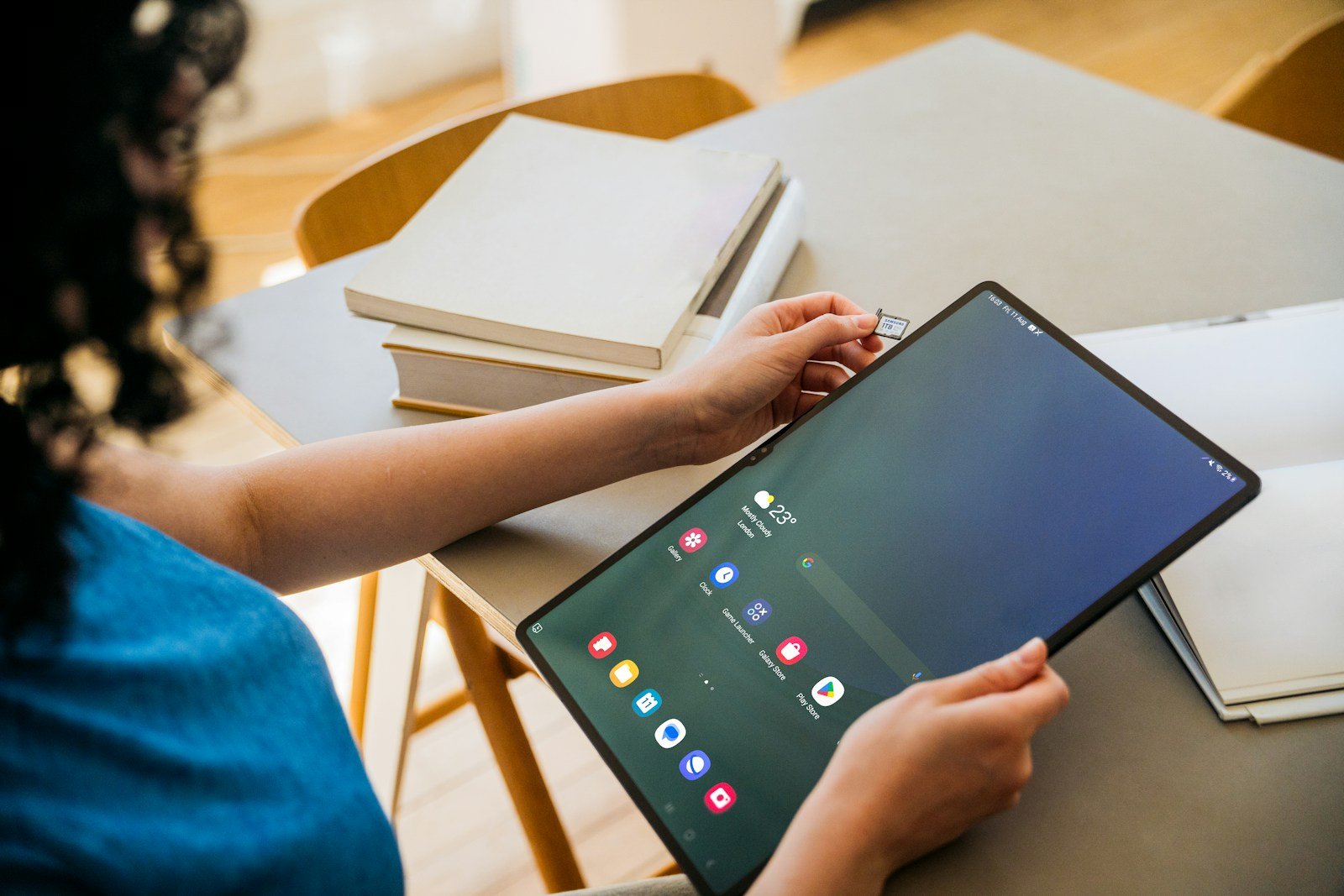
Micro SD cards: Many Android tablets have expandable storage slots. Adding a high-speed SD card lets you move apps, photos, and videos off internal storage.
USB drives: With OTG (On-The-Go) adapters, you can connect USB drives directly to your tablet. These work well for temporary file transfers and backups.
Cloud storage services: Google Drive, Dropbox, and OneDrive can offload files from your device. Photos and videos can automatically sync to the cloud, saving precious space.
Remember to regularly move unused files to external storage. This helps maintain at least 10-15% free space on your internal storage for optimal performance.
Optimizing Input Devices
Better input devices can make your tablet more responsive and efficient:
Bluetooth keyboards and mice transform tablets into mini-laptops. This reduces screen taps and makes navigation faster. Typing emails or documents becomes much easier with a physical keyboard.
Stylus pens offer precision that fingers can’t match. For drawing or detailed work, a good stylus reduces errors and frustration. Many modern styluses have pressure sensitivity for more control.
Charging docks with additional ports let you connect multiple accessories while keeping your tablet powered. This prevents battery drain when using external devices.
When choosing accessories, check compatibility with your specific Android tablet model. Not all tablets support all accessories, especially older models with limited connectivity options.
Frequently Asked Questions
Android tablets can slow down for many reasons. These simple fixes can help speed up your device and improve its performance without needing expert help.
Why is my Android tablet performance sluggish and unresponsive?
Android tablets become slow over time due to several common issues. Software degradation is a key factor that affects performance.
Limited storage space also impacts speed. As tablets fill up with apps, photos, and files, they have less working space to process tasks quickly.
Too many background apps drain system resources. Apps continue to run even when not in use, taking up valuable RAM and processing power.
What are the steps to resolving freeze and lag issues on an Android tablet?
The first step is to restart your Android tablet. Press the power button for about 30 seconds until the device restarts. This clears temporary files and refreshes the system.
Uninstall unused apps that take up space and may run in the background. Go to Settings > Apps and remove any programs you don’t need.
Remove widgets from home screens as they constantly update and use resources. Keep only essential widgets to improve performance.
How can I enhance the speed of my tablet without professional assistance?
Clear app caches regularly to free up space. Go to Settings > Storage > Cached data and tap to clear all cached data at once.
Move app icons to a single screen instead of spreading them across multiple pages. This reduces the resources needed to display and manage home screens.
Update your operating system and apps to the latest versions. Updates often include performance improvements and bug fixes that help speed up your device.
What developer options can I adjust to improve my Android tablet’s speed?
First, enable Developer options by going to Settings > About tablet and tapping Build number seven times.
Reduce animation scales to make your tablet feel faster. In Developer options, set Window animation scale, Transition animation scale, and Animator duration scale to 0.5x or off.
Limit background processes to free up RAM. In Developer options, find “Background process limit” and set it to “No more than 4 processes” to save resources.
How can regular maintenance improve the performance of my Android tablet?
Restart your tablet weekly to clear temporary files and refresh system processes. This simple habit prevents many performance issues.
Check and manage battery usage. Go to Settings > Battery to see which apps use the most power and restrict background activity for power-hungry apps.
Update apps and the system regularly. Updates fix bugs and security issues that may affect performance and add optimizations for better speed.
Are there any effective methods for clearing out unnecessary files to boost tablet speed?
Use the Files by Google app to identify and remove junk files. It finds duplicate files, unused apps, and large files that can be safely deleted.
Clear cached data for individual apps by going to Settings > Apps > (select app) > Storage > Clear Cache.
Move photos and videos to cloud storage like Google Photos. This frees up space while keeping your memories safe and accessible when needed.





