
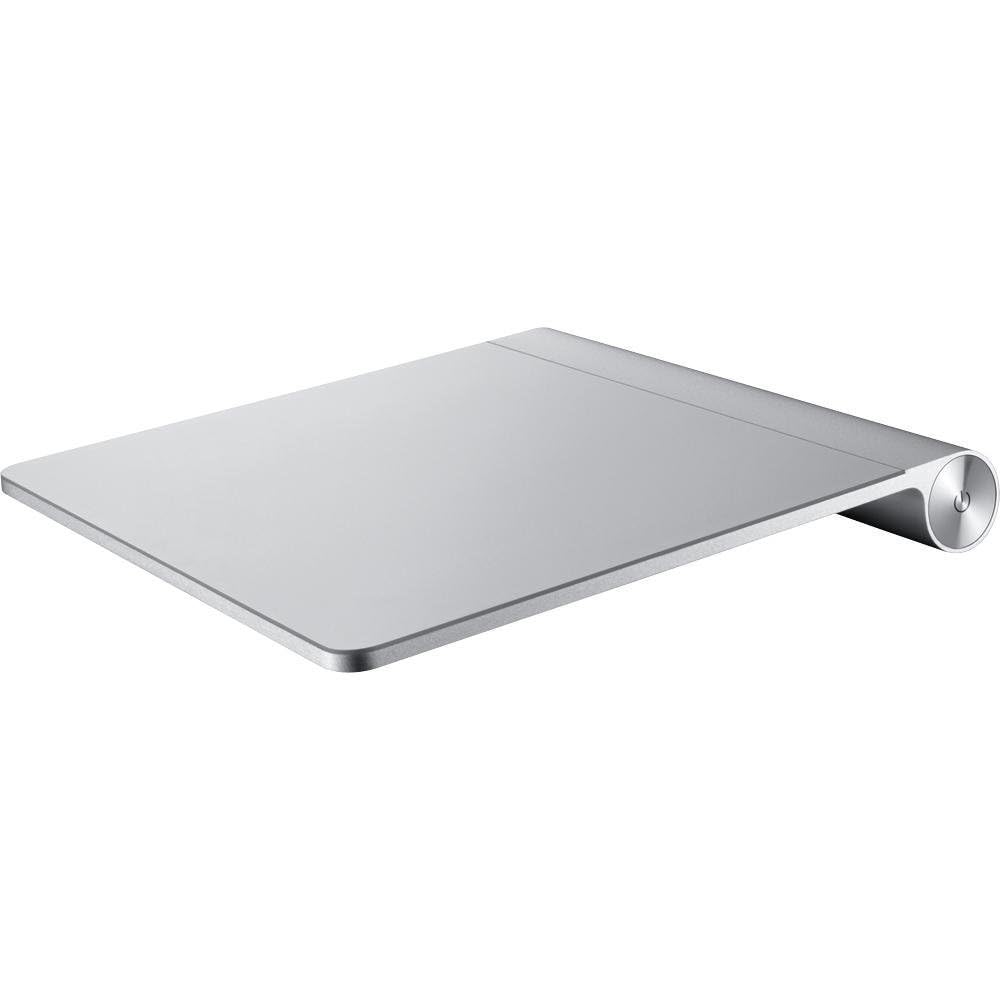
Switching from a PC to a Mac can be confusing at first, especially when it comes to basic functions like right-clicking. Many new Mac users struggle with this simple task because Apple’s trackpads don’t have obvious right and left buttons. To right-click on a Mac trackpad, simply tap with two fingers at once or enable the corner-clicking option in your Mac’s settings.
If you’ve recently started using a Mac, you might be wondering why such a basic function seems so hidden. Apple designs its products with simplicity in mind, which sometimes means common features work differently than on other computers. The good news is that once you learn how to right-click on your Mac, you’ll find it’s just as easy as on a PC – if not easier.
Mac trackpads are highly customizable, allowing you to choose the method that works best for you. Whether you prefer using two fingers to click anywhere on the trackpad or clicking in a specific corner, you can adjust these settings through your System Preferences. This flexibility makes Mac trackpads very user-friendly once you know how to set them up.
How To Right Click On A Mac Using The Trackpad
Macs don’t have a dedicated right-click button like many traditional mice, but you can still perform a right-click (also called a secondary click) easily using the trackpad. Here are several ways to do it:
1. Two-Finger Click (Default Gesture)
- Place two fingers on the trackpad.
- Tap or press down with both fingers simultaneously.
- This action will open the right-click context menu.
Note: This is the most common and default method on MacBook trackpads.
2. Click in the Bottom Right or Bottom Left Corner
You can set your Mac to recognize a click in a specific corner of the trackpad as a right-click:
- Go to System Settings (or System Preferences on older macOS versions).
- Select Trackpad.
- Click the Point & Click tab.
- Find the Secondary click option.
- Choose Click in bottom right corner or Click in bottom left corner.
- Now clicking in the chosen corner acts as a right-click.
3. Control + Click (Keyboard Shortcut)
- Hold down the Control (Ctrl) key on your keyboard.
- Click normally on the trackpad with one finger.
- This will register as a right-click.
4. Using an External Mouse
If you use an external mouse with your Mac, right-clicking works just like on a PC mouse. You can also customize mouse buttons in System Settings > Mouse.
Troubleshooting Tips
- If right-click isn’t working, check your trackpad settings under System Settings > Trackpad.
- Make sure Secondary click is enabled.
- If you’re using a third-party mouse, ensure its drivers are installed and configured properly.
Summary
| Method | How to Perform It |
|---|---|
| Two-Finger Click | Tap or press with two fingers on the trackpad |
| Bottom Corner Click | Click in bottom right/left corner (set in settings) |
| Control + Click | Hold Control key + click with one finger |
If you want, I can also provide steps with screenshots or a video tutorial link. Just ask!
Sources:
- Apple Support: Right-click on Mac
- HowToSensei: How Do You Right-Click on a Mac?
- wikiHow: How to Right-Click on Mac
Key Takeaways
- Tap with two fingers anywhere on your trackpad for the quickest way to right-click on a Mac.
- You can customize your right-click settings in System Settings under the Trackpad menu.
- Alternative right-click methods include clicking in the bottom corner of your trackpad or holding down the Control key while clicking.
Understanding Right-Click on a Mac
Mac computers offer a unique approach to right-clicking that differs from Windows PCs. Once you understand how secondary clicks work on a Mac, you’ll unlock powerful contextual menus that make your workflow faster and more efficient.
The Concept of Secondary Click
On a Mac, right-clicking is officially called a “secondary click.” This action opens a contextual menu with additional options related to what you’ve clicked on. You can secondary click using a Mac trackpad by tapping with two fingers simultaneously.
Most people find using their index and middle fingers works best for this gesture. The contextual menu that appears offers shortcuts for common actions like copy, paste, and delete.
If you prefer, you can also hold the Control key while clicking. This method works on any Mac, even older models with limited trackpad features.
The contextual menus change based on what you click. For example, right-clicking text shows options for formatting, while right-clicking a file offers sharing options.
The One-Button Mouse Tradition
Apple’s one-button mouse tradition began with the original Macintosh in 1984. Steve Jobs wanted simplicity, believing multiple buttons would confuse users. This philosophy shaped Mac’s design for decades.
Early Mac users had to hold the Control key while clicking to access right-click functions. As Macs evolved, Apple introduced multi-touch trackpads that maintained the clean design while adding gesture support.
Modern MacBooks still appear to have a single-button trackpad, but they recognize various gestures. The two-finger tap for right-clicking became the standard method, merging Apple’s minimalist design with practical functionality.
Despite adopting more complex interactions, Apple’s hardware maintains visual simplicity while hiding advanced features beneath the surface.
Setting Up Your Trackpad
Before you can right-click with your Mac trackpad, you need to make sure it’s properly configured in your system settings. The right setup will let you use this essential function without needing an external mouse.
Accessing System Preferences
To begin setting up your trackpad for right-clicking, you’ll need to access the system settings on your Mac.
Click on the Apple menu (🍎) in the top left corner of your screen. From the dropdown menu, select System Settings (or System Preferences on older macOS versions).
The System Settings window will open with various options. Look for the Trackpad option in the sidebar and click on it. You might need to scroll down to find it among the other settings options.
This area gives you control over all trackpad functions, including the right-click feature that many users need for everyday tasks.
Navigating Trackpad Settings
Once in the Trackpad settings, you’ll see three tabs at the top of the window: Point & Click, Scroll & Zoom, and More Gestures.
Click on the Point & Click tab to find the right-click settings. Look for the option labeled Secondary click (which is what Macs call the right-click function).
To enable right-clicking, check the box next to “Secondary click” and select your preferred method:
- Click with two fingers: The most common setting where you tap with two fingers simultaneously
- Click in bottom right corner
- Click in bottom left corner
You can test each option immediately to see which feels most comfortable. The changes take effect right away, so you can try right-clicking on your desktop to confirm it works.
How to Enable Right-Clicking
Mac computers can be set up for right-clicking in just a few steps. The trackpad settings allow you to customize how your Mac responds when you want to access contextual menus and additional options.
Enabling Secondary Click via Preferences
To turn on right-clicking on your Mac, you’ll need to adjust your trackpad settings. First, click on the Apple menu in the top-left corner of your screen. Then select “System Preferences” (or “System Settings” on newer macOS versions).
Look for the “Trackpad” option and click on it. This opens a window with several tabs. Select the “Point & Click” tab to find right-click options.
Find the checkbox labeled “Secondary click” and make sure it’s checked. When enabled, this setting allows your Mac to recognize when you’re trying to perform a right-click action.
Most Macs are set up to recognize a two-finger tap as a right-click by default. If you’ve never changed these settings, try tapping with two fingers simultaneously on your trackpad.
Adjusting Right-Click Settings
Once you’ve enabled secondary click, you can customize exactly how it works. In the same Trackpad preferences pane, you’ll see a dropdown menu next to “Secondary click” that offers several options.
The most common choices include:
- Click or tap with two fingers (the default setting)
- Click in bottom right corner
- Click in bottom left corner
Choose the option that feels most comfortable for your workflow. If you’re switching from Windows, the corner-click options might feel more familiar at first.
You can test each setting right away. After selecting an option, try it on your desktop to see if it works as expected. If the setting doesn’t feel right, you can easily go back and pick a different option.
For users with accessibility needs, these options provide flexibility in how you interact with your Mac.
Right-Clicking Techniques with the Trackpad
Mac computers offer several ways to right-click using just the trackpad. Each method is easy to use once you learn the proper technique and can save you time when working on your MacBook or MacBook Pro.
Two-Finger Tap
The two-finger tap is the simplest way to right-click on a Mac trackpad. This method works on most MacBook and MacBook Pro models with a built-in trackpad.
To use this technique:
- Place two fingers (typically index and middle) lightly on the trackpad
- Tap once quickly with both fingers at the same time
- The right-click menu will appear immediately
This method requires no physical clicking or pressing down. It’s gentle on your fingers and the trackpad. Many Mac users prefer this method because it’s quick and doesn’t make any clicking noise.
Make sure this feature is enabled in your settings. Go to Apple menu > System Settings > Trackpad > Point & Click and check that Secondary click is turned on with “Click or tap with two fingers” selected.
Two-Finger Click
The two-finger click provides the same function as the two-finger tap but with physical feedback. This method is helpful for users who prefer feeling a click.
To perform a two-finger click:
- Place two fingers on the trackpad
- Press down until you feel or hear a click
- The right-click menu will appear
This technique works well for MacBook Pro and MacBook Air models with Force Touch trackpads. These trackpads don’t actually move when pressed but provide haptic feedback that simulates a click.
The two-finger click feels more deliberate than tapping. Some users find it more reliable in situations where they might accidentally tap the trackpad.
Control-Click Method
The control-click method is the traditional way to right-click on Mac computers and works on all models.
To use control-click:
- Hold down the Control (Ctrl) key on your keyboard
- Click the trackpad with one finger
- The right-click menu will appear
This method is particularly useful if you’ve disabled the two-finger options in your settings. It’s also helpful when you need more precision for right-clicking on small items.
You can customize this and other trackpad behaviors. Go to Apple menu > System Settings > Trackpad to adjust various settings to match your preferences.
The control-click method works consistently across all Mac models, making it a good fallback option when using different Mac computers.
Using an External Mouse with Your Mac
Many Mac users prefer using an external mouse instead of the trackpad for increased comfort and control. External mice offer different right-click options depending on the type you choose.
Connecting an Apple Magic Mouse
The Apple Magic Mouse connects to your Mac via Bluetooth. To set it up, go to the Apple menu and open System Preferences (or System Settings on newer macOS versions). Select “Bluetooth” and turn it on if needed. Put your Magic Mouse in discovery mode and click “Pair” when it appears in the list.
To right-click with a Magic Mouse, you have two options:
- Enable secondary click in settings
- Use the Control key with a regular click
For the first method, go to Apple menu → System Preferences → Mouse. Check “Secondary click” and choose to click on the right side. Your Magic Mouse will now recognize right-side clicks as right-clicks without needing to hold any keys.
If settings aren’t changed, you can still hold the Control key while clicking to perform a right-click function.
Using a Two-Button Mouse
Standard two-button mice work with Macs right out of the box. Simply plug the USB mouse into an available port or connect it via Bluetooth. Your Mac will automatically recognize it and install any needed drivers.
The right button on these mice functions as a right-click automatically, with no special settings needed. This makes them a simple option for users transitioning from Windows.
For more control, you can customize mouse buttons by going to System Preferences → Mouse. Here you can adjust tracking speed, scrolling direction, and sometimes button functions depending on your mouse model.
Wireless mice require batteries, so keep spares handy. Most modern mice use a scroll wheel that lets you scroll through pages easily, adding another level of convenience beyond basic clicking functions.
Keyboard Shortcuts for Right-Click
Not everyone likes using the trackpad for right-clicking. Luckily, Mac offers several keyboard shortcuts that make this action quick and easy.
The most common method is the Control+Click combination. Just hold down the Control key while clicking with your mouse or tapping your trackpad to bring up context menus.
For those who prefer keyboard-only navigation, Mac provides additional options. You can enable Mouse Keys in your accessibility settings and then use Function+Control+I to open a right-click menu for your selected item.
Some Mac users might not know that the secondary click function can be triggered without using the physical trackpad at all. This proves helpful when dealing with trackpad issues.
Here’s a quick list of right-click keyboard shortcuts:
- Control+Click: Standard secondary click
- Function+Control+I: Right-click with Mouse Keys enabled
- Control+Space: Works in some applications for context menus
Mac laptops with Touch ID have another option. Users can press the Touch ID button three times to enable Mouse Keys, then use keyboard controls for right-clicking.
These shortcuts save time and reduce strain from repetitive trackpad movements. Many professional Mac users rely on keyboard shortcuts for faster workflow.
Troubleshooting Common Right-Click Issues
When right-clicking doesn’t work on your Mac trackpad, it’s usually due to incorrect settings or software issues. These problems can typically be fixed with a few simple steps.
Checking Trackpad Sensitivity
If your Mac’s right-click function isn’t working properly, start by checking your trackpad settings. Go to Apple menu > System Settings (or System Preferences on older macOS), then click on Trackpad in the sidebar. Look for the “Secondary click” option.
Make sure the “Secondary click” box is checked. You can choose how you want to right-click from the dropdown menu:
- Click with two fingers
- Click in bottom right corner
- Click in bottom left corner
If settings look correct but right-clicking still doesn’t work, try resetting all trackpad settings to default values. Then reconfigure your secondary click preference.
For trackpad sensitivity issues, adjust the “Tracking speed” slider. Too slow might make right-clicks difficult to register.
Updating macOS for Compatibility
Outdated software can cause trackpad functions to behave oddly. Check if your Mac needs a system update.
Click the Apple menu in the top left corner and select “About This Mac.” Click “Software Update” to see if updates are available.
Installing the latest macOS version often fixes right-click problems by updating trackpad drivers. If you can’t update to the newest OS, try installing any available supplemental updates.
For Mac laptops in lab environments, IT policies might restrict certain trackpad functions. In these cases, use alternative methods like holding the Control key while clicking or using a USB mouse.
Restart your Mac after updates. This simple step clears temporary glitches that might affect trackpad performance.
Frequently Asked Questions
Mac users often have questions about right-clicking with the trackpad. Here are answers to common questions about trackpad functionality and troubleshooting.
What are the methods to enable right-click on a MacBook trackpad?
You can enable right-click on a MacBook trackpad through System Preferences. Go to Apple menu > System Preferences > Trackpad > Point & Click. Then check “Secondary click” and choose your preferred method from the dropdown menu.
The most common option is clicking with two fingers. You can also set it to click in the bottom right or bottom left corner of the trackpad.
If you prefer customizing your settings further, you can adjust tracking speed and other options in the same menu.
Why might the right-click function on a Mac trackpad stop working, and how can it be resolved?
Right-click issues usually stem from incorrect settings or software glitches. First, check if Secondary Click is enabled in System Preferences > Trackpad > Point & Click.
If settings look correct, try restarting your Mac. This often fixes temporary system issues affecting trackpad functions.
For persistent problems, reset the SMC (System Management Controller) or PRAM/NVRAM. These steps can resolve hardware-related trackpad issues.
Checking for macOS updates may also help, as Apple regularly fixes bugs affecting trackpad functionality.
What keyboard shortcuts enable right-click functionality on a Mac?
The simplest keyboard shortcut for right-clicking on a Mac is Control+click. Hold the Control key while clicking the trackpad to bring up the context menu.
This Control+click method works universally across all Mac models, even older ones without multi-touch trackpads.
Some applications offer additional shortcuts for specific right-click functions. Check the app’s menu or help section for these options.
How can you perform a right-click on a MacBook Air trackpad?
The easiest way to right-click on a MacBook Air is to tap with two fingers simultaneously on the trackpad. This works when the default Secondary Click setting is enabled.
You can also Control+click by holding the Control key while clicking the trackpad with one finger.
If you prefer, customize your right-click method in System Preferences > Trackpad > Point & Click by changing the Secondary Click option.
Is there a way to simulate a right-click on a Mac when using a mouse?
Yes, when using a mouse with your Mac, you can right-click directly if your mouse has a right button. Most modern mice work automatically with Macs.
For single-button mice, hold the Control key while clicking to simulate a right-click.
You can adjust mouse settings, including secondary click options, in System Preferences > Mouse.
How can users right-click on a Mac in different operating systems, such as on a Chromebook?
When using different operating systems on a Mac through Boot Camp or virtual machines, right-click methods may vary. In Windows on a Mac, the trackpad typically follows Windows conventions.
For Chromebooks, you click with two fingers on the trackpad to right-click, similar to macOS.
If using Linux on a Mac, right-click typically works with two-finger clicks, but you may need to adjust settings in the specific Linux distribution.





