
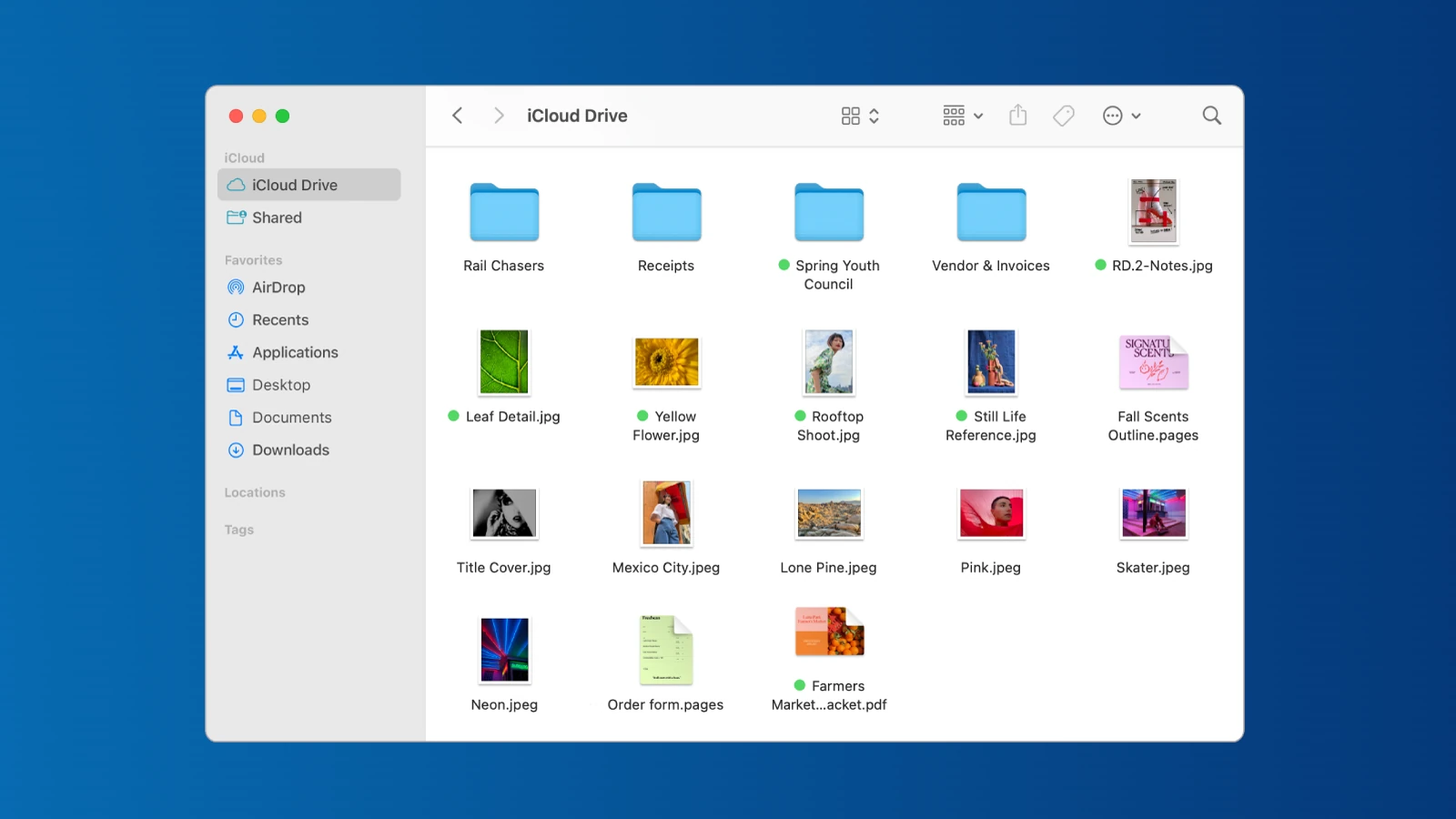
When you download files on your Mac, they typically save to the Downloads folder by default. Finding these downloads is straightforward. You can use the Finder, the Dock, or Spotlight search to quickly access this folder. Since the process can vary slightly depending on your specific macOS version and settings, knowing a few different methods ensures you can locate your files efficiently.
Organizing your downloads can help you keep your system tidy and make it easier to find important files when you need them. Your Mac provides various tools to manage and sort these files. You may prefer to change the default download location, create subfolders to categorize files, or use tags to keep track of documents, images, and other downloaded content.
How to Find Your Downloads on Mac: A Complete Guide
If you’re new to macOS—or just can’t remember where your files went—don’t worry. Finding downloads on a Mac is simple once you know where to look. This guide walks you through all the common ways to locate your downloaded files, from Finder to browsers and Spotlight.
Where Downloads Are Stored on a Mac
By default, macOS saves downloaded files to the Downloads folder in your user account.
Default path:
Macintosh HD → Users → [Your Username] → Downloads
Quick Ways to Find Your Downloads
1. Open the Downloads Folder from Finder
- Click the Finder icon in the Dock.
- In the left sidebar, select Downloads.
- Your most recent downloads appear at the top.
✅ Tip: If you don’t see Downloads in the sidebar, go to
Finder → Settings → Sidebar and check Downloads.
2. Use the Dock Shortcut
- Look for the Downloads stack near the Trash (usually on the right side of the Dock).
- Click it to instantly view recent downloads.
- Double-click any file to open it.
3. Use Spotlight Search (Fastest Method)
- Press Command (⌘) + Space.
- Type the file name or just “Downloads”.
- Press Return to open the folder.
✅ You can also search by file type, such as:
PDFDMGZIP
Find Downloads from Your Web Browser
Different browsers also keep their own download lists.
| Browser | How to View Downloads |
|---|---|
| Safari | Click the down arrow in the toolbar or press Option + Command + L |
| Google Chrome | Press Command + Shift + J |
| Firefox | Press Command + J |
From these panels, you can click “Show in Finder” to see the file’s exact location.
Change or Check Your Download Location
If your downloads aren’t in the usual folder, the location may have been changed.
In Safari
- Open Safari → Settings → General
- Look at File download location
- Choose Downloads or another folder
In Chrome
- Open Settings → Downloads
- Check the download location
- Enable “Ask where to save each file” if needed
Find Recently Downloaded Files
Use Finder’s Recents
- Open Finder
- Click Recents in the sidebar
- Sort by Date Added to find recent downloads
What to Do If You Still Can’t Find a Download
- Check the Trash in case it was accidentally deleted
- Search by file extension (e.g.,
.dmg,.pdf,.jpg) - Re-download the file and watch where it saves
- Make sure you’re logged into the correct user account
Summary Table
| Method | Best For |
|---|---|
| Finder → Downloads | Everyday access |
| Dock Downloads Stack | Quick recent files |
| Spotlight Search | Fastest search |
| Browser Download List | Locating specific downloads |
| Recents Folder | Recently added files |
Final Thoughts
Most downloads on a Mac live in the Downloads folder, but browser settings and manual changes can move them elsewhere. With Finder, Spotlight, and browser tools, you can always track them down quickly.
Key Takeaways
- Locate downloaded files using Finder, Dock or Spotlight
- Use macOS tools to manage and sort downloads
- Change settings to improve download organization
Finding Downloads on Your Mac
Locating files you’ve downloaded can be quick and straightforward on a Mac. Whether you use Finder, the Spotlight feature, or your web browser, you can access your downloads with a few simple steps.
Using Finder
Finder is the go-to tool for finding anything on your Mac, including your Downloads folder. There’s a section in Finder called Favorites where Downloads often appears. If it’s not there, it’s easy to add.
- Open Finder.
- Click Go on the menu bar.
- Select Downloads.
You can also find downloads from your Dock. Click on the Downloads icon, and a list of your downloaded files will pop up.
Spotlight Search
Use Spotlight Search to find files quickly. It searches your entire Mac and shows you immediate results, including items in your Downloads folder.
- Press Command + Spacebar to open Spotlight.
- Type the name of the file you’re looking for.
When a file shows up in the results, you can open it directly or jump to its location by clicking the magnifying glass.
Using Browsers
Each web browser, like Safari or Google Chrome, has its own Downloads button. This makes finding your recent downloads easy.
In Safari:
- Click the Downloads button (resembles an arrow) next to the address bar.
- Your downloaded files list will display.
- To find a file in Finder, click the magnifying glass next to the file name.
In Google Chrome:
- Click the three dots on the top-right to open the menu.
- Select Downloads.
- A list of your downloaded files will appear with options to open the file or show in Finder.
These browsers let you track your downloads in real time. They also make it simple to locate them after they’ve been saved to your computer.
Managing and Organizing Downloads
When handling files on a Mac, keeping the Downloads folder in order ensures quick access and helps maintain space. Here’s how to change download locations, clear out unwanted files, and organize your downloads effectively.
Changing File Download Location
To change where your Mac saves downloaded files by default, start in Safari. Go to Safari > Preferences > General. From here, you can modify the File download location. Choose Other to pick a new saving spot or select Ask for each download to choose a location every time you download something. This method not only keeps your files organized, but can also free up essential storage space.
Removing Files from Download Folder
To delete unwanted files from your Downloads folder, you can tap a file once to select it. If you need to pick multiple files, hold down the Command key while clicking them. You can then either drag the files to the Bin, or you can right-click and choose Move to Bin. Regularly clearing out files prevents duplicates and saves space. You can also set Safari to remove download list items automatically; options include After one day, When Safari quits, or Upon successful download.
Organizing Downloads
Organizing downloads will make it easier to find the exact file you need. Open the Downloads folder. Click the three-dot circle in the toolbar to Use Groups. You can group files by kind, date added, or size. To sort files within these groups, press and hold the Option key, click the menu again, and choose your preferred sorting method. Remember, quick access is available anytime in Finder’s sidebar – simply click on Downloads under Favorites. If the Downloads folder is not there, you can drag and drop it into the sidebar for faster access.





