
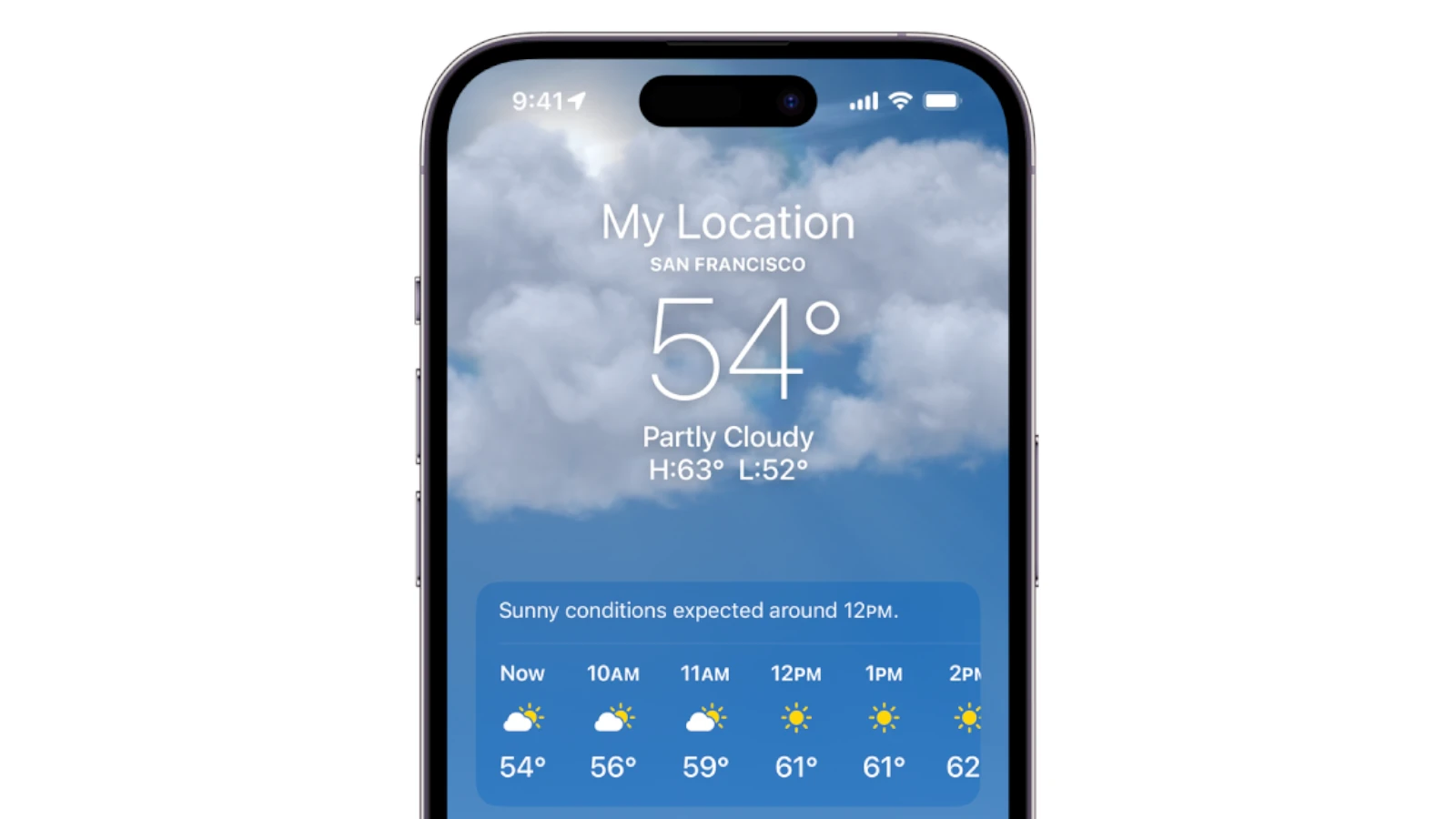
Is your iPhone Weather app showing a blank screen? You’re not alone! Many iPhone users face this frustrating issue when trying to check the forecast. The most common causes for the Weather app not working include location services being disabled, network connection problems, or app glitches that can usually be fixed with some simple troubleshooting steps.
These problems typically appear without warning and can be very annoying, especially when you need weather updates quickly. The Weather app might show a spinning wheel that never loads, display outdated information, or simply crash when you open it. Luckily, most of these issues have quick and easy fixes that don’t require technical knowledge.
Before rushing to the Apple Store, try some basic solutions like checking your location settings, restarting your iPhone, or making sure your internet connection is stable. These simple steps fix the Weather app for most users in just a few minutes.
How to Fix Weather App Not Working on iPhone: A Step-by-Step Guide
If your iPhone’s Weather app is not updating, crashing, or failing to show accurate information, it can be frustrating—especially when you rely on it daily. This guide covers common reasons why the Weather app might not be working and proven solutions to get it back up and running smoothly.
Common Causes for Weather App Issues
- Location Services disabled or restricted
- Poor or no internet connection
- Software bugs or glitches
- Outdated iOS version
- App cache or data corruption
- Restrictions or permissions issues
How to Fix Weather App Not Working on iPhone
1. Check Internet Connection
- Ensure your iPhone is connected to Wi-Fi or cellular data.
- Try opening a website or another app to confirm connectivity.
- Switch between Wi-Fi and cellular to test if one network is causing issues.
2. Enable Location Services for Weather
- Go to Settings > Privacy & Security > Location Services.
- Make sure Location Services is turned on.
- Scroll down and tap Weather.
- Set it to While Using the App or Always.
3. Restart the Weather App
- Swipe up from the bottom (or double-click the Home button) to open the app switcher.
- Find the Weather app and swipe it off the screen to close it.
- Reopen the app.
4. Restart Your iPhone
- Hold the power button and slide to power off.
- Wait 30 seconds, then turn your iPhone back on.
- Check if the Weather app works properly.
5. Update iOS to the Latest Version
- Go to Settings > General > Software Update.
- If an update is available, download and install it.
- Updates often fix bugs affecting apps.
6. Reset Location & Privacy Settings
- Go to Settings > General > Transfer or Reset iPhone > Reset > Reset Location & Privacy.
- This resets permissions and may resolve location-related issues.
7. Check Weather App Restrictions
- Go to Settings > Screen Time > Content & Privacy Restrictions.
- Make sure restrictions are not blocking location or Weather app access.
8. Delete and Reinstall the Weather App
- Press and hold the Weather app icon.
- Tap Remove App > Delete App.
- Go to the App Store and reinstall the Weather app.
9. Check Apple’s System Status
- Visit Apple System Status to see if Weather services are down.
Additional Tips
- Make sure your date and time settings are set to automatic:
Settings > General > Date & Time > Set Automatically. - If you use VPN or firewall apps, disable them temporarily to test.
- Try adding a new location manually in the Weather app.
Summary Table
| Issue | Fix |
|---|---|
| No internet connection | Check Wi-Fi/cellular, restart router |
| Location not updating | Enable Location Services for Weather |
| App crashes or freezes | Restart app, reinstall app |
| Software bugs | Update iOS |
| Permissions or restrictions | Reset Location & Privacy, check Screen Time |
| Apple service outage | Check Apple System Status page |
By following these steps, you should be able to resolve most issues with the Weather app on your iPhone and get accurate weather updates again.
For more help, visit Apple’s official Weather app support:
Apple Support – Weather app
Key Takeaways
- Make sure location services and internet connection are working properly for the Weather app to function correctly.
- Restart your iPhone or perform a hard reset when the Weather app freezes or shows outdated information.
- Check for iOS updates or reinstall the Weather app if basic troubleshooting steps don’t solve the issue.
Common Issues with iPhone Weather App
The Weather app on iPhones often experiences several recurring problems that can prevent users from accessing accurate weather information. These issues range from basic access errors to more complex problems with location data and widget functionality.
Weather App Access Errors
Many iPhone users report that their Weather app suddenly stops working or disappears from their home screen. This issue can happen after iOS updates or system glitches.
To fix access problems:
- Check if the app is hidden – Swipe down on your home screen and search for “Weather”
- Restart your iPhone – Hold the power button and volume button, then slide to power off
- Reset home screen layout – Go to Settings > General > Reset > Reset Home Screen Layout
Sometimes the Weather app gets stuck on the loading screen. This often happens when the app hasn’t been properly updated. Try deleting and reinstalling the app if this occurs.
Password or passcode issues can also block access. Make sure you’re signed into your Apple ID correctly.
Inaccurate Location Data
The Weather app relies heavily on location services to provide accurate forecasts. When location access switches randomly between different settings, weather data becomes unreliable.
Quick fixes for location issues:
- Go to Settings > Privacy > Location Services > Weather and select “Always” or “While Using”
- Turn Location Services off and back on
- Update your iOS to the latest version
Many users find their Weather app showing the wrong city or outdated information. This happens when the app can’t properly track your current location.
Try removing saved locations you no longer need. Too many saved locations can confuse the app and cause it to display incorrect information for your current position.
Weather Widget Malfunctions
Weather widgets offer convenient at-a-glance forecasts on your home screen, but they’re prone to freezing or displaying outdated information.
Common widget problems include:
- Widgets showing different data than the main app
- Weather icons not updating to match current conditions
- Temperature readings stuck at previous values
- Rainfall graphs blocking temperature information
To fix widget issues, try setting up your Weather widgets again. Remove the existing widget by long-pressing it and selecting “Remove Widget.” Then add a fresh widget by long-pressing an empty area on your home screen.
Make sure Background App Refresh is enabled for the Weather app in Settings > General > Background App Refresh.
Internet Connectivity Problems
The Weather app requires a stable internet connection to update forecast data. Connection issues are among the most common reasons the app fails to work properly.
Try these network troubleshooting steps:
- Toggle Airplane Mode on and off to reset your connection
- Connect to a different WiFi network or switch to cellular data
- Reset Network Settings in Settings > General > Reset > Reset Network Settings
Sometimes the problem isn’t your connection but rather an Apple server issue. Server outages can prevent the Weather app from retrieving new data. If multiple people report similar problems at once, it might indicate a wider service disruption.
Check Apple’s System Status page to see if Weather services are experiencing problems. Server-side issues typically resolve within a few hours.
Troubleshooting Steps for Weather App Issues
When your iPhone Weather app stops working, several quick fixes can get it back up and running. These solutions address the most common causes of Weather app failures without requiring technical expertise.
Verifying Network Settings
The Weather app needs a good internet connection to update forecasts. If your app isn’t working, first check if your iPhone is connected to Wi-Fi or cellular data.
To verify your connection, open Settings and tap on Wi-Fi or Cellular to confirm they’re turned on. Try opening a website to test if your internet is working properly.
If you’re connected but still having issues, try resetting your network settings. Go to Settings > General > Reset > Reset Network Settings. This will erase saved Wi-Fi networks and passwords, so keep those handy.
Poor connection can cause the app to show outdated information or not load at all. Switching between Wi-Fi and cellular data might help if one network is performing better than the other.
Enabling Location Services and Permissions
The Weather app needs location access to show accurate forecasts for your area. Without proper permissions, it might not update or work correctly.
- Go to Settings > Privacy > Location Services
- Make sure Location Services is turned on
- Scroll down to find Weather
- Set it to “Always” or “While Using the App”
If the Weather app still isn’t updating, try toggling Location Services off and back on. Some users have found that enabling Background App Refresh helps too. Go to Settings > General > Background App Refresh and make sure Weather is enabled.
The app also needs permission to use cellular data if you’re not on Wi-Fi. Check this in Settings > Cellular and ensure Weather is toggled on.
Restarting Your iPhone
A simple restart often solves Weather app problems by clearing temporary glitches in your iPhone’s system. This quick fix works surprisingly well for many iOS issues.
For newer iPhone models:
- Press and hold the side button and either volume button
- Slide to power off when prompted
- Wait 30 seconds
- Press and hold the side button until the Apple logo appears
For older iPhones with a home button:
- Press and hold the side button
- Slide to power off
- Wait 30 seconds
- Press and hold the side button to restart
If a normal restart doesn’t work, try a force restart. This is different for various iPhone models but generally involves pressing specific button combinations. The process is explained in detail on Apple support pages.
Resetting Weather App Data
If the Weather app still isn’t working properly, you might need to reset its data. This clears out any corrupted files that could be causing issues.
To reset the Weather app:
- Go to Settings > General > iPhone Storage
- Scroll down and find the Weather app
- Tap on it and select “Offload App” (this keeps your data but removes the app)
- Reinstall from the App Store
Alternatively, you can delete and reinstall:
- Press and hold the Weather app icon on your home screen
- Tap “Remove App” and confirm
- Open App Store and search for “Weather”
- Download and install it again
If you use Weather widgets on your home screen, they might need to be reset too. Remove any existing Weather widgets by long-pressing them and tapping the minus sign, then add them back after fixing the app.
Make sure your iPhone’s operating system is updated to the latest version, as outdated iOS can cause app performance issues.
Advanced Solutions and Repairs
When simple fixes don’t work for your iPhone Weather app, you’ll need stronger solutions. These methods can fix deeper problems but require more careful steps.
Resetting Network Settings
If your Weather app still won’t work after basic troubleshooting, resetting network settings might help. This process clears all saved WiFi networks, Bluetooth connections, and cellular settings.
- Open Settings on your iPhone
- Tap General
- Scroll down and select Reset or Transfer or Reset iPhone
- Choose Reset Network Settings
- Enter your passcode when prompted
- Confirm the reset
After your iPhone restarts, reconnect to your WiFi network. This often fixes data fetching issues that prevent the Weather app from updating.
Remember that this reset won’t delete your photos or apps, but you’ll need to re-enter WiFi passwords.
Performing iOS System Recovery
When the Weather app problem is part of a bigger iOS issue, a system recovery might be necessary. This approach can fix stubborn software problems without losing your data.
Several iOS recovery tools can help repair your system without the complexity of a full restore. These tools connect your iPhone to a computer and fix iOS problems that cause apps to malfunction.
Steps for system recovery:
- Download a trusted iOS repair tool to your computer
- Connect your iPhone via USB cable
- Select the “Standard Repair” option (preserves data)
- Follow the on-screen instructions to download firmware
- Let the tool fix your iOS system
This process takes 10-20 minutes and can resolve many complex Weather app issues that simple restarts can’t fix.
Seeking Professional Tech Support
If all other methods fail, getting expert help is the best next step. Apple offers several professional support options for fixing persistent Weather app issues.
You can:
- Book an appointment at an Apple Store Genius Bar
- Contact Apple Support by phone or chat
- Use the Apple Support app on another iOS device
For quick expert advice, online tech support services like JustAnswer connect you with verified iPhone experts who can guide you through advanced troubleshooting.
Before your appointment, try to document when and how the Weather app fails. Take screenshots of any error messages. This information helps technicians identify and fix the problem faster.
Professional support is especially useful when the issue involves account problems or when hardware issues affect the Weather app.
Guidelines for Maintaining iPhone Weather App Functionality
Keeping your iPhone Weather app working properly requires a few simple habits. These tips will help you avoid common problems and enjoy accurate weather updates.
Check Your Internet Connection
A stable internet connection is essential for the Weather app to update. Try switching between Wi-Fi and cellular data if you notice issues.
Enable Location Services
The Weather app needs your location to show accurate forecasts. Go to Settings > Privacy > Location Services > Weather and select “Always” or “While Using the App.”
Turn On Background App Refresh
This feature lets the Weather app update even when you’re not using it. To enable it:
- Open Settings
- Tap General
- Select Background App Refresh
- Turn it on for the Weather app
Free Up Storage Space
Low storage can cause many iPhone apps to malfunction. Try to maintain at least 1GB of free space for best performance.
Restart Your iPhone Regularly
A simple restart can fix many Weather app issues. This clears out temporary errors that might be affecting performance.
Keep iOS Updated
Apple releases fixes for app problems with system updates. Check Settings > General > Software Update to install the latest version.
Reset App Settings When Needed
If problems persist, try these steps:
- Refresh the Weather app
- Reset Location & Privacy settings
- As a last resort, reset all settings
These maintenance habits prevent most Weather app problems and keep your forecasts accurate and reliable.
Frequently Asked Questions
iPhone Weather app problems can often be fixed with simple solutions. Users can solve most issues without contacting Apple support by following these troubleshooting steps.
How can I fix the Weather app if it’s not updating properly on my iPhone?
If your Weather app isn’t updating, first check your internet connection. Make sure Wi-Fi or cellular data is working properly.
Restart the Weather app by swiping up from the bottom of your screen (or double-click the home button on older models) and swipe the app away. Then reopen it.
You might also try restarting your iPhone completely. This often fixes common Weather app issues by clearing temporary glitches.
Why does the Weather app fail to display the current location on my iPhone?
Location services issues are a common reason the Weather app can’t find your position. Go to Settings > Privacy > Location Services and make sure it’s turned on.
Next, scroll down to find the Weather app and set it to “Always” or “While Using the App.” The widget may not work if you have it set to “While Using” because widgets don’t formally open the app.
Check if other apps can access your location. If not, you might need to reset your location settings.
What should I do if the Weather widget on my iPhone is not refreshing?
For non-refreshing widgets, try removing and adding the widget back to your home screen. Press and hold the widget, select “Remove Widget,” then add it again.
Make sure Background App Refresh is enabled for the Weather app. Go to Settings > General > Background App Refresh and check that both the main toggle and Weather app toggle are on.
Clear cache by offloading the app without deleting its data. Go to Settings > General > iPhone Storage > Weather > Offload App, then reinstall it.
How can I troubleshoot the radar feature not functioning in the Apple Weather app?
When the radar feature isn’t working, first check if there’s a wider service outage. Sometimes Apple’s weather services experience temporary problems.
Ensure you have a strong internet connection, as the radar feature requires good bandwidth to load map data.
Try changing your location to a different city, then back to your current one. This can refresh the radar data and fix display issues.
What steps can I take if the Weather app is showing incorrect information on my iPhone?
For incorrect weather data, verify your location settings are accurate. Sometimes the app picks a nearby city instead of your exact location.
Update to the latest iOS version, as Apple frequently fixes Weather app bugs in updates. Go to Settings > General > Software Update.
Consider resetting your location in the app by tapping the list icon in the bottom right, then edit (or remove and re-add) your location.
After an iOS update, why might the Weather app stop working, and how can I resolve it?
iOS updates sometimes cause compatibility issues with the Weather app. Wait a day or two as Apple may release a quick fix for known problems.
Try force restarting your iPhone after an update. For newer models, press and quickly release volume up, then volume down, then hold the side button until the Apple logo appears.
If problems persist, reset all settings (not content) by going to Settings > General > Transfer or Reset iPhone > Reset > Reset All Settings. This fixes many post-update issues.





