Free trials are great for testing out apps, but they can turn into unwanted charges if you forget to cancel them. Many iPhone users sign up for free app trials without knowing how to stop them before payments begin. To cancel a free trial on your iPhone, go to Settings, tap your name, select Subscriptions, find the app, and tap Cancel Subscription.
This simple process helps you avoid surprise charges on your credit card after the trial period ends. Some apps make cancellation tricky, showing no obvious cancel button or hiding the option deep in menus. Apple’s system gives you control over all your subscriptions in one place, whether you signed up through the App Store or within an app.
Canceling a free trial doesn’t always mean losing access right away. In many cases, you can continue using the service until the trial period ends. However, some companies might end your access immediately when you cancel, so check the app’s terms first.
How to Cancel Free Trials on iPhone (Complete Guide)
Free trials are a great way to test apps and services—but if you don’t cancel in time, they often turn into paid subscriptions. Apple makes it easy to cancel free trials directly from your iPhone, as long as you know where to look.
This guide walks you through all the ways to cancel free trials on iPhone, how to check expiration dates, and what happens after you cancel.
Important Things to Know Before Canceling
- ✅ You can cancel a free trial any time before it ends
- ✅ You’ll usually keep access until the trial expiration date
- ❌ Deleting an app does not cancel the trial
- ✅ Apple subscriptions are managed in Settings
Method 1: Cancel Free Trials via iPhone Settings (Most Common)
Step‑by‑Step Instructions
- Open Settings
- Tap your Apple ID name at the top
- Tap Subscriptions
- Find the app or service with the free trial
- Tap Cancel Subscription
- Confirm cancellation
✅ Your trial will end on the listed date
✅ You won’t be charged afterward
Method 2: Cancel Free Trials from the App Store
- Open the App Store
- Tap your profile icon (top‑right)
- Tap Subscriptions
- Select the free trial you want to cancel
- Tap Cancel Subscription
This method works the same as canceling through Settings.
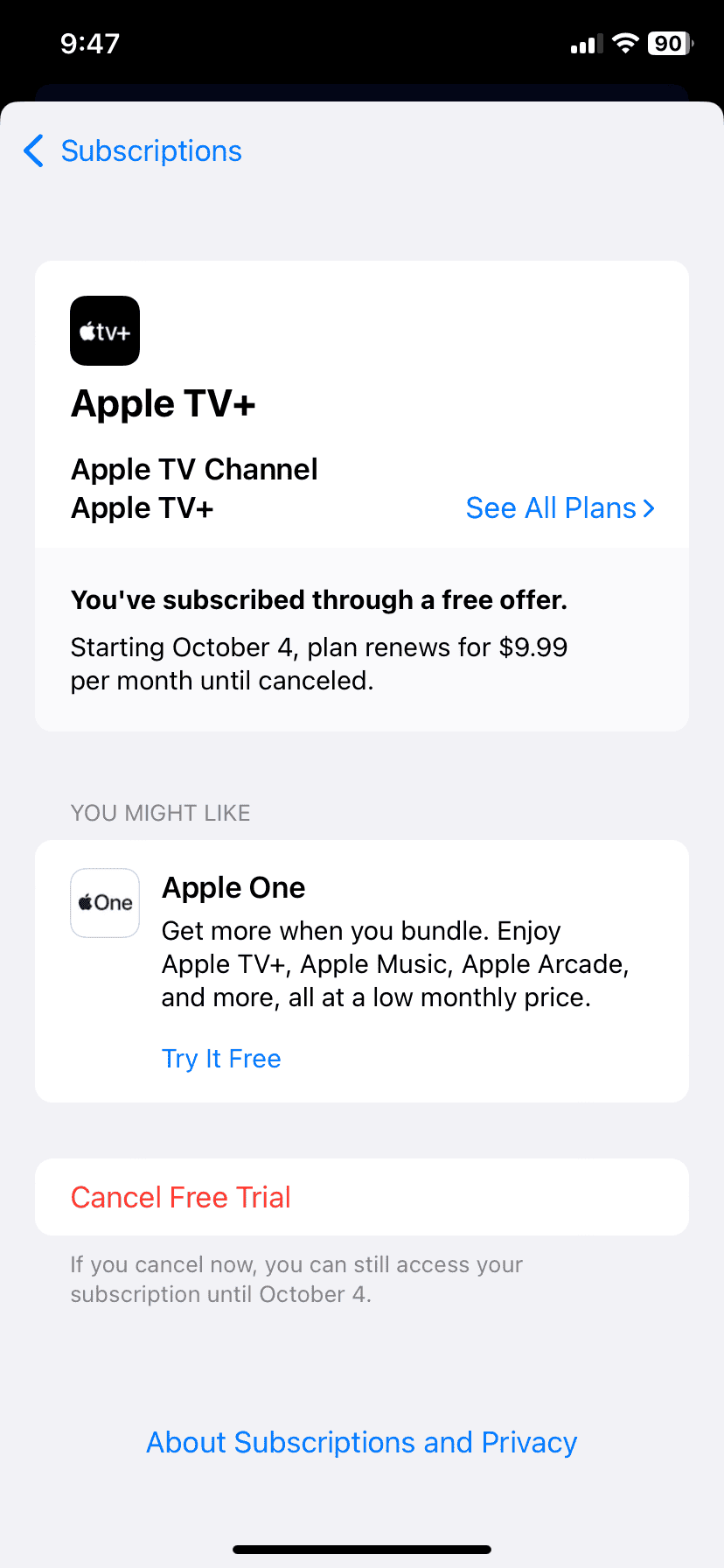
Method 3: Cancel Apple Free Trials (Apple TV+, Music, Arcade, Fitness+)
Apple’s own services can be canceled the same way:
- Open Settings
- Tap your Apple ID
- Select Subscriptions
- Choose the Apple service
- Tap Cancel Free Trial
✅ Access remains until the trial ends
✅ No early termination penalties
How to Check When a Free Trial Ends
- Go to Settings > Apple ID > Subscriptions
- Tap the active subscription
- View the Renewal Date
Set a reminder at least 1 day before the renewal date to avoid charges.
What Happens After You Cancel?
- ✅ You can still use the app or service until the trial ends
- ❌ You won’t be charged
- ✅ The subscription will show as Expires instead of Renews
Common Problems & Fixes
Trial Not Showing in Subscriptions
- You may have subscribed using a different Apple ID
- The trial may have already expired
- The subscription may be billed through a third‑party website
App Still Charging After Cancellation
- Confirm cancellation was completed
- Check the renewal date
- Contact Apple Support if charged incorrectly
Can’t Find Cancel Button
- Ensure Screen Time restrictions aren’t blocking changes
- Update iOS to the latest version
Canceling Free Trials from Third‑Party Apps
Some free trials are not billed through Apple.
Examples:
- Netflix
- Spotify (website sign‑up)
- Amazon Prime (via Amazon account)
✅ These must be canceled directly on the service’s website, not on your iPhone.
How to Prevent Accidental Trial Charges
- Turn on Subscription Renewal Alerts
- Use Reminders or Calendar alerts
- Review subscriptions monthly
- Avoid “one‑tap” sign‑ups without checking billing details
FAQs
Does canceling a free trial immediately stop access?
No. You usually retain access until the trial expiration date.
Can I restart a free trial after canceling?
Usually no. Most trials are one‑time offers per Apple ID.
Will Apple notify me before charging?
Apple shows renewal dates but does not always send reminders.
Final Thoughts
Canceling free trials on iPhone is simple once you know where to look. The key is to cancel early, verify the expiration date, and remember that deleting the app won’t stop billing.
A quick monthly subscription check can save you money—and surprises.
Key Takeaways
- Cancel iPhone subscriptions by going to Settings, your name, then Subscriptions, and tapping Cancel Subscription.
- You can cancel any app subscription through your Apple ID settings regardless of how you signed up.
- Most apps let you keep using the service until the trial ends even after cancellation.
Understanding Subscriptions on Apple Devices
Apple devices offer various subscription options through the App Store. These subscriptions can include free trials that later convert to paid plans if not canceled in time.
Types of Subscriptions
On your iPhone, you’ll find several types of subscriptions available. Auto-renewable subscriptions automatically renew until you cancel them. These might include streaming services, news apps, or fitness programs.
Non-renewing subscriptions last for a fixed period and don’t automatically charge you again. These are less common but might include season passes for games or limited-time access to content.
Apple also offers Apple One, which bundles several Apple services like Music, TV+, Arcade, and iCloud+ into one subscription at a discounted price.
All active subscriptions appear in one convenient location in your Settings app. To view them, go to Settings > [your name] > Subscriptions where you can manage all your subscriptions in one place.
How Free Trials Work
Free trials let you test a service before paying. Most trials on Apple devices automatically convert to paid subscriptions when they end.
When you sign up for a free trial, Apple requires your payment information upfront. The App Store will show you exactly when the trial ends and how much you’ll be charged if you don’t cancel.
You won’t be charged during the trial period. However, the subscription will automatically renew and bill you when the trial ends.
To avoid charges, you need to cancel the subscription before the trial period ends. Apple typically sends a reminder email a few days before a trial converts to a paid subscription.
Remember that canceling a free trial usually ends your access immediately, not at the end of the trial period.
Preparing to Cancel a Free Trial
Before canceling a free trial on your iPhone, you need to know where to find your subscriptions and make sure you’re signed into the right account. This helps avoid confusion and ensures you cancel the correct service.
Verifying Your Apple ID
Make sure you’re signed in with the correct Apple ID before attempting to cancel any free trials. Open the Settings app on your iPhone and tap on your name at the top of the screen.
Check that the Apple ID shown is the one you used to sign up for the free trial. If you have multiple Apple IDs, you might need to sign out and sign back in with the correct one.
Many users get confused when they can’t find their subscription because they’re logged into the wrong account. This is especially common if you use different IDs for various services.
To sign out, scroll down in Settings, tap “Sign Out,” and then sign back in with the correct ID.
Locating Active Subscriptions
Finding your active subscriptions is straightforward if you know where to look. Open the Settings app and tap on your Apple ID name at the top.
Tap “Subscriptions” to see a list of all your active subscriptions, including free trials. This page shows when each trial will end and how much you’ll be charged if you don’t cancel.
If you don’t see your subscription in the list, it might be because:
- You signed up through a third-party website
- You’re using a different Apple ID
- The free trial has already ended
For subscriptions not appearing in Settings, you may need to contact the app developer directly. Apple’s support page provides steps for reaching out to developers if needed.
Steps to Cancel Free Trials on iPhone
Canceling free trials on your iPhone before they turn into paid subscriptions is easy once you know where to look. Apple provides several ways to manage your subscriptions through different apps on your device.
Using the Settings App
The Settings app is the most direct way to cancel free trials on your iPhone. To get started:
- Open the Settings app on your iPhone
- Tap on your Apple ID name at the top of the screen
- Select Subscriptions
- Find the free trial you want to cancel
- Tap on it to see details
- Tap Cancel Subscription or Cancel Free Trial
If you don’t see the Cancel option, your trial may have already ended. The settings will show when your free trial ends and when you’ll be charged.
You might need to scroll down to find the cancel button. After tapping, Apple will ask you to confirm your choice. Your free trial will then either end immediately or continue until the trial period ends, depending on the app’s policy.
Through the iTunes Store
Another way to manage your free trials is through the iTunes Store app:
- Open the iTunes Store app
- Tap on your Apple ID at the bottom of the screen
- Select View Apple ID (you may need to sign in)
- Scroll down and tap on Subscriptions
- Find and select the free trial you want to cancel
- Tap Cancel Subscription
This method works well for subscriptions you’ve signed up for through iTunes. The cancellation process is similar to the Settings app method, but some users find it easier to access all their entertainment subscriptions this way.
Be aware that some apps may end your trial immediately upon cancellation rather than letting you use the remaining trial period.
Via the Apple App Store
The App Store offers a third way to cancel your free trials:
- Open the App Store
- Tap your profile picture in the top right corner
- Tap on your Apple ID
- Select Subscriptions
- Find the trial subscription you want to cancel
- Tap on it and select Cancel Subscription
This method is helpful when you’re already browsing apps. If you can’t find the subscription you’re looking for, you may need to contact the app developer directly.
For some apps, especially those not using Apple’s payment system, you’ll need to contact the developer through their website or app to cancel your trial.
Remember to cancel at least 24 hours before the trial ends to avoid being charged. Setting a reminder on your phone can help you remember to cancel before the free period expires.
Cancelling Subscriptions on Other iOS Devices
You can easily cancel free trials and subscriptions on various Apple devices. The process is similar across platforms but has some device-specific steps to follow.
On an iPad
Cancelling subscriptions on an iPad follows a similar process to iPhone but with a slightly different layout. Start by opening the Settings app on your iPad. Tap on your Apple ID at the top of the screen.
Next, select Subscriptions from the menu options. You’ll see a list of all your active and expired subscriptions.
To cancel a subscription:
- Tap on the subscription you want to cancel
- Select Cancel Subscription at the bottom of the page
- Confirm your choice when prompted
If you’re cancelling a free trial, be aware that access ends immediately rather than continuing until the trial period ends.
For family subscriptions, only the family organizer can cancel subscriptions for the entire group.
Using an Apple TV
Apple TV users can also manage and cancel their subscriptions directly from the device. Begin by going to the Settings app on your Apple TV.
Select Users & Accounts, then choose your account. If you have multiple accounts, make sure you select the one with the subscription you want to cancel.
Navigate to Subscriptions and you’ll see all your active subscriptions. Select the one you want to cancel.
Press the Cancel Subscription option. A confirmation message will appear – select Confirm to complete the process.
If you don’t see the Cancel option, it might mean your subscription is already set to expire, or you need to cancel through a different device where you originally signed up.
Via a Web Browser
You can manage Apple subscriptions through a web browser on any computer or device. First, visit appleid.apple.com and sign in with your Apple ID and password.
In the account page, scroll down to the Subscriptions section and click Manage. You’ll see all your active and expired Apple subscriptions.
To cancel:
- Find the subscription you want to end
- Click Edit next to it
- Select Cancel Subscription
- Confirm your decision
This method works well when you don’t have access to your Apple devices. The web interface shows the same subscription details visible on your iPhone or iPad.
Remember that cancelling a subscription doesn’t give you a refund, but you can still use the service until the current billing period ends.
Addressing Common Issues
Sometimes problems pop up when trying to cancel free trials on your iPhone. Let’s look at common roadblocks and how to fix them.
When Subscriptions Can’t Be Found
If you can’t find your subscription to cancel, check a few places. First, make sure you’re signed in with the right Apple account that made the purchase. People often use multiple Apple IDs without realizing it.
Try looking in these places:
- Settings app > Your Name > Subscriptions
- App Store > Profile icon > Subscriptions
- iTunes & App Store > Apple ID > View Apple ID > Subscriptions
If the trial doesn’t show up, it might be billed through the company directly, not through Apple. Check your email for sign-up details. Many apps use their own payment systems.
You may need to visit the company’s website or contact them directly to cancel. Some apps like Netflix or Amazon require you to cancel through their websites instead of through Apple.
Handling Billing Disputes
If you were charged after a free trial ended even though you tried to cancel, act fast. Take a screenshot of any cancellation attempts as proof for later.
Contact options for disputes:
- Report the issue through Apple Support
- Contact your credit card company to dispute the charge
- Email the app developer directly
Be aware that some free trials end immediately when canceled. This is often by design to prevent people from using the whole trial period without paying.
Keep all emails and receipts related to the subscription. Your bank may need these if you need to file a formal dispute.
Getting Tech Support
When all else fails, reach out for help. Apple offers several support options if you’re stuck in subscription limbo.
Quick support options:
- Chat with Apple Support through the Apple Support app
- Call 1-800-APL-CARE (1-800-275-2273)
- Visit an Apple Store Genius Bar (make an appointment first)
- Use JustAnswer or similar tech help services
For complex issues, explain that you’ve already tried canceling through Settings. Be specific about what happened when you tried to cancel.
Ask support to check if any financial software or family sharing settings might be affecting your ability to manage subscriptions. Sometimes parental controls or other restrictions can block subscription management.
Preventing Unwanted Subscriptions
Taking control of your subscription management can save you money and prevent unexpected charges. These simple strategies will help you keep track of what you’re paying for and avoid subscription surprises.
Managing Your Account Settings
The best way to prevent unwanted charges is to review your current subscriptions regularly. To check what you’re subscribed to, go to your iPhone’s Settings app, tap your name, then Subscriptions. This page shows all active and expired subscriptions linked to your Apple ID.
Turn off automatic renewals for services you don’t want to continue. For any free trial, set a calendar reminder for 1-2 days before it ends. This gives you time to decide if you want to keep the service.
Consider using Text Replacement on your iPhone to create shortcuts that remind you about upcoming trial end dates. Simply go to Settings > General > Keyboard > Text Replacement to set this up.
For extra protection, you can remove your payment method from your Apple ID after canceling a subscription to prevent any accidental charges.
Using Family Sharing Wisely
Family Sharing can help manage subscriptions across family members but requires careful setup to avoid unwanted charges.
Family Sharing subscription tips:
- Designate one responsible adult as the family organizer
- Review all purchase and subscription requests
- Use Ask to Buy feature for children under 18
- Check shared subscriptions monthly
The family organizer should regularly review all active subscriptions in the Settings app. They can cancel unwanted subscriptions for the entire family by going to Settings > [their name] > Family Sharing > Subscriptions.
Family members should communicate before signing up for new services to avoid duplicate subscriptions. This is especially important for services that offer individual and family plans.
Recognizing Recurring Charges
Learning to spot subscription charges helps prevent unwanted payments. Check your Apple ID purchase history by going to Settings > [your name] > Media & Purchases > View Account > Purchase History.
Look for small, regular charges that appear monthly or annually. These are often subscriptions that you forgot about. Apps may use unclear names in billing statements, making them hard to identify.
Connect your Apple ID to financial software or a budgeting app that flags recurring charges. These tools can alert you to patterns in your spending and identify subscriptions.
Create a simple spreadsheet listing:
- Subscription name
- Monthly/annual cost
- Billing date
- Value rating (1-5)
Review this list quarterly and cancel services with low value ratings. This practice helps maintain awareness of your digital spending.
Frequently Asked Questions
Managing and canceling free trials on your iPhone is simple once you know where to look. Apple offers several ways to handle subscriptions before they charge your account.
What are the steps to cancel an app subscription on an iPhone?
To cancel a subscription on your iPhone, open the Settings app. Tap your name at the top of the screen.
Select “Subscriptions” from the menu options. This shows all your active and expired subscriptions.
Find and tap the subscription you want to cancel. At the bottom of the screen, select “Cancel Subscription” or “Cancel Free Trial” and confirm your choice.
Where can I find and manage iPhone subscriptions in settings?
iPhone subscriptions live in the Apple ID section of your Settings app. Tap your name at the top of the Settings screen.
Look for the “Subscriptions” option and tap it. This central hub displays all your current and past subscriptions.
The page shows renewal dates and prices for each subscription. You can easily tap any subscription to view more details or make changes.
Can free trials be canceled directly through an app, and how?
Some apps allow you to cancel free trials directly within the app. Look for account settings or subscription options in the app menu.
However, most apps require you to cancel through Apple’s subscription management. This is because Apple handles the billing for App Store purchases.
If you can’t find cancellation options in the app, use the Settings method instead. This works for all App Store subscriptions.
Is it possible to unsubscribe from a free trial through iCloud?
Yes, you can cancel subscriptions through iCloud on a computer. Visit iCloud.com and sign in with your Apple ID.
Click on your account name, then select “Account Settings.” Scroll down to find the Subscriptions section.
Click “Manage” next to Subscriptions to see and cancel any active subscriptions or free trials.
How can I prevent a free trial from automatically converting to a paid subscription on my iPad?
The best way to prevent automatic charges is to cancel the free trial before it ends. Apple will show you the exact date when your trial converts to paid.
Set a reminder on your calendar a few days before the trial ends. This gives you time to decide if you want to keep the service.
Be aware that when you cancel, some companies end your access immediately, while others let you use the service until the trial period ends.
What is the process for removing free trials from my iPhone?
The process for removing free trials matches the steps for canceling any subscription. Open Settings, tap your name, then select Subscriptions.
Find the free trial you want to remove and tap it. Select “Cancel Free Trial” at the bottom of the screen.
Some services warn that canceling means immediate loss of access to the trial content. Read the cancellation message carefully before confirming.