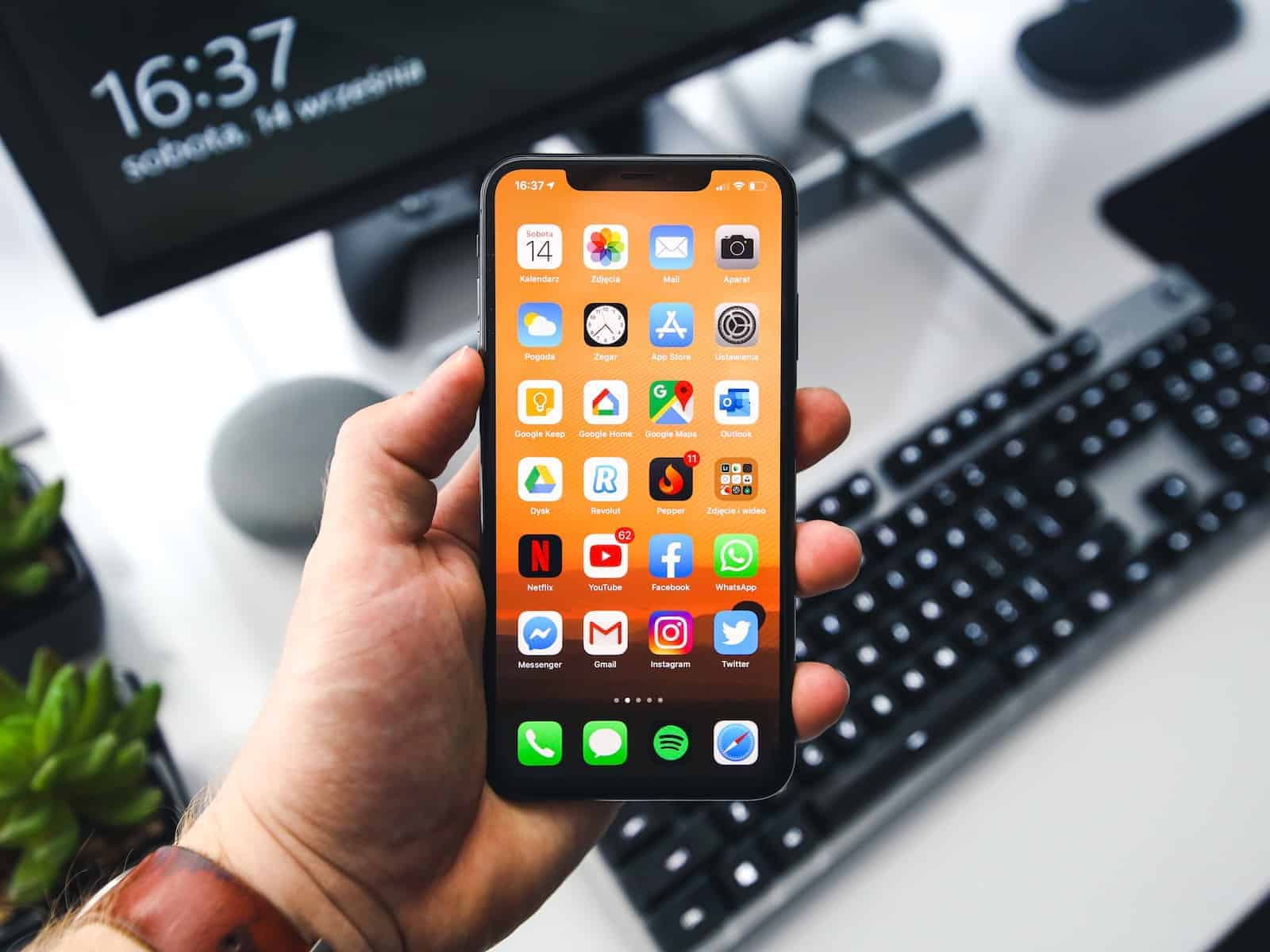
Customizing your iPhone’s Home Screen helps create a clean, minimal aesthetic. iOS 18 introduces a built-in feature that lets users hide app, widget, and folder names directly from the Home Screen settings. This new capability eliminates the need for complex Unicode character workarounds used in previous iOS versions.
The ability to remove text labels from apps and folders pairs perfectly with iOS 18’s new feature that allows users to place icons anywhere on the screen. Users can now design their ideal Home Screen layout without visual clutter or text interference.
Apple’s latest update streamlines iPhone personalization by integrating these features natively into the operating system. This change marks a significant improvement over previous methods that required third-party apps or special character tricks to achieve similar results.
How To Hide App Folder Names on iPhone & iPad
If you prefer a cleaner, minimalist look on your iPhone or iPad home screen, hiding app folder names is a great way to reduce clutter. While iOS doesn’t offer a direct toggle to hide folder names, you can use a simple trick to make the folder name appear invisible.
Method: Use a Blank Folder Name
Step 1: Copy a Blank Character
- On your iPhone or iPad, open this invisible character between the brackets:
[⠀] - Tap and hold inside the brackets to select the blank space.
- Choose Copy.
Note: This blank character is a special Unicode space that iOS treats as empty.
Step 2: Rename the Folder
- Go to your home screen and open the folder whose name you want to hide.
- Tap and hold the folder name to edit it.
- Delete the existing folder name.
- Paste the blank character you copied earlier.
- Tap Done or simply exit the folder.
Step 3: Enjoy Your Clean Folder
- The folder name will now appear blank, effectively hidden.
- You can still identify folders by their app icons.
Additional Tips
- This method works on iOS 16, iOS 17, and iOS 18.
- You can also use this trick for folder names on iPadOS.
- To revert, simply rename the folder with your desired text.
- This does not hide app names inside the folder or on the home screen icons.
Alternative: Hide App Names on Home Screen (iOS 18+)
- Starting with iOS 18, Apple introduced an official option to hide app names on the home screen, including folders.
- To enable, long-press the home screen, tap Edit Home Screen, and toggle off Show App Names.
- This hides names for apps, folders, and widgets for a cleaner look.
Summary
While iOS doesn’t natively allow hiding folder names, using a blank Unicode character as the folder name is a simple and effective workaround. With iOS 18 and later, you can also hide app and folder names directly via system settings for an even cleaner home screen.
Key Takeaways
- iOS 18 adds native support for hiding app and folder names on iPhone and iPad
- Users can now create cleaner Home Screen layouts without text labels
- The feature integrates seamlessly with flexible icon placement options
Customizing App and Folder Visibility
iOS 18 introduces official features to hide app names and create cleaner home screen layouts, moving beyond the previous workarounds required in iOS 17.
Utilizing iOS and iPadOS Features
The iOS 18 Settings app offers direct controls to hide app, folder, and widget names. Users can access these options through the Home Screen settings menu with a simple toggle switch.
App icons can be resized through Display Zoom settings. Larger icons automatically hide their names, creating a cleaner aesthetic.
The App Library lets users remove apps from the Home Screen while keeping them accessible through search. This reduces visual clutter without losing functionality.
Advanced Customization Techniques
The Shortcuts app enables custom app icons without visible names. Users can create new shortcuts for their apps and set blank spaces as the shortcut names.
Unicode Methods:
- Insert Braille blank spaces in folder names
- Copy and paste invisible characters
- Use empty Unicode characters
Custom widgets can be created without labels using third-party widget makers. These complement the nameless app layout for a minimal design.
The combination of hidden names and flexible icon placement creates unique Home Screen designs. Users can position their apps anywhere on screen without text labels interfering with the layout.
Frequently Asked Questions
Hidden folders and invisible names create a cleaner interface on mobile devices and computers, with multiple methods available across different operating systems.
How can I create a folder with no name on an iPhone?
Users can create an invisible folder name by copying and pasting a blank Unicode character. The Braille blank space character works effectively for this purpose.
This method works on iOS 17 and earlier versions without requiring additional software.
What are some creative folder naming strategies for organizing apps?
Single emojis make distinctive folder names while keeping the interface clean.
Numbers or letters can create an alphabetical or numerical system for quick access.
Color-themed emojis help group similar apps visually without text labels.
Is it possible to have a folder without a name on Windows 10?
Windows 10 does not support completely blank folder names by default.
A single space or special character can create a minimalist folder name appearance.
How can I remove the text from app folder names in iOS 18?
iOS 18 includes a built-in feature to hide app, folder, and widget names on the Home Screen.
This official feature works on both iPhone and iPad with iPadOS 18.
What steps should I follow to make folder names invisible on Windows 11?
Right-click the folder and select “Rename” to modify the label.
Moving folders into less visible locations helps reduce visual clutter on the desktop.
Custom organization tools provide additional options for hiding folder names.
Are there ways to hide app folder labels on an iPhone?
The invisible Unicode character method works on current iOS versions.
iOS 18 adds native support for hiding folder labels without workarounds.
Third-party customization apps offer additional folder labeling options.