
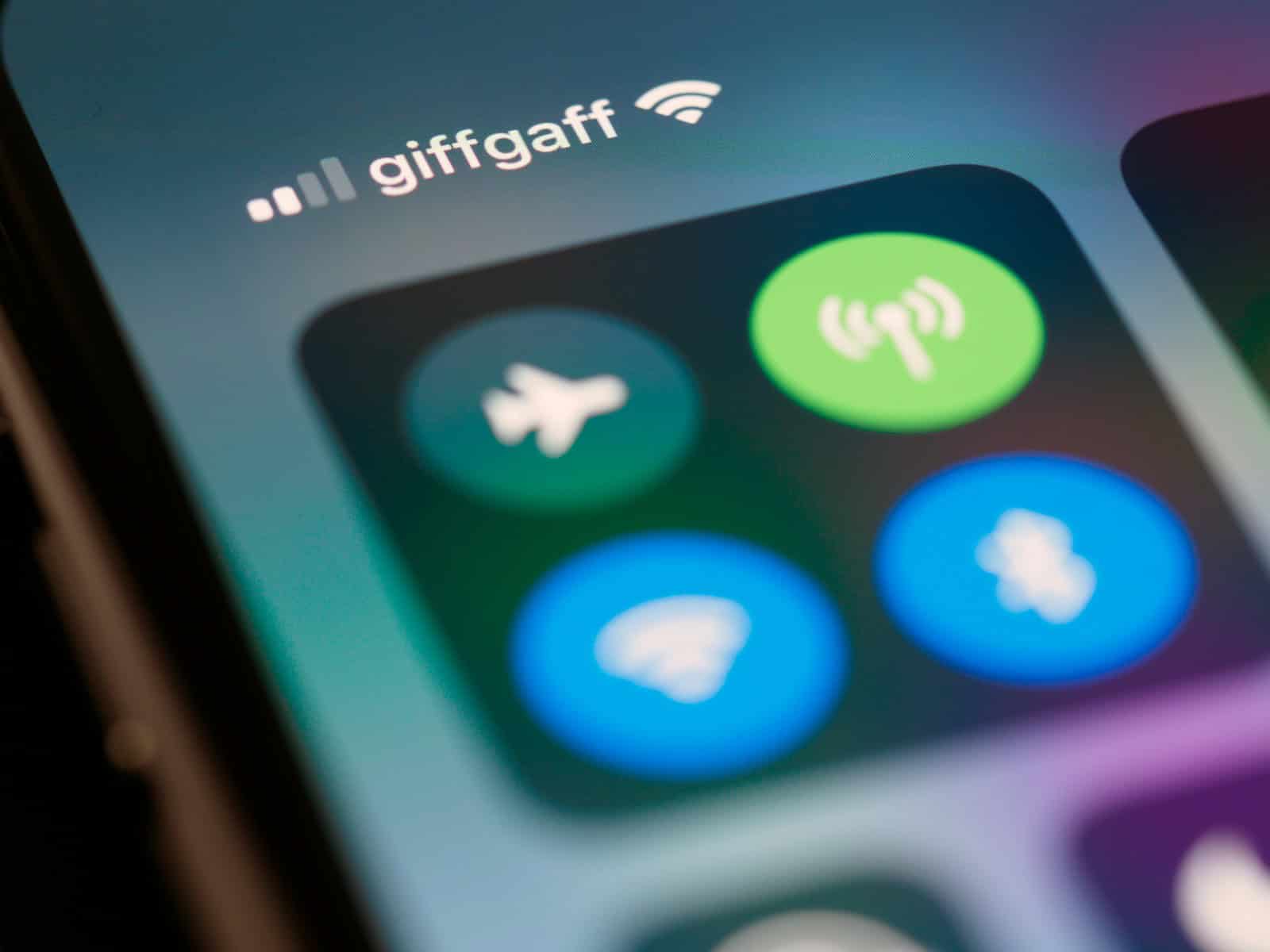
Bluetooth issues on your iPhone can be frustrating. Your devices won’t connect, music won’t play, or calls don’t go through. To fix Bluetooth problems on your iPhone, start by toggling Bluetooth off and on in the Control Center or Settings app.
If that quick fix doesn’t work, try forgetting and re-pairing your Bluetooth devices. Go to Settings > Bluetooth, tap the “i” icon next to a device, and select “Forget This Device.” Then put the accessory in pairing mode and reconnect it to your iPhone.
Updating your iPhone’s software can also resolve Bluetooth bugs. Apple often releases patches for Bluetooth issues in iOS updates. Check Settings > General > Software Update to install the latest version.
| Quick Bluetooth Fixes | How to Do It |
|---|---|
| Toggle Bluetooth | Control Center or Settings |
| Forget/Re-pair Device | Settings > Bluetooth |
| Update iOS | Settings > General > Software Update |
Bluetooth Not Working on iPhone
Bluetooth connectivity issues on iPhone can be frustrating, especially when you rely on wireless headphones, car systems, or other accessories. Whether your Bluetooth won’t turn on, won’t connect to devices, or keeps disconnecting, this comprehensive guide will help you diagnose and fix the problem.
Common Bluetooth Issues on iPhone
- Bluetooth won’t turn on or is grayed out
- Can’t pair with Bluetooth accessories
- Devices connect but then immediately disconnect
- Audio quality is poor or choppy
- Bluetooth devices keep forgetting pairings
- Connection drops frequently
- Accessories don’t show up in available devices list
Quick Fixes to Try First
1. Toggle Bluetooth Off and On
The simplest solution often works:
- Open Settings > Bluetooth.
- Toggle Bluetooth off, wait 10 seconds, then toggle it back on.
- Or use Control Center: swipe down (iPhone X and later) or up (iPhone 8 and earlier) and tap the Bluetooth icon.
2. Restart Your iPhone
A simple restart can resolve temporary software glitches:
- iPhone 8 and later: Press Volume Up, then Volume Down, then hold the Side button until the Apple logo appears.
- iPhone 7/7 Plus: Hold Volume Down + Side button until Apple logo appears.
- iPhone 6s and earlier: Hold Home + Power button until Apple logo appears.
3. Restart Your Bluetooth Accessory
- Turn off the accessory completely.
- Wait 10-15 seconds.
- Turn it back on and try reconnecting.
- Check if the accessory needs charging.
4. Check Distance and Obstructions
- Keep your iPhone and Bluetooth device within 30 feet (10 meters).
- Remove physical obstructions between devices.
- Avoid interference from Wi-Fi routers, microwaves, or other wireless devices.
Advanced Troubleshooting Steps
5. Forget and Re-Pair the Device
If you’re having issues with a specific accessory (source: Apple Support):
- Go to Settings > Bluetooth.
- Tap the (i) icon next to the problematic device.
- Select Forget This Device.
- Confirm by tapping Forget Device.
- Put your accessory in pairing mode (check manufacturer instructions).
- Wait for it to appear under “Other Devices” and tap to pair.
6. Update iOS
Outdated software can cause Bluetooth problems (source: Apple Discussions):
- Go to Settings > General > Software Update.
- If an update is available, tap Download and Install.
- Many users report Bluetooth issues after iOS updates that are later fixed in subsequent patches.
7. Reset Network Settings
This clears all network-related settings including Bluetooth pairings (source: Apple Discussions):
- Go to Settings > General > Transfer or Reset iPhone > Reset.
- Select Reset Network Settings.
- Enter your passcode and confirm.
- Your iPhone will restart.
- Note: This will erase saved Wi-Fi passwords, VPN settings, and Bluetooth pairings.
8. Disable and Re-enable Bluetooth from Settings
Different from Control Center:
- Open Settings > Bluetooth.
- Completely turn off Bluetooth.
- Restart your iPhone.
- Turn Bluetooth back on from Settings.
9. Check for Accessibility Settings Conflicts
Certain accessibility features can interfere with Bluetooth:
- Go to Settings > Accessibility > Touch.
- Check if Call Audio Routing is set appropriately.
- Try toggling Auto-Answer Calls off temporarily.
10. Disable Wi-Fi Temporarily
Wi-Fi and Bluetooth use similar frequencies and can sometimes interfere:
- Turn off Wi-Fi in Settings > Wi-Fi.
- Try connecting your Bluetooth device.
- Turn Wi-Fi back on after successful connection.
Specific Issue Solutions
Bluetooth Grayed Out or Won’t Turn On
This often indicates a software or hardware issue (source: Apple Discussions):
- Force restart your iPhone (see instructions above).
- Reset Network Settings (Settings > General > Reset > Reset Network Settings).
- Update iOS to the latest version.
- Restore iPhone using iTunes/Finder as a last resort.
- If still grayed out, contact Apple Support as this may be a hardware issue.
Bluetooth Connects Then Immediately Disconnects
Common after iOS updates (source: Apple Discussions):
- Forget the device and re-pair it.
- Check if the accessory needs a firmware update.
- Reset Network Settings.
- Ensure your accessory is charged adequately.
- Test with another device to confirm the accessory works properly.
Can’t Connect to CarPlay
CarPlay connection issues require specific steps (source: Apple Discussions):
- Forget the car’s Bluetooth connection on your iPhone.
- Delete the iPhone from your car’s Bluetooth settings.
- Restart your iPhone and car infotainment system.
- Re-pair the devices starting fresh.
- Check if your car manufacturer has any software updates.
Apple Watch Disconnects Frequently
If your Apple Watch keeps disconnecting (source: Apple Discussions):
- Unpair and re-pair your Apple Watch.
- Update both iPhone and Apple Watch to latest versions.
- Reset Network Settings on iPhone.
- Ensure both devices have sufficient battery.
Hearing Aids Won’t Stay Connected
For hearing aid connectivity issues (source: Apple Discussions):
- Reboot your hearing aids by turning them off and on.
- Forget and re-pair in Settings > Accessibility > Hearing Devices.
- Keep iPhone and hearing aids close together during pairing.
- Check with your audiologist for hearing aid firmware updates.
iOS 18-Specific Bluetooth Issues
Many users have reported Bluetooth problems after updating to iOS 18.x (source: Apple Discussions):
Known Issues:
- Devices disconnecting and reconnecting repeatedly
- CarPlay refusing to connect
- Accessories requiring constant re-pairing
- Apple Watch connectivity problems
Solutions:
- Wait for Apple’s patch update (often addressed in .1 or .2 releases).
- Reset Network Settings as a temporary fix.
- Check Apple’s System Status page for known issues.
- Report issues to Apple through Feedback app or Support.
Troubleshooting Table
| Issue | Quick Fix | Advanced Fix |
|---|---|---|
| Won’t turn on | Restart iPhone | Reset Network Settings, Update iOS |
| Won’t pair | Forget & re-pair device | Check accessory compatibility, Update firmware |
| Keeps disconnecting | Toggle Bluetooth off/on | Forget device, Reset Network Settings |
| Grayed out | Force restart | Restore iPhone, Contact Apple Support |
| Poor audio quality | Move closer, reduce interference | Forget & re-pair, Check for updates |
| CarPlay issues | Restart both devices | Delete all pairings, Start fresh |
| After iOS update | Restart iPhone | Wait for patch update, Reset Network Settings |
When to Contact Apple Support
Contact Apple Support or visit an Apple Store if (source: Apple Support):
- Bluetooth remains grayed out after all troubleshooting.
- The accessory manufacturer confirmed the accessory works correctly with other devices.
- Hardware diagnostics indicate a Bluetooth hardware failure.
- Issues persist after restoring iPhone to factory settings.
- Your iPhone is still under warranty or AppleCare+.
Contact Options:
- Visit Apple Support
- Make a Genius Bar appointment at an Apple Store
- Call Apple Support directly
- Use the Apple Support app
Preventive Tips
Keep Everything Updated
- Update iOS regularly to get Bluetooth bug fixes.
- Update accessory firmware when available.
Manage Paired Devices
- Remove old or unused Bluetooth pairings.
- Keep your paired device list manageable (under 10 devices).
Battery Health
- Low battery on iPhone or accessories can cause connection issues.
- Charge devices adequately before troubleshooting.
Environmental Awareness
- Be aware of interference sources (microwaves, Wi-Fi routers, other Bluetooth devices).
- Maintain reasonable distance between devices.
Testing if the Problem is Your iPhone or Accessory
To determine whether the issue is with your iPhone or the Bluetooth accessory:
- Test the accessory with another device (another iPhone, iPad, or Android device).
- If it works: Problem is likely with your iPhone.
- If it doesn’t work: Problem is with the accessory.
- Test your iPhone with another Bluetooth device.
- If other devices connect fine: Problem is with the specific accessory.
- If no devices connect: Problem is with your iPhone’s Bluetooth.
Summary: Step-by-Step Troubleshooting Flow
- ✅ Toggle Bluetooth off/on
- ✅ Restart iPhone
- ✅ Restart Bluetooth accessory
- ✅ Check distance and interference
- ✅ Forget and re-pair device
- ✅ Update iOS
- ✅ Reset Network Settings
- ✅ Test with other devices
- ✅ Contact Apple Support if issue persists
Conclusion
Bluetooth issues on iPhone can often be resolved with simple troubleshooting steps like restarting devices, forgetting and re-pairing, or resetting network settings (source: Apple Discussions). If you’re experiencing problems after an iOS update, a patch is usually released within weeks to address connectivity issues.
For persistent problems that resist all troubleshooting, especially if Bluetooth is grayed out or won’t turn on at all, contact Apple Support as this may indicate a hardware defect requiring professional repair (source: Apple Support).
Initial Troubleshooting Steps
When your iPhone’s Bluetooth isn’t working, try these simple fixes first:
Enable Bluetooth
Open Settings and tap Bluetooth. Make sure the toggle is on. If it’s already on, turn it off and on again.Restart your iPhone
Press and hold the power button until “slide to power off” appears. Slide to turn off. Wait 30 seconds. Press the power button to restart.Check Airplane Mode
Ensure Airplane Mode is off in Settings or Control Center. If on, turn it off and wait a few seconds for Bluetooth to reconnect.Forget and reconnect devices
Go to Settings > Bluetooth. Tap the “i” icon next to a device and select “Forget This Device”. Then reconnect.Reset network settings
This will erase saved Wi-Fi passwords. Go to Settings > General > Reset > Reset Network Settings.
| Common Issues | Quick Fixes |
|---|---|
| Device not found | Toggle Bluetooth off/on |
| Can’t connect | Forget device and re-pair |
| Intermittent connection | Restart iPhone |
| No sound | Check volume and output |
If these steps don’t work, you may need to update iOS or contact Apple Support for further assistance.
Resolving Bluetooth Connection Issues
Fixing Bluetooth problems on your iPhone often requires a series of troubleshooting steps. These methods can help restore connectivity and get your devices paired again.
Forget Bluetooth Device
When your iPhone won’t connect to a Bluetooth accessory, try removing the device from your saved list. This process clears any cached data that might be causing issues.
- Open the Settings app on your iPhone
- Tap Bluetooth
- Find the problematic device in the list
- Tap the “i” icon next to its name
- Select “Forget This Device”
- Confirm your choice
After forgetting the device, turn off Bluetooth on your iPhone. Wait about 30 seconds, then turn it back on. Now attempt to pair your Bluetooth accessory again. This fresh start often resolves connection problems.
Reset Network Settings
If forgetting the device doesn’t work, resetting your network settings can fix deeper Bluetooth issues. This step clears all network-related settings, including Wi-Fi passwords and VPN configurations.
To reset network settings:
- Go to Settings > General > Transfer or Reset iPhone
- Tap “Reset”
- Choose “Reset Network Settings”
- Enter your passcode if prompted
- Confirm the reset
After the reset, your iPhone will restart. You’ll need to reconnect to Wi-Fi networks and pair your Bluetooth devices again. This clean slate often resolves persistent Bluetooth connection problems.
Update iOS
Outdated software can cause Bluetooth connectivity issues. Updating your iPhone’s operating system can fix bugs and improve compatibility with accessories.
To check for and install updates:
- Connect your iPhone to Wi-Fi and a power source
- Go to Settings > General > Software Update
- If an update is available, tap “Download and Install”
- Follow the on-screen instructions
Updates can take some time to download and install. Once complete, try connecting your Bluetooth devices again. New iOS versions often include fixes for Bluetooth-related problems.
| Troubleshooting Step | Difficulty | Time Required |
|---|---|---|
| Forget Bluetooth Device | Easy | 2-5 minutes |
| Reset Network Settings | Moderate | 5-10 minutes |
| Update iOS | Easy | 15-30 minutes |
Advanced Troubleshooting Techniques
When basic fixes don’t resolve Bluetooth issues on your iPhone, try these more advanced methods. They can help solve persistent connectivity problems and get your devices paired properly.
Pairing with Different Bluetooth Accessory
If your iPhone won’t connect to a specific Bluetooth device, try pairing it with a different accessory. This can help determine if the problem lies with your iPhone or the original device.
Start by turning off Bluetooth in the Control Center. Wait 30 seconds, then turn it back on. Now attempt to pair your iPhone with another Bluetooth device you know works well.
If the new device connects successfully, the issue likely lies with the original accessory. Try resetting that device or checking its manual for troubleshooting steps.
If your iPhone still won’t pair, the problem may be with your phone’s Bluetooth system. In this case, you might need to reset your network settings or update iOS.
| Troubleshooting Step | Purpose |
|---|---|
| Pair with new device | Isolate the problem |
| Reset network settings | Fix iPhone Bluetooth system |
| Update iOS | Resolve software bugs |
Contact Apple Support
When all else fails, reaching out to Apple Support can provide expert assistance for stubborn Bluetooth issues. They have access to diagnostic tools and in-depth knowledge of iPhone systems.
You can contact Apple Support through multiple channels. The Apple Support app on your iPhone offers a convenient way to chat with a representative or schedule a call.
For complex problems, booking an appointment at an Apple Store or Authorized Service Provider might be best. They can run hardware diagnostics to check for any physical issues with your iPhone’s Bluetooth components.
Be prepared to provide details about your iPhone model, iOS version, and the specific Bluetooth devices you’re having trouble with. This information helps support staff provide more targeted assistance.
Tips for Maintaining Bluetooth Connectivity
Keep your iPhone’s Bluetooth running smoothly with these simple tips:
- Update iOS regularly
- Stay within range
- Reduce interference
- Restart devices
- Clear Bluetooth cache
Update your iPhone to the latest iOS version. This often fixes Bluetooth issues and improves connectivity.
Stay within 30 feet of your Bluetooth device. Walls and objects can reduce this range.
Avoid interference from other wireless devices. Move away from Wi-Fi routers microwave ovens and cordless phones.
Restart your iPhone and Bluetooth device. This can resolve many connection problems.
Clear your Bluetooth cache by forgetting devices and re-pairing them.
| Device Type | Max Range | Typical Battery Life |
|---|---|---|
| Headphones | 30 feet | 4-20 hours |
| Speakers | 33 feet | 8-24 hours |
| Car Systems | 30 feet | N/A (vehicle power) |
To turn on Bluetooth go to Settings > Bluetooth or use Control Center. Ensure your device is in pairing mode when connecting.
Keep your Bluetooth devices charged. Low battery can cause connection issues.
Avoid connecting too many devices at once. This can overload your iPhone’s Bluetooth capabilities.
Frequently Asked Questions
Bluetooth connectivity issues on iPhones can be frustrating. These common questions address typical problems and provide solutions to get your devices working together again.
How can I troubleshoot connection issues between my iPhone and other Bluetooth devices?
Start by turning Bluetooth off and on in the Control Center. If that doesn’t work, restart your iPhone and the Bluetooth device. Check if both devices are charged and within range.
What steps should I take if my iPhone isn’t discovering nearby Bluetooth devices?
Ensure the Bluetooth device is in pairing mode. Open Settings > Bluetooth and tap “Scan for Devices.” If it still doesn’t appear, reset your iPhone’s network settings.
Are there any known Bluetooth connectivity problems with recent iPhone models?
Recent iOS updates have addressed many Bluetooth issues. However, some users report intermittent connection problems. Keeping your iPhone updated to the latest iOS version can help resolve these issues.
How do I reset my iPhone’s Bluetooth to resolve pairing issues?
Go to Settings > General > Reset > Reset Network Settings. This will clear all saved Bluetooth connections. You’ll need to re-pair your devices afterward.
What should I do if my iPhone’s Bluetooth is not connecting to my car’s audio system?
First, check if your car’s audio system is compatible with your iPhone. Try forgetting the car’s Bluetooth connection on your iPhone and re-pairing. If issues persist, consult your car’s manual for specific troubleshooting steps.
Why might Bluetooth functionality stop working on my iPhone and how can I fix it?
Bluetooth issues can stem from software glitches or outdated iOS versions. Try force restarting your iPhone. If problems continue, back up your data and perform a factory reset as a last resort.
| Troubleshooting Step | Description | Difficulty |
|---|---|---|
| Toggle Bluetooth | Turn off/on in Control Center | Easy |
| Restart Devices | Power cycle iPhone and accessory | Easy |
| Forget/Re-pair | Remove device and pair again | Moderate |
| Reset Network | Clear all network settings | Moderate |
| Update iOS | Install latest iPhone software | Easy |
| Factory Reset | Erase all content and settings | Difficult |





