
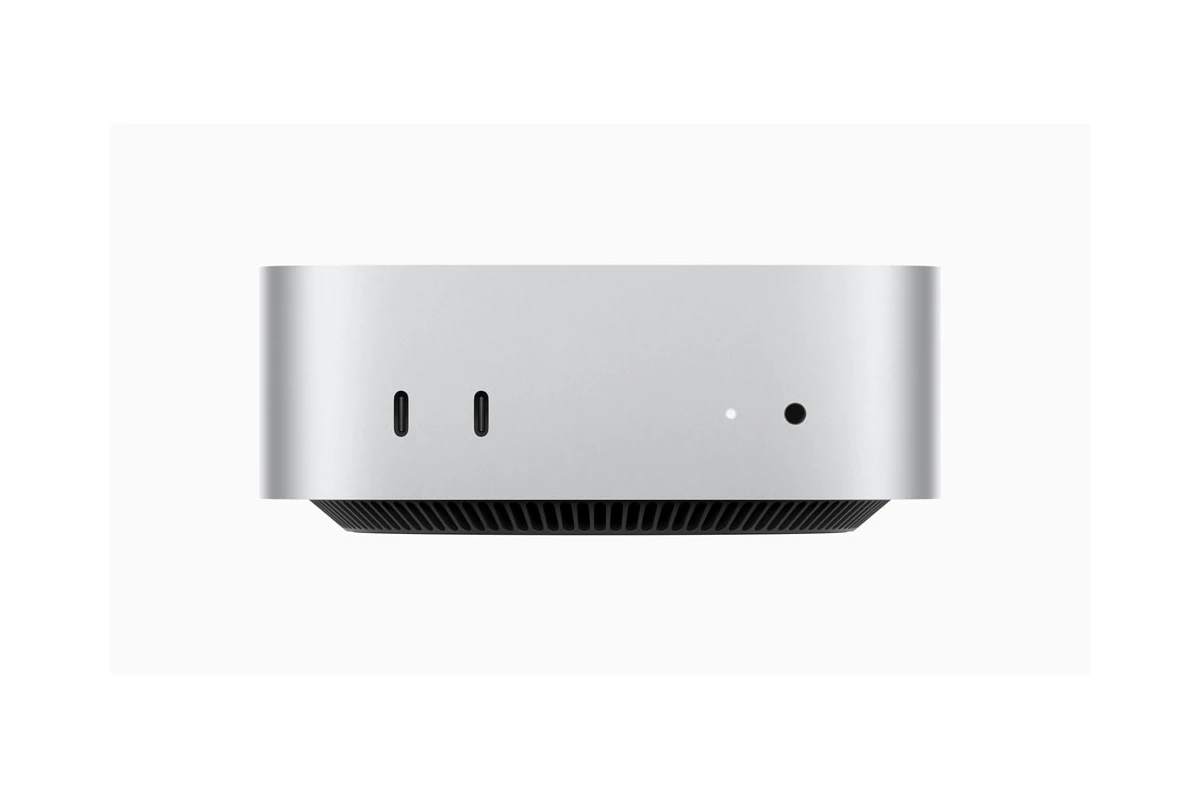
The Mac mini has long been a favorite for those seeking a compact yet powerful desktop computer. Apple’s latest M4 chip upgrade brings significant improvements to this beloved machine. The new M4 Mac mini offers 50% faster CPU performance compared to its M2 predecessor, making it an attractive option for users who need more computing power.
You might wonder if upgrading your current Mac mini is worth it. The M4 chip’s enhanced capabilities open up new possibilities for tasks like video editing, 3D rendering, and running complex software. Plus, the Mac mini’s small footprint remains unchanged, allowing you to enjoy increased performance without sacrificing desk space.
Apple has kept the pricing competitive, with the standard M4 Mac mini starting at $599. This makes it an accessible entry point into the world of Apple Silicon for many users. If you need even more power, the M4 Pro variant is available starting at $1,399.
| Feature | M2 Mac mini | M4 Mac mini |
|---|---|---|
| CPU Performance | Base | 50% faster |
| Starting Price | $599 | $599 |
| Chip Technology | 5nm | 3nm |
| RAM Options | Up to 24GB | Up to 32GB |
Mac mini (M4 or M4 Pro) Upgrade Options: Complete Guide
The 2024 Mac mini with M4 and M4 Pro chips represents a significant shift in Apple’s approach to upgradability. For the first time in years, Apple has made one component user-accessible and upgradeable: the internal SSD storage. This guide covers everything you need to know about upgrading your Mac mini, what’s possible, what’s not, and how to maximize your investment.
What Can Be Upgraded?
Storage (SSD) – USER UPGRADEABLE ✅
The M4 Mac mini came with a surprise—a slotted and upgradeable SSD (source: AppleInsider). This marks the return of upgradeable storage in Apple’s Mac mini lineup, earning it a respectable 7 out of 10 provisional repairability score from iFixit (source: iFixit).
What This Means:
- Both M4 and M4 Pro models use replaceable, socketed storage modules
- You can upgrade from Apple’s base storage configurations to larger capacities
- Third-party upgrade options are available and significantly cheaper than Apple’s pricing
Memory (RAM) – NOT UPGRADEABLE ❌
The RAM is soldered directly to the M4 or M4 Pro chip and cannot be upgraded after purchase. This is standard for Apple Silicon Macs due to the unified memory architecture that provides performance benefits.
Processor – NOT UPGRADEABLE ❌
The M4 or M4 Pro chip is permanently integrated into the logic board and cannot be upgraded or replaced.
Why Upgrade the SSD?
Massive Cost Savings
Apple charges premium prices for storage upgrades:
- 256GB to 512GB: $200 upgrade
- 256GB to 1TB: $400 upgrade
- 256GB to 2TB: $800 upgrade
By purchasing a base model and upgrading yourself, you can save hundreds of dollars. For example, upgrading from 256GB to 2TB yourself can cost around $270-400 instead of Apple’s $800 (source: 9to5Mac).
Flexibility
You can choose the exact storage capacity you need without being limited to Apple’s configuration options.
Future-Proofing
Even if you don’t need extra storage now, knowing you can upgrade later provides peace of mind.
Understanding Mac mini Storage Options
Apple’s NAND Flash Modules
The Mac mini doesn’t use standard M.2 NVMe SSDs. Instead, it uses proprietary NAND flash storage modules that connect via a socket on the logic board. These are the same type Apple uses in other Macs, but the socket makes them removable.
Compatible Storage Modules
Several manufacturers now offer compatible storage modules:
- OWC (Other World Computing)
- Offers upgrade kits specifically for M4 Mac mini
- Available in various capacities up to 2TB or more
- Includes necessary tools and instructions
- ExpandMacMini
- Specialized in Mac mini storage upgrades
- M4 Pro upgrade kits recently became available (source: Jeff Geerling)
- Initially priced around $269 for 2TB kits
- Third-Party NAND Modules
- Various manufacturers produce compatible modules
- Prices vary by capacity and brand
- Ensure compatibility before purchasing
How to Upgrade the Mac mini SSD
Important Disclaimer: Opening your Mac mini and upgrading the SSD will likely void your warranty. Proceed at your own risk. If you’re uncomfortable with this process, consider purchasing the configuration you need from Apple or having a professional perform the upgrade.
Tools You’ll Need
- P5 Pentalobe screwdriver (for bottom cover)
- T5 Torx screwdriver (for internal screws)
- Plastic pry tools or spudger
- Anti-static wrist strap (recommended)
- Small container for screws
- Compatible SSD module
Step-by-Step Installation Process
1. Prepare Your Workspace
- Work on a clean, flat surface
- Ground yourself to prevent static discharge
- Have good lighting
- Keep track of all screws (they’re tiny!)
2. Power Down and Disconnect
- Shut down your Mac mini completely
- Unplug the power cable
- Disconnect all peripherals
- Wait 5-10 minutes for internal components to cool
3. Open the Mac mini
- Turn the Mac mini upside down
- Use the P5 Pentalobe screwdriver to remove the bottom cover screws
- Carefully lift off the bottom cover
- You should see the logic board and components
4. Locate the Storage Module
- The storage module is usually clearly visible
- It’s a rectangular module with a connector socket
- On M4 models, it’s easily accessible
- On M4 Pro models, the process is similar (source: Jeff Geerling)
5. Remove the Existing Module
- Remove any screws securing the storage module (typically T5 Torx)
- Gently release the locking mechanism (if present)
- Carefully pull the module straight out from the socket
- Avoid touching the gold contacts
6. Install the New Module
- Align the new storage module with the socket
- Insert it at the correct angle (usually about 30 degrees)
- Press down firmly but gently until seated
- Secure with screws
- Ensure the module is properly seated
7. Reassemble the Mac mini
- Replace the bottom cover
- Reinstall all screws
- Turn the Mac mini right-side up
- Reconnect power (but not yet peripherals)
Formatting and Installing macOS
After installing the new SSD, it needs to be formatted and have macOS installed:
1. Enter Recovery Mode
- Connect keyboard and display
- Power on the Mac mini
- Immediately press and hold the power button
- Keep holding until you see “Loading startup options”
- Click Options, then Continue
2. Use Disk Utility
- Select Disk Utility from the macOS Utilities window
- View > Show All Devices
- Select the new SSD
- Click Erase
- Name the drive (usually “Macintosh HD”)
- Format: APFS
- Scheme: GUID Partition Map
- Click Erase
3. Install macOS
- Quit Disk Utility
- Select “Reinstall macOS” from the Utilities window
- Follow the on-screen prompts
- Select your newly formatted drive as the destination
- Wait for installation to complete (can take 30-60 minutes)
4. Set Up Your Mac
- Complete the setup assistant
- Restore from Time Machine backup (if available)
- Or set up as a new Mac
Performance Expectations
Speed Considerations
Apple’s Storage:
- Optimized for M4/M4 Pro chips
- Fast read/write speeds
- Consistent performance
Third-Party Storage:
- Performance varies by manufacturer
- Most offer comparable speeds to Apple’s modules
- Some budget options may be slightly slower
- Premium third-party options can match or exceed Apple’s performance (source: AppleInsider)
Real-World Impact
For most users, the performance difference between Apple and quality third-party storage is negligible in daily use. You’ll save significant money with minimal real-world performance impact.
Best SSD Options for Mac mini M4
Here are some top-rated storage solutions for the M4 Mac mini (source: SSD Buddy):
Internal Upgrade Modules
1. OWC Aura Pro X2
- Capacities: 480GB, 1TB, 2TB
- High performance
- Includes tools and instructions
- Solid warranty
2. Transcend JetDrive
- Good value option
- Reliable performance
- Various capacity options
3. Generic Compatible Modules
- Lowest cost
- Performance varies
- Research thoroughly before purchasing
External Storage Solutions
If you’re not comfortable with internal upgrades, external storage can expand capacity:
1. Thunderbolt 4 External SSDs
- Near-internal storage speeds
- Easy to use
- No warranty concerns
- More expensive per GB
2. USB-C External Drives
- Wide range of options
- Slower than Thunderbolt but still fast
- Very affordable
3. Network Attached Storage (NAS)
- Great for shared storage
- Accessible by multiple devices
- Ideal for backups and media libraries
Upgrading the M4 Pro Mac mini
A few months after the M4 Mac mini launch, upgrade options became available for the M4 Pro model as well (source: Jeff Geerling). The process is similar to the base M4 model.
M4 Pro Specific Considerations:
- Initially, no upgrade kits were available
- Now available from vendors like ExpandMacMini
- Same general process as M4 model
- Can upgrade from 1TB to 2TB for approximately half the price of Apple’s upgrade
Configuration Recommendations
What to Order from Apple
Since RAM cannot be upgraded, order the maximum RAM you think you’ll need:
For M4 Mac mini:
- Base: 16GB (adequate for most users)
- Upgrade to 24GB if you do video editing, 3D work, or run many apps simultaneously
- 32GB maximum (for heavy professional use)
For M4 Pro Mac mini:
- Base: 24GB (good starting point)
- 48GB or 64GB for professional workloads
What to Upgrade Yourself
Order the base storage configuration (256GB or 512GB) and upgrade yourself to save money:
- 256GB base + DIY 2TB upgrade = ~$270-400 savings
- This is especially cost-effective for 1TB+ upgrades
Ideal Configurations
Budget-Conscious User:
- M4 with 16GB RAM (from Apple)
- 256GB storage (from Apple)
- Upgrade to 1TB later if needed (~$150-200)
Content Creator:
- M4 Pro with 24-32GB RAM (from Apple)
- 512GB storage (from Apple)
- DIY upgrade to 2TB+ (~$270-400)
- External Thunderbolt SSD for active projects
Professional User:
- M4 Pro with 48-64GB RAM (from Apple)
- 512GB storage (from Apple)
- DIY upgrade to 2TB+ internally
- NAS for archival storage
Warranty Considerations
Important Facts:
- Opening your Mac mini likely voids the limited warranty
- AppleCare+ may also be voided
- Apple may refuse service if they detect third-party components
- Keep the original storage module in case you need warranty service
Strategies:
- Wait until warranty expires to upgrade
- Purchase AppleCare+ but understand the risks
- Only upgrade if you’re confident in your skills
- Consider having a professional perform the upgrade
Common Questions
Can I use standard M.2 NVMe drives?
No, the Mac mini uses proprietary Apple NAND modules, not standard M.2 drives. You need Mac-specific modules.
Design and Physical Features
Apple’s latest Mac mini boasts a significant redesign. The new model features a more compact form factor and enhanced connectivity options while maintaining its sleek aesthetics.
External Ports and Connectivity
The redesigned Mac mini now measures 5×5 inches, making it smaller than its predecessor. This reduced footprint allows for easier placement in tight spaces. The device offers a variety of ports for versatile connectivity:
- 2x Thunderbolt 4 ports
- 2x USB-A ports
- HDMI port
- 3.5mm headphone jack
- Gigabit Ethernet (upgradable to 10Gb)
You’ll find improved wireless capabilities with Wi-Fi 6E and Bluetooth 5.3 support. These upgrades ensure faster and more stable connections for your peripherals and network devices.
Internal Specifications
The new Mac mini’s internals have been optimized for better performance and efficiency:
| Component | Specification |
|---|---|
| Processor | M4 chip (10-core CPU) |
| Graphics | 10-core GPU |
| Memory | Starting at 16GB unified memory |
| Storage | SSD options up to 2TB |
The M4 chip brings significant performance improvements. You can expect up to 6x faster performance compared to leading PC desktops in its price range. The unified memory architecture enhances overall system responsiveness and multitasking capabilities.
Apple has also refined the thermal design to maintain optimal performance during demanding tasks. This improvement allows for sustained high performance without throttling issues.
Performance and Upgrade Options
The Mac mini offers significant performance boosts and flexible upgrade paths. New processors and enhanced graphics capabilities provide improved speed for demanding tasks. Memory and storage options allow customization to suit various needs.
Processor and Graphics Capabilities
The M4 and M4 Pro chips in the latest Mac mini deliver substantial performance gains. The M4 offers up to 1.8x faster CPU performance and 2.2x faster GPU performance compared to the M1 model. This translates to smoother multitasking and quicker rendering for graphics-intensive applications.
The M4 Pro variant takes capabilities even further. It features additional performance and efficiency cores, enhancing both speed and power efficiency. The neural engine sees improvements too, boosting machine learning tasks.
For GPU-intensive work, the upgraded graphics processors handle complex visualizations and video editing with ease. Hardware-accelerated ray tracing support adds realism to 3D rendering projects.
Memory and Storage Expansion
Memory options for the Mac mini now extend up to 64GB with the M4 Pro model. This expanded RAM allows for seamless handling of large datasets and complex software.
Storage choices have also improved. You can configure your Mac mini with up to an 8TB SSD, providing ample space for large files and applications. For additional storage needs, external SSDs connect via Thunderbolt ports for high-speed data transfer.
| Model | Max RAM | Max SSD |
|---|---|---|
| M4 | 32GB | 4TB |
| M4 Pro | 64GB | 8TB |
These upgrades make the Mac mini a versatile and future-proof choice for both home and professional use. The expanded capabilities allow you to tackle more demanding tasks without needing to upgrade your entire system frequently.
Compatibility and Support
The Mac Mini (2023) offers extensive compatibility with various displays and peripherals. It supports a wide range of resolutions and connection types for monitors and accessories.
Display and Media Support
The Mac Mini (2023) supports up to two external displays. You can connect one 6K monitor at 60Hz via Thunderbolt and one 4K monitor at 60Hz through HDMI 2.1. This setup allows for impressive multi-monitor productivity.
For creative professionals, the Mac Mini’s media engine enables smooth 4K and 8K video editing. It handles ProRes and ProRes RAW codecs efficiently, enhancing workflow for video editors.
| Display Type | Maximum Resolution | Connection |
|---|---|---|
| 6K | 6016 x 3384 at 60Hz | Thunderbolt |
| 4K | 3840 x 2160 at 60Hz | HDMI 2.1 |
Networking and Peripheral Connection
The Mac Mini (2023) offers versatile connectivity options. It features two Thunderbolt 4 ports, supporting USB 4 and USB-C devices. These high-speed ports allow for fast data transfer and power delivery.
For networking, you can choose between Wi-Fi 6E or Gigabit Ethernet. An optional 10 Gigabit Ethernet port is available for users needing faster wired connections.
The device includes two USB-A ports for legacy peripherals. An HDMI port enables easy connection to TVs or projectors. A 3.5mm headphone jack supports high-impedance headphones.
Frequently Asked Questions
Mac mini upgrades can enhance performance and extend the device’s lifespan. Users often seek information on storage, memory, and software updates.
How can I upgrade the SSD on my Mac mini?
SSD upgrades for Mac mini models vary. M1 and M2 Mac minis have soldered SSDs, making internal upgrades impossible. For older models, you can replace the drive with a compatible SSD.
Third-party kits are available for some versions. Always check your specific model’s upgrade options before attempting any changes.
What are the RAM upgrade options for the Mac mini?
RAM upgrades depend on your Mac mini model. Newer M-series chips have unified memory that can’t be upgraded. Older Intel models often allow RAM upgrades.
Check your model’s specifications. Some versions support up to 64GB of RAM. Always use compatible memory modules for your Mac mini.
Can the storage of a Mac mini be upgraded after purchase?
Post-purchase storage upgrades for Mac minis are limited. M-series Mac minis don’t support internal storage upgrades.
For these models, external drives or cloud storage are your best options. Older Intel-based Mac minis may allow internal storage upgrades.
How do I update an older Mac mini to the latest macOS version?
To update your Mac mini:
- Click the Apple menu
- Select “System Preferences”
- Choose “Software Update”
Your Mac will check for available updates. If eligible, you can download and install the latest compatible macOS version.
What is the cost associated with upgrading a Mac mini?
Upgrade costs vary widely. Official Apple upgrades can be pricey. RAM upgrades from 8GB to 16GB might cost around $200.
Third-party solutions are often cheaper but may void warranties. External upgrades like USB hubs or drives offer more affordable options.
How frequently does Apple release updates or new models of the Mac mini?
Apple doesn’t follow a strict schedule for Mac mini updates. Major updates typically occur every 1-2 years.
The latest M2 Mac mini was released in January 2023. Software updates are more frequent, with macOS versions released annually.
| Upgrade Type | Frequency | Cost Range |
|---|---|---|
| Hardware Model | 1-2 years | $599 – $1299 |
| macOS Version | Yearly | Free |
| RAM (older models) | User choice | $50 – $200 |
| External Storage | User choice | $50 – $300 |





