
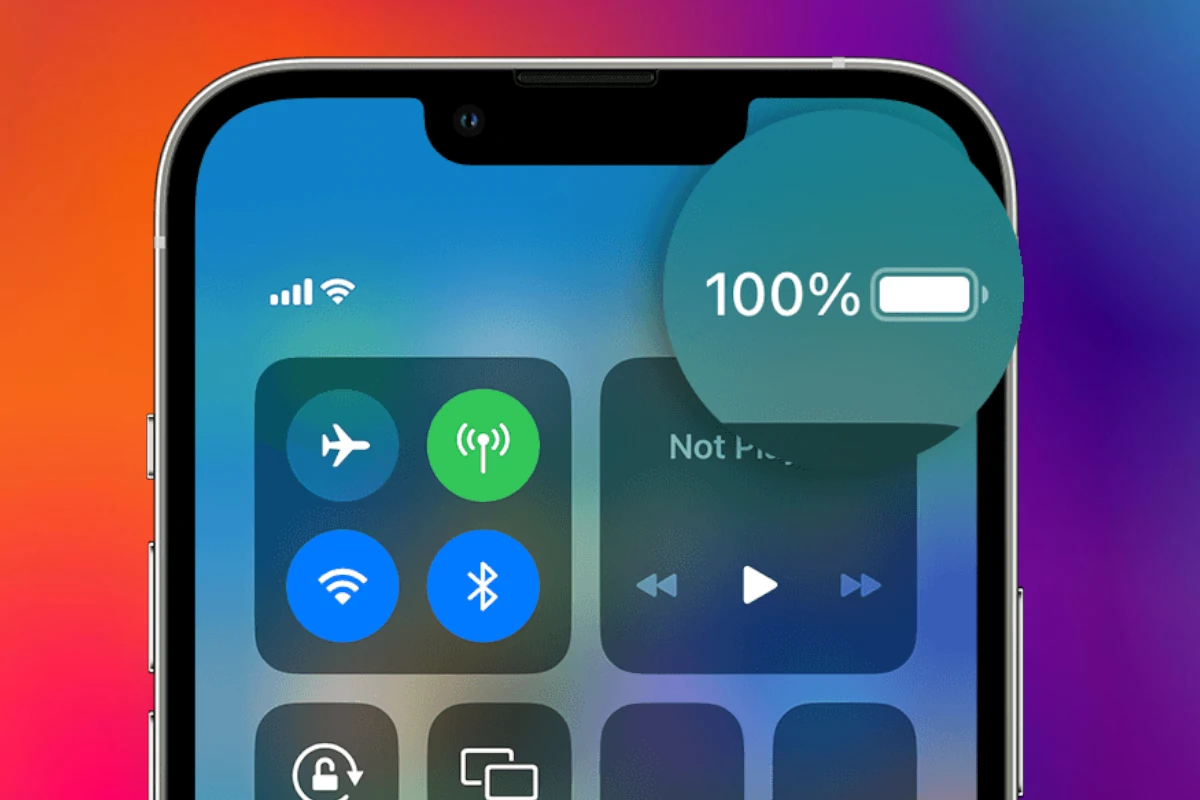
Looking for your iPhone battery level is easier than you might think. Apple offers a simple way to display the exact battery percentage on your iPhone, helping you track when it’s time to recharge. You can easily show battery percentage on iPhone by going to Settings > Battery and turning on Battery Percentage.
For iPhones with Face ID, the percentage appears inside the battery icon in the status bar once enabled. On older models without Face ID, the percentage shows up automatically next to the battery icon. If you can’t find this setting, you can always check the battery percentage by swiping down from the top-right corner to open Control Center.
Knowing your exact battery level helps you plan your day better and avoid unexpected shutdowns. With iOS 16 and newer versions, Apple made it even easier to display battery percentage on all iPhone models, fixing a complaint many users had with previous iOS versions.
Battery Percentage on iPhone: Guide
Knowing your iPhone’s exact battery percentage helps you manage your device’s power usage and avoid unexpected shutdowns. This guide explains how to view and display the battery percentage on various iPhone models and iOS versions.
How to Show Battery Percentage on iPhone
1. Using Control Center (All iPhones with Face ID)
On iPhones without a permanent battery percentage display in the status bar (iPhone X and later):
- Swipe down from the top-right corner of the screen to open Control Center.
- The battery percentage appears next to the battery icon in the top-right corner.
2. Enable Battery Percentage in Status Bar (iPhone SE, 8, and Earlier)
On iPhones with a Home button and smaller notch (iPhone SE 2022, iPhone 8, and earlier):
- Go to Settings > Battery.
- Toggle Battery Percentage to On.
- The exact percentage will show inside the battery icon in the status bar at the top of the screen.
3. Use Battery Widget (iOS 14 and Later)
You can add a battery widget to your Home Screen or Today View to see battery percentage for your iPhone and connected accessories:
- Long press on the Home Screen and tap the + icon in the top-left corner.
- Search for Batteries.
- Choose a widget size and tap Add Widget.
- Place it on your Home Screen or Today View.
- The widget shows the battery percentage of your iPhone and connected devices like AirPods.
Additional Tips
- Low Power Mode: When enabled (Settings > Battery > Low Power Mode), the battery icon turns yellow, but the percentage display remains the same.
- Battery Health: To check your battery’s maximum capacity and health, go to Settings > Battery > Battery Health & Charging.
- Charging Status: When charging, the battery icon fills up, and the percentage updates dynamically.
Summary Table
| iPhone Model/Feature | How to Show Battery Percentage |
|---|---|
| iPhone X and later (Face ID) | Swipe down Control Center (top-right corner) |
| iPhone SE (2022), 8, earlier | Settings > Battery > Toggle Battery Percentage |
| All iPhones (iOS 14+) | Add Batteries widget to Home Screen or Today View |
Troubleshooting
- If battery percentage is not showing after enabling it, try restarting your iPhone.
- Ensure your iOS is updated to the latest version for best functionality.
- If widgets are not updating, remove and re-add the Batteries widget.
Useful Links
- Apple Support: Show the iPhone battery percentage
- iPhoneLife: How to Show Battery Percentage in the iPhone Battery Widget
Key Takeaways
- Enable battery percentage display through Settings > Battery or view it by swiping down from the top-right corner.
- iPhone battery indicators show a more accurate percentage when enabled, helping you track power usage throughout the day.
- Following good charging habits between 20-80% can help maintain your iPhone battery health over time.
Understanding iPhone Battery Percentage
The iPhone battery percentage feature helps users keep track of their remaining power. It shows the exact amount of battery left and provides helpful insights into battery health over time.
Significance of Battery Icon
The battery icon on iPhones appears in the status bar and gives a quick visual of your battery level. With iOS 16, you can turn on battery percentage to see the exact number inside the battery icon. This makes it easier to monitor your power without opening Control Center.
On iPhones with Face ID, the percentage appears directly inside the battery symbol when enabled. For other models, it might show next to the icon.
To enable this feature, go to Settings > Battery and toggle on Battery Percentage. You can also add a Battery widget to your Home Screen for even quicker access.
The icon changes color to indicate different states:
- Green: Normal operation
- Yellow: Low Power Mode active
- Red: Battery critically low (under 20%)
Battery Health Indicators
iPhone batteries have a limited lifespan that affects how long they hold a charge. Apple measures this as “battery health” – the percentage of original capacity your battery retains.
A complete charge cycle counts when you use 100% of your battery’s capacity, even across multiple charges. iPhones normalize this between 80% and 100% of original capacity to account for normal degradation.
New iPhones actually start with about 106% capacity but show as 100% until they drop below that threshold. This explains why some users see 100% health for several months.
- Open Settings
- Tap Battery
- Select Battery Health & Charging
This screen shows maximum capacity percentage and whether your battery supports peak performance.
How to Check Battery Percentage on iPhone
Keeping track of your iPhone battery level is easy with several viewing options. You can quickly access this information through Control Center, the lock screen, or by adding a dedicated widget to your home screen.
Using Control Center
On newer iPhones with Face ID, the battery percentage isn’t always visible in the status bar. To check it using Control Center:
- Swipe down from the top-right corner of your screen
- Look at the top-right where the battery icon appears
- The percentage appears next to the battery icon
This method works on all iPhone models, but the swipe gesture differs. If you have an iPhone with a Home button, swipe up from the bottom of the screen instead to open Control Center.
For iPhone users with iOS 16 or newer, you can turn on the battery percentage to always appear in the status bar. Simply go to Settings > Battery and toggle on the Battery Percentage option.
On iPhone Lock Screen
Your iPhone lock screen provides a quick way to check battery status without unlocking your device.
When you wake your iPhone (by tapping the screen or pressing the side button), the battery icon appears in the top-right corner. On iPhone models with a Home button, the percentage appears next to the battery icon automatically.
For Face ID iPhones, you’ll see just the battery icon unless you’ve enabled the percentage display in settings or swipe down to view Control Center.
The lock screen is especially useful for quick battery checks without needing to open an app or navigate through menus.
Adding Battery Widget
For more detailed battery information, you can add a dedicated widget to your home screen:
- Press and hold on an empty area of your home screen
- Tap the “+” icon in the top-left corner
- Search for “Batteries” in the widget gallery
- Choose the size widget you prefer
- Tap “Add Widget” and position it where you want
The Batteries widget shows not only your iPhone’s battery level but also displays battery information for connected Apple devices like AirPods, Apple Watch, or other Apple products.
This widget updates in real-time and lets you monitor multiple devices at once. It’s particularly helpful if you use several Apple products and want to keep track of all their battery levels from one place.
Maximizing Battery Life and Longevity
Taking care of your iPhone battery helps it last longer each day and extends its overall lifespan. The right charging habits and settings can make a big difference in how long your battery stays healthy.
Optimizing Battery Charging
iPhones include a feature called Optimized Battery Charging that helps slow battery aging. This feature learns your daily routine and stops charging at 80% until you need to use your phone.
To turn it on:
- Open Settings
- Tap Battery
- Tap Battery Health & Charging
- Toggle on Optimized Battery Charging
This setting works best when you have regular charging patterns, like charging overnight. Your iPhone learns when you typically unplug and finishes charging just before you need it.
For iPhone 13 and newer models, check if your phone has the 80% charging limit option. This setting keeps your battery at 80% maximum, which greatly extends battery lifespan if you don’t need the full range.
Effective Charging Practices
The way you charge your iPhone affects its battery health. Try to keep your battery level between 20% and 80% for the best battery lifespan.
Avoid these battery-damaging habits:
- Letting the battery drain completely
- Leaving it plugged in at 100% for long periods
- Using non-Apple certified chargers
- Charging in extreme temperatures
Heat is especially bad for batteries. Remove your phone case while charging if it gets warm. Never leave your iPhone in hot cars or direct sunlight for long periods.
Wireless charging creates more heat than wired charging. If preserving battery health is important to you, stick with wired charging most of the time.
iOS Settings for Better Battery Preservation
Several iPhone settings can significantly improve battery life. Making these adjustments takes just a few minutes but helps your battery last much longer.
Key settings to adjust:
- Background App Refresh: Turn off for apps that don’t need updates
- Location Services: Set unnecessary apps to “While Using” or “Never”
- Push Email: Change to “Fetch” or manual for non-essential accounts
- Display Brightness: Lower it and use Auto-Brightness
- Focus Modes: Set up to block notifications during certain times
The Low Power Mode feature is also very helpful. It reduces background activity, mail fetch, and visual effects. You can add a Low Power Mode toggle to Control Center for quick access.
Always keep your iOS updated to benefit from Apple’s battery optimizations in newer software versions.
iOS Software Updates and Battery Management
Apple regularly improves how iPhones manage battery life through software updates. These updates can fix battery reporting issues and add new features to help users get more from their devices.
Impact of iOS Updates on Battery
iOS updates can significantly affect your iPhone’s battery performance. In iOS 14.5 and later, Apple introduced fixes for inaccurate battery health reporting that some users experienced. This update helped phones show more accurate battery health percentages.
Contrary to some beliefs, software updates cannot actually increase your battery health. The physical condition of your battery remains unchanged after an update. However, updates might change how the system calculates and displays battery health.
New iOS versions often include battery optimizations that help extend battery life. These improvements happen behind the scenes in how the system manages resources and background activities.
Some updates add new battery-saving features. For example, iOS 18 is expected to include more advanced power management tools that further extend battery life during daily use.
How to Update Your iPhone Effectively
To update your iPhone without battery issues, make sure your device has at least 50% battery or is connected to power. Apple requires this to prevent interruptions during installation.
Some iPhones can now perform automated updates when battery levels are sufficient. This feature balances convenience and battery safety by only updating when conditions are right.
Before updating, check your battery usage in Settings > Battery. The Activity chart shows battery drain patterns that might indicate problems needing attention before updating.
After updating, your iPhone may use more battery temporarily while it reindexes files and completes background processes. This is normal and usually resolves within 24-48 hours.
To save battery while updating, turn on Low Power Mode by swiping up to Control Center and tapping the battery icon. This reduces background activity during and after updates.
Troubleshooting Common Battery Issues
iPhone battery problems can be frustrating but are often fixable with the right approach. Most battery issues stem from either software glitches, aging batteries, or usage habits that drain power too quickly.
When to Visit Apple Support
If your iPhone battery percentage drops suddenly or displays incorrect readings, you may need professional help. Many users report their iPhone showing 1% battery but continuing to work for hours. This indicates a calibration issue rather than actual battery failure.
You should contact Apple Support when:
- Battery health drops below 80%
- iPhone shuts down unexpectedly despite showing battery remaining
- Battery drains completely in just a few hours of light use
- Battery performance decreases after an iOS update
Apple can run diagnostic tests to check if your battery needs replacement. Different iPhone models have varying battery capacities, so replacement needs depend on your specific device.
Battery Maintenance Tips
Proper maintenance helps extend battery life. Adjusting screen brightness makes a big difference since displays use significant power. Lower it manually or use auto-brightness.
Other helpful tips include:
- Turn off Background App Refresh for apps you don’t need updating constantly
- Use Wi-Fi instead of cellular data when possible
- Check for battery-draining apps in Settings > Battery
- Enable Low Power Mode when below 20%
- Avoid extreme temperatures which can damage battery cells
Poor cellular signal forces your iPhone to work harder to maintain connection. If you’re in an area with weak reception, consider using Airplane Mode temporarily.
Regular iOS updates often include battery optimizations, so keep your iPhone updated to the latest version.
Frequently Asked Questions
iPhone battery percentage features vary by model and iOS version. Here are the most common questions about how to view, display, and manage battery percentage indicators on your iPhone.
How can I enable the display of battery percentage on my iPhone?
To show battery percentage on newer iPhones with Face ID, swipe down from the top-right corner to open Control Center. The percentage appears at the top right.
For iPhone 8 or SE models with a Home button, go to Settings > Battery and turn on the Battery Percentage toggle.
What are the steps to permanently show battery percentage on the iPhone status bar?
On iPhone models with iOS 16 or later, you can permanently display the battery percentage in the status bar icon.
Go to Settings > Battery and toggle on Battery Percentage. The number will appear inside the battery icon at the top of your screen.
Is there a way to view battery percentage directly on the iPhone lock screen?
Yes, the battery percentage can be visible on your lock screen if you’ve enabled it in settings.
For newer iPhones, the percentage appears in the status bar if enabled. Some users also add a battery widget to their lock screen in iOS 16 or later by long-pressing the lock screen and selecting “Customize.”
How can I add a battery widget to my iPhone home screen for real-time battery updates?
To add a battery widget, press and hold any empty area on your home screen until apps begin to jiggle.
Tap the plus (+) icon in the top corner, search for “Batteries,” and select the widget size you prefer. This provides real-time updates of your iPhone’s battery and any connected devices like AirPods or Apple Watch.
Why is the battery percentage not visible on certain iPhone models and how can it be accessed?
Some iPhone models with smaller displays or older iOS versions don’t show battery percentage directly in the status bar due to space limitations.
For these models, you can view the percentage by swiping down to open Control Center. In iOS 16 or later, most iPhone models gained the ability to show percentage in the battery icon after updating.
Can I view the battery percentage on my iPhone without accessing the Control Center?
Yes, there are several ways to see battery percentage without using Control Center.
You can enable the percentage display in Settings > Battery, add a battery widget to your home screen, or ask Siri “What’s my battery percentage?” for a quick verbal update of your current battery level.





