
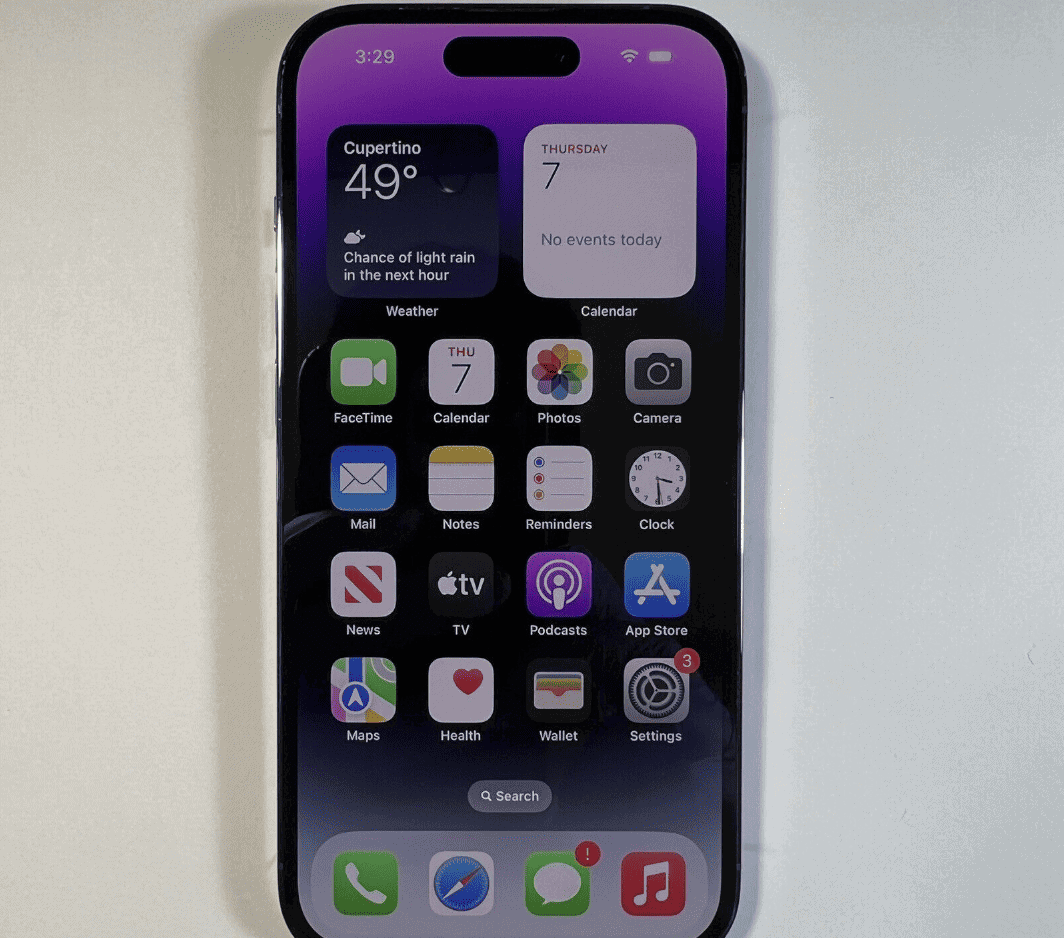
Screen recording on the iPhone 14 Pro is a straightforward process that enables users to capture what happens on their device in real-time. This function is essential for creating tutorials, saving live events, or simply sharing gameplay. The integration of screen recording on the iPhone is seamless and does not require any third-party apps. Users can find this option within their device’s settings, specifically within the Control Center, allowing quick access and ease of use.
Before users can start recording, the screen recording feature must be added to the Control Center if it is not present by default. This step ensures that starting and stopping a recording is just a swipe and tap away. Once the screen recording button is set up in the Control Center, users can capture their screen with a simple touch.
Setting up and using screen recording should be an easy task once users are familiar with their iPhone’s features. The iPhone 14 Pro has made the process intuitive, encouraging users to make the most of this functionality without needing a detailed tutorial for every step.
How to Screen Record on iPhone 14 and iPhone 14 Pro
Screen recording on the iPhone 14 and iPhone 14 Pro is built directly into iOS—no apps required. You can record your screen with or without audio, including system sounds and microphone input.
Quick Requirements
- iPhone 14 or iPhone 14 Pro
- iOS 16 or later
- Screen Recording enabled in Control Center
Step 1: Add Screen Recording to Control Center (One‑Time Setup)
If you don’t see the Screen Record button:
- Open Settings
- Tap Control Center
- Scroll down and tap the ➕ next to Screen Recording
✅ You only need to do this once.
Step 2: Start Screen Recording
- Swipe down from the top‑right corner to open Control Center
- Tap the Screen Record button (circle icon)
- Wait for the 3‑second countdown
- Your screen is now being recorded
🔴 A red status indicator will appear at the top of the screen while recording.
Step 3: Record With Microphone Audio (Optional)
If you want to record your voice:
- Open Control Center
- Press and hold the Screen Record button
- Tap Microphone On
- Tap Start Recording
✅ Useful for tutorials, voiceovers, or reactions.
Step 4: Stop Screen Recording
You can stop recording in either way:
Option 1: Tap the Red Indicator
- Tap the red bar or dot at the top
- Tap Stop
Option 2: Use Control Center
- Open Control Center
- Tap the Screen Record button again
Where Screen Recordings Are Saved
- Open the Photos app
- Go to Recents or Videos
- Your screen recording will appear automatically
What Audio Is Recorded?
| Audio Type | Recorded? |
|---|---|
| System sounds | ✅ Yes |
| Microphone (voice) | ✅ Optional |
| Music from Apple Music | ❌ No (blocked) |
| Streaming apps (Netflix, etc.) | ❌ No (black screen or muted audio) |
⚠️ Some apps restrict screen recording due to copyright protection.
Screen Recording Tips for iPhone 14 & 14 Pro
✅ Turn on Do Not Disturb
Avoid notifications appearing in your recording.
✅ Lock Orientation
Prevents the screen from rotating mid‑recording.
✅ Check Storage Space
Screen recordings can be large, especially in 4K apps.
Troubleshooting Common Issues
Screen Record Button Missing
- Go to Settings → Control Center
- Add Screen Recording
No Sound in Recording
- Make sure system volume is up
- Enable Microphone On if you want voice audio
Recording Stops Automatically
- Low storage space
- Battery saver or overheating
Differences Between iPhone 14 and iPhone 14 Pro
✅ No difference in screen recording features
Both models:
- Use the same Control Center method
- Support microphone recording
- Save videos to Photos
The Pro model’s higher refresh display does not affect screen recording.
Final Thoughts
Screen recording on iPhone 14 and iPhone 14 Pro is quick, built‑in, and powerful. Whether you’re recording tutorials, gameplay, or app issues, iOS makes it easy with just a few taps.
Key Takeaways
- Capturing screen activity on the iPhone 14 Pro is simple and built-in
- Users must add the screen recording feature to the Control Center for easy access
- Screen recording is activated with a touch and does not need extra software
Setting Up Screen Recording
Before you start recording activities on your iPhone 14 Pro, you need to set up the screen recording function. This section walks you through the steps from accessing the right menu to adjusting your recording settings so that everything you capture is exactly as needed.
Accessing the Control Center
To reach the Control Center, swipe down from the top-right corner of your screen. This is your gateway to the iPhone’s various features, including screen recording.
Adding Screen Recording to Control Center
To set up screen recording:
- Open the Settings app.
- Scroll down and tap Control Center.
- Find Screen Recording from the list and tap the + next to it.
This action adds the screen recording button to your Control Center, making it easy to start a recording at any moment.
Adjusting Screen Recording Settings
When setting up screen recording on your iPhone 14 Pro, you can also choose to record audio. To do this:
- Go to the Control Center.
- Press and hold the screen recording button.
- Tap the Microphone Audio to turn it on or off as needed.
Remember to consider your privacy and focus settings such as Do Not Disturb to prevent unwanted interruptions during recording.
Using the Screen Recording Feature
The iPhone 14 Pro makes it simple to capture what’s happening on your screen. This section walks you through starting and stopping screen recordings and also gives you tips on managing the recording indicators and saving your videos.
Starting a Screen Recording
To start a screen recording, first, add the feature to your Control Center by going to Settings > Control Center and tapping the plus icon next to Screen Recording. Then open Control Center by swiping down from the top-right corner of your screen and tap the screen recording icon. A three-second countdown begins, after which your screen recording starts.
A Guide to Screen Recording Indicators
When you start recording, a red status bar or red clock appears at the top of your iPhone’s screen. This lets you know the recording is active. Keep an eye on this indicator to ensure you don’t record for longer than needed, as long videos can take up significant storage space.
Stopping and Saving Recordings
To stop recording, tap the red status bar at the top of the screen and then tap Stop. Your screen recording automatically saves to the Photos app. In Photos, you can view, edit, or trim the recording to your liking before sharing it with others. Remember to manage your storage by deleting unnecessary recordings.





