
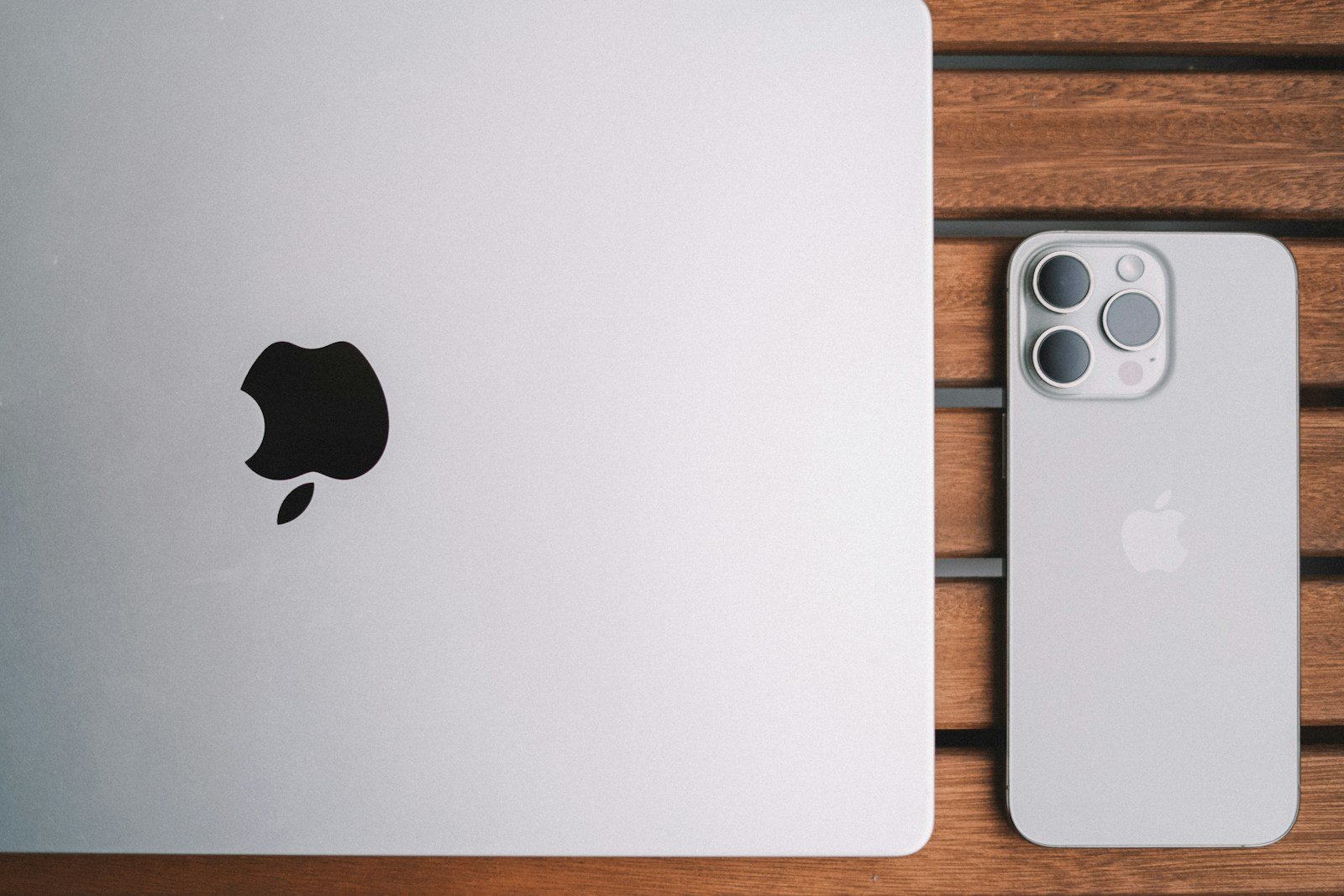
Making phone calls from your computer is easier than ever. You can connect with friends, family, and colleagues without needing a traditional phone line. Several free and paid options let you call phone numbers directly from your PC using an internet connection.
Google Voice offers a simple way to place calls through your web browser. You get a free phone number and can dial US numbers at no cost. For international calls, you’ll need to add credit to your account. Another option is PopTox, which lets you make free online calls without downloading any software.
Windows 10 users can take advantage of the built-in Your Phone app. This tool links your Android phone to your PC, allowing you to make and receive calls directly from your computer. You’ll need to pair your devices using Bluetooth and follow the setup steps.
| Service | Cost | Features |
|---|---|---|
| Google Voice | Free (US calls) | Free number, voicemail transcription |
| PopTox | Free | No downloads, works in browser |
| Your Phone (Windows) | Free | Android integration, SMS texting |
How to Call Your Phone from a Computer: A Step-by-Step Guide
In today’s connected world, being able to call your phone from your computer can be a real convenience—whether you misplaced it nearby, your phone is on silent, or you simply want to manage calls without switching devices. Fortunately, there are several ways to make this happen using built-in features or third-party apps.
Here’s a comprehensive guide on how to call your phone from a computer.
Why Call Your Phone from a Computer?
- Find a misplaced phone quickly
- Answer calls without picking up your phone
- Make calls using your computer’s microphone and speakers
- Manage calls while working on your PC or Mac
Methods to Call Your Phone from a Computer
1. Use Bluetooth Calling with Phone Link (Windows + Android)
If you have a Windows PC and an Android phone, Microsoft’s Phone Link app lets you make and receive calls directly from your PC.
Steps:
- Ensure Bluetooth is enabled on both your PC and Android phone.
- On your PC, open the Phone Link app (formerly Your Phone).
- Follow the prompts to link your Android device.
- Once connected, select Calls in Phone Link.
- Dial your phone number or use the interface to call your phone.
Note: This requires Bluetooth on both devices and works best with Android phones.
2. Use Google Voice (Any Computer)
Google Voice allows you to make calls from any web browser to your phone number or other numbers.
Steps:
- Sign up for a free Google Voice account at voice.google.com.
- Link your phone number to Google Voice.
- From the Google Voice web app, enter your phone number and call your phone.
- Your phone will ring, and you can answer the call.
Note: Google Voice calls use internet data and may require initial setup.
3. Use Skype or Other VoIP Services
Applications like Skype, Zoom, or WhatsApp Desktop let you call your phone number or app directly.
Steps:
- Install Skype or your preferred VoIP app on your computer.
- Purchase Skype credit or a subscription if calling a phone number.
- Dial your phone number from the app to ring your phone.
4. Use Find My iPhone (Apple Devices)
If you want to locate your iPhone and make it ring, Apple’s Find My service can help.
Steps:
- From a computer, go to iCloud.com and sign in with your Apple ID.
- Open Find iPhone.
- Select your iPhone from the device list.
- Click Play Sound to make your iPhone ring loudly, even if on silent.
Note: This doesn’t place a call but helps locate your phone by ringing it.
5. Use Third-Party Apps
Apps like Pushbullet, AirDroid, or MightyText (mostly for Android) allow you to ring your phone from your computer.
Steps:
- Install the app on both your phone and computer.
- Connect the devices via the app’s instructions.
- Use the app interface to ring or call your phone.
Summary Table
| Method | Works With | Requires | Key Feature |
|---|---|---|---|
| Phone Link (Microsoft) | Windows + Android | Bluetooth on both devices | Make/receive calls on PC |
| Google Voice | Any computer | Google account | Call your phone via browser |
| Skype / VoIP Services | Any computer | App + credit for calls | Call phone number from app |
| Find My iPhone | Any computer + iPhone | Apple ID | Ring iPhone remotely |
| Third-Party Apps | Mostly Android | App installed on both | Ring or call phone via app |
Tips for Success
- Ensure your devices are on the same WiFi network or paired via Bluetooth if required.
- Keep your phone’s Bluetooth and WiFi enabled for seamless connectivity.
- Use trusted apps and services to protect your privacy and security.
- Check your device compatibility before choosing a method.
By following these methods, you can easily call your phone from your computer, helping you stay connected and never lose track of your device.
Sources:
- Microsoft Support: Make and receive phone calls from your PC
- Computersiteengineering: Can I Call My Phone From My Computer?
- VoIP Business Blog: How to Make Phone Calls From Your Computer
Setting Up Your Device for Calls
Enabling calls from your computer requires specific hardware and software configurations. Follow these steps to connect your Android phone to your Windows PC for seamless calling.
Requirements and Initial Setup
To set up calls on your computer, you need:
- Windows 10 May 2019 Update or later
- Android 7.0 or higher
- Bluetooth capability on both devices
- Microsoft account
- Your Phone app on Windows
- Your Phone Companion app on Android
First, update your Windows 10 PC. Go to Settings > Update & Security > Windows Update. Install any available updates.
Next, check your Android version. Open Settings > About phone > Android version. If it’s below 7.0, update your phone’s software.
Ensure Bluetooth is working on both devices. On Windows, go to Settings > Devices > Bluetooth & other devices. On Android, find Bluetooth in the Quick Settings panel.
| Device | Minimum OS Version | Required App |
|---|---|---|
| Windows PC | Windows 10 May 2019 Update | Your Phone |
| Android Phone | Android 7.0 | Your Phone Companion |
Connecting via Bluetooth
Bluetooth connection is crucial for call functionality. Here’s how to pair your devices:
- On your PC, open Settings > Devices > Bluetooth & other devices
- Click “Add Bluetooth or other device”
- Select “Bluetooth”
- On your Android phone, go to Settings > Connected devices > Pair new device
- Choose your PC from the list of available devices
- Confirm the pairing code on both devices
If you encounter issues, try turning Bluetooth off and on again on both devices. Ensure they’re within range (about 30 feet) of each other.
Linking Android and Windows through Your Phone App
The Your Phone app bridges your Android device and Windows PC. To set it up:
- On your PC, open the Your Phone app
- Sign in with your Microsoft account
- On your Android phone, download Your Phone Companion from the Google Play Store
- Open the app and sign in with the same Microsoft account
- Grant necessary permissions on your phone
- On your PC, click “Pair with QR code”
- Use your phone to scan the QR code displayed on your PC
Once linked, you’ll see options for calls, messages, and notifications. Click on “Calls” and follow the prompts to complete the setup.
Remember to keep both apps running for continuous connectivity. You can now make and receive calls from your PC using your phone’s cellular network.
Making and Receiving Calls
You can easily manage phone calls directly from your computer. This feature allows you to initiate outgoing calls and handle incoming ones without reaching for your smartphone.
Initiating a Phone Call from Your Computer
To make a call from your PC, open the Phone Link app and select the Calls option. You’ll see a search box where you can look up contacts or enter phone numbers. For quick dialing, use the on-screen dialpad.
Once you’ve entered the number or selected a contact, click the dial icon to start your call. Ensure your PC has Bluetooth enabled for this feature to work properly.
Some apps offer additional calling features:
| App | Key Features |
|---|---|
| Skype | Video calls, group calls |
| Google Voice | Call forwarding, voicemail transcription |
| Zoom | Large group calls, screen sharing |
Handling Incoming Calls on Your Computer
When someone calls your linked phone, you’ll get a notification on your PC. This pop-up allows you to answer or decline the call directly from your computer screen.
To receive phone calls on your PC, make sure you’ve granted the necessary permissions in the Phone Link app settings. You may need to accept a prompt on your smartphone to allow call syncing.
During an incoming call, you can choose to answer with audio only or ignore it. Some apps also let you send a quick text response if you’re unable to take the call.
Advanced Calling Features
Modern computer-based calling systems offer sophisticated capabilities beyond basic voice communication. These features enhance productivity and streamline communication processes for businesses and individuals alike.
Using VoIP Services for Internet Calls
VoIP technology enables high-quality voice calls over the internet. It offers significant cost savings, especially for long-distance and international calls. VoIP services often include video conferencing, instant messaging, and file sharing.
Key benefits of VoIP:
- Lower call costs
- Flexible call routing
- Integration with other business tools
Popular VoIP platforms like Skype provide user-friendly interfaces for making internet calls. You can easily set up conference calls or switch between voice and video modes. Many VoIP services offer mobile apps, allowing you to make calls from your computer or smartphone using the same account.
Managing Call History and Contacts
Effective contact management is crucial for efficient communication. Most calling software for PCs includes robust tools for organizing your contacts and call history.
Features to look for:
- Searchable call logs
- Contact synchronization across devices
- Custom contact grouping
The Phone Link app for Windows allows you to manage your smartphone’s calls and messages directly from your PC. This integration streamlines your workflow by keeping all communication in one place.
Many advanced calling systems offer automatic call recording and transcription. These features help you review important conversations and extract key information without manual note-taking.
Options for International Calls
International calling from your computer can be more affordable and convenient than traditional methods. VoIP services often offer competitive rates for global communication.
| Service | International Calling Feature | Cost |
|---|---|---|
| Skype | Skype to Phone | Pay-as-you-go or subscription |
| Google Voice | Calls to select countries | Free or low per-minute rates |
| Zoom | International dial-in numbers | Included with paid plans |
Some services provide local numbers in different countries, allowing your contacts to reach you at domestic rates. This feature is particularly useful for businesses with an international presence.
When choosing an international calling solution, consider factors like call quality, supported countries, and pricing structure. Many services offer free trials, allowing you to test their international calling capabilities before committing.
Frequently Asked Questions
Many people have questions about making phone calls from computers. Let’s address some common inquiries to help you navigate this technology.
How can I make a phone call from my computer using Google Voice?
To call using Google Voice, log in to voice.google.com. Go to the “calls” tab. Enter the contact name or phone number. Check your Google Voice number in the “call as” field. Click “call” to start.
What is the best app for calling a phone from a computer?
DialerHQ is a user-friendly VoIP platform for computer-to-phone calls. It offers a simple interface for personal and business use. Other options include Skype, Google Voice, and Zoom.
Can I initiate a phone call from my computer to a mobile device without needing a phone?
Yes, you can call mobile devices from your computer without a physical phone. Use VoIP services like Skype or Google Voice. These apps let you dial numbers directly from your computer.
How do I call a cell phone from my computer for free?
Several apps offer free computer-to-phone calls. Google Voice provides free calls to US numbers. Skype offers free Skype-to-Skype calls. Some services may charge for calls to mobile or landline numbers.
What steps are involved in making calls to phones from a computer through Google Meet?
Google Meet focuses on video conferencing but can make audio calls. Open meet.google.com. Start a new meeting. Invite participants via email or share the meeting link. Attendees can join from phones or computers.
Is it possible to use my computer to call both iPhone and Android phones?
Yes, you can call both iPhone and Android phones from your computer. VoIP services like Skype, Google Voice, and Zoom work across all phone types. The recipient’s phone operating system doesn’t matter for these calls.
| App | Free Calls | Paid Features | Ease of Use |
|---|---|---|---|
| Google Voice | US/Canada | International | Easy |
| Skype | Skype-to-Skype | Phone numbers | Moderate |
| Zoom | Limited | Premium plans | Easy |
| DialerHQ | Limited | Business plans | Easy |





