
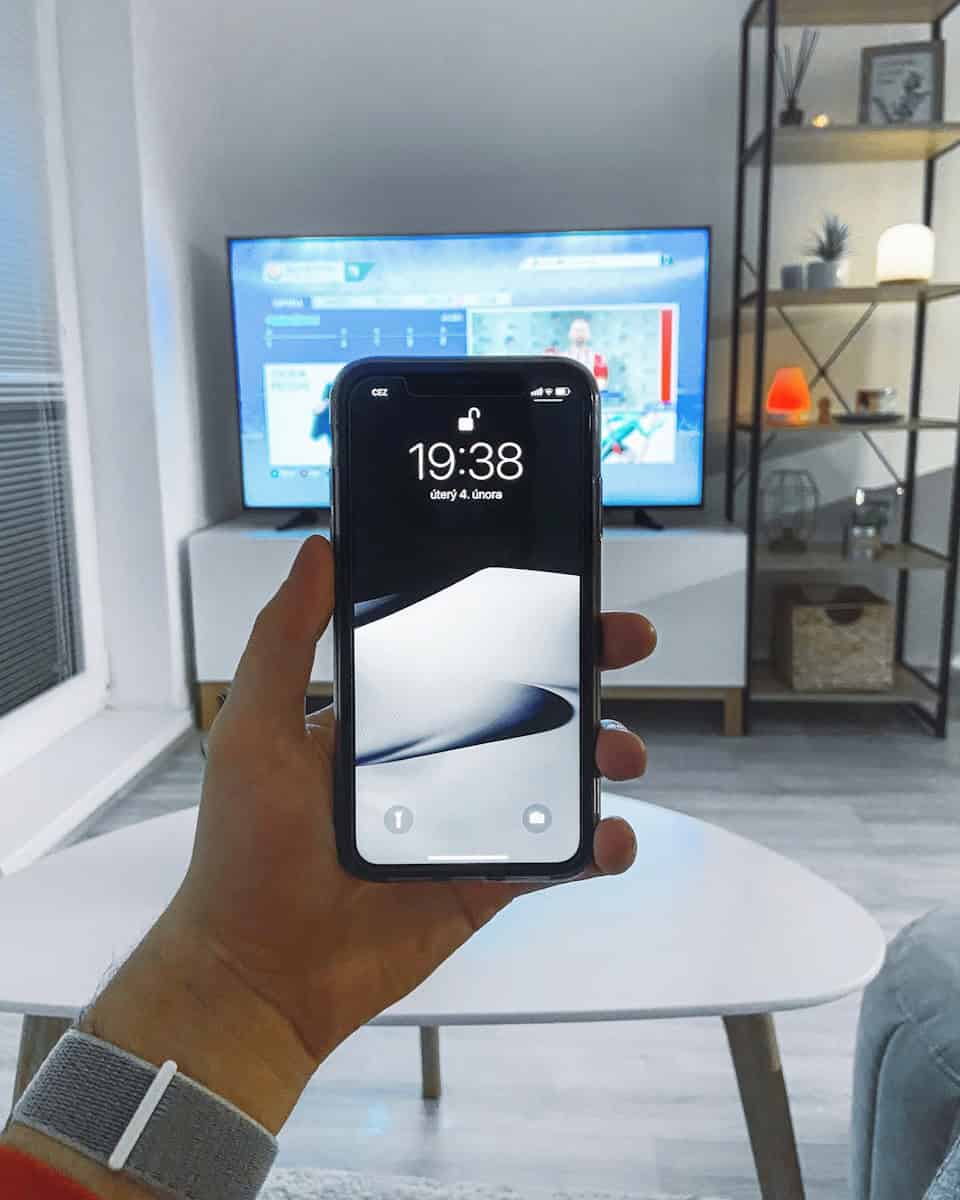
Want to mirror your iPhone to a Roku TV? Whether you’re sharing photos, streaming videos, presenting slides, or watching TikTok on a bigger screen, screen mirroring makes it easy.
This guide explains all the working methods in 2026, including built‑in AirPlay and alternative options.
✅ Method 1: Use AirPlay (Best & Easiest Way)
Most modern Roku TVs support Apple AirPlay. If your Roku model supports it, this is the fastest method.
🔎 Check If Your Roku Supports AirPlay
AirPlay is available on:
- Roku TV (most models from 2019 and newer)
- Roku Ultra
- Roku Streaming Stick 4K
- Select Roku Premiere models
To check:
- On your Roku, go to Settings
- Select Apple AirPlay and HomeKit
- If you see it, your TV supports AirPlay ✅
📱 How to Mirror iPhone to Roku Using AirPlay
Step 1: Connect to the Same Wi‑Fi
Make sure:
- Your iPhone and Roku TV are connected to the same Wi‑Fi network
Step 2: Enable AirPlay on Roku
- Go to Settings
- Select Apple AirPlay and HomeKit
- Turn AirPlay ON
Step 3: Start Mirroring from iPhone
- Open Control Center
- iPhone with Face ID: Swipe down from top-right
- iPhone with Home Button: Swipe up from bottom
- Tap Screen Mirroring
- Select your Roku TV
- Enter the AirPlay code shown on your TV (if prompted)
✅ Your iPhone screen will now appear on your Roku TV.
✅ Method 2: Use the Roku App (For Media Only)
The Roku mobile app allows you to stream:
- Photos
- Videos
- Music
But it does not mirror your full screen.
Steps:
- Download the Roku app from the App Store
- Connect to the same Wi‑Fi
- Tap Devices
- Select your Roku TV
- Tap Media to share content
✅ Method 3: Use a Third‑Party Screen Mirroring App
If your Roku doesn’t support AirPlay, you can use apps like:
- TV Mirror for Roku
- Mirror for Roku
- AirBeamTV
⚠️ These apps:
- May have slight delay (not ideal for gaming)
- Often require paid upgrades for full features
✅ Method 4: Use an HDMI Adapter (Most Reliable)
If wireless methods don’t work, use a wired connection.
What You Need:
- Apple Lightning Digital AV Adapter (or USB‑C to HDMI for newer iPhones)
- HDMI cable
Steps:
- Plug adapter into your iPhone
- Connect HDMI cable to Roku TV
- Switch TV input to HDMI
✅ Instant, lag‑free mirroring
✅ Best for gaming or presentations
Why Isn’t My iPhone Mirroring to Roku?
If it’s not working, check:
🔹 Same Wi‑Fi Network
Both devices must be on the same network.
🔹 Restart Both Devices
Turn off:
- iPhone
- Roku TV
- Router (optional)
Restart and try again.
🔹 Update Software
Make sure:
- iPhone is updated (Settings → General → Software Update)
- Roku software is updated (Settings → System → System Update)
Does Screen Mirroring Work with All Apps?
Most apps mirror fine, including:
- Photos
- Safari
- TikTok
- YouTube
However, some streaming services may limit mirroring due to copyright restrictions.
If that happens: Use the app directly on Roku instead.
Quick Comparison
| Method | Best For | Quality | Lag |
|---|---|---|---|
| AirPlay | Full screen mirroring | Excellent | Low |
| Roku App | Photos & videos | Good | None |
| Third‑party apps | Older Roku models | Moderate | Medium |
| HDMI Adapter | Gaming & zero delay | Best | None |
Final Thoughts
The easiest way to mirror your iPhone to a Roku TV in 2026 is using AirPlay — as long as your Roku supports it.
If not, third‑party apps or an HDMI adapter will get the job done.





