
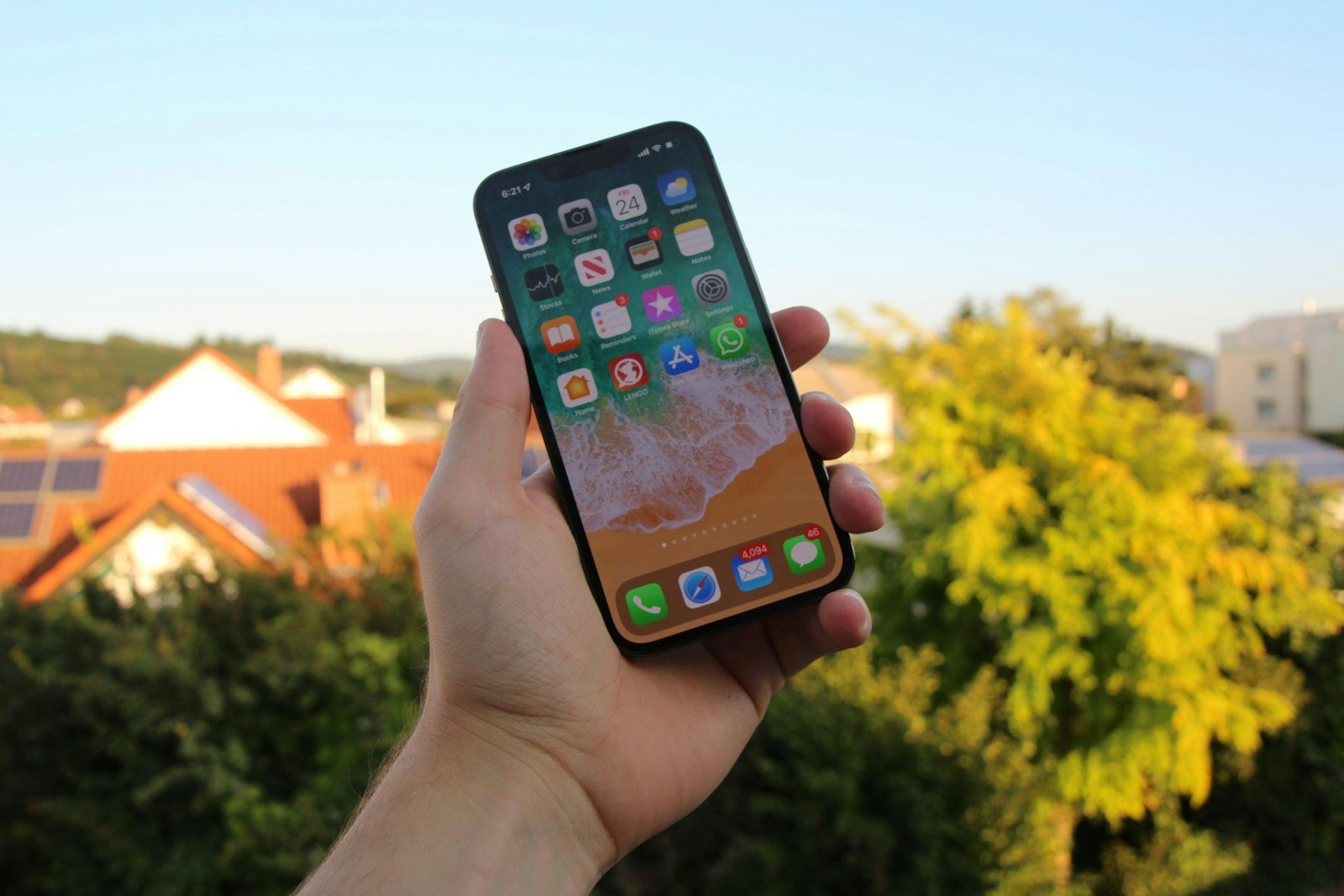
If your iPhone screen appears blurry while a search bar is visible, you’re not alone. Many users notice this issue when swiping down on the Home Screen, opening Spotlight Search, or switching between apps. While it can look like a display problem, it’s usually caused by iOS features designed to highlight the search interface—or by a temporary software glitch.
This article explains why your iPhone screen looks blurry with a search bar visible and provides step-by-step solutions to fix it.
Why Your iPhone Screen Is Blurry With the Search Bar
1. Spotlight Search Blur Effect (Normal Behavior)
When you swipe down on the Home Screen, iOS opens Spotlight Search. To help you focus on the search bar, iOS intentionally blurs the background.
✅ This is completely normal and not a screen defect.
How to tell:
- The blur disappears as soon as you swipe up or exit the search screen.
- The search bar is centered at the top of the screen.
2. Accessibility Settings Causing Excessive Blur
Certain accessibility features can make the blur effect stronger than usual.
Common settings involved:
- Reduce Transparency (disabled = more blur)
- Increase Contrast
- Reduce Motion
If these settings are misconfigured, the screen may appear overly blurred.
3. App Switcher or Multitasking Blur
When switching apps or opening the App Switcher, iOS briefly blurs the background for visual separation. A glitch can sometimes cause the blur to remain longer than intended.
4. Display Zoom or Resolution Issues
Using Display Zoom can sometimes exaggerate blur effects or make UI elements look out of focus, especially around the search bar.
5. iOS Software Bug
After an iOS update, some users experience:
- Persistent blur
- Search bar stuck on screen
- UI elements not refreshing properly
This is usually a software issue rather than a hardware problem.
6. Third-Party App Overlay Issues
Some apps that use overlays (launchers, widgets, or accessibility tools) may conflict with iOS animations and cause blur artifacts when a search bar appears.
How to Fix a Blurry iPhone Screen With Search Bar Visible
✅ 1. Exit the Search Screen
- Swipe up or tap outside the search area.
- Press the Home button (on older iPhones).
If the blur disappears, your phone is working normally.
✅ 2. Restart Your iPhone
A quick restart clears temporary UI glitches.
Steps:
- Press and hold the Power button + Volume button
- Slide to power off
- Turn the iPhone back on
✅ 3. Adjust Accessibility Settings
Go to:
Settings → Accessibility → Display & Text Size
Try:
- Turning Reduce Transparency ON
- Turning Increase Contrast OFF
- Turning Reduce Motion OFF
These changes often reduce excessive blur.
✅ 4. Disable Display Zoom
- Go to Settings → Display & Brightness
- Tap Display Zoom
- Select Standard
- Restart your iPhone
✅ 5. Update iOS
Apple frequently fixes display and UI bugs in updates.
- Go to Settings → General → Software Update
- Install the latest iOS version
✅ 6. Close Background Apps
- Open the App Switcher
- Swipe up on all open apps
- Reopen the Home Screen and test Spotlight Search again
✅ 7. Reset All Settings (Last Resort)
If the blur persists across the system:
- Go to Settings → General → Transfer or Reset iPhone
- Tap Reset
- Choose Reset All Settings
⚠️ This will not delete your data, but it will reset Wi‑Fi, display, and accessibility settings.
Is This a Hardware Problem?
In most cases, no. If:
- The blur only appears when the search bar is visible
- Screenshots also show the blur
- The blur disappears when exiting search
Then it’s a software/UI effect, not a damaged screen.
However, if the blur is always present—even on photos, videos, and lock screen—you may want to contact Apple Support or visit an Apple Store for a display check.
How to Prevent the Issue in the Future
- Keep iOS updated
- Avoid using unnecessary overlay or launcher apps
- Periodically restart your iPhone
- Review accessibility settings after updates
Final Thoughts
An iPhone screen appearing blurry with a visible search bar is usually a normal iOS visual effect or a minor software glitch—not a serious problem. In most cases, exiting Spotlight Search or adjusting accessibility settings resolves the issue instantly.
If the blur persists beyond the search screen, following the fixes above should restore your display to normal.





