
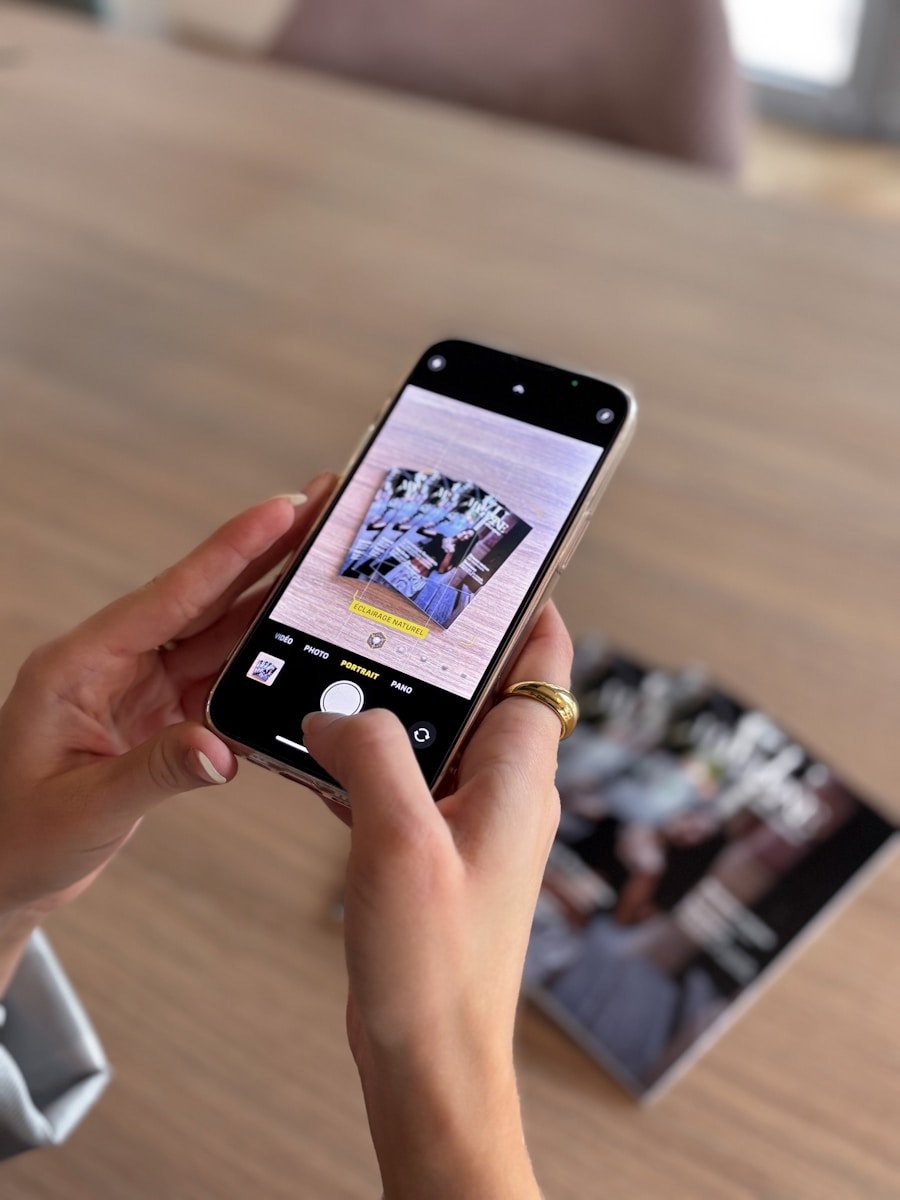
Select iPhones come with an enhanced camera capable of macro photography. This feature allows users to capture detailed images of small subjects at a close range, adding a new dimension to the photography experience with Apple’s smartphones. Macro mode takes advantage of the Ultra Wide camera to allow for up-close shots where the focus on detail brings subjects to life with stunning clarity.
Apple’s macro photography is intuitive; the camera automatically switches to the Ultra Wide lens when the phone is near an object. For those looking to explore photography beyond standard shots, macro mode opens up opportunities to capture the intricacies of textures, patterns, and miniature landscapes. With this feature, things as simple as a raindrop on a leaf or the intricate design of an insect’s wing become subjects of profound photos.
iPhone Camera Macro Mode: A Complete Guide
Macro Mode on iPhone lets you capture extreme close‑ups with impressive detail—perfect for flowers, insects, textures, food, and small objects. Apple introduced Macro photography with the iPhone 13 Pro lineup, and it has continued to improve with each generation.
This guide explains what Macro Mode is, which iPhones support it, how to use it, and tips for getting the best results.
What Is Macro Mode on iPhone?
Macro Mode allows your iPhone to focus on subjects as close as about 2 cm (0.8 inches) from the camera. It works by automatically switching from the standard wide lens to the Ultra Wide camera, which has a much closer minimum focusing distance.
Macro Mode works for:
- 📸 Photos
- 🎥 Videos
- 🎞️ Slow‑motion
- 🌙 Night photos (on supported models)
iPhone Models That Support Macro Photography
Macro Mode is available on the following iPhone models:
- iPhone 13 Pro
- iPhone 13 Pro Max
- iPhone 14 Pro
- iPhone 14 Pro Max
- iPhone 15 Pro
- iPhone 15 Pro Max
- iPhone 16
- iPhone 16 Plus
- iPhone 16 Pro
- iPhone 16 Pro Max
- iPhone 17
- iPhone 17 Pro
- iPhone 17 Pro Max
Note: Macro Mode relies on advanced camera hardware (Ultra Wide lens with autofocus), which is why it’s limited to specific models.
How to Use Macro Mode on iPhone
Automatic Macro Mode
- Open the Camera app.
- Move your iPhone very close to the subject.
- When you get close enough, the camera automatically switches to Macro Mode.
- Tap the shutter to take the photo or start recording video.
You don’t need to manually turn it on—Macro Mode activates automatically by default.
Turn Macro Control On or Off (Optional)
If you prefer manual control:
- Go to Settings → Camera
- Tap Macro Control
- Turn it On
When enabled, a flower icon (🌼) appears in the Camera app:
- Yellow = Macro Mode active
- Tap it to turn Macro Mode on or off manually
This is useful if you don’t want the camera switching lenses automatically.
Shooting Macro Photos
- Move slowly toward your subject until it snaps into focus.
- Tap the screen to focus on a specific detail.
- Use good lighting—Macro photography needs light.
- Keep your hands steady or use a tripod for best sharpness.
You can also shoot Macro photos in ProRAW on Pro models for maximum editing flexibility.
Shooting Macro Video
Macro Mode also works for video:
- Standard video
- Slow‑motion
- Time‑lapse (on supported models)
This is great for capturing:
- Water droplets
- Insects moving
- Fine mechanical details
- Textures in motion
Tips for Better Macro Photos
✅ Use natural light whenever possible
✅ Avoid blocking light with your phone or hands
✅ Hold steady—small movements are magnified
✅ Tap to focus on the most important detail
✅ Use exposure control (slide the sun icon down slightly) to avoid blown highlights
Common Macro Mode Limitations
- Very shallow depth of field (only a small area is in focus)
- Can struggle in low light without good illumination
- Lens switching may feel abrupt unless Macro Control is enabled
These are normal traits of macro photography—not flaws.
When to Use Macro Mode
Macro Mode is ideal for:
- Flowers and plants
- Insects
- Food details
- Jewelry and textures
- Coins, fabric, wood grain, and everyday objects
If you want to reveal details the naked eye often misses, Macro Mode is one of the most powerful iPhone camera features available.
Final Thoughts
iPhone Macro Mode turns your phone into a powerful close‑up camera without any extra lenses or accessories. With a supported iPhone and a bit of practice, you can capture stunning detail that rivals dedicated macro cameras.
iPhone Models that support macro photography
- iPhone 13 Pro
- iPhone 13 Pro Max
- iPhone 14 Pro
- iPhone 14 Pro Max
- iPhone 15 Pro
- iPhone 15 Pro Max
- iPhone 16
- iPhone 16 Plus
- iPhone 16 Pro
- iPhone 16 Pro Max
- iPhone 17
- iPhone 17 Pro
- iPhone 17 Pro Max
Key Takeaways
- The iPhone series features a powerful camera for macro photography.
- Macro mode automatically engages with the Ultra Wide camera to capture fine details.
- The feature enriches photography by allowing for creative, close-up images.
Exploring iPhone’s Macro Mode
The iPhone series enhances macro photography with precise focus and magnification, bringing tiny worlds to vivid prominence.
The Science of Macro Photography
Macro photography allows for the close-up capture of small subjects. The iPhone Pro and Pro Max’s Ultra Wide camera with a 2-centimeter minimum focus distance makes this possible. This technology captures tiny details not easily visible to the naked eye.
Macro Mode Mechanics and Camera Technology
The iPhone Pro models feature an Ultra Wide camera with an advanced sensor. This facilitates macro photography by enabling the camera to autofocus on subjects as close as two centimeters away. The camera app automatically switches to macro mode when close to a subject. Users can also engage macro mode manually in the settings.
Comparing iPhone Pro and 14 Pro Max
Both the iPhone Pro and Pro Max offer macro photography capabilities through their Ultra-Wide lens. The camera app in these models supports automatic macro switching, thereby enhancing user experience. Despite the size difference between the two, their macro mode functionality remains identical, providing users with the same level of detail and focus in their close-up photography.
Tips and Techniques for Stunning Macro Photos
Creating stunning macro photos with the iPhone Pro involves more than getting close to the subject. It requires understanding camera settings, proper lighting, and post-processing techniques.
Optimizing Camera Settings for Macro
For the best macro shots, ensure your iPhone’s settings are tuned for detail. In the Camera settings, enable ‘Macro Control’ to allow the iPhone to switch to the Ultra Wide camera automatically for macro photography. For manual control and focus peaking, apps like Halide or ProCam offer added precision. Enable focus peaking to highlight areas of sharpness as you adjust the focus. This ensures that you capture the intricate textures and patterns that make macro shots compelling.
Lighting and Accessories for Enhanced Macro Shots
Light greatly influences macro photography. Use natural light when possible for a soft and diffused look. In dim conditions, consider LED lights to illuminate the subject evenly. A tripod can stabilize your iPhone for clearer, sharper images. With these accessories, you control shadows and highlights, bringing out the best in your macro subjects.
Post-Processing Macro Images
After capturing macro shots, post-processing can fine-tune the details. Editing apps like Photoshop offer tools to enhance sharpness and color. For a hassle-free workflow, shoot in RAW if you plan heavy editing or JPEG for quick, slight adjustments. Third-party apps can be handy for editing on the go, ensuring that your final image showcases the stunning details that might go unnoticed by the naked eye.





