
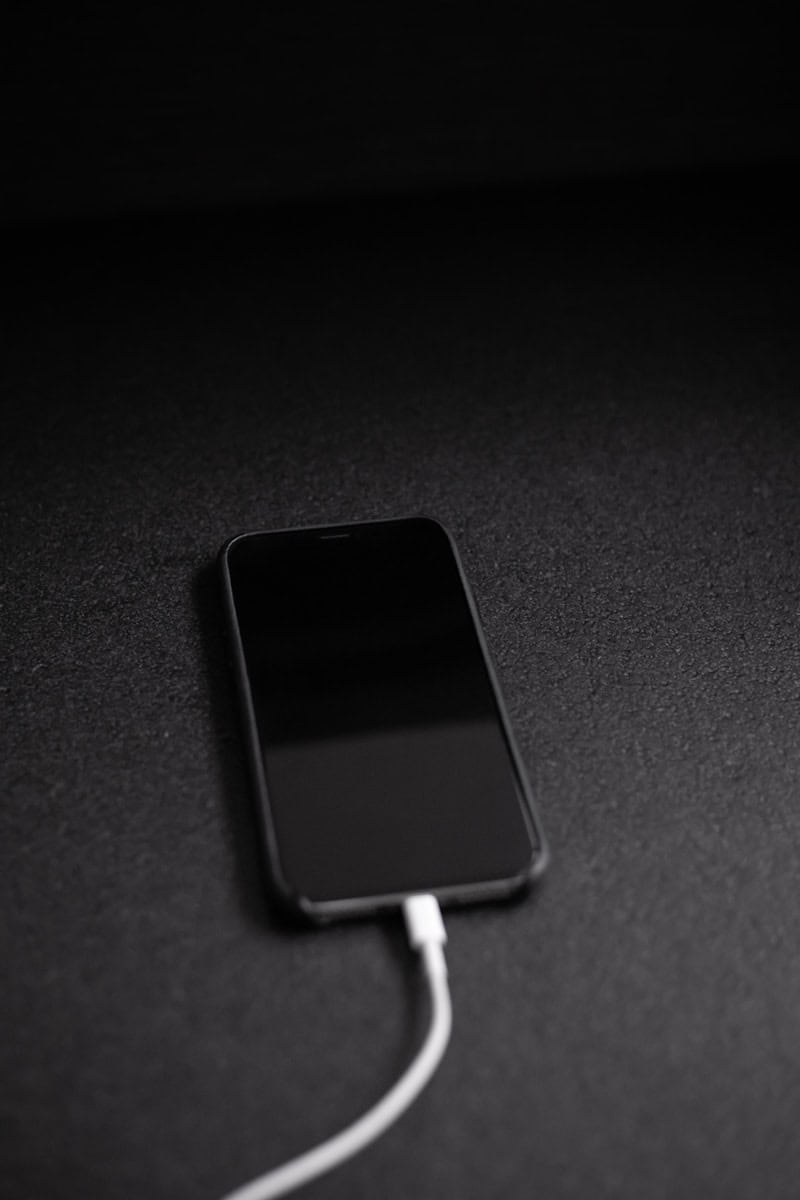
Is your iPhone dead and not responding? You might wonder if it’s charging when plugged in. Knowing if your device is getting power is key when it won’t turn on.
To check if your dead iPhone is charging, look for a battery icon on the screen after plugging it in. This icon should appear within a few minutes. If you don’t see it, try a different cable or power outlet. Make sure the charging port is clean and free of debris.
Sometimes, a dead iPhone needs more time to show signs of life. Leave it plugged in for at least an hour. If there’s still no response, try a hard reset by pressing and holding the power and home buttons together. This can sometimes wake up a stubborn device and reveal its charging status.
How To Tell If A Dead iPhone Is Charging
If an iPhone battery is completely drained, you can usually tell it’s charging by looking for these signs:
- Battery icon appears: After plugging it in, wait 1–5 minutes. A battery symbol should appear on the screen.
- A red battery with a lightning bolt means it’s charging.
- A red battery with a cable icon usually means it still needs more power before it can boot.
- Apple logo appears: After enough charge builds up (sometimes 10–20 minutes if deeply discharged), the Apple logo should appear and the phone will start booting.
- Phone gets slightly warm: Mild warmth near the back can indicate current is flowing.
- Charging sound/vibration: Some iPhones vibrate or make a sound when connected to power, even when nearly dead.
If you see nothing at all after 15–30 minutes:
- Try a different cable and charger
- Try a different outlet
- Clean lint from the charging port carefully
- Force restart:
- iPhone 8 or later: press volume up, volume down, then hold side button
- If using wireless charging, try wired charging instead
A completely drained battery can sometimes take 30+ minutes before showing signs of life.
Key Takeaways
- Look for a battery icon on the screen when plugged in
- Try a different cable or outlet if no charging signs appear
- Leave the iPhone plugged in for at least an hour if it’s very low on power
Identifying Charging Signs on Your Dead iPhone
A dead iPhone can show signs it’s charging. These signs help you know if your phone is getting power. Look for visual clues and use other ways to check.
Visual Indicators
When you plug in a dead iPhone, watch for these signs:
- Battery icon: A large battery icon may show up on the black screen.
- Red battery symbol: This means the battery is very low but charging.
- Lightning bolt: A small lightning bolt next to the battery icon means it’s charging.
- Apple logo: This may appear if the phone has enough power to turn on.
Give your iPhone a few minutes to show these signs. Sometimes a very dead battery needs time to respond.
Using Other Senses and Tools
If you don’t see visual signs, try these methods:
- Feel for heat: A charging iPhone may get slightly warm.
- Listen for sounds: Your iPhone might make a soft sound when plugged in.
- Check with a computer: Plug your iPhone into a computer. If it shows up in iTunes or Finder, it’s getting power.
- Try another cable: A broken cable can stop charging. Use a different one to test.
- Clean the port: Dirt in the charging port can block power. Gently clean it with a soft brush.
If none of these work, your iPhone may need repairs. Take it to an Apple Store or authorized repair shop for help.
Frequently Asked Questions
Charging a dead iPhone can be tricky. Here are some key things to know about getting your iPhone powered up again.
How can you determine if your iPhone is charging when it’s turned off?
Look for a battery icon on the screen. It may take a few minutes to appear. If you see a red or empty battery symbol, your iPhone is charging. The icon will turn green as the battery fills up.
What indicators show that an iPhone is charging after the battery has been completely drained?
A low battery icon or Apple logo may show up. The screen might stay black for a while. After 2-3 minutes, you should see signs of charging. If not, try a different cable or power source.
How long does it typically take for a completely discharged iPhone to begin charging?
It can take 2-5 minutes to see any signs of life. Be patient and keep the iPhone plugged in. If nothing happens after 30 minutes, there may be a problem with the battery or charger.
Are there specific signs to look for when charging an iPhone with a possibly dead battery?
Watch for a faint red battery icon or Apple logo. The screen may flicker. You might feel the iPhone get warm. These are good signs it’s starting to charge. If you see no change after 15-20 minutes, try another outlet.
Why might an iPhone not display the charging symbol when the battery is fully depleted?
The battery may be too low to power the screen. It needs time to build up a charge. A broken charging port or cable can also cause this. Make sure you’re using a working charger and cable.
What troubleshooting steps should be taken if an iPhone does not indicate that it is charging?
Try a different USB cable and power adapter. Clean the charging port. Restart the iPhone. If it still won’t charge, take it to an Apple Store. There could be a hardware issue that needs fixing.





