
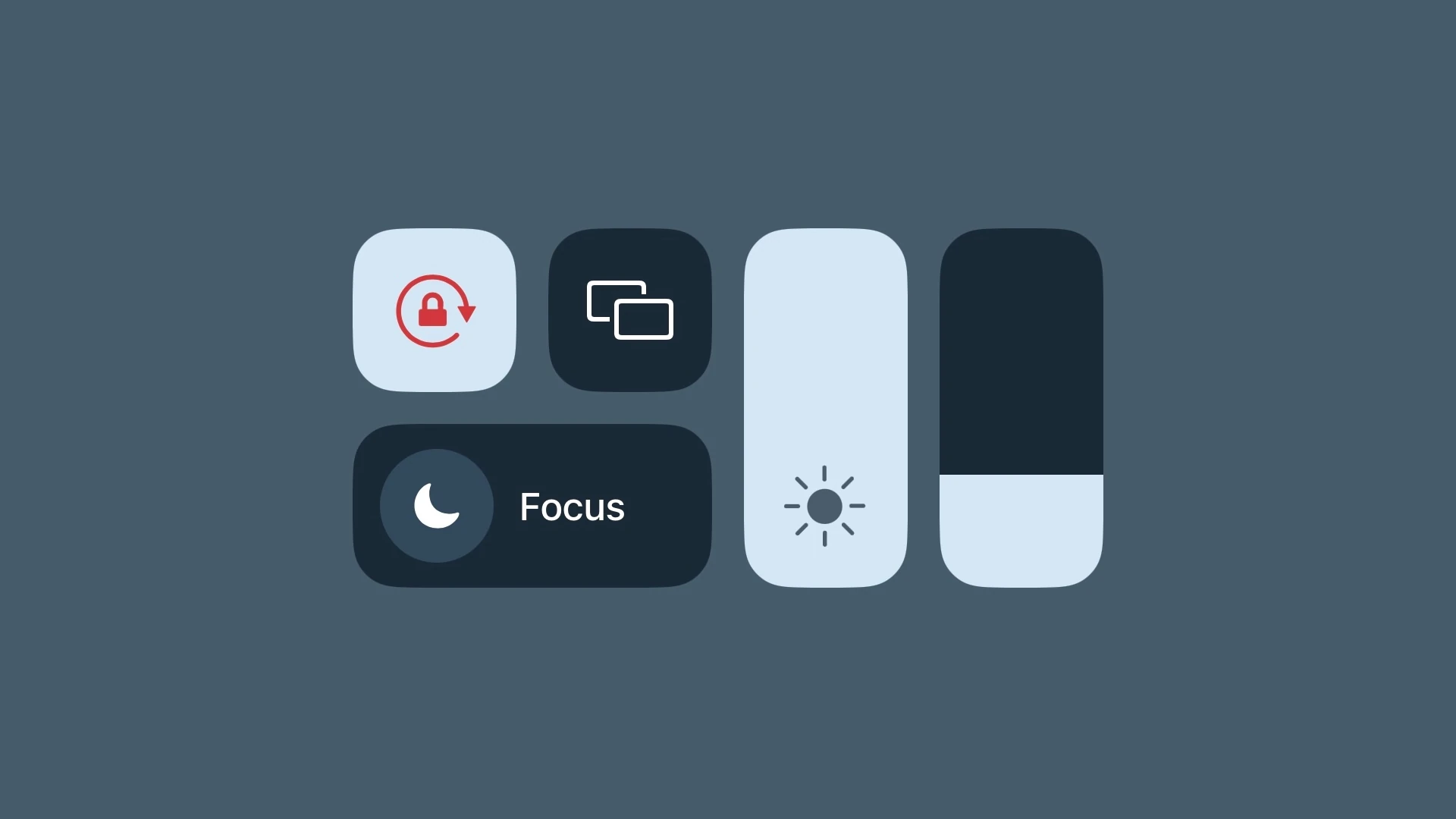
Apple’s Control Center receives its most significant update since iOS 11, bringing a redesigned interface and expanded customization options. iOS 18 transforms Control Center into a multi-page system where users can organize and access their most-used controls with greater flexibility and speed.
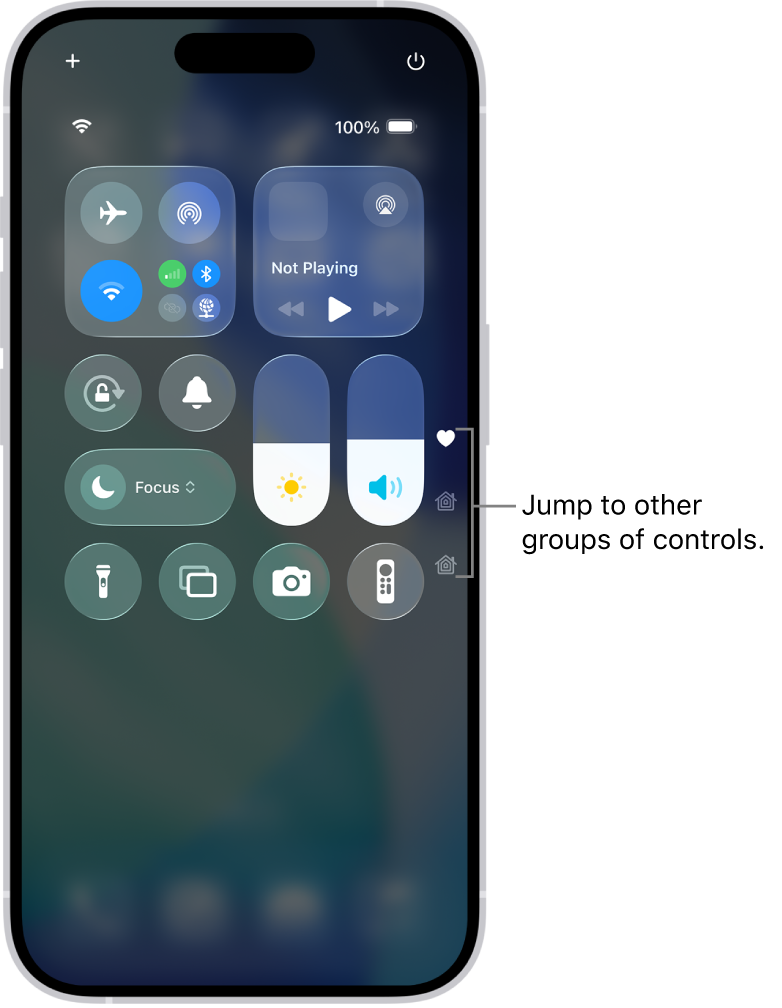
The refreshed Control Center design separates features into distinct pages, letting users group related functions like media controls and connectivity options. This new organization method makes accessing specific settings more efficient while maintaining the quick-access spirit of the original Control Center.
New Control Center Features That Boost iPhone Productivity
Apple has transformed Control Center from a simple quick-settings panel into a powerhouse productivity tool. With iOS 18 and beyond, Control Center has received massive updates that make your iPhone more efficient and customizable than ever before.
What’s New in Control Center
Control Center was completely redesigned starting with iOS 18, and Apple has continually added new controls in iPhone updates ever since (source: 9to5Mac). The changes go far beyond simple tweaks—they represent a fundamental reimagining of how you interact with your device.
According to AppleInsider, “Beyond Liquid Glass, Apple is making giant updates to Control Center in iOS 26 that make this always handy iPhone feature become a powerhouse—once you learn how to use it to its fullest” (source: AppleInsider).
How to Access and Customize Control Center
Opening Control Center
- iPhone without Home button: Swipe down from the top-right corner
- iPhone with Home button: Swipe up from the bottom of the screen
Customizing Your Controls
- Open Settings
- Tap Control Center
- Browse available controls under More Controls
- Tap the + button to add controls you want
- Tap the – button to remove controls you don’t use
- Drag controls to reorder them by priority
(source: Apple Support)
Top Productivity-Boosting Features
1. Direct App Launch Controls
One of the most game-changing features in iOS 18 is the ability to launch apps directly from Control Center. Third-party apps can now add actions to Control Center as controls, allowing you to bypass the home screen entirely (source: Lifehacker).
How to use it:
- Add your most-used apps to Control Center
- Launch them with a single tap from any screen
- Perfect for quick access to notes, tasks, or communication apps
2. Ambient Music Controls (iOS 18.4+)
Starting with iOS 18.4, you can add individual Ambient Music controls to Control Center, helping you maintain focus and boost productivity:
- Sleep mode: Wind down for better rest
- Chill mode: Reduce stress during breaks
- Productivity mode: Stay focused on work
- Wellbeing mode: Maintain mental balance
(source: iDropNews)
3. Multiple Control Center Pages
Control Center now supports multiple pages, allowing you to organize controls by category:
- Page 1: Essential quick settings (Wi-Fi, Bluetooth, brightness)
- Page 2: Productivity apps and tools
- Page 3: Smart home controls
- Page 4: Media and entertainment
Swipe horizontally to navigate between pages.
4. Resizable Control Widgets
Controls are no longer one-size-fits-all. You can now:
- Long-press any control to resize it
- Make frequently-used controls larger for easier access
- Shrink less-important controls to save space
- Create a layout that matches your workflow
5. Quick Note Capture
Add note-taking apps to Control Center for instant capture:
- Voice memos for verbal reminders
- Apple Notes for quick text entry
- Third-party apps like Notion or Evernote
- Camera for document scanning
6. Focus Mode Quick Switching
Rapidly switch between Focus modes directly from Control Center:
- Work Focus: Blocks social media, allows work apps
- Personal Focus: Filters work notifications
- Sleep Focus: Minimizes all distractions
- Custom Focus: Create modes for specific activities
7. Screen Recording with One Tap
Perfect for creating tutorials or saving information:
- Tap the Screen Recording button (no long-press needed if you don’t need audio settings)
- Capture meetings, instructions, or important content
- Recordings save automatically to Photos
8. Live Activity Controls
Control Center now integrates with Live Activities, letting you:
- Control timers and stopwatches
- Track delivery progress
- Monitor workout sessions
- Manage music playback across apps
Advanced Productivity Tips
Create Context-Based Setups
Customize Control Center for different contexts:
- Morning routine: Alarm, calendar, weather, news apps
- Work hours: Focus mode, productivity apps, communication tools
- Commute: Maps, podcasts, music controls
- Evening: Reading mode, relaxation apps, sleep timer
Use Shortcuts Integration
Combine Control Center with the Shortcuts app:
- Create custom shortcuts for complex workflows
- Add shortcut buttons to Control Center
- Automate repetitive tasks with one tap
- Chain multiple actions together
Minimize Home Screen Usage
With proper Control Center setup, you can:
- Access apps 50% faster than from home screen
- Reduce distractions from app badges and notifications
- Maintain focus by avoiding the temptation to browse other apps
- Work more efficiently with gesture-based access
iOS 26 Features on the Horizon
According to the iOS 26 features guide, future updates will bring even more productivity enhancements, including:
- Visual Intelligence using AI to understand your environment
- Enhanced Safari Web Apps integration
- CarPlay video streaming capabilities
- Improved Genmoji creation tools
These features work on iPhone 11 and newer devices (source: AppleHeadlines).
Getting Started Today
To maximize your productivity with the new Control Center:
- Audit your current setup: Remove controls you never use
- Add productivity apps: Focus on tools you use daily
- Organize by priority: Put most-used controls on the first page
- Experiment with layouts: Try different sizes and arrangements
- Review regularly: Update your setup as your needs change
Bottom Line
The redesigned Control Center transforms your iPhone from a device you navigate to a tool that anticipates your needs. By customizing it thoughtfully, you can save time, reduce friction, and focus on what matters most.
The key is personalization—there’s no one-size-fits-all setup. Take time to experiment with different configurations until you find the arrangement that best supports your unique workflow and productivity style.
Key Takeaways
- Control Center now supports multiple customizable pages for better organization
- New interface design improves quick access to frequently used features
- Enhanced customization options extend beyond Control Center to other areas of iOS
New Control Center Functionalities
Control Center has evolved into a more powerful command center with expanded capabilities for device control, deeper customization, and improved accessibility features across Apple devices.
Enhanced Customization and Usability
Users can now resize controls by pinching to zoom, creating larger touch targets for frequently used toggles. The Action Button on iPhone 15 Pro integrates directly with Control Center for quick access to custom shortcuts.
The interface supports drag-and-drop organization of controls. This makes it simple to arrange toggles and widgets based on usage patterns.
A new edit mode lets users add, remove, and reposition controls without navigating to Settings. Third-party apps can now provide their own Control Center widgets, expanding functionality beyond Apple’s built-in options.
Integration with iOS and iPadOS Ecosystem
Control Center syncs preferences across iPhone, iPad, and Apple Watch. Changes made on one device automatically reflect on others through iCloud.
Users can mirror their Apple Watch display through Control Center for easier navigation and control. The feature proves especially useful for accessibility needs.
The App Library integration provides quick access to all installed apps right from Control Center. This reduces the need to exit apps or return to the Home Screen.
Voice Control and Live Listen features are now accessible directly through dedicated Control Center toggles.
Connectivity and Accessibility Enhancements
New VPN and Personal Hotspot controls offer one-tap network management. AirDrop settings can be adjusted directly through an expanded connectivity menu.
Hearing accessibility features include real-time headphone level monitoring and environmental sound amplification. These tools help users maintain safe listening levels.
Motor accessibility improvements add customizable touch sensitivity and gesture controls. Vision accessibility options include quick access to zoom, color filters, and display accommodations.
A unified device control interface lets users manage nearby HomeKit devices, AirPlay speakers, and Apple TV without opening separate apps.
Frequently Asked Questions
The Control Center offers expanded customization options, enhanced accessibility features, and streamlined controls in the latest iOS update. Users can access new shortcuts and adjust settings through an improved interface design.
How can I customize the Control Center on the latest iPhone model?
Users can add, remove, and rearrange Control Center items through the Settings app. Select “Control Center” in Settings and tap the plus or minus icons next to features to include or exclude them.
The new organization system uses drag-and-drop functionality to position controls in preferred locations. Custom widgets can be placed at the top for quick access.
What new options are available in the Control Center for adjusting settings?
The Control Center now includes sliders for precise sound mixing and display temperature adjustments. A new Focus Mode selector lets users switch between different notification profiles instantly.
The media controls feature expanded music and video playback options. Smart home controls can group devices by room or function.
Are there any new shortcuts added to the Control Center in the recent iOS update?
New shortcuts include quick access to Notes, Voice Memos, and Screen Recording. The Timer function now offers preset durations for common activities.
Users can trigger Siri Shortcuts directly from Control Center tiles. The Camera shortcut provides immediate access to specific shooting modes.
How does the Control Center interface differ in the latest iOS compared to previous versions?
The interface uses larger, more distinct icons and improved visual feedback. Controls respond with haptic feedback and smooth animations when activated.
The layout adapts to screen size more efficiently. Dark mode integration creates better visibility in low-light conditions.
Can you explain the steps to access additional controls in the new Control Center?
Swipe down from the top-right corner of the screen to open Control Center. Press and hold any control to reveal expanded options.
Long-press the Connectivity panel to access detailed Wi-Fi and Bluetooth settings. 3D Touch or long-press on media controls shows additional device options.
What accessibility enhancements have been integrated into the Control Center with the latest update?
Voice Control allows users to activate Control Center functions through spoken commands. Larger text options improve readability of control labels.
The contrast ratio between icons and backgrounds has increased. New sound recognition alerts can be toggled directly from Control Center.





