
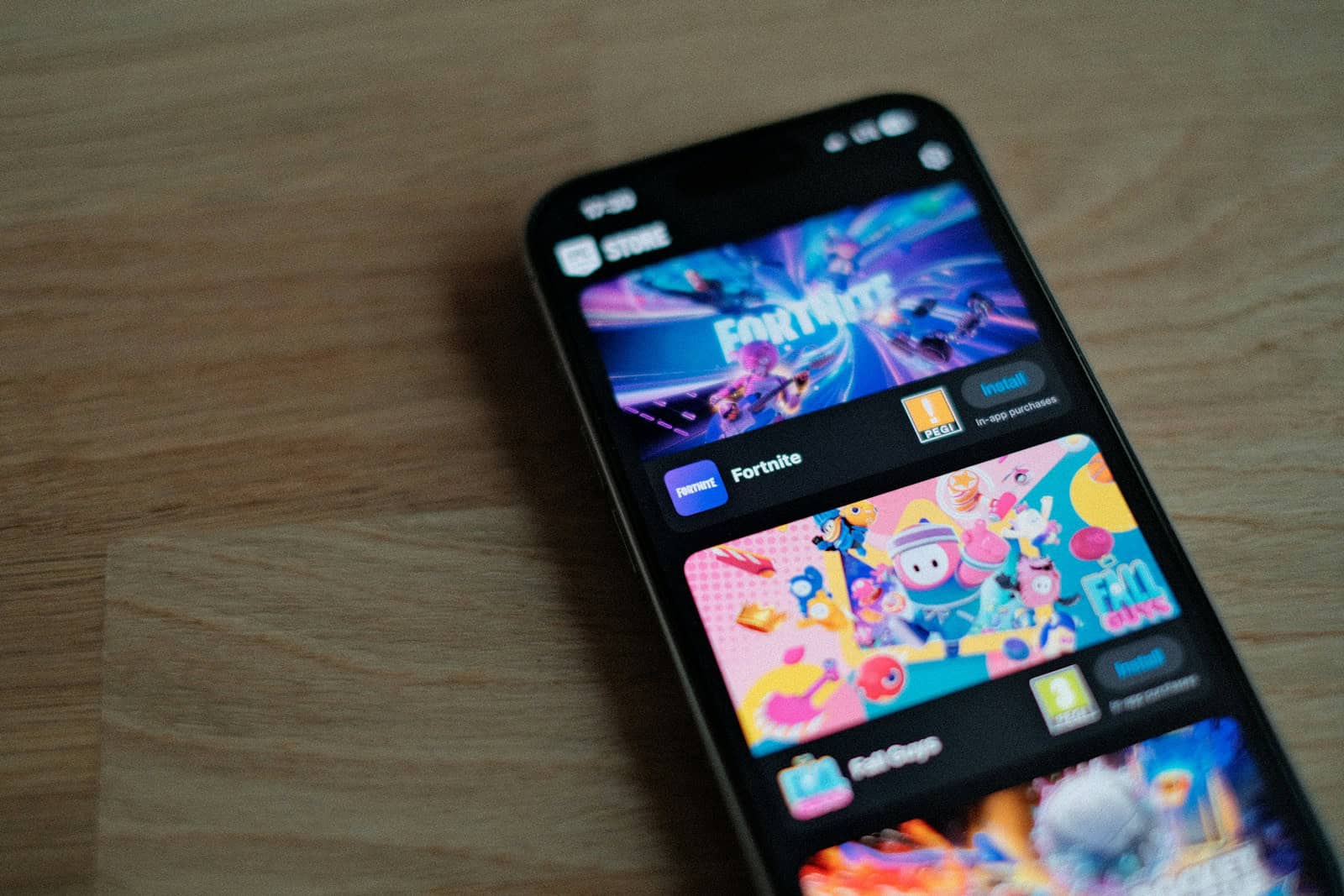
Fortnite’s availability on iPhone has changed several times over the years due to legal and platform disputes. As of 2026, whether you can install Fortnite directly from the App Store depends on your region — but there are still multiple ways to play Fortnite on an iPhone.
This guide explains every working method, including cloud gaming, remote play, and regional options.
Is Fortnite Available on iPhone?
The answer depends on your location.
- ✅ In some regions (such as the European Union), Fortnite may be available through alternative app distribution methods.
- ❌ In other regions, Fortnite is not available directly through Apple’s App Store.
- ✅ However, cloud gaming and remote play solutions work almost everywhere.
Let’s look at your options.
1️⃣ Play Fortnite Using Xbox Cloud Gaming (Free Option)
One of the easiest ways to play Fortnite on iPhone is through Xbox Cloud Gaming.
✅ Why It’s Popular
- No download required
- Free to play Fortnite
- Works in Safari browser
- No Xbox console required
✅ How to Play:
- Open Safari on your iPhone
- Go to xbox.com/play
- Sign in with a Microsoft account
- Search for Fortnite
- Tap Play
For better performance, add the site to your Home Screen for a full-screen experience.
⚠ Requirements:
- Stable high-speed internet (at least 10–20 Mbps recommended)
- Low latency connection
- Bluetooth controller recommended (though touch controls are supported)
2️⃣ Play via NVIDIA GeForce NOW
Another cloud-based method is NVIDIA GeForce NOW.
✅ How It Works:
- Streams Fortnite from powerful remote servers
- Uses your Epic Games account
- Runs in Safari browser
✅ Steps:
- Visit play.geforcenow.com in Safari
- Create or log into an NVIDIA account
- Link your Epic Games account
- Launch Fortnite
GeForce NOW offers free and paid tiers. Paid plans offer longer session times and better performance.
3️⃣ Download Fortnite in the European Union (Alternative App Stores)
Due to digital marketplace regulations in the EU, Apple allows alternative app marketplaces.
If you are located in the European Union, you may be able to:
- Download Fortnite through an authorized third-party marketplace
- Install Epic Games’ distribution platform (if supported)
Availability depends on current regulations and Epic’s distribution status.
⚠ This option is region-specific and may not be available worldwide.
4️⃣ Use Remote Play from a Console
If you already own a gaming console, you can stream Fortnite to your iPhone.
✅ Xbox Remote Play
Requirements:
- Xbox console (Series X/S or One)
- Fortnite installed
- Xbox app on iPhone
- Same Wi-Fi network (or strong internet for remote access)
Steps:
- Install the Xbox app
- Enable Remote Play on your console
- Connect and stream to your iPhone
✅ PlayStation Remote Play
Requirements:
- PS4 or PS5
- Fortnite installed
- PS Remote Play app
Steps:
- Download PS Remote Play
- Pair your console
- Start streaming Fortnite
This method provides a near-console experience if you have fast internet.
5️⃣ Play Using a Gaming PC with Steam Link or Remote Desktop
If you have Fortnite installed on a PC:
- Use Steam Link
- Or use remote desktop apps like Moonlight or Parsec
These apps stream gameplay from your computer directly to your iPhone.
Best for:
- Home network play
- High-end gaming PCs
- Controller-supported gameplay
Which Method Is Best?
| Method | Cost | Performance | Requires Console/PC | Availability |
|---|---|---|---|---|
| Xbox Cloud Gaming | Free | Good | No | Most regions |
| GeForce NOW | Free/Paid | Very Good | No | Most regions |
| EU App Download | Free | Native | No | EU Only |
| Console Remote Play | Free | Excellent | Yes | Worldwide |
| PC Remote Play | Free | Excellent | Yes | Worldwide |
For most users, Xbox Cloud Gaming is the simplest and most accessible option.
Do You Need a Controller?
Not necessarily — but it helps.
- Fortnite supports touch controls on cloud platforms
- Bluetooth controllers (Xbox, PlayStation) improve accuracy
- Some competitive modes are easier with a controller
To connect a controller:
- Enable Bluetooth in iPhone Settings
- Put controller in pairing mode
- Select it from the device list
Internet Speed Recommendations
For smooth gameplay:
- Minimum: 10 Mbps
- Recommended: 20+ Mbps
- Ping: Under 30 ms for best experience
Wi-Fi is strongly recommended over mobile data.
Is Playing Fortnite on iPhone Safe?
Yes — as long as you use:
- Official Xbox Cloud Gaming
- NVIDIA GeForce NOW
- Official console apps
- Authorized EU marketplaces
Avoid unofficial downloads or third-party APK-style services claiming to install Fortnite directly on iOS outside supported regions.
Final Thoughts
Even though Fortnite’s App Store availability has changed over time, there are still multiple reliable ways to play Fortnite on iPhone in 2026.
✅ Easiest: Xbox Cloud Gaming
✅ Best Performance: Console or PC Remote Play
✅ Native Install: EU alternative marketplaces (if available)
Cloud gaming has made it easier than ever to jump into Fortnite matches directly from your iPhone — no App Store download required.





