
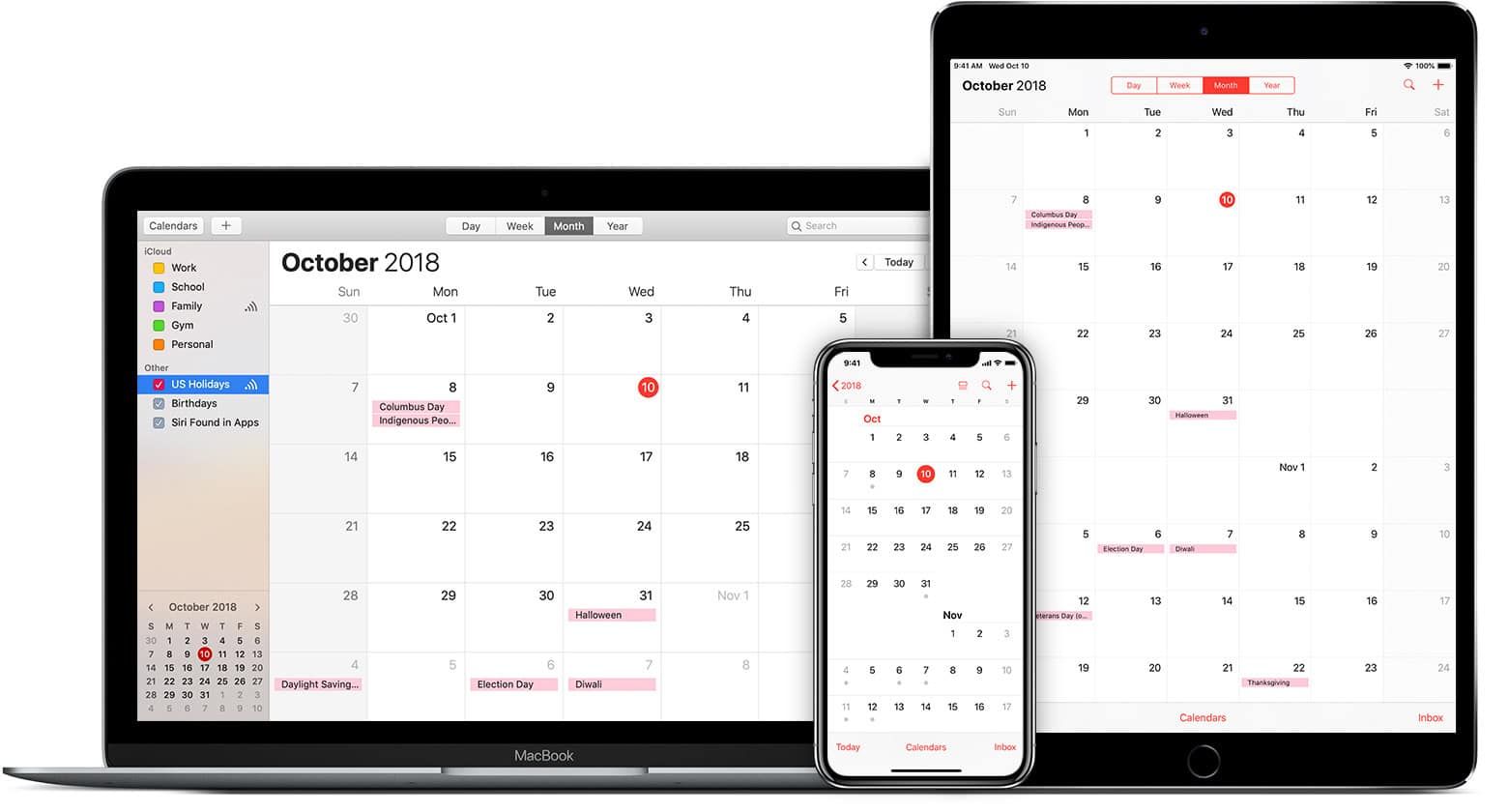
Accidentally deleting calendar data on an iPhone can cause a lot of stress. Thankfully, there is a way to get that important information back. Users can restore their calendars through iCloud, provided they have previously backed up their information there. Restoring lost data involves navigating to iCloud.com and making use of the Data Recovery feature. This process can bring back calendars, contacts, and bookmarks.
Sometimes calendar events may disappear from an iPhone because of syncing issues. Refreshing the Calendar app or resyncing the device can also recover past calendar events. If the Calendar app itself is missing, locating and reinstalling it is straightforward using the device’s Search or the App Store. Keeping important dates and events is crucial for many, and the iPhone ensures that recovering this data is possible through these methods.
How to Restore Calendar on iPhone
If your iPhone calendar events disappeared, don’t panic. In most cases, missing calendar entries can be restored by checking sync settings, re‑enabling accounts, or restoring from a backup.
This guide walks you through all the ways to restore your Calendar on iPhone, from quick fixes to full recovery options.
Common Reasons Calendar Events Disappear
- iCloud Calendar syncing is turned off
- Email account (Gmail, Outlook, etc.) was removed
- iOS update caused a sync issue
- Calendar view filters are hiding events
- Data loss after device reset or restore
Quick Fixes to Try First
1. Restart Your iPhone
A simple restart can resolve temporary sync issues:
- Hold the Side button + Volume button
- Slide to power off
- Turn your iPhone back on
2. Check Calendar View Settings
Sometimes events are hidden, not deleted.
- Open the Calendar app
- Tap Calendars at the bottom
- Make sure all calendars are checked
- Tap Done
3. Check the Correct Date
Make sure you’re viewing the right day, week, or month:
- Switch between Day, Week, Month, or List view
- Scroll to see if events appear elsewhere
Restore Calendar Using iCloud
4. Turn iCloud Calendar Off and On
This refreshes syncing.
- Go to Settings
- Tap your Apple ID
- Tap iCloud
- Toggle Calendars off
- Choose Keep on My iPhone
- Restart your iPhone
- Turn Calendars back on
5. Restore Deleted Calendars from iCloud.com
If events were deleted recently:
- Go to iCloud.com
- Sign in with your Apple ID
- Tap Account Settings
- Scroll to Advanced
- Select Restore Calendars
- Choose a date before the events disappeared
- Click Restore
This replaces current calendars with the restored version.
Restore Calendar from Email Accounts
6. Re‑Enable Calendar Accounts (Gmail, Outlook, Yahoo)
- Go to Settings → Calendar → Accounts
- Tap the account you use for events
- Make sure Calendars is turned on
If needed:
- Remove the account
- Restart your iPhone
- Add the account again
Restore Calendar from an iPhone Backup
7. Restore from iCloud Backup
Use this only if other methods fail.
- Go to Settings → General → Transfer or Reset iPhone
- Tap Erase All Content and Settings
- During setup, choose Restore from iCloud Backup
- Select a backup from before events disappeared
⚠️ This replaces current data added after the backup.
8. Restore from Computer Backup (Finder or iTunes)
- Connect iPhone to a Mac or PC
- Open Finder (Mac) or iTunes (Windows)
- Select your iPhone
- Click Restore Backup
Check iOS Date & Time Settings
Incorrect date settings can hide events:
- Go to Settings → General → Date & Time
- Enable Set Automatically
When Calendar Events Can’t Be Restored
Calendar events may be permanently lost if:
- No iCloud or local backup exists
- Events were deleted long ago
- The account storing the calendar was permanently removed
How to Prevent Calendar Loss in the Future
- Keep iCloud Calendars enabled
- Use automatic iCloud backups
- Avoid removing calendar accounts unnecessarily
- Check calendar visibility settings regularly
Final Thoughts
Restoring your iPhone calendar is often simple once you identify where the events were stored—iCloud, email accounts, or backups. Start with sync and visibility checks, then move to iCloud restoration or backups if needed.
Most users recover their events without data loss by following these steps.
Key Takeaways
- iPhone users can restore calendar data through iCloud’s Data Recovery feature.
- Syncing problems can be solved by refreshing the Calendar app.
- Missing Calendar apps on iPhone can be reinstalled from the App Store.
Restoring Calendars from iCloud
Restoring your deleted or lost calendar events on an iPhone can be straightforward if they were previously backed up to iCloud. This section provides specific steps to get your calendar back up to date using iCloud settings and the iCloud website.
Check iCloud Settings and Backup
First, make sure iCloud handles your calendars. Open the Settings app on your iPhone, tap on [your name], and then choose iCloud. Here, you should see Calendars listed among the apps using iCloud. If it’s not on, toggle it to enable syncing.
Now, check for any existing backups. iCloud automatically creates backups of your calendars regularly. If you’ve lost events, it’s likely due to an interruption in syncing or an accidental deletion. By restoring a backup, you might recover your missing information. Go to Settings, tap your Apple ID, iCloud, then iCloud Backup. If a recent backup is there, it might include your lost calendars.
Using iCloud.com to Restore Calendars
Sometimes you might need to use the iCloud website to recover your calendar events. Here’s how to do it:
- Visit iCloud.com and log in with your Apple ID.
- Once logged in, click on Account Settings.
- Scroll down to the bottom of the page to Advanced and click on Restore Calendars.
Here, a list of archives will appear. These are snapshots of your calendar at various dates and times.
- Choose an archive: Select the version dated before you noticed your calendars were missing.
- Click on “Restore”: Restored calendars will replace current events.
Be aware that when restoring from an archive, sharing information for calendars shared with you might not come back. It’s good practice to note which calendars others share with you before restoring from an archive, as you might need to ask them to share again.
Recovering Calendar Data on iPhone
When an iPhone calendar goes missing, it can be a significant inconvenience. This section provides instructions for iPhone users to recover lost or deleted calendar events using different methods.
Using Data Recovery Software
Data recovery software like Dr.Fone offers a solution for iPhones to retrieve lost calendar data. First, download and install the recovery software on a computer. Connect the iPhone—whether it is an iPhone 14 or an older model—to the computer. Follow the software instructions to scan the device and find deleted calendar events. Select the events you wish to recover and restore them to the iPhone.
Reinstalling the Calendar App from App Store
If the iPhone calendar is missing from the home screen, you may need to reinstall the app. Open the App Store and tap Search. Enter “Calendar” in the search bar and press Search again. The Calendar app should appear, and you can download it by tapping the cloud icon. If “Open” is visible, the app is still on your device; tap it to access your calendar.
Performing a Factory Reset
A factory reset should be a last resort as it erases all data from the iPhone. Before proceeding, ensure you have a backup. If so, go to Settings, tap on General, then Reset, and choose “Erase All Content and Settings.” Once the reset completes, restore the iPhone from a backup that includes your calendar data via iCloud or a computer. Remember, this will revert the iPhone to its original settings and data.
Each method offers a way to bring back access to essential calendar information. Choose the one that best suits your situation, and your iPhone calendar should be back in no time.





