
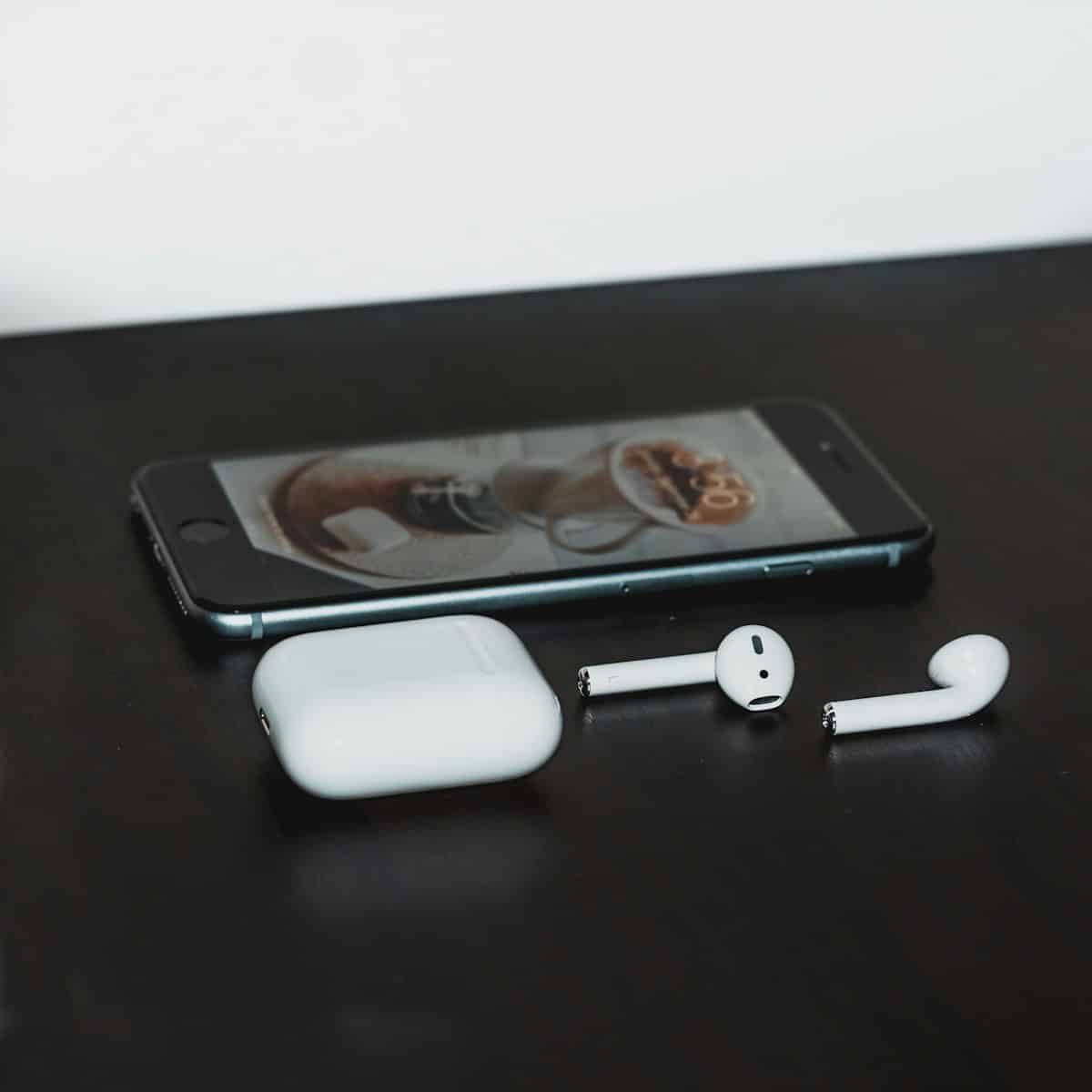
AirPods have become a popular wireless earbud choice for iPhone users. These sleek devices offer convenience and high-quality sound. But to get the most out of your AirPods, you’ll want to adjust their settings on your iPhone.
You can customize your AirPods settings directly from your iPhone’s Bluetooth menu or the Settings app. This allows you to change the name of your AirPods, adjust touch controls, and set up features like Spatial Audio or Automatic Ear Detection.
Different AirPods models offer varied settings. The AirPods Pro and AirPods Max provide more advanced options like Active Noise Cancellation and Transparency mode. You can easily switch between these modes to suit your environment and listening preferences.
| AirPods Model | Key Features |
|---|---|
| AirPods (2nd & 3rd gen) | Double-tap controls, Automatic Ear Detection |
| AirPods Pro | Active Noise Cancellation, Transparency mode, Spatial Audio |
| AirPods Max | Digital Crown for volume control, Noise Control button |
AirPod Settings on iPhone: Optimizing Your Wireless Experience
Your AirPods work great out of the box — but customizing the settings on your iPhone can dramatically improve sound quality, call clarity, battery performance, and overall convenience.
Here’s a complete guide to optimizing your AirPods settings on iPhone.
✅ How to Access AirPods Settings on iPhone
- Put your AirPods in your ears (or open the charging case lid).
- Open Settings.
- Tap your AirPods name at the top of the screen
(or go to Settings > Bluetooth > Tap the “i” next to your AirPods).*
Apple confirms this is the standard method for accessing AirPods settings (source: Apple Support).
🔊 1. Customize Noise Control (AirPods Pro & AirPods Max)
By default, pressing and holding the stem switches between:
- Active Noise Cancellation
- Transparency Mode
You can customize this:
How to change it:
- Go to Settings > AirPods
- Tap Press and Hold AirPods
- Choose which listening modes you want toggled
Apple allows you to choose which modes the press-and-hold gesture cycles through (source: Apple Support).
✅ Tip: Add all three modes (Noise Cancellation, Transparency, Off) if you want full manual control.
🎤 2. Change Microphone Settings
By default, AirPods automatically switch between left and right microphones.
You can manually select:
- Always Left
- Always Right
- Automatically Switch
Why change it? If one AirPod has mic issues, setting the working one as the default improves call clarity.
👂 3. Enable or Disable Automatic Ear Detection
When enabled, your AirPods:
- Automatically pause music when removed
- Resume playback when reinserted
To adjust:
- Go to Settings > AirPods
- Toggle Automatic Ear Detection
Disabling this can help if:
- Audio cuts out unexpectedly
- Sensors malfunction
🎧 4. Personalize Spatial Audio (AirPods Pro & 3rd Gen+)
Spatial Audio creates immersive surround sound.
To enable:
- Wear your AirPods.
- Go to Control Center.
- Long‑press the volume slider.
- Toggle Spatial Audio.
You can also personalize it in: Settings > AirPods > Spatial Audio
✅ Best for movies, Apple TV+, and Dolby Atmos music.
🔋 5. Optimize Battery Charging
AirPods learn your charging habits and delay charging past 80% to reduce battery aging.
Check it here: Settings > AirPods > Optimized Battery Charging
Keep this ON for longer battery lifespan.
🎶 6. Adjust Audio Accessibility Settings
For better sound customization:
Go to: Settings > Accessibility > Audio/Visual > Headphone Accommodations
You can:
- Boost vocals
- Adjust tone balance
- Amplify soft sounds
- Customize audio using an audiogram
This dramatically improves clarity for users with hearing differences.
📱 7. Customize Touch Controls (Non‑Pro Models)
Depending on your model:
- Double‑tap (older AirPods)
- Press or swipe (newer models)
You can assign:
- Play/Pause
- Skip track
- Activate Siri
- Noise control
These options are available under your AirPods settings (source: PCMag).
🔔 8. Enable Announce Notifications
Your AirPods can read notifications aloud.
To enable:
- Go to Settings > Notifications
- Tap Announce Notifications
- Turn on for AirPods
Great for hands‑free use while driving or exercising.
📍 9. Use Find My for AirPods
If you misplace them:
- Open the Find My app
- Tap Devices
- Select your AirPods
You can:
- Play a sound
- View last known location
- Enable Lost Mode (supported models)
⚙️ 10. Rename Your AirPods
To personalize:
- Go to Settings > AirPods
- Tap the current name
- Enter a new one
Helpful if you own multiple pairs.
🔄 11. Reset AirPods (If Experiencing Issues)
If sound cuts out or pairing fails:
- Put AirPods in case.
- Hold the setup button on the back for ~15 seconds.
- Wait for the status light to flash amber, then white.
- Reconnect.
Resetting fixes most connection and syncing issues.
🧠 Pro Optimization Tips
✔ Keep firmware updated (updates install automatically while charging and connected to iPhone).
✔ Use one AirPod at a time to extend battery life.
✔ Keep firmware current by charging near your iPhone.
✔ Clean speaker meshes regularly for better sound quality.
🎯 Best Recommended Settings for Most Users
- ✅ Noise Control: Include all modes
- ✅ Automatic Ear Detection: ON
- ✅ Optimized Battery Charging: ON
- ✅ Headphone Accommodations: Personalized
- ✅ Announce Notifications: ON (optional convenience)
Final Thoughts
Your AirPods are highly customizable — and most users never adjust these settings. Taking a few minutes to personalize them can:
- Improve sound quality
- Enhance call clarity
- Extend battery life
- Create a more immersive listening experience
Setting Up Your AirPods with iPhone
AirPods offer seamless integration with iPhones. The setup process is quick and straightforward. You can customize settings and use Find My to keep track of your earbuds.
Pairing AirPods with Your iPhone
To connect your AirPods to your iPhone, follow these steps:
- Go to your iPhone’s Home Screen
- Open the AirPods charging case
- Hold the case near your iPhone
- Tap “Connect” on the setup animation
- Follow on-screen instructions
For AirPods Pro or newer models, extra steps may appear. Once paired, your AirPods will auto-connect to your iPhone when taken out of the case.
The Bluetooth menu in Settings shows connected AirPods. You can also access quick controls through Control Center. This makes switching between devices easy.
Customizing AirPod Names
Personalizing your AirPods name helps identify them:
- Put AirPods in the charging case
- On your iPhone, go to Settings > Bluetooth
- Tap the “i” next to your AirPods
- Select “Name”
- Type a new name
- Tap “Done”
This new name appears across all your Apple devices. It’s useful when multiple AirPods are around.
| Setting | Location | Purpose |
|---|---|---|
| Name | Bluetooth Settings | Identify AirPods |
| Double-tap | AirPods Settings | Customize controls |
| Ear Detection | AirPods Settings | Auto-pause playback |
Using Find My to Locate AirPods
The Find My app helps track lost AirPods:
- Open Find My on your iPhone
- Select the Devices tab
- Choose your AirPods from the list
You can see the last known location on a map. If nearby, you can play a sound to locate them. This works even if only one AirPod is missing.
For out-of-range AirPods, mark them as lost. This locks them to your Apple ID and helps if someone finds them.
Managing Audio Features
AirPods offer several audio settings to enhance your listening experience. These features let you control noise levels, enjoy immersive sound, and ensure a proper fit.
Enabling Noise Control Modes
AirPods Pro give you control over external noise with three modes: Active Noise Cancellation, Transparency, and Off. To switch between these, press and hold the force sensor on either AirPod stem.
Active Noise Cancellation blocks outside sounds. It’s ideal for noisy environments. Transparency mode lets in ambient noise. This is useful when you need to hear your surroundings.
To customize these settings:
- Open Settings on your iPhone
- Tap Bluetooth
- Tap the “i” next to your AirPods
- Select Noise Control
You can also add Noise Control to Control Center for quick access.
Customizing Spatial Audio Settings
Spatial Audio creates an immersive sound experience. It makes audio seem like it’s coming from all around you. To enable Spatial Audio:
- Connect your AirPods to your iPhone
- Go to Settings > Bluetooth
- Tap the “i” next to your AirPods
- Turn on Spatial Audio
Personalized Spatial Audio tailors the experience to your ear shape. To set this up:
- Go to your AirPods settings
- Tap Personalized Spatial Audio
- Follow the on-screen instructions
This process uses your iPhone’s camera to scan your ears and head.
Conducting an Ear Tip Fit Test
For AirPods Pro, getting the right fit is crucial for optimal sound and noise cancellation. The Ear Tip Fit Test helps you choose the best ear tips. To run the test:
- Connect your AirPods Pro to your iPhone
- Go to Settings > Bluetooth
- Tap the “i” next to your AirPods Pro
- Select Ear Tip Fit Test
- Tap Continue and follow the instructions
The test plays audio and uses the AirPods’ microphones to check the seal. It will suggest if you need to adjust the tips or try a different size.
| Ear Tip Size | Best For |
|---|---|
| Small | Smaller ear canals |
| Medium | Most users |
| Large | Larger ear canals |
If the test shows a good seal, you’re set for the best audio experience.
Interacting with Siri and Control Settings
AirPods offer various ways to interact with Siri and control your audio. You can customize these settings to suit your preferences and make your AirPods more convenient to use.
Activating Siri for Hands-Free Assistance
To use Siri with your AirPods, you need to enable the feature first. Go to Settings > Bluetooth on your iPhone. Tap the “i” icon next to your AirPods. Select “Siri & Search” and turn on “Listen for ‘Hey Siri'”.
Once activated, you can say “Hey Siri” followed by your request. This works even when your iPhone is in your pocket or bag.
For AirPods Pro, you can also set up Siri to respond to head gestures. This lets you answer yes or no to Siri’s questions by nodding or shaking your head.
Changing Press-and-Hold Actions
AirPods Pro allow you to customize the press-and-hold action on each earbud. To change this:
- Open Settings > Bluetooth
- Tap the “i” next to your AirPods Pro
- Under “Press and Hold AirPods”, choose Left or Right
- Select Noise Control or Siri
You can set different actions for each earbud. For example, use the left for Noise Control and the right for Siri.
Noise Control lets you switch between Active Noise Cancellation and Transparency modes. This gives you quick control over how much outside sound you hear.
Adjusting Double-Tap Gestures
For standard AirPods, you can customize the double-tap gesture. Here’s how:
- Go to Settings > Bluetooth
- Tap the “i” next to your AirPods
- Under “Double-Tap on AirPod”, choose Left or Right
- Select your preferred action
You can set the double-tap to:
- Activate Siri
- Play/Pause
- Next Track
- Previous Track
These settings let you control your audio without reaching for your iPhone. It’s handy when your hands are full or your phone isn’t easily accessible.
| Feature | AirPods | AirPods Pro |
|---|---|---|
| Siri Activation | “Hey Siri” or Double-Tap | “Hey Siri” or Press-and-Hold |
| Noise Control | Not Available | Press-and-Hold |
| Audio Control | Double-Tap | Press-and-Hold or Stem Squeeze |
Customize these settings to make your AirPods work best for you. Try different configurations to find what feels most natural and efficient.
Optimizing AirPods Performance
AirPods offer several features to enhance your listening experience. These settings can improve battery life, audio quality, and sharing capabilities.
Maximizing Battery Life
To extend your AirPods’ battery life, adjust the Optimized Battery Charging setting. This feature learns your charging habits and delays charging past 80% until you need to use them.
Turn off Automatic Ear Detection when not in use. This prevents accidental activation and saves power.
Use one AirPod at a time for extended listening sessions. This allows you to charge one while using the other.
Store AirPods in their case when not in use. The case provides additional charging cycles.
| Battery Saving Tip | Effect |
|---|---|
| Use one AirPod | Doubles listening time |
| Store in case | Provides extra charges |
| Disable features | Reduces power drain |
AirPods Automatic Ear Detection
Automatic Ear Detection pauses audio when you remove an AirPod and resumes when you put it back in. This feature saves battery and prevents missed content.
To enable or disable this feature:
- Go to Settings on your iPhone
- Tap Bluetooth
- Tap the “i” next to your AirPods
- Toggle Automatic Ear Detection
Consider turning this off if you frequently remove one AirPod to hear your surroundings.
Sharing Audio with AirPlay
AirPlay lets you share audio from one device to two sets of AirPods. This is great for watching movies or listening to music with a friend.
To use Audio Sharing:
- Connect your AirPods to your iPhone
- Ask your friend to bring their AirPods close to your phone
- Tap “Share Audio” on the popup
- Your friend should put on their AirPods
You can adjust volume separately for each set of AirPods. This ensures both listeners have a comfortable experience.
Frequently Asked Questions
AirPods offer many customizable settings through your iPhone. These options let you personalize your listening experience and control various features.
How do I change the tap controls on my AirPods?
You can customize the double-tap function on your AirPods. Go to Settings > Bluetooth on your iPhone. Tap the “i” icon next to your AirPods. Choose Left or Right, then select the desired action for double-tap.
How can I activate noise cancellation on my AirPods Pro using my iPhone?
To enable noise cancellation, open Control Center on your iPhone. Press and hold the volume slider. Tap Noise Control, then select Noise Cancellation mode.
What steps are involved in resetting my AirPods to factory settings?
- Put them in the case.
- Open the lid.
- Press and hold the button on the back for about 15 seconds.
- Wait for the status light to flash amber, then white.
Your AirPods are now reset and ready to pair again.
How can I adjust the sound settings on my AirPods through my iPhone?
You can adjust EQ settings for your AirPods in the Music app. Go to Settings > Music > EQ. Choose a preset that suits your preferences.
Is it possible to configure different actions for a double-tap on my AirPods?
Yes, you can set different actions for each AirPod. In Bluetooth settings, tap the “i” next to your AirPods. Select Left or Right, then choose a different action for each.
How can I change the name of my AirPods using my iPhone?
To rename your AirPods:
- Go to Settings > Bluetooth.
- Tap the “i” next to your AirPods.
- Tap “Name” and enter your desired name.
- Tap “Done” to save the new name.
| Feature | How to Access |
|---|---|
| Double-tap settings | Settings > Bluetooth > AirPods (i) |
| Noise cancellation | Control Center > Hold volume slider |
| EQ settings | Settings > Music > EQ |
| Rename AirPods | Settings > Bluetooth > AirPods (i) > Name |





