
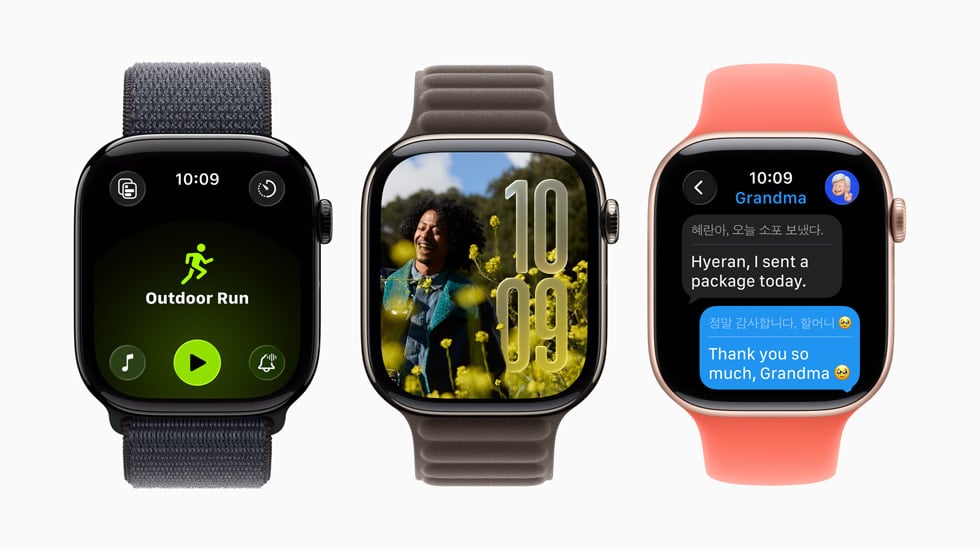
Changing your Apple Watch face is a quick way to refresh your device’s look. Whether you’re bored with your current display or want something that better suits your mood or outfit, Apple offers many options to pick from. To change your Apple Watch face, simply press and hold your current watch face until you feel a haptic response, then swipe left or right to browse through your saved faces.
The process is slightly different depending on which watchOS version you’re using. On newer versions like watchOS 10 or 11, you may need to enable the swipe feature in your settings first. If you want more face options, you can add new ones through the Face Gallery in the Apple Watch app on your iPhone.
How To Change Your Apple Watch Face
Changing your Apple Watch face is quick and easy. You can do it directly on your watch or through the Watch app on your iPhone. Follow the steps below to customize your watch to match your style and needs.
Method 1: Change the Watch Face on Your Apple Watch
- Wake your Apple Watch
- Raise your wrist or tap the screen.
- Press and hold the current watch face
- Hold down on the screen until the face gallery appears.
- Swipe left or right
- Browse through your existing watch faces.
- Tap a face
- Select the face you want to use.
Add a New Watch Face
- Press and hold the watch face.
- Swipe all the way to the left and tap “+” (Add).
- Scroll using the Digital Crown to browse faces.
- Tap Add to set it.
Method 2: Change the Watch Face Using Your iPhone
- Open the Watch app on your iPhone.
- Tap the Face Gallery tab at the bottom.
- Browse or search for a watch face you like.
- Tap the face, customize it (colors, complications, style).
- Tap Add to sync it to your Apple Watch.
Customize Your Watch Face
You can personalize most watch faces with colors, styles, and complications (small widgets like weather, activity, or battery).
Customize on Apple Watch
- Press and hold the watch face.
- Tap Edit.
- Swipe left or right to adjust colors, styles, or complications.
- Turn the Digital Crown to make changes.
- Tap the screen or press the Digital Crown to save.
Customize on iPhone
- Open the Watch app.
- Tap My Watch.
- Select a watch face under My Faces.
- Adjust colors, styles, and complications.
Tips for Choosing the Right Watch Face
- For productivity: Try Modular, Modular Duo, or Infograph.
- For fitness: Activity Digital or Nike faces work well.
- For style: California, Portraits, or Solar Dial offer a polished look.
- For simplicity: Numerals or Simple faces keep things clean.
Troubleshooting
- Can’t change the face? Make sure your watch isn’t in Sleep Mode or Schooltime.
- Face not syncing? Ensure your iPhone and Apple Watch are connected via Bluetooth.
Key Takeaways
- Press and hold your current watch face until you feel haptic feedback, then swipe left or right to browse through faces.
- Add new watch faces by tapping the plus icon after holding down your screen or using the Face Gallery in the iPhone Apple Watch app.
- Enable the “Swipe to Switch Watch Face” feature in your watch settings for easier face changing on newer watchOS versions.
Understanding Apple Watch Faces
Apple Watch faces let you personalize your watch with different designs and useful information. Each face can be customized to show the information that matters most to you, from the time and date to weather updates and notifications.
Types of Watch Faces
Your Apple Watch comes with a variety of watch faces to choose from. These range from simple analog designs to information-rich digital displays.
Some popular types include:
- Modular: Shows multiple pieces of information at once
- Photos: Displays your favorite pictures
- Infograph: Presents up to eight complications
- Activity: Helps track fitness goals
- Portraits: Shows your portrait photos with depth effects
You can browse all available options in the Face Gallery in the Apple Watch app on your iPhone. This makes it easy to find faces that match your style and needs.
Each face comes in different colors too. You can pick colors that match your band or outfit for a coordinated look.
Watch Face Features
Watch faces do more than just tell time. They can display helpful information through “complications” – small features that show data from apps.
Common watch face features include:
- Weather: Current temperature and conditions
- Notifications: Message and app alerts
- Calendar: Upcoming appointments
- Activity rings: Exercise progress
- Timers: Countdown displays
You can customize these features based on what’s important to you. To change faces quickly, you can swipe left or right across your watch screen. This feature can be enabled in Settings > Clock by turning on Swipe to Switch Watch Face.
To add new faces, press firmly on your current watch face until you feel a small vibration. Then swipe to find a blank slot where you can add more options.
Preparing to Change Your Watch Face
Before you change your Apple Watch face, you need to set up a few things. This ensures a smooth process when you want to switch between different looks.
First, make sure your Apple Watch is updated to the latest watchOS. Newer versions like watchOS 10.2 and later let you swipe between watch faces, which is very handy.
To enable this useful feature, you need to turn on the swipe option. Go to Settings > Clock on your Apple Watch and turn on Swipe to Switch Watch Face.
You can also use your iPhone to prepare watch faces. Open the Watch app on your paired iPhone and tap the Face Gallery tab at the bottom of the screen.
The Face Gallery shows all available watch faces. Browse through them to find styles you like. You can add these faces to your collection before switching to them on your watch.
Think about what information you want on your watch face. Each face can show different complications – small bits of information like weather, activity rings, or calendar events.
Make a mental note of when you might want different faces. A simple face for work, a fun one for weekends, or an activity-focused one for exercise can be useful options to prepare.
Changing Your Watch Face via Apple Watch
You can easily change your Apple Watch face right from your wrist. Apple offers two simple methods to switch between different watch faces without needing your iPhone.
Using the Digital Crown
The Digital Crown is a handy tool for browsing through your saved watch faces. To use this method, first tap and hold the existing watch face until it shrinks slightly. This puts your watch in face selection mode.
Once in selection mode, turn the Digital Crown to scroll through all your saved watch faces. The faces will appear one by one as you rotate the crown.
When you find a face you like, simply tap on it to select it. Your watch will immediately switch to that face and exit selection mode.
If you want to customize the face, you can tap “Edit” while in selection mode. This lets you change colors and complications before selecting it.
Using Swipe Gestures
With newer versions of watchOS (10.2 and later), Apple has added the ability to swipe between watch faces. This feature must be turned on first.
To enable swipe gestures:
- Open Settings on your Apple Watch
- Tap “Clock”
- Turn on “Swipe to Switch Face”
Once enabled, you can change faces by simply swiping left or right across your watch screen. This works from your current watch face without entering selection mode first.
If you want to add a new face, swipe left until you see the (+) icon, then tap it. This will show you available watch faces to add to your collection.
Customization and Adjustment
Apple Watch faces offer extensive personalization options that let you make your watch truly yours. You can adjust colors, add useful information through complications, and even set personal photos as backgrounds.
Changing Colors and Complications
Your Apple Watch face can be customized with different colors and complications to match your style and needs. To change colors, tap on your current watch face and press firmly to enter edit mode. Turn the Digital Crown to scroll through color options.
Complications add useful information to your watch face. These small features display data like weather, activity rings, or calendar events. To add or change complications:
- Press firmly on your current watch face
- Tap “Edit”
- Swipe left until you reach the complications screen
- Tap the complication you want to change
- Turn the Digital Crown to select a new option
Some watch faces, like the Kaleidoscope face, let you adjust patterns by turning the Digital Crown. This gives you even more ways to make the face your own.
Setting Photographs as Watch Face
Using your own photos as watch faces adds a personal touch to your Apple Watch. You can choose single photos or create a rotating gallery of your favorite memories.
To set up a photo watch face:
- Open the Watch app on your iPhone
- Go to the Face Gallery tab
- Select Photos or Portraits watch face
- Choose individual photos or albums
With the Photos watch face, you can select up to 24 images that will rotate each time you raise your wrist. The Portrait face uses depth information to create a layered effect with the time appearing behind the subject.
You can also add a new photo face directly from the Photos app. Just select a photo, tap the share button, and choose “Create Watch Face.”
Using the Watch Face Gallery
The Watch Face Gallery lets you browse and add new faces to your Apple Watch. It’s found in the Watch app on your iPhone.
To access the Gallery, open the Watch app and tap the “Face Gallery” tab at the bottom of the screen. Here you’ll see all available watch faces organized by style.
Browsing Options
The Gallery offers many different face styles:
- Portraits
- Photos
- Activity
- Modular
- And many more!
Each face shows a preview image so you can quickly scan for one you like. When you find an interesting face, tap it to see more details.
You can customize most faces before adding them to your watch. Change colors, add complications, or adjust other settings specific to that face design.
After making your selections, tap “Add” to send the face to your Apple Watch. The new face will appear in your collection of faces on the watch.
The Gallery also shows featured faces at the top. These often highlight seasonal options or new designs that came with recent watchOS updates.
Some faces work best with certain Apple Watch models. The app will show which faces are right for your watch.
Try different faces for different needs. You might want an information-rich face for work and a simpler one for evenings.
Once you’ve added multiple faces to your watch, you can easily switch between them by swiping from edge to edge on the watch screen.
Managing Watch Faces
The Apple Watch provides multiple ways to add, organize, and remove watch faces. This flexibility lets you customize your watch to suit different activities, moods, or outfits.
Adding New Faces
You can add new faces to your Apple Watch through your iPhone or directly on the watch. Using your iPhone, open the Watch app and tap on the Face Gallery tab at the bottom of the screen. Here you can browse all available watch faces and customize them before adding.
When you find a face you like:
- Tap on it to see customization options
- Adjust colors, complications, and other features
- Tap “Add” to put it in your collection
On the watch itself, press firmly on the current watch face until it zooms out. Swipe all the way to the right and tap the + button to add a new face. Use the Digital Crown to scroll through options.
You can also create new faces in the Watch app on your iPhone, where you’ll find more detailed customization tools.
Deleting Unwanted Faces
Removing watch faces keeps your collection organized and makes it easier to swipe between faces you actually use. You can delete faces directly on your Apple Watch or through the Watch app on your iPhone.
On your watch:
- Press and hold on the current watch face
- Swipe to the face you want to delete
- Swipe up on the face
- Tap the “Remove” button
Using your iPhone, open the Watch app and go to the “My Watch” tab. Scroll down to see your collection of faces. Tap “Edit” in the upper corner. Then tap the red minus button next to any face you want to remove and confirm by tapping “Remove.”
Deleting a face doesn’t permanently remove it from your options. You can always add it back from the Face Gallery later.
Troubleshooting Common Issues
If you’re having trouble changing your Apple Watch face, don’t worry. Several common issues have simple fixes.
After updating to WatchOS 10, some users find they can’t switch between watch faces by swiping. To fix this, open the Settings app on your watch, tap Clock, and make sure “Swipe to Switch Watch Faces” is turned on.
Basic Troubleshooting Steps:
- Restart your Apple Watch
- Restart your iPhone
- Check for software updates
- Ensure both devices have strong connections
If watch faces aren’t syncing between your iPhone and Apple Watch, try resetting sync data. Go to the Watch app on iPhone, then Settings > General > Reset > Reset Sync Data.
For editing problems, remember the correct method: touch and hold the display, then tap Edit. Swipe left to see all options.
When complications don’t work properly, check that your software is up-to-date. Outdated versions often cause unexpected issues.
If the Watch app on your iPhone shows different faces than your watch, try uninstalling and reinstalling the Watch app. This often fixes sync problems.
Remember that some watch faces are only available on newer watch models or with specific watchOS versions.
Syncing with Other Apple Devices
Apple Watch connects seamlessly with other Apple devices to ensure your watch faces and settings stay current. This connectivity makes managing your watch experience simple and consistent across your Apple ecosystem.
Pairing with iPhone
Your Apple Watch requires an iPhone to set up and manage many features, including watch faces. When you first get your watch, you’ll need to set up and pair it with your iPhone. The pairing process is straightforward:
- Turn on your Apple Watch
- Hold it near your iPhone
- Follow the on-screen instructions
After pairing, watch faces you create on your iPhone will sync to your watch. If you want to change faces from your phone, open the Watch app and tap on the face gallery.
Sometimes watch faces may not sync properly. If this happens, you can reset sync data in the Watch app. Go to Settings > General > Reset > Reset Sync Data.
Using with Mac
While Apple Watch works primarily with iPhone, it offers helpful features when used with a Mac. Your Mac can’t directly change watch faces, but the integration offers other benefits.
When your watch is near your Mac, it can:
- Automatically unlock your Mac (when enabled)
- Receive notifications on either device
- Use Apple Pay for online purchases
If you own multiple Apple Watches, you might want to sync watch faces across both devices. This usually happens when setting up a new watch, as it offers to apply current settings and faces to the new device.
For email management, you can use your watch to quickly view messages that arrive on your Mac. This allows you to stay updated without switching devices.
Frequently Asked Questions
Apple Watch offers many ways to personalize your experience through changing watch faces. Users can switch faces, add photos, and adjust settings to match their style and needs.
How can one customize the Apple Watch face with a personal photo?
To customize an Apple Watch face with a personal photo, users need to open the Watch app on their iPhone. They can select the Face Gallery tab and scroll to find the Photos watch face option.
After selecting the Photos face, they can choose a specific album or select individual photos to use. The app allows users to pick between different layouts such as a single photo or a rotating collection.
Once the photo selection is complete, users can add complications (additional features) to the face and then tap “Add” to send it to their Apple Watch.
What are the steps to change the Apple Watch face using the Digital Crown?
Changing watch faces using the Digital Crown is quick and simple. When the watch is displaying the current face, the user should press firmly on the screen (Force Touch).
This action will show the face selection mode. The user can then turn the Digital Crown to scroll through all available faces that have been added to the watch.
When the desired face appears, the user simply taps on it to select it as the current face.
Is it possible to edit the home screen layout of the Apple Watch?
Yes, Apple Watch users can edit their home screen layout. To do this, they need to press the Digital Crown to access the home screen of apps.
From there, they can press and hold on the screen until the apps start to jiggle. This enters edit mode where apps can be moved by dragging them to new positions.
Users can choose between the grid view (honeycomb pattern) or list view by firmly pressing on the home screen and selecting the preferred layout option.
How does one download and install new faces on the Apple Watch?
New watch faces can be found in the Face Gallery menu in the Watch app on the paired iPhone. Users can browse through many different face styles and designs.
After finding a face they like, users can customize it with their preferred colors and complications. Then they simply tap “Add” to install it on their watch.
Apple also allows users to receive watch faces shared by others. These shared faces arrive as links that, when tapped, open in the Watch app for installation.
What is the procedure to adjust the display settings of the Apple Watch?
To adjust display settings, users should open the Settings app on their Apple Watch. They can tap “Display & Brightness” to access these options.
From this menu, they can adjust brightness using the slider or Digital Crown. They can also enable or disable Always On display (on supported models) and adjust text size.
Other display options include wake duration (how long the screen stays on after a wrist raise) and bold text toggle for better readability.
Can the Apple Watch face be changed through the iPhone, and if so, how?
Yes, Apple Watch faces can be easily changed through the paired iPhone. Users need to open the Watch app on their iPhone and tap the “My Watch” tab.
At the top of this screen, the current watch face is displayed. Users can swipe left or right through the faces that are already on their watch to switch between them.
For more options, they can tap “Edit” or go to the “Face Gallery” tab to browse, customize, and add new faces to their collection.





